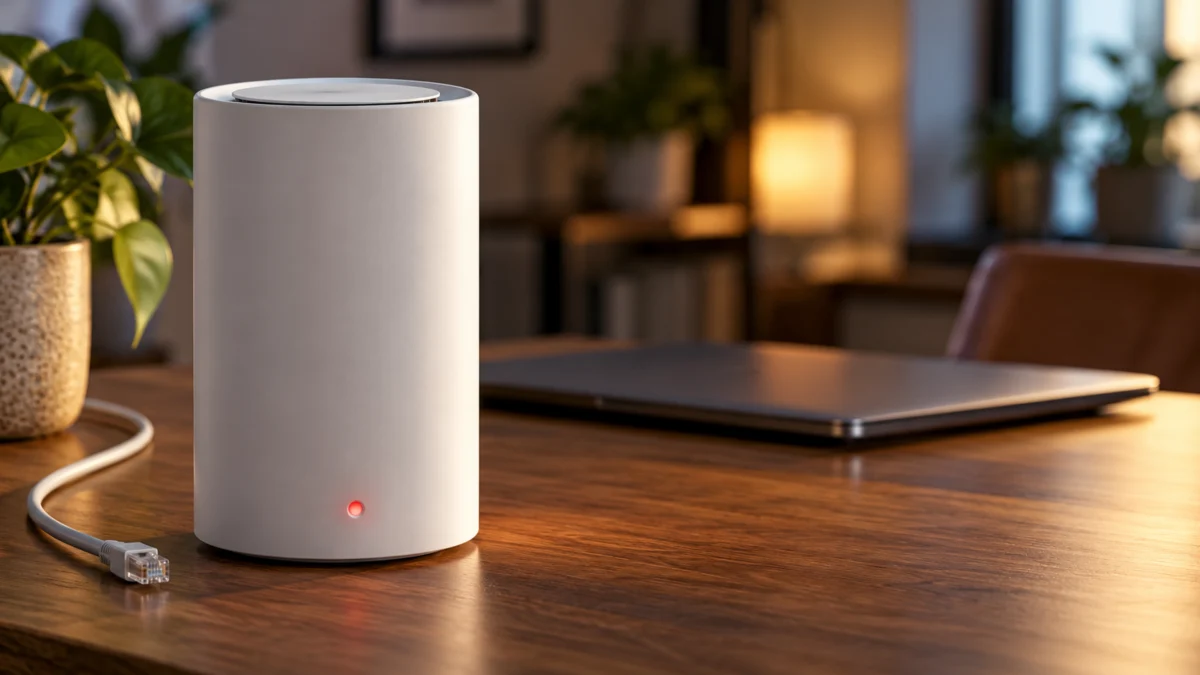
If the main unit of your TP-Link Deco BE85 shows a solid red light, it means the Deco cannot reach the internet. Start with three free checks: reseat the Ethernet cables, confirm the main Deco (not a satellite) is the unit plugged into the modem, then plug a PC or spare router straight into the modem. If that device has no internet either, ask your ISP to check the service before changing Deco settings.
Only when the modem is delivering service do DNS changes and MAC Clone come into play, and each has its own conditions. This guide covers a solid red light on the main BE85 unit only. A red satellite or a blinking pattern needs different troubleshooting. Buying a replacement belongs at the very end, after TP-Link support confirms a hardware failure.
TP-Link’s US support FAQ on the Deco solid red light lists the Deco BE85 among the models it covers explains that a steady red indicator on the main unit signals an unavailable internet connection.
Is the Red Light on the Main Deco BE85 or a Satellite?
In the expected Router-mode wiring, the main Deco is the unit connected to the modem. TP-Link’s red-light fix applies to the main unit only. A solid red light on a satellite has a different meaning and needs separate troubleshooting. Before changing any setting, confirm which unit is red, whether the light is solid, and whether your system runs in Router or Access Point mode.
| What you see | What it points to | Next step |
|---|---|---|
| Solid red on the main unit (the one wired to the modem) | The Deco cannot connect to the internet | Follow the steps below in order |
| Solid red on a satellite unit | A different condition, per TP-Link | Not covered by this fix; don’t apply these steps to it |
| A red light that blinks or pulses | Outside the scope of TP-Link’s solid-red FAQ | Not covered here; check TP-Link support for your model |
| A satellite, not the main unit, is plugged into the modem | TP-Link says this setup triggers the red light | Move the modem connection to the main Deco (Step 2) |
| Your Deco runs in Access Point mode behind another router | The Deco app’s DNS settings require Router mode | Check the upstream router’s internet settings; the DNS section below won’t apply |
Why Does the Main Deco BE85 Show a Solid Red Light?
According to TP-Link, a solid red light on the main Deco means it cannot connect to the internet. The FAQ names four common causes: loose or faulty Ethernet cables, an ISP outage, incorrect DNS settings, or a MAC address mismatch between the Deco and the ISP modem. Each cause has a specific test, so you can rule them out cheaply.
| Likely cause | How you rule it out | Where |
|---|---|---|
| Loose, old, or damaged Ethernet cable | Reseat both ends; swap any worn or damaged cable | Step 1 |
| Wrong unit connected to the modem | Confirm only the main Deco is cabled to the modem | Step 2 |
| ISP outage or no service from the modem | Connect a PC or spare router directly to the modem | Step 3 |
| DNS problem | Set manual DNS in the Deco app (Router mode only) | Step 4 |
| ISP registered your old device’s MAC address | Use MAC Clone with that device’s address | Step 5 |
TP-Link’s FAQ describes this light as typically a connectivity or configuration issue rather than a hardware fault. Treat that as the usual case, not a guarantee for every unit. If every check below passes and the light stays red, that’s when TP-Link support should look at the hardware. None of TP-Link’s five red-light steps involves a factory reset, so there’s no reason to start there.
How Do You Fix a Solid Red Light on the Main Deco BE85?
Work from the physical connection outward, and stop as soon as one step explains the red light. Steps 1 to 3 cost nothing and need no app settings. Steps 4 and 5 only make sense once the direct modem test proves your ISP service is working, so an unresolved service issue is addressed before app settings.
The fix takes 5 steps.
- Check every Ethernet cable. Secure the Ethernet plugs at both ends and exchange visibly worn or damaged leads. Pay most attention to the cable between the modem and the main Deco.
- Confirm the main Deco is the unit on the modem. In wireless router mode, run the modem connection to the main Deco and keep satellites off that modem connection. In wireless router mode, TP-Link identifies a satellite connected to the modem instead of the main unit as one cause of the red light.
- Test the modem without the Deco. Temporarily connect a computer or another router to the modem and see whether it can get online. If that device gets no internet, contact your ISP and stop here. Reconnect the main Deco to the modem when you’re done.
- Change DNS, if your setup qualifies. One option in the red-light guide is manual IPv4 DNS using 8.8.8.8 with 8.8.4.4. Check the conditions in the DNS section below first.
- Clone a MAC address, only if your ISP registered an old device. See the MAC Clone section below for when this applies and how.
After each step, check whether the main unit’s light has left solid red and whether devices on the Deco Wi-Fi can load web pages before moving on.
When Should You Change DNS on the Deco BE85?
Change DNS only after the direct modem test shows your ISP is delivering internet. TP-Link’s red-light FAQ suggests 8.8.8.8 and 8.8.4.4, while its separate DNS guide uses 8.8.8.8 and 1.1.1.1 as an example. Either pair, or a DNS provider you prefer, is a test of one cause, not a guaranteed fix.
Before you start, check the prerequisites in TP-Link’s guide to changing DNS on a Deco:
- The latest version of the Deco app is installed on your phone.
- Use the owner’s account, with your phone joined to the Deco Wi-Fi, before editing DNS.
- These DNS controls require Router mode.
- Close the Deco app if it’s running in the background, then relaunch it.
That DNS guide’s own model list doesn’t name the BE85; it’s the guide TP-Link’s BE85-applicable red-light FAQ points to. If your app doesn’t show the options below, stop rather than guessing at other menus.
- Write down the current DNS setting so you can revert it later.
- In the app, open More, then Internet Connection and Internet settings.
- Tap DNS Address, select Manual, enter your Primary and Secondary DNS addresses, then tap Save.
- Tap Save again if prompted. TP-Link notes: Saving applies the DNS change without restarting the unit.
If your Deco doesn’t allow a DNS change on the WAN side, TP-Link’s guide offers a LAN-side alternative: go to More > Advanced > DHCP Server, enter the DNS addresses, and tap Save.
When Does MAC Clone Fix a Red Deco BE85?
MAC Clone helps only when your ISP has tied service to the MAC address of your old router or computer. In that case the modem may refuse the Deco because its address doesn’t match. Don’t enable MAC Clone just because the indicator is red. Your ISP is the party that can confirm whether registration applies.
TP-Link’s MAC Clone FAQ, which lists the Deco BE85, sets a specific condition. Use cloning when the provider expects the registered address of the router or computer you previously connected. Its screenshots use a Deco M5, so your BE85 app screens may look different.
If you don’t have an old router (computer connected to the modem)
- Disconnect the main Deco from the modem and connect your computer to the modem instead. Check that the computer actually gets online through the modem first. If it has no internet, contact your ISP.
- Find your computer’s MAC address (also called the Physical Address) and note it down.
- Disconnect the computer, reconnect the modem to the main Deco, connect your phone to the Deco’s Wi-Fi, and open More > Advanced > MAC Clone in the Deco app.
- Enable MAC Clone. Choose the custom-address option, enter that computer’s MAC in the XX-XX-XX-XX-XX-XX format, and save. Then check whether the Deco gets online.
Use Client MAC Address won’t work in this situation: TP-Link explains that the Deco won’t assign a valid IP address to the client connection without internet access, so the address has to be entered manually.
If your ISP registered an old router
- Method 1: Connect the old router to the modem, sign in to its web interface, and note the MAC address shown for its Internet (WAN) side. Reconnect the main Deco, then enter that address under Use Custom MAC Address. If the old router isn’t a TP-Link model, its own maker’s support can help you find that address.
- Method 2: With the main Deco on the modem, connect the old router’s WAN/Internet port to a satellite Deco, then choose Use Client MAC Address in the MAC Clone page and select the old router.
What If the Main Deco BE85 Is Still Red?
If the cables, wiring, a working direct modem test, DNS, and (where it applies) MAC Clone all fail to clear the light, check the firmware notes for your exact hardware version and contact TP-Link technical support. Don’t jump to buying a new unit: a replacement makes sense only after support confirms a hardware fault that warranty doesn’t cover.
Check firmware for your hardware version only
TP-Link’s US Deco BE85 product page sells it as the “Deco 7 Elite BE22000 Tri-Band Whole Home Mesh WiFi 7 System” and lists V1, V2, and V3 hardware versions. Firmware is version-specific, and TP-Link warns that the wrong firmware may damage the device and void the warranty, so confirm your unit’s hardware version before reading any release notes.
For BE85 V2 owners, the V2 download page has two notes worth knowing:
- The V2 1.2.0 notes describe a fix for some disconnections accompanied by a red indicator. That note doesn’t prove firmware is behind your red light, and it says nothing about V1 or V3 units.
- For V2, version 1.2.4 is a required starting point for the 1.3.0 upgrade. TP-Link also says that firmware can’t be downgraded.
TP-Link also warns not to turn off the power during an upgrade, because it may cause permanent damage.
Contact TP-Link technical support
Tell support which unit is red, that the light is solid, which unit is cabled to the modem, the result of the direct modem test, and whether you changed DNS or used MAC Clone. A passed direct modem test plus a persistent red light is the case where support’s assessment of the hardware matters.
When a same-model replacement makes sense
Consider a replacement if:
- TP-Link support confirms the main unit has failed.
- Warranty service or other free remedies aren’t available to you.
- You want to stay on the same model rather than redesign your network.
Don’t buy anything if:
- The direct modem test failed (that’s an ISP problem).
- A satellite was on the modem, or a cable swap cleared the light.
- DNS or MAC Clone restored the connection.
- The unit is still covered by warranty for the confirmed fault.
The Amazon.com listing we confirmed is the TP-Link Deco 7 Elite BE85 Tri-Band WiFi 7 BE22000 Whole Home Mesh System two-pack. The listing doesn’t state a hardware version, and you may need only one unit, so check both against your existing system before buying.

Please check the Amazon product page for the latest price and availability.
How We Researched
This article is based on TP-Link’s US support documentation: the Deco solid red light FAQ, the Deco DNS guide, the Deco MAC Clone FAQ, the Deco BE85 V2 firmware download page, and the US Deco BE85 product page, plus the product title of the Amazon.com listing. We have not conducted hands-on lab testing. Community anecdotes are not used as evidence for a recurring defect. Where TP-Link’s documentation doesn’t name the BE85 or uses another model as its example, we say so in the text.
FAQ
Does a solid red light mean my Deco BE85 is broken?
Not usually. TP-Link describes a solid red light on the main Deco as a sign it can’t connect to the internet, typically a connectivity or configuration issue. Work through the cable, wiring, modem, DNS, and MAC Clone checks first; if the relevant checks don’t explain the problem, or the required settings are unavailable, ask TP-Link support to assess it.
Can I use these steps for a red satellite Deco?
No. TP-Link’s red-light fix applies only to the main Deco unit. A solid red light on a satellite has a different meaning and requires separate troubleshooting.
Should I use 8.8.8.8 and 8.8.4.4, or 8.8.8.8 and 1.1.1.1?
TP-Link documents both examples; neither guarantees a fix. TP-Link’s red-light FAQ uses 8.8.8.8 and 8.8.4.4, while its DNS guide uses 8.8.8.8 and 1.1.1.1 as an example and also allows your preferred DNS server. Note your previous setting so you can revert it.
Conclusion
A solid red light on the main Deco BE85 is TP-Link’s signal that the system can’t reach the internet. Check cables, make sure the main unit is the one on the modem, and test the modem directly; if the modem has no service, call your ISP. Change DNS or clone a MAC address only when those conditions apply, check firmware only for your exact hardware version, and consider a same-model replacement only after TP-Link support confirms a fault.