
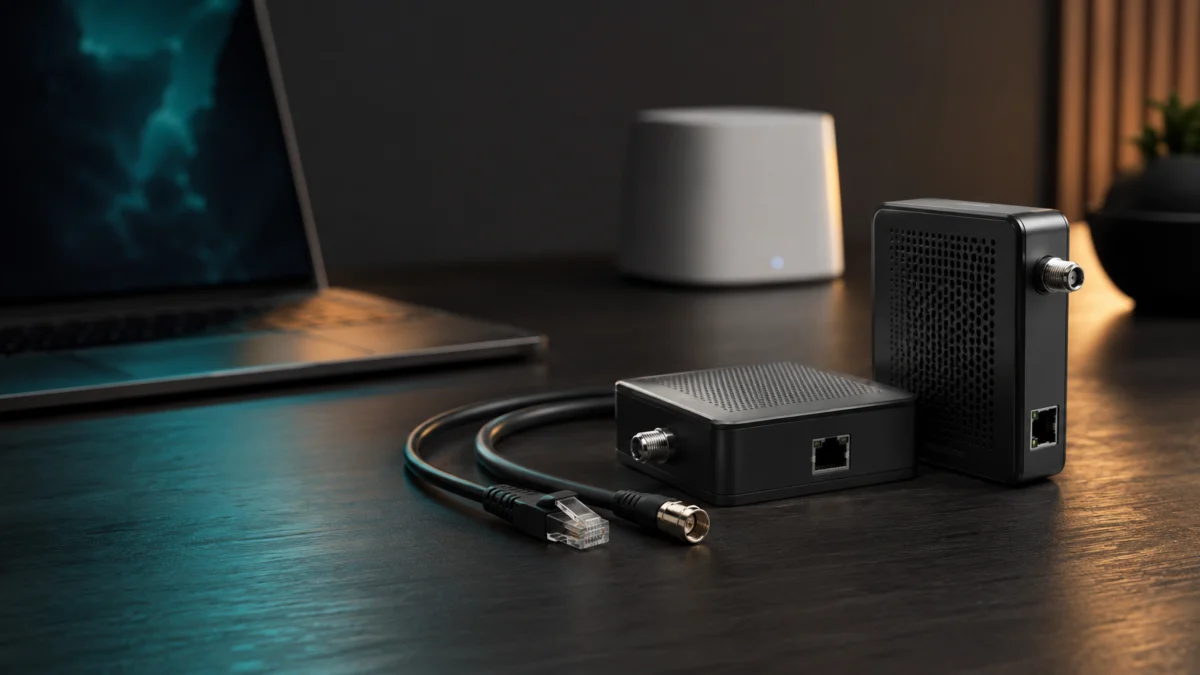
MoCA 2.5 Adapters for Gaming and Mesh Backhaul: Setup, Real Use Cases, and Who Should Skip It
MoCA 2.5 turns your home’s existing coaxial cable outlets into Ethernet connections — no wall drilling, no new wiring. If you have coax jacks in multiple rooms and your Wi-Fi mesh or powerline setup isn’t stable enough for gaming, streaming, or a home office, a pair of MoCA 2.5 adapters can deliver up to 2.5 Gbps of wired backhaul over the coax you already have. The catch: MoCA only works if your coax outlets share a continuous cable run between rooms, and it’s incompatible with satellite TV setups. This guide covers how MoCA 2.5 works, where it outperforms powerline and wireless mesh, what you actually need to buy, and which setups should look at a different solution entirely.
| Setup Category | Best For | Price Range | Key Requirement |
|---|---|---|---|
| MoCA 2.5 Adapter 2-Pack Kit | Gaming, mesh backhaul, home office | $80–$150 | Coax outlet at both ends |
| MoCA 2.5 Adapter (Single) | Homes with built-in MoCA router/modem | $50–$90 | Router with built-in MoCA support |
| PoE Filter | Cable internet (DOCSIS) environments | Under $20 | Required if you have cable internet |
| MoCA-Compatible Splitter | Homes sharing one coax line with modem | $10–$30 | Must support 5–1675 MHz or higher |
Quick Answer: When MoCA 2.5 Is Better Than Wi-Fi Mesh or Powerline
MoCA 2.5 is worth considering if you have coax cable outlets in the rooms where you need a connection, your coax runs share a continuous cable path between those rooms, and you don’t have satellite TV. If all three conditions are true, MoCA 2.5 offers significantly better latency and stability than powerline adapters, and eliminates the wireless backhaul bottleneck that limits most mid-range mesh systems.
MoCA 2.5 is likely the right choice if:
- You have coax outlets in the rooms where you need a connection
- Your home uses cable internet (Xfinity, Spectrum, Cox) or Verizon Fios
- You want a stable connection for a PS5, Xbox, gaming PC, or streaming device without running new cables
- Your Wi-Fi mesh relies on wireless backhaul and you’re seeing inconsistent speeds in satellite rooms
- You’ve tried powerline adapters and found the performance inconsistent
MoCA 2.5 will not work if:
- You have satellite TV — Dish, DirecTV, and AT&T U-verse use the same frequency bands as MoCA and are incompatible
- Your coax outlets in different rooms are not connected to the same cable run (this is common in some older homes and apartments)
- You live in an apartment where the coax lines are shared across units — signal leakage is a risk even with a PoE filter
- Your ISP’s gateway or router doesn’t support being bypassed or split at the coax input
What Is MoCA 2.5 and How Does Ethernet Over Coax Work?
MoCA stands for Multimedia over Coax Alliance. MoCA 2.5 is the current standard, operating in the Extended Band D frequency range (1125–1675 MHz) — well above the frequencies used by cable TV and DOCSIS internet, which means both can coexist on the same coaxial cable without interfering with each other in most setups.
In practical terms, a MoCA adapter connects to a coaxial outlet on one end and to a device via Ethernet on the other. Add a second adapter in another room and both devices share a high-speed wired link over the coax already running through your walls. According to the MoCA Alliance, MoCA 2.5 supports actual data rates of up to 2.5 Gbps and allows up to 16 devices per network.
Key technical details confirmed by manufacturer documentation:
- Maximum bandwidth: 2.5 Gbps (shared across all MoCA devices on the network)
- Backward compatibility: MoCA 2.5 adapters work with MoCA 2.0 and MoCA 1.1 devices, though the link will run at the lower standard’s speed
- Signal tolerance: MoCA 2.5 tolerates up to approximately 60 dB of path loss — that’s more headroom than DOCSIS, meaning multiple splitter hops are generally handled without speed loss
- Ethernet port: Current MoCA 2.5 adapters typically include a 2.5GbE Ethernet port, matching the MoCA 2.5 bandwidth limit
MoCA adapters are generally plug-and-play. Connect one adapter to your router with an Ethernet cable and plug it into a nearby coax outlet. Connect the second adapter to a coax outlet in the target room, then run a short Ethernet cable to your device. No software configuration is required in most setups.
MoCA 2.5 for Gaming: Latency, Stability, and Realistic Expectations
For gaming, MoCA 2.5 adds approximately 3 milliseconds of latency compared to a direct Ethernet connection, with reported real-world fluctuation of around ±1 ms. That level of stability puts MoCA significantly ahead of powerline adapters and Wi-Fi for applications where consistency matters more than raw throughput — including competitive online gaming, low-latency game streaming, and video calls.
MoCA 2.5 is well suited for PS5, Xbox Series X/S, gaming PCs, and game streaming devices such as NVIDIA Shield or Apple TV. The key advantage over Wi-Fi in gaming scenarios is not just average latency but the absence of the sudden spikes that wireless connections produce when interference occurs.
What to expect with MoCA 2.5 for gaming:
- Added latency of approximately 3 ms compared to direct Ethernet (based on manufacturer specs and community reports)
- Highly consistent connection — community reports describe latency fluctuation of 1 ms or less during active gaming sessions
- No wireless interference from neighboring networks, microwave ovens, or Bluetooth devices
- Effective bandwidth well above what any current gaming console or PC requires for online play
What MoCA 2.5 won’t fix:
- Your ISP’s upstream latency — MoCA improves the connection between your device and router, not between your router and the internet
- Packet loss caused by ISP-side congestion
- Problems caused by an overloaded or poorly configured router
What Real Users Report About Gaming Over MoCA
Across multiple threads on Tom’s Hardware Forums, users consistently describe MoCA as the best alternative to direct Ethernet for gaming stability. One frequently cited observation: “After an Ethernet cable, MoCA is the next best choice if you want stability. It is much better than powerline or Wi-Fi.” Several users report that latency on their MoCA connections stays between 3 and 4 ms with variation of less than 1 ms during extended gaming sessions. These reports reflect home setups with cable internet coexisting on the same coaxial network (Tom’s Hardware Forums — MoCA gaming stability thread ).
This doesn’t mean MoCA is universally trouble-free. Users in apartments, homes with older coax infrastructure, or setups that involve DOCSIS 3.1 modems report that additional setup steps — specifically PoE filter installation and splitter replacement — are required before the connection stabilizes.
✅ Buy if… (Gaming Use Case)
- You have a PS5, Xbox, or gaming PC in a room with a coax outlet but no Ethernet port nearby
- Your Wi-Fi ping is inconsistent and you’ve ruled out ISP-side issues
- You want a stable connection that doesn’t degrade during peak household network usage
❌ Don’t buy if… (Gaming Use Case)
- You have satellite TV — MoCA will not work alongside Dish, DirecTV, or AT&T U-verse
- There’s no coax outlet in the room where your gaming device is located
- Your primary problem is ISP latency rather than local network instability
Using MoCA 2.5 for Mesh Wi-Fi Backhaul
Most mid-range mesh Wi-Fi systems use a wireless backhaul — the satellite nodes communicate with each other over a dedicated wireless band. That wireless link is a shared resource, and in homes with thick walls, long distances between nodes, or heavy interference, wireless backhaul becomes the bottleneck that limits speeds to the satellite nodes. Connecting mesh nodes via MoCA instead of wireless backhaul eliminates this bottleneck entirely.
Field tests published by the MoCA Alliance, conducted by Dekra across 11 homes, showed that MoCA 2.0 wired backhaul delivered 800 Mbps or better TCP throughput in all test homes. By comparison, wireless-backhaul systems in the same test reached 300 Mbps in only 50% of homes, and some delivered less than 200 Mbps in others. MoCA 2.5 provides significantly more headroom than MoCA 2.0, making it suitable as a backhaul even for multi-gigabit ISP plans.
Before setting up MoCA as a mesh backhaul, verify the following:
- Check that your mesh system supports wired backhaul via Ethernet. Not all mesh systems do, and among those that do, not all will recognize a wired link when the Ethernet connection passes through a MoCA adapter rather than a direct cable run
- Connect the mesh node to the MoCA adapter via Ethernet — not to the coax port directly. The MoCA adapter handles the coax-to-Ethernet conversion; the mesh node connects to the adapter’s Ethernet port
- Check your mesh system’s documentation for “wired backhaul” support before purchasing MoCA adapters
Mesh Compatibility: A Known Limitation to Check First
Not all mesh systems work with MoCA-based wired backhaul. Multiple users on the TP-Link Deco community forum reported that the Deco M5, despite being connected to a MoCA extender via Ethernet, failed to establish a wired backhaul and fell back to wireless backhaul automatically. One user noted a possible cause: the IEEE 1905 protocol — which some mesh systems use to detect wired backhaul links — may not be recognized when the connection passes through a MoCA adapter (TP-Link Deco community thread, 2024 ). These reports come from multiple independent users in the same thread and are consistent with the known behavior of IEEE 1905-based mesh detection.
Mesh systems that allow you to manually designate a node as a wired satellite — rather than relying on auto-detection — are generally more reliable in MoCA backhaul setups. Check whether your system supports manual wired backhaul configuration before purchasing.
✅ Buy if… (Mesh Backhaul Use Case)
- Your mesh system’s documentation confirms it supports wired Ethernet backhaul
- You have coax outlets near each mesh node location
- Your satellite node rooms have poor wireless backhaul signal and you’re seeing dropped throughput compared to the main node
❌ Don’t buy if… (Mesh Backhaul Use Case)
- Your mesh system only supports wireless backhaul (check the spec sheet or manufacturer FAQ)
- Your mesh system uses IEEE 1905 auto-detection and you can’t find confirmation it works over MoCA
- The coax outlets at your mesh node locations are not on the same continuous cable run as your router’s coax
MoCA 2.5 vs Powerline vs Wi-Fi Mesh vs Ethernet
Each wired or wireless backhaul technology works well under different conditions. The table below compares the four main options across the factors that matter most for home networking decisions.
| Technology | Max Speed | Latency Stability | Setup | Requires | Best For |
|---|---|---|---|---|---|
| MoCA 2.5 | Up to 2.5 Gbps | Excellent (~3 ms added, ±1 ms variation) | Plug-and-play with PoE filter and compatible splitter | Coax outlet at each end; MoCA-compatible splitter; PoE filter for cable internet | Gaming, mesh backhaul, home office in coax-wired homes |
| Powerline | Up to ~2 Gbps (theoretical); real-world varies widely | Moderate; susceptible to electrical noise and circuit layout | Simple plug-in; no filter required | Electrical outlet at each location on the same circuit | Homes without coax outlets but with consistent electrical wiring |
| Wi-Fi Mesh (Wireless Backhaul) | Depends on band; backhaul typically 400–1200 Mbps | Variable; affected by walls, interference, distance | Simplest; no cables required between nodes | Power outlet near each node | Homes where coax and Ethernet wiring are unavailable |
| Ethernet (Direct Cable) | Up to 10 Gbps (Cat6A) | Best; near-zero added latency | Requires in-wall cable runs or surface routing | Physical cable path between rooms | Any use case where permanent installation is acceptable |
Among the alternatives to direct Ethernet, MoCA 2.5 consistently outperforms powerline in both speed and stability in homes where coax wiring is present. Powerline’s advantage is placement flexibility — power outlets appear in nearly every room, while coax outlets may be limited to living rooms and bedrooms. If your target room has a coax outlet, MoCA is the better choice. If it doesn’t, powerline or a Wi-Fi extender with a dedicated backhaul band are the realistic alternatives.
What You Need Before Buying a MoCA 2.5 Adapter
Before purchasing a MoCA 2.5 adapter, check the following. Missing any of these steps is the most common reason MoCA setups fail to work or perform below expectations.
1. Confirm Your Coax Outlets Are on a Shared Cable Run
MoCA requires that the coax outlets at both ends of your setup connect to the same continuous coaxial cable. In many homes, outlets in different rooms do connect to a central distribution point. However, in some older homes and most apartment buildings, individual outlets may be on separate lines that do not join together. If you’re unsure, the easiest test is to connect the adapters and see if they link — most MoCA adapters show a status light when a peer is detected.
2. Check Your TV Service Setup
MoCA 2.5 is incompatible with satellite TV services, including Dish Network, DirecTV, and AT&T U-verse. These services use overlapping frequency bands and cannot coexist with MoCA on the same coaxial cable. If you have satellite TV, MoCA is not a viable option without removing the satellite feed from the coax network. Cable TV (CATV) and Verizon Fios coexist with MoCA 2.5 without issue.
3. Install a MoCA PoE Filter If You Have Cable Internet
If your home uses cable internet (DOCSIS), you must install a MoCA Point-of-Entry (PoE) filter at the location where the coax enters your home — before any splitter. The PoE filter serves two purposes: it prevents MoCA signals from leaking onto the provider’s network (which can cause interference with neighboring subscribers), and it protects your MoCA network from DOCSIS signals in the higher frequency ranges used by DOCSIS 3.1. According to ScreenBeam’s official setup guide, DOCSIS 3.1 cable modems can be interfered with by MoCA 2.5 signals when no PoE filter is installed. PoE filters are inexpensive and widely available.
4. Replace Non-MoCA-Compatible Splitters
Standard cable TV splitters are typically rated to 1000 MHz or lower. MoCA 2.5 operates up to 1675 MHz. If your home uses a coax splitter to share the incoming line between a cable modem and other outlets, that splitter must be replaced with a MoCA-compatible model rated for 5–1675 MHz or 5–2300 MHz. Using an undersized splitter will block the MoCA signal entirely or reduce performance significantly.
5. Confirm Your Router or Modem’s Coax Setup
In most cable internet setups, the incoming coax line connects to your cable modem or modem-router gateway. To add MoCA adapters alongside your existing internet connection, you need a MoCA-compatible coax splitter that splits the incoming line — one leg to your modem and one to the MoCA network. Some all-in-one gateways (such as Verizon Fios routers) include built-in MoCA support, meaning you only need one external adapter rather than two.
Minimum shopping list for a standard MoCA 2.5 setup with cable internet:
- MoCA 2.5 adapter 2-pack kit
- MoCA PoE filter (if not already installed)
- MoCA-compatible coax splitter (2-way or more, rated 5–2300 MHz)
- Two short Ethernet cables (to connect each adapter to a device or router)
Recommended MoCA 2.5 Adapter Setup Categories
Category 1: MoCA 2.5 Adapter 2-Pack Kit
A 2-pack kit includes two adapters and is the standard starting point for most setups. Both adapters support MoCA 2.5 and include a 2.5GbE Ethernet port, matching the maximum MoCA 2.5 bandwidth. Kits from established brands in this category include the goCoax MA2500D 2-Pack and the Hitron HTEM5 Kit.
Key specs to confirm before purchasing: MoCA 2.5 compliance (not MoCA 2.0), 2.5GbE Ethernet port (not 1GbE), and compatibility notes for your ISP environment.
Check goCoax MA2500D on Amazon
/
Official site
Check Hitron HTEM5 on Amazon
/
Official site
✅ Buy a 2-Pack Kit if…
- Neither your router nor your ISP gateway has built-in MoCA support
- You need one adapter at the router end and one at the device end
- You want to start with a tested pair from the same manufacturer for compatibility assurance
❌ Don’t buy a 2-Pack if…
- Your router or gateway already has built-in MoCA (you may only need one adapter)
- You haven’t confirmed that your coax outlets share a continuous cable run
Category 2: MoCA 2.5 Single Adapter
A single adapter is the right choice when your router or ISP gateway already supports MoCA internally — as is common with some Verizon Fios routers and certain cable gateway models. In this case, only one external adapter is needed at the device end. Confirm your gateway’s MoCA version before purchasing a single adapter, as a MoCA 2.5 adapter paired with a MoCA 2.0 gateway will negotiate at the lower MoCA 2.0 speed.
✅ Buy a Single Adapter if…
- Your router or ISP gateway has confirmed built-in MoCA support
- You only need to connect one device in one room via coax
❌ Don’t buy a Single Adapter if…
- Your router has no built-in MoCA — you need two adapters to create a MoCA link
- You’re unsure whether your gateway’s built-in MoCA version matches MoCA 2.5
Category 3: MoCA PoE Filter
A PoE filter is a small, passive device that installs between the incoming coax line and the rest of your home’s coax network. If you have cable internet, this is a required component — not an optional add-on. Look for a filter labeled specifically as a “MoCA POE Filter” and compatible with cable TV and DOCSIS coaxial networks.
✅ Buy a PoE Filter if…
- You have cable internet (Xfinity, Spectrum, Cox, or similar)
- Your MoCA adapter kit did not include a PoE filter
❌ Skip the PoE Filter if…
- You have Verizon Fios (fiber — no cable TV signal entering the coax) — a PoE filter is not required, though it doesn’t hurt
- Your home’s coax is completely disconnected from any ISP feed
Category 4: MoCA-Compatible Coax Splitter
If your incoming coax line needs to serve both a cable modem and MoCA adapters, you need a MoCA-compatible bidirectional splitter rated for 5–1675 MHz minimum, or ideally 5–2300 MHz. Do not use standard CATV splitters rated only to 1000 MHz — they will block MoCA 2.5 frequencies. Every additional split point introduces signal loss (approximately 3.5 dB per 2-way split), so use the minimum number of splits your layout requires.

Please check the Amazon product page for the latest price and availability.
✅ Buy a MoCA-Compatible Splitter if…
- Your incoming coax line must be shared between a cable modem and MoCA adapters
- You have existing splitters in your coax setup that are not rated above 1000 MHz
❌ Skip the Splitter if…
- Your router connects to the network via Ethernet (Fios or fiber) and the coax runs are used only for MoCA — no split is needed
- Your MoCA kit already includes a compatible splitter
Common Setup Mistakes: Splitters, PoE Filters, and Coax Wiring
The majority of MoCA 2.5 setup failures trace back to a small set of preventable errors. If your adapters fail to link or are delivering speeds well below 2.5 Gbps, check for the following.
Using a Non-MoCA-Rated Splitter
The single most common setup error is leaving an existing CATV splitter in place. Standard splitters cut off signal above 1000 MHz. Since MoCA 2.5 operates up to 1675 MHz, any non-MoCA-rated splitter between your two adapters will prevent the connection from forming at all. Replace any splitter in the MoCA signal path with a bidirectional model rated for 5–1675 MHz or 5–2300 MHz and verify it is labeled as MoCA-compatible.
Skipping the PoE Filter
Running MoCA 2.5 without a PoE filter on a cable internet line risks two problems: MoCA signals leaking onto the provider network (which may cause issues with neighboring subscribers sharing the same tap), and DOCSIS 3.1 high-split signals interfering with MoCA 2.5 frequencies. According to Hitron’s official support documentation, omitting the PoE filter in a high-split DOCSIS environment can cause MoCA disconnects, reduced speeds, or failure to link entirely. Install the PoE filter at the point where coax enters your home, before any splitter.
Assuming All Coax Outlets Are Connected
Not all coax jacks in a home connect to the same cable run. In some homes, outlets in certain rooms are dead ends — the coax is present but not connected to the main distribution point. If your adapters don’t link, verify the physical coax path between the two outlets before assuming the adapters are faulty.
Satellite TV Incompatibility
MoCA is incompatible with satellite TV services (Dish Network, DirecTV, AT&T U-verse) because they operate in overlapping frequency bands. Connecting a MoCA adapter to a coax line shared with a satellite dish feed will result in interference and connection failure. This is not a configuration issue — MoCA and satellite TV cannot coexist on the same coaxial network.
Xfinity DVR Interference
Xfinity DVRs use MoCA at approximately 1150 MHz for communication on their own internal network. This overlaps with MoCA 2.5 Band D frequencies. If you have Xfinity cable TV with DVR service, your MoCA 2.5 adapters may conflict with the Xfinity DVR MoCA network. A documented workaround is to configure the MoCA adapters to operate at frequencies of 1400 MHz and above, which is outside the Xfinity DVR range. Refer to your adapter’s management interface for frequency band selection.
AT&T Gateway Incompatibility (5268AC)
The AT&T 5268AC gateway uses a Broadcom chipset that is documented to have compatibility issues with MoCA 2.5 adapters using MaxLinear chipsets (the chipset used by several current MoCA 2.5 adapters including goCoax models). The documented workaround is to place an Ethernet switch between the AT&T gateway and the MoCA adapter rather than connecting the adapter directly to the gateway’s Ethernet port. This is noted in goCoax’s official support documentation.
Old Coax Cable Quality
MoCA 2.5 performs best over RG-6 coaxial cable. Older homes may have RG-59, which introduces higher signal loss per foot and may result in reduced MoCA speeds over longer cable runs. RG-6 is the current standard for cable TV and internet installations and is what most homes built after the 1990s will have. If your home has very long coax runs or older wiring, test the adapter link before making any permanent changes.
Who Should Buy MoCA 2.5, and Who Should Avoid It?
MoCA 2.5 is a strong solution for a specific set of home network problems. Whether it’s the right choice depends entirely on your home’s coax infrastructure, ISP setup, and the devices you need to connect.
Buy MoCA 2.5 if all of the following are true:
- You have coax cable outlets in the rooms where you need wired connectivity
- Those outlets share a continuous cable run (or you’re willing to test for this)
- You do not have satellite TV (Dish, DirecTV, AT&T U-verse)
- You have cable internet, Fios, or no ISP coax feed at all
- You want to connect gaming consoles, PCs, streaming devices, or mesh nodes without running Ethernet through walls
Consider a different solution if:
- You have satellite TV — MoCA will not function alongside it
- Your coax outlets are not on the same continuous cable run
- You live in an apartment where the building’s coax is shared with other units and the entry point is not accessible to install a PoE filter
- Your mesh system does not support wired backhaul or does not recognize a MoCA-bridged Ethernet connection as a wired link
- Your rooms have no coax outlets — in this case, powerline adapters or a Wi-Fi system with a dedicated backhaul band are more practical alternatives
For most single-family homes built after the 1990s with active cable service or Fios, the coax infrastructure is already in place and MoCA 2.5 requires only a pair of adapters, a PoE filter, and a compatible splitter to implement. The total cost is significantly lower than professional Ethernet installation and the performance is comparable to a direct Ethernet cable for the uses most people need it for: gaming, media streaming, and mesh backhaul.
How We Researched
This article is based on official manufacturer documentation from goCoax (gocoax.com) and Hitron (ussupport.hitrontech.com), the MoCA Alliance’s published field test results (mocalliance.org), ScreenBeam’s official MoCA 2.5 setup guide, SNBForums hardware community threads on MoCA configuration, Tom’s Hardware Forums gaming stability discussion threads, TP-Link Deco’s community forum regarding MoCA backhaul compatibility, and TechReviewer’s MoCA setup and comparison documentation. We have not conducted hands-on lab testing. All performance figures reflect manufacturer specifications or community-reported results confirmed across multiple independent sources.
Final Thoughts
MoCA 2.5 fills a specific gap in home networking: it gives you near-Ethernet performance over wiring that’s already in your walls, without the cost or disruption of new cable runs. For gaming consoles, wired mesh backhaul, and home office setups in rooms with coax outlets, it’s the most practical upgrade available between Wi-Fi and a full Ethernet installation.
The most important step before purchasing is to confirm your coax infrastructure — specifically that your target outlets share a cable run and that you don’t have satellite TV. Get those two things right, add a PoE filter if you have cable internet, and swap any non-MoCA-rated splitters in the path. Everything else in a standard MoCA 2.5 setup is plug-and-play.








Comments