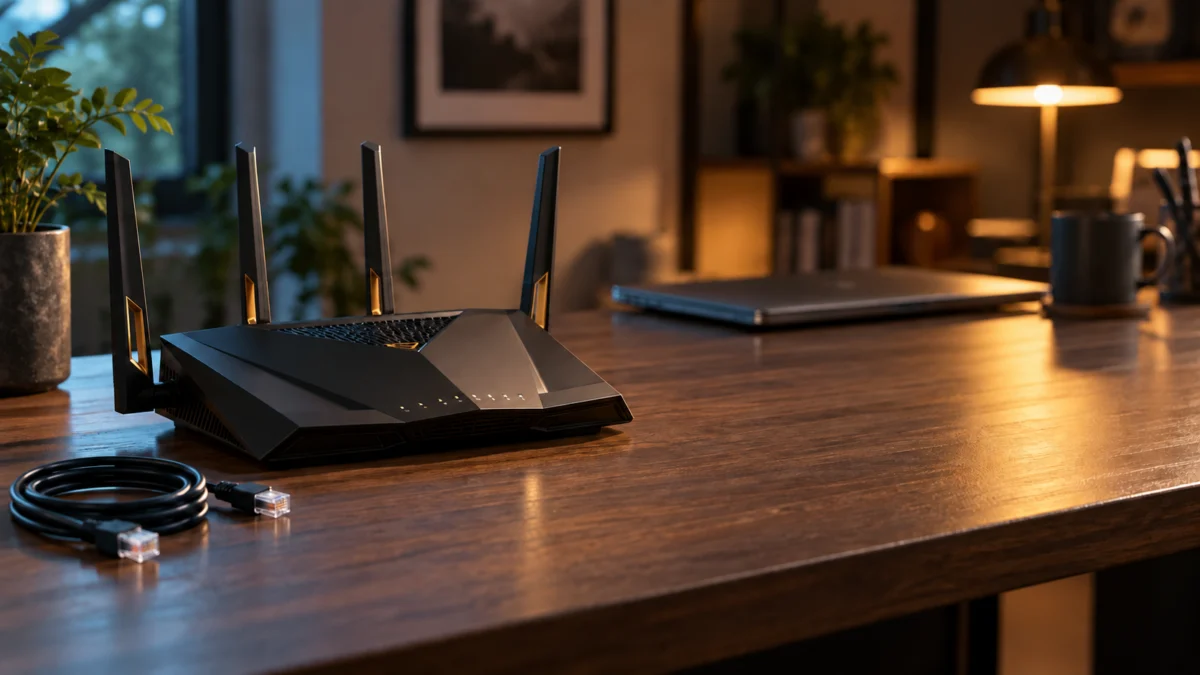
If your ASUS RT-BE88U AiMesh node keeps using wireless backhaul with a cable plugged in, check three things. First, make sure the cable runs from a LAN port on the main router to the node’s WAN port. Second, check the node’s Backhaul Connection Priority. Third, check whether a switch or wall run in between is passing the link. Then set the wired node to the “WAN First” option that matches its cabled port.
Turn on the system-wide Ethernet Backhaul Mode only if every node has its own cable. ASUS warns that nodes without one may lose their uplink. This guide covers port roles on the RT-BE88U, the mode-versus-priority decision, a direct-cable test that narrows down the cable path, and when support or new hardware is worth considering.
Quick Fix Checklist
- The cable goes from a LAN port on the main router to the WAN port on the node.
- The main-router port you are using serves as a downstream LAN port and is not assigned as WAN under WAN → Dual WAN.
- The node’s Backhaul Connection Priority is set to the “WAN First” option, among those your node shows, that matches the port you cabled.
- Ethernet Backhaul Mode is enabled only if every node is wired.
- Any managed switch in the path connects the node through a non-trunk port.
- You have tried a short, known-good cable directly from router to node.
Why Is Your RT-BE88U Node Still Using Wireless Backhaul?
Check three areas when an RT-BE88U node stays on wireless backhaul. The first is port roles at both ends of the cable. The second is the node’s Backhaul Connection Priority. The third is the path between the units, including any switch or wall run. On Auto, the system choosing wireless is normal behavior. Set WAN First if you want wired preferred.
| What you see | What to check | Next step |
|---|---|---|
| Cable plugged in, but the node still connects wirelessly | Which ports the cable uses at each end, and the node’s priority setting | Re-cable from main-router LAN to node WAN, then set the matching “WAN First” option |
| Priority is on Auto and the node uses wireless | Auto adapts between wired and wireless based on connection quality, as ASUS describes it | If you want wired preferred, switch that node to the matching “WAN First” option |
| Wired works on a direct cable but not through your switch | Switch path and managed-switch port configuration | Make sure the node is not on a trunk port; test with an unmanaged switch or bypass it |
| A wireless node dropped after you enabled Ethernet Backhaul Mode | Whether every node is cabled | Disable the mode and set priority per node instead |
| The node’s cable is on a main-router port you also use for internet or Dual WAN | Whether that port is assigned a WAN role under WAN → Dual WAN | Move the node to a port that is serving as downstream LAN |
| Your copper Ethernet cable will not seat in the 10G port you chose | Whether that port is the SFP+ cage rather than an RJ45 port | Use an RJ45 port, or a suitable SFP+ module |
| Wired backhaul works but runs slower than the port rating | The slowest port, switch, or cable in the path | See the speed section below |
To see what the node is using, open AiMesh → Topology, select the node, and check its Network Information tab. ASUS describes that tab as showing the node’s WAN, backhaul, and fronthaul details.
Which Ports Should the Backhaul Cable Use on an RT-BE88U?
ASUS’s general wired AiMesh instruction is to plug one end into a LAN port on the AiMesh router and the other into the WAN port on the AiMesh node. On an RT-BE88U main router, choose a port that is serving as downstream LAN. Then set the node’s priority to the matching option that its own interface offers.
Reference: ASUS wired AiMesh setup.
According to ASUS’s US product page, the RT-BE88U has these wired ports:
Reference: ASUS RT-BE88U US specifications.
| Port | Count | What it means for backhaul |
|---|---|---|
| 10G WAN/LAN (RJ45) | 1 | A copper multi-gig port that can act as WAN or LAN. ASUS recommends Cat6 or better for 10G. |
| 10G SFP+ | 1 | A cage for SFP+ modules, not an RJ45 jack. A regular Ethernet cable will not plug in directly. |
| 2.5G | 4 | Multi-gig copper ports. ASUS lists a 2.5G WAN/LAN option among the RT-BE88U’s WAN inputs. |
| 1G | 4 | Gigabit ports. A backhaul through one of these runs at gigabit speed at most. |
On the main router, check port roles before you cable. Primary WAN is chosen under WAN → Dual WAN. An independent RT-BE88U review found that the Primary and Secondary WAN could be set to any available port, including the SFP+ and 1GbE ports. The node needs a port that is serving as downstream LAN, so pick one that has no WAN role.
Reference: ASUS WAN port selection guide.
On the node side, the ASUS FAQs we checked give only the general rule: use the node’s WAN port. They do not name a default uplink port for an RT-BE88U acting as a node. The priority options you see also depend on the node’s model and firmware. So cable the port you intend as the uplink, then pick the “WAN First” option your node actually shows for that port type.
Ethernet Backhaul Mode or Per-Node Priority: Which Should You Use?
Use Ethernet Backhaul Mode only when every node has its own cable. It is a system-wide setting, and ASUS warns that nodes without a wired connection may lose their uplink. If even one node is wireless, leave the mode off. Then set each wired node’s Backhaul Connection Priority to the matching “WAN First” option.
Reference: ASUS Ethernet Backhaul Mode and node priority guide.
| Your setup | Setting to use | Where to find it |
|---|---|---|
| Every node is cabled to the router or to another node | Enable Ethernet Backhaul Mode | AiMesh → System Settings → Ethernet Backhaul Mode |
| Some nodes are wired, some are wireless | Leave the mode off; set each wired node to its matching “WAN First” option | AiMesh → Topology → select the node → Management → Backhaul Connection Priority |
| You want the system to choose between wired and wireless | Auto | Same per-node menu |
ASUS’s general FAQ lists Auto and “1G/2.5G/10G base-T/10G SFP+/Powerline WAN First” as priority options. Which of these appear depends on the node’s model and firmware. Auto adapts between wired and wireless based on connection quality. “WAN First” prioritizes Ethernet and switches to wireless backhaul only when the Ethernet connection is no longer available. In an all-wired system, ASUS says enabling the mode releases more wireless bandwidth for clients.
How to Fix RT-BE88U AiMesh Ethernet Backhaul Step by Step
The fix takes 6 steps. Before you change anything, write down your current AiMesh and WAN settings so you can restore them if needed.
- Update firmware on the router and every node. ASUS’s general AiMesh FAQ says the Ethernet Backhaul Mode and Backhaul Connection Priority features are supported in firmware later than 386.xxxx. That note covers ASUSWRT in general, not a threshold specific to the RT-BE88U. Keep each unit on the current firmware for its own model. Menus and options can vary between models and firmware versions.
- Check port roles on the main router. Sign in at
http://www.asusrouter.com, open WAN → Dual WAN, and note which ports have a WAN role. Plan to connect the node to a port that is serving as downstream LAN. - Cable main-router LAN to node WAN. If you want 10G, ASUS recommends a Cat6 or better cable. On the node, use the port you intend as its uplink.
- Set the node’s priority. Go to AiMesh → Topology, select the node, then Management → Backhaul Connection Priority. Choose the “WAN First” option your node offers for the cabled port type, then apply.
- Confirm the result. In the same node view, open Network Information and check the backhaul details. If the node still shows wireless backhaul, run the direct-cable test below.
- Enable Ethernet Backhaul Mode only if every node is wired. Go to AiMesh → System Settings → Ethernet Backhaul Mode. If any node still relies on wireless, skip this step.
Do not treat a factory reset as the first fix. It wipes your configuration and does not correct a cabling or port-role mismatch.
Is the Switch or the Wall Run Causing It?
A direct-cable test narrows this down. Temporarily place the node near the main router and connect the two with one short, known-good cable. If the node gets wired backhaul that way, the router-to-node link works under that test. Your normal path, meaning the switch, the wall run, or its patch cables, then becomes the next thing to check.
ASUS’s switch scenario wires the main router’s LAN port to the switch, and the switch to the node’s WAN port. For managed switches, ASUS says to select “Ethernet first” for the backhaul and to make sure the node ports are not connected to trunk ports. ASUS also specifies CAT5e or better cabling.
Reference: ASUS switched Ethernet backhaul setup.
- Direct cable works, switch path fails: check the switch port’s VLAN mode, or temporarily swap in an unmanaged switch to compare.
- Direct cable works, wall run fails: try a different patch cable at each end. If it still fails, have the run checked by whoever installed it.
- Direct cable also fails: configuration and firmware are still possible causes. Recheck port roles, the node’s priority setting, and firmware before you suspect hardware.
Why Is the Wired Node Slower Than Expected?
A wired backhaul runs only as fast as the slowest part of its path: the router port, any switch, the cable, and the node’s uplink port. A 10G port feeding a gigabit switch gives you a gigabit link. A client’s Wi-Fi speed and your internet plan’s speed are separate limits from the backhaul link itself.
- Port grade: a node cabled into one of the RT-BE88U’s 1G ports links at gigabit speed at most.
- Switch grade: a gigabit switch in the path limits the backhaul to gigabit.
- Cable: ASUS recommends Cat6 or better for 10G.
- Node uplink: the node’s uplink sets the bandwidth available to every device connected to that node.
For the main router’s WAN port, ASUS shows wired status under Network Map → Security level → Status. For the node, check the backhaul details in its Network Information tab.
When Should You Contact ASUS or Replace Hardware?
Contact ASUS support if a direct, known-good cable between router LAN and node WAN still does not give a wired backhaul on current firmware with the settings above. Support or warranty evaluation is the right next step at that point. It does not prove a hardware fault. Consider new hardware only when you need a different port layout, not just a working link.
If a switch path is the only thing failing, fix or replace the switch. A new router does not change how that switch handles the connection.
Consider an RT-BE88U as a replacement or additional unit if:
- You need several multi-gig wired connections at one location, such as 2.5G devices plus a 10G uplink.
- You want a 10G RJ45 or SFP+ wired connection between units.
- ASUS support or warranty evaluation has ruled out repair, and you want the same port layout.
Skip it if:
- The direct-cable test works. Look at your normal path first.
- You want 6GHz Wi-Fi. The RT-BE88U is dual-band (2.4GHz and 5GHz).
- A gigabit or single 2.5G node uplink covers what you need.

Please check the Amazon product page for the latest price and availability.
The RT-BE88U sits in the premium tier. If you only need a basic wired node, the RT-BE58U is a lower-priced dual-band ASUS option. Its US product page lists a 2.5G WAN/LAN port and describes Ethernet backhaul and AiMesh expansion with AiMesh-compatible ASUS routers. Before buying, confirm that the listing is the RT-BE58U and not the separate RT-BE58U V2.
Reference: ASUS RT-BE58U US product information.

Please check the Amazon product page for the latest price and availability.
Prices change often, so check the current listing before you decide.
FAQ
Does the RT-BE88U have 6GHz Wi-Fi?
No. ASUS lists the RT-BE88U as dual-band, 2.4GHz and 5GHz. Wired backhaul does not add 6GHz. In an all-wired system it frees wireless bandwidth for client devices. If your AiMesh system also has a 6GHz-capable node and its 6GHz network disappears with MLO on, that is a separate radio issue covered in our AiMesh 6GHz missing with MLO guide.
Can I use the SFP+ port for AiMesh backhaul?
ASUS’s general AiMesh FAQ lists a “10G SFP+ WAN First” option, but which priority options appear depends on the node’s model and firmware. Check that your node actually offers it. The SFP+ cage takes an SFP+ module or cable, not a standard Ethernet cable. An independent review notes that an SFP+-to-10GBASE-T transceiver can turn it into a second 10G copper port. Check module compatibility with ASUS before buying one.
Is Auto or WAN First better for a wired node?
Auto is ASUS’s default and adapts between wired and wireless based on connection quality. That is normal behavior, not a fault. If you want a cabled node to prefer Ethernet, ASUS’s wired setup guide suggests changing it to WAN first. WAN First prioritizes Ethernet and switches to wireless only when the Ethernet connection is unavailable.
How We Researched
This article is based on ASUS’s official AiMesh support FAQs covering wired backhaul setup, Ethernet Backhaul Mode and Backhaul Connection Priority, switch-based backhaul, WAN port selection, and the AiMesh web interface. We also used the ASUS US product pages for the RT-BE88U and RT-BE58U. Several of these FAQs are general ASUSWRT guides rather than RT-BE88U-specific documents, and available menus and options vary by model and firmware. We also used two independent RT-BE88U reviews from Dong Knows Tech and Mbreviews. Mbreviews tested on 2024 firmware. We have not conducted hands-on lab testing. We did not include community reports because we could not confirm a consistent pattern across multiple threads.
Conclusion
When an RT-BE88U AiMesh node will not use Ethernet backhaul, start with three checks. Is the cable going from a main-router port serving as downstream LAN to the node’s WAN port? Is the node set to the matching “WAN First” option it offers? Is your switch or wall run passing the link? Enable Ethernet Backhaul Mode only when every node is wired. If a direct cable works but your normal path does not, look at that path next. If neither works after rechecking settings and firmware, ask ASUS support to evaluate it before buying new hardware.