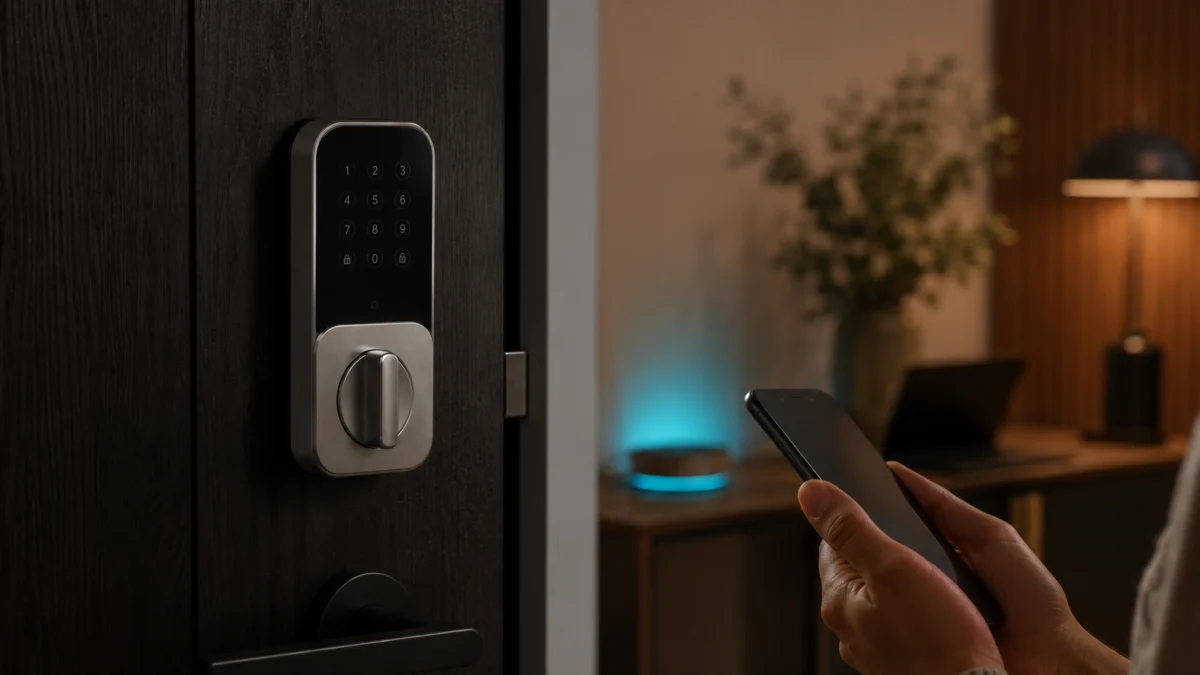
If your Aqara U200 shows “Not Responding” in the Apple Home app, the most likely causes are a missing or offline Thread Border Router, an unsupported Apple TV model, a dead or low battery, or a pairing sequence that wasn’t completed correctly. Moving your Wi-Fi router closer to the lock almost never solves this — the U200 uses Thread, a separate low-power mesh protocol, not your standard Wi-Fi network. Start by confirming you have a compatible Thread Border Router in range, check battery level, and verify your Apple Home hub is connected before resetting or reinstalling anything.
Official product page
/
Official FAQ
/
Installation methods
Quick Answer: What to Check First When Aqara U200 Says Not Responding
When the U200 shows “Not Responding” in Apple Home, the fastest path to a fix is to work through five checks in order before touching any reset or reinstall option. The most common root cause — by a wide margin — is a Thread Border Router that is missing, off, or the wrong model.
- Confirm you have a compatible Thread Border Router. The U200 uses Matter over Thread and requires a device that acts as both a Matter Controller and a Thread Border Router. Compatible Apple devices include HomePod mini, HomePod (2nd generation), Apple TV 4K (2nd generation, 2021), and Apple TV 4K (3rd generation, 2022) — but only the Wi-Fi + Ethernet version of that last model. The Wi-Fi-only Apple TV 4K (3rd gen) does not support Thread.
- Check that your Apple Home hub is online. Open the Home app → tap the ⋯ menu → Home Settings → Home Hubs & Bridges. At least one hub should show as “Connected.” If none are listed as connected, the lock has no path to reach your network remotely.
- Check the battery. The U200 uses a rechargeable USB-C battery pack. A low battery can cause intermittent Thread disconnections even if the lock still powers on. Check battery level in the Aqara Home app or Apple Home accessory details.
- Restart your Home hub. Unplug your HomePod, HomePod mini, or Apple TV, wait 30 seconds, and plug it back in. Apple’s official guidance recommends this as an early step when Thread accessories stop responding.
- Check the Aqara Home app separately. If the lock also fails to respond inside the Aqara Home app, the issue is hardware- or firmware-related rather than a HomeKit configuration problem. A firmware update may be available.
Apple Support: HomeKit or Matter accessory not responding
If none of these restore the connection, the sections below cover each cause in detail.
Why Improving Your Wi-Fi May Not Fix Aqara U200 Thread Issues
Thread and Wi-Fi are different networks with different roles. Your Wi-Fi router has no direct relationship with the U200’s Thread connection, which is why boosting Wi-Fi signal near the front door often changes nothing. Understanding what each component does helps you target the actual problem instead of spending time on fixes that won’t work.
| Component | What it does | Relevant for U200? |
|---|---|---|
| Wi-Fi router | Connects your home to the internet; provides network for iPhones, Macs, and hubs | Indirectly — your Apple Home hub needs a stable internet connection |
| Thread Border Router | Bridges the Thread mesh network to your IP network; required for Matter over Thread devices | Yes — this is the critical component for the U200 |
| Matter Controller | Manages Matter devices and provides remote access, automations, and app control | Yes — Apple Home serves as the Matter Controller when a Home hub is set up |
| Aqara Hub M3 | Aqara’s own hub; provides remote unlock, automations, and advanced features via Aqara Home app | Yes — required if you want remote control and automations through the Aqara Home app path |
Your Apple Home hub (HomePod mini, Apple TV 4K, etc.) needs a working Wi-Fi or Ethernet connection to relay commands between the Thread network and the internet. So while Wi-Fi quality can affect your hub’s stability, improving the Wi-Fi signal at the front door still does not give the lock a stronger Thread connection — Thread signals travel independently through the low-power mesh. The fix for a weak Thread signal is adding another Thread-capable device closer to the lock, not moving your router.
Check Your Thread Border Router: Apple TV, HomePod, and What Model Matters
Not every Apple TV or HomePod supports Thread. Buying the wrong model is one of the most common reasons the U200 fails to connect in Apple Home. Before any other troubleshooting, confirm that the specific device you own is Thread-capable and showing as an active Home hub.
Apple Support: home hub setup
/
Apple Support: Thread Border Router alert
Apple devices confirmed to support Thread Border Router functionality:
- HomePod mini (2020)
- HomePod (2nd generation, 2023)
- Apple TV 4K (2nd generation, 2021)
- Apple TV 4K (3rd generation, 2022) — Wi-Fi + Ethernet model only
- iPhone 15 Pro or iPhone 15 Pro Max (or later) running iOS 18 or later — can serve as a Thread Border Router for initial pairing
What does NOT support Thread:
- Apple TV 4K (3rd generation, 2022) Wi-Fi-only model
- Apple TV HD (any generation)
- Original HomePod (1st generation)
- iPad used as a Home hub
If your Apple TV 4K 3rd gen is the cheaper Wi-Fi-only version, it can serve as a HomeKit home hub for non-Thread accessories, but it cannot create or maintain a Thread network for the U200. This is a common source of confusion because both 3rd-gen Apple TV 4K models support Matter — only the Ethernet version supports Thread.
If you see a “Thread Border Router Required” or “Needs Thread Network” alert on your iPhone when trying to add the U200, it means your current Apple devices do not include a supported Thread Border Router. Adding a compatible device — such as a HomePod mini or the Apple TV 4K Wi-Fi + Ethernet model — resolves this before you attempt pairing.
To check your Home hub status:
- Open the Home app on your iPhone.
- Tap the ⋯ (More) button in the top-right corner.
- Select Home Settings, then tap Home Hubs & Bridges.
- Your active home hub should appear at the top and show as “Connected.”
If the hub shows as “Not Connected” or doesn’t appear at all, restart it by unplugging it from power, waiting 30 seconds, and plugging it back in. Give it a few minutes before checking again.
Aqara Home vs. Apple Home: Getting the Pairing Order and Matter Code Right
The U200 can be added through the Aqara Home app or directly through Apple Home via Matter. Mixing up the order, using an expired setup code, or attempting to bind to a second ecosystem without going through the correct sharing process are all common causes of pairing failures and “Not Responding” states after initial setup.
Aqara U200 FAQ
/
Aqara U200 installation methods
Two paths, two different requirements:
- Aqara Home app path: Pairs via Bluetooth. No Thread Border Router required for local control. For remote access and automations, an Aqara Hub M3 is required.
- Apple Home / Matter path: Requires a 2-in-1 Matter Controller and Thread Border Router (such as HomePod mini or compatible Apple TV 4K). The Matter QR code or setup code on the lock body or user manual is used during pairing.
How to add the U200 to Apple Home:
- Make sure your Thread Border Router (HomePod mini, Apple TV 4K, etc.) is powered on and showing as Connected in Home Settings.
- Power on the U200.
- Press the Set button once on the lock to enter pairing mode.
- Open the Home app → tap + → Add Accessory.
- Scan the Matter QR code on the lock body or user manual, or enter the setup code manually.
If pairing times out or fails:
- Reset the lock (see the reset section below).
- On your iPhone or iPad, go to Settings, search for “Matter,” and remove the U200 from Matter accessories if it appears there.
- Try pairing again from the beginning.
Per Aqara’s official FAQ, if you encounter a “Cannot add personal code” error during the Passcodes step in Apple Home, creating a new Home in the Home app and retrying can resolve the issue in some configurations.
Adding to a second ecosystem after Matter pairing: If the U200 is already paired to Apple Home and you want to add it to another Matter platform (such as Google Home or Aqara Home via Matter), use the Matter sharing feature within Apple Home rather than resetting and starting over. Resetting the lock removes it from all ecosystems.
How to Improve Thread Coverage Near Your Front Door
Thread is a low-power mesh protocol, which means multiple Thread-capable devices can relay signals between each other and extend the network’s reach. If your HomePod mini or Apple TV is located far from the front door — or separated by dense walls, metal doors, or multiple floors — the U200 may struggle to maintain a stable connection even if a Border Router is present.
Environmental factors that reduce Thread signal quality:
- Metal doors or metal door frames (significant signal attenuation)
- Thick concrete or brick walls between the lock and the Border Router
- Multiple floors separating the lock from the nearest hub
- Long hallways with the Border Router on the opposite end of the home
How to extend Thread coverage:
Adding Thread-capable devices between the lock and your Border Router can improve mesh stability. Thread devices that also act as routers (as opposed to “sleepy end devices”) can relay traffic and extend the mesh. Not all Thread devices serve as Thread routers automatically — the device’s specification determines its role in the mesh.
Options worth considering to extend Thread coverage toward a front door:
- A Thread-capable smart plug placed in an outlet near the door or in a hallway between the lock and your hub
- An additional HomePod mini placed in a room closer to the front entry
- Apple TV 4K (Wi-Fi + Ethernet, 3rd gen) if your existing Apple TV is the Wi-Fi-only model that doesn’t support Thread
- Aqara Hub M3, which serves as a Matter Controller and Thread Border Router and can be positioned closer to the lock
One HomePod mini or Apple TV 4K is typically sufficient for most homes, but front-door locks face additional challenges: they sit at the physical edge of a home, often separated from living areas by thick exterior walls. If your Thread Border Router is in a living room on the other side of the house, adding a second Thread anchor point midway can significantly improve reliability.
When to Reset the Aqara U200 or Remove It from HomeKit
A factory reset should be treated as a last resort, not a first step. Resetting the U200 removes all fingerprints, PIN codes, and Matter pairings from the lock. Before resetting, always confirm you can still unlock the door manually with a physical key, and have your admin PIN available.
Reset procedure for Matter users (Apple Home / Google Home path):
- Press and hold both the Lock button and the Confirm button on the keypad for 5 seconds to enter reset mode.
- Then press and hold the Reset button on the lock body (inside the door) for 3 seconds.
- The lock will reset to factory settings and erase all user data.
Reset procedure for Aqara Home app users:
- Press and hold both the Lock button and the Confirm button for 3 seconds.
- Verify with your admin password or registered fingerprint when prompted.
- The lock resets and clears all data.
Before re-pairing after a reset:
- Remove the U200 from the Home app: open the accessory → scroll down → Remove Accessory.
- On your iPhone, check Settings for any residual Matter accessory entry and remove it.
- Restart your Thread Border Router (unplug and replug).
- Wait for the Home hub to show as “Connected” before beginning the pairing process again.
Per Aqara’s official FAQ, if the standard reset process does not resolve pairing errors, resetting a HomePod mini and re-integrating it with your Home can help isolate whether the issue originates from the lock or the Home configuration.
⚠️ Safety reminder: After any reset and re-pairing, verify that the lock correctly performs both locking and unlocking before relying on it for home security. Test it manually from both sides of the door before leaving the lock in auto-lock mode.
When the Problem Is Not Thread: Battery, Firmware, Lock Alignment, and Hub Mode
Not every “Not Responding” situation is caused by Thread or HomeKit configuration. Before assuming a network problem, rule out these hardware and firmware factors, which can produce identical symptoms in the Home app. These issues can exist independently of Thread and are worth checking before reconfiguring your network setup.
Battery: The U200 uses a rechargeable battery pack that connects via USB-C. A critically low battery can cause intermittent dropouts or a persistent “Not Responding” state even when the lock still activates with a key. Check battery level in the Aqara Home app. If the app is also unresponsive, try plugging in a USB-C cable to charge the battery and wait a few minutes before testing.
Firmware: Aqara recommends keeping the U200 firmware up to date via the Aqara Home app, as outdated versions may contribute to connectivity issues. Updates are delivered through the Aqara Home app (keep your phone close to the lock for 15–20 minutes during the update) or via Matter OTA through Apple Home. Check for updates in the Aqara Home app under the device’s settings page before concluding that a hardware fault is present.
Lock alignment and mechanical resistance: If the deadbolt is misaligned with the door frame strike plate, the lock motor may stall or draw excess power during operation, leading to battery drain and connectivity instability. If the lock sounds like it’s straining during operation, recalibrate it: in the Aqara Home app, go to Settings → Calibrate Lock and run either Automatic or Manual Calibration. Alternatively, press and hold the Set button on the lock body for 3 seconds to initiate auto-calibration directly.
Aqara Hub mode vs. Matter mode: The U200 behaves differently depending on whether it is bound to the Aqara Hub M3 or connected via Matter directly. If you are using both simultaneously, some advanced settings (Auto Lock, Auto-Turn Lock) are only configurable through the Aqara Home app. If your lock shows inconsistent behavior across apps, confirm which mode it is primarily operating in and whether any conflicting bindings exist.
Home Assistant environment: If you are running Home Assistant alongside Apple Home, troubleshooting steps and behavior differ from a standard Apple Home setup. Community reports from Home Assistant users should not be used as a reference for Apple Home configuration.
What to Buy If Aqara U200 Keeps Going Offline
This section includes affiliate links. We may earn a commission if you purchase through these links, at no extra cost to you.
If the U200 continues dropping offline after working through the steps above, the issue is most often that a single Thread Border Router is too far away or overloaded. Adding the right device in the right location is usually the most effective hardware fix — not replacing the lock itself.
Check Aqara Hub M3 on Amazon
/
Official HomePod mini
/
Check Apple TV 4K on Amazon
Thread Border Router and Matter Controller options:
| Device | Thread Border Router | Matter Controller | Best for |
|---|---|---|---|
| HomePod mini | ✅ Yes | ✅ Yes (Apple Home) | Adding a second Thread anchor near the front door |
| Apple TV 4K (3rd gen Wi-Fi + Ethernet) | ✅ Yes | ✅ Yes (Apple Home) | Replacing a Wi-Fi-only Apple TV 4K that doesn’t support Thread |
| Aqara Hub M3 | ✅ Yes | ✅ Yes (multi-platform) | Remote unlock, automations, and Aqara-exclusive features via Aqara Home app |
| Thread-capable smart plug | Depends on device | No | Extending Thread mesh range toward the front door as a router node |
Before buying: Confirm whether the smart plug or accessory you’re considering is specified as a Thread router node (not just a Thread sleepy end device). Only Thread router-role devices extend the mesh — end devices do not relay traffic for other devices.
If the lock still drops offline after adding coverage: Consider whether the issue is Home configuration-related rather than range-related. Persistent instability across multiple Thread devices in a home often points to Home hub configuration, iCloud sync issues, or VPN software interfering with the local network.
If you’re troubleshooting a broader “Thread Border Router Not Found” or “Thread Network Not Found” error during pairing — not just the U200 — our guide to fixing Matter Thread Border Router pairing failures walks through controller, Border Router, and firmware checks across Apple Home, Google Home, Alexa, SmartThings, IKEA, and Home Assistant.
How We Researched
This guide is based on Aqara’s official product page, FAQ, installation methods documentation, and the U200 user manual. Apple troubleshooting steps are drawn from Apple Support’s official HomeKit and Thread documentation. Thread Border Router compatibility information was verified against Apple’s published specifications for each device. Community reports referenced in this guide are from the Aqara official forum, where the same patterns appeared across multiple independent posts — individual single-post reports were not used as evidence of product-wide issues. We have not conducted hands-on testing of the Aqara U200. Any claims about behavior or compatibility are attributed to official documentation or identified community sources.
Related Aqara Forum discussion
Conclusion
Most Aqara U200 “Not Responding” issues in Apple Home trace back to a Thread Border Router that is missing, offline, or an unsupported model — not to a problem with the lock itself. Start by confirming your Home hub is Thread-capable and showing as connected, then check battery and firmware before considering a reset. If the lock continues dropping offline after setup, improving Thread coverage near the front door with a second HomePod mini, a compatible Apple TV 4K, or an Aqara Hub M3 addresses the root cause more reliably than any software change. Reserve factory reset and re-pairing for situations where setup has failed entirely or the lock stops responding even locally.