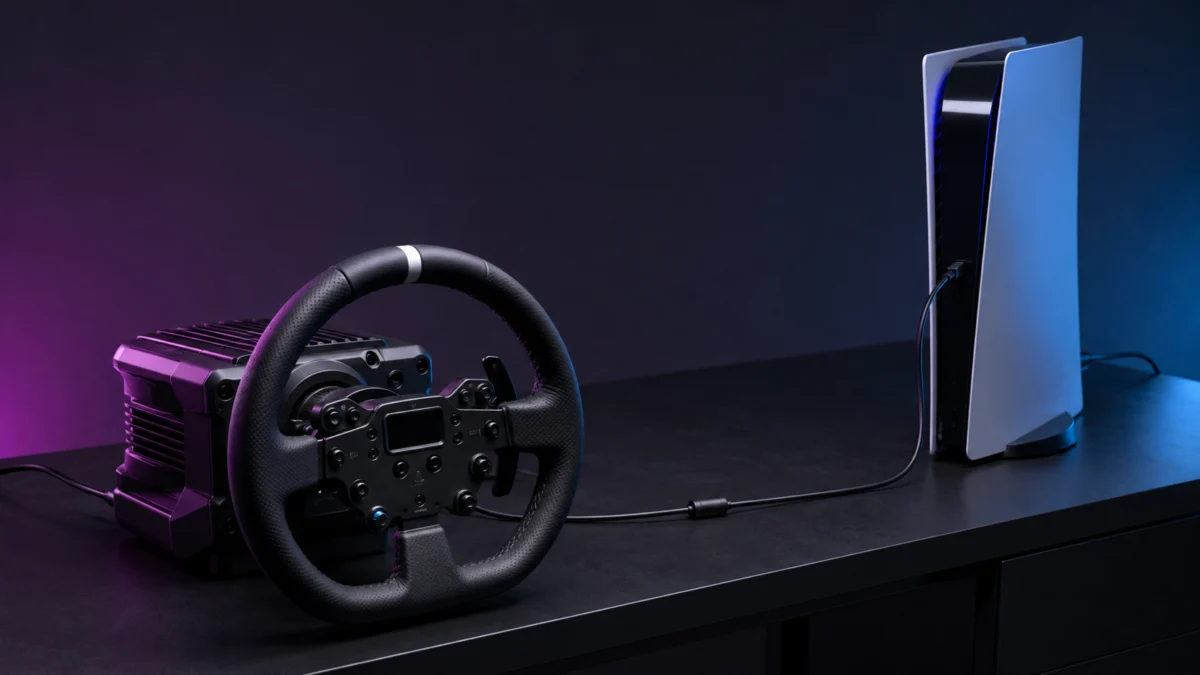
Before you change a single setting, answer one question: has this RS50 ever worked on this PS5? If it has never worked and the base powers on, check the platform version first. Logitech states that PlayStation compatibility requires the RS50 System for PlayStation and cannot be added later. If the wheel worked before and then stopped, the hardware version is already proven, and the first place to look is the Platform setting on the wheel’s OLED display, which can be locked to PC so the console is never selected at power-on.
That split decides whether you are troubleshooting or arranging a return. Everything below follows Logitech’s official documentation.
Start Here: Has Your RS50 Ever Worked on This PS5?
Answer the history question before the symptom question. A wheel that powers on but has never worked on your PS5 should be checked for the correct platform version first, because platform support cannot be changed after purchase. A wheel that worked and then stopped points instead to the Platform setting, the compatibility mode, or the physical connection.
Match what you are seeing to the section that addresses it, keeping the dashboard and individual games separate.
| What you observe | What it points to | Where to go next |
|---|---|---|
| The OLED display is blank and the base shows no sign of power | Power connection, not platform support | Power and USB steps below |
| The base powers on, but the PS5 has never responded to it | Platform version of the base | Version check below |
| The wheel appears normally in G HUB on your PC, but the PS5 never sees it | Platform version, or Platform setting locked to PC | Version check, then Platform setting |
| The wheel worked on this PS5 before and now does not | Platform setting, power, or USB path | Platform setting section |
| You can navigate the PS5 dashboard, but one game ignores the wheel, or steering alone does not respond | Compatibility mode for that specific title | RS and PRO mode section |
If It Never Worked: Confirm You Own the PlayStation Version
Check the model number on the label under the base. Logitech lists the RS50 Base for PlayStation/PC as W-U0014 and the RS Wheel Hub for PS as W-U0016. The RS50 System for Xbox/PC carries different numbers. PlayStation support is built into the version you bought and cannot be added later.
The labels sit in fixed places, so you can settle this without launching anything.
- RS50 Base for PlayStation/PC — W-U0014, on a label on the bottom of the base.
- RS Wheel Hub for PS — W-U0016, on a label on the back of the lower spoke.
- RS Round Wheel carries no model number label, so it tells you nothing about platform support.
Logitech’s support listing for the RS50 System for Xbox/PC shows W-U0015 and W-U0017 instead. If your hardware matches that pair, the diagnosis ends there: the product page states that PlayStation compatibility requires the RS50 System for PlayStation and cannot be added later.
Two purchases may look like a fix, but neither one is.
- A separate RS Wheel Hub does not add PlayStation support. Logitech’s hub page offers PC and Xbox/PC options, and its footnote states that PlayStation compatibility requires a PlayStation/PC base. The hub supplies buttons and a D-Pad, not platform authorisation.
- The RS QR Adapter is not a console part. Logitech’s support FAQ states the adapter is for PC use only, because buttons and a D-Pad are needed to navigate the console and use in-game functions, and standard aftermarket rims generally have neither.
Compatibility does run the other way: Logitech states that Xbox support can be added to the PlayStation version through the RS Wheel Hub for Xbox. PlayStation is the direction fixed at purchase. If your model numbers confirm the wrong version, treat this as a returns question and check your return window now.

Please check the Amazon product page for the latest price and availability.
If you are re-buying, our guide on how to verify a PS5-compatible direct-drive wheel before buying covers what to check on the listing first.
If It Worked Before: Check the Platform Setting, Power, and USB Path
Start with the Platform setting on the wheel’s OLED menu. Logitech’s manual explains that the RS50 prompts you to choose a platform at power-on by default, but the setting can be forced to PC, in which case the prompt never appears and the console is never selected.
That setting directly explains the version of this problem where the wheel behaves perfectly in G HUB but the PS5 acts as though nothing is plugged in. The RS50 does not present itself identically on both platforms: Logitech’s specification lists separate USB IDs for PC and PlayStation.
The fix takes 7 steps.
- Power on the wheel using the Start/Stop button on the rear of the base.
- Watch the OLED display. If it asks which platform you want to play on, use either adjustment dial on the steering wheel to select the console option.
- Push the dial in until it clicks to confirm the selection.
- If no prompt appears at all, press the Settings button on the base and open Platform. The documented options are On Startup (the default), Consoles, and PC. Select On Startup or the console option; the next power-on follows your choice.
- Press the PS button on the wheel to log in and sync the wheel with your player profile.
- If the display stays blank, turn the console off and check the power adapter. Logitech notes that a loose power connection will prevent the device from being recognised, so confirm the adapter is seated and the socket is live.
- Inspect the USB cable for pinches or splits, then move it to a different USB port on the PS5.
One connection detail is easy to get wrong. The peripheral ports on the back of the base are not standard USB, and Logitech’s setup guide states that only Logitech racing peripherals will function there. The console cable goes to the dedicated USB connection.
If the RS50 is also missing from G HUB on your PC, the problem is not PlayStation-specific. Our guide to a racing wheel that is not detected on PC covers the checks in that direction.
If Only One Game Fails: Set RS or PRO Mode Before Launching
Compatibility mode is set per title, not once for the console. Logitech’s PlayStation compatibility table lists Gran Turismo 7 and F1 25 in RS mode, and Assetto Corsa Competizione and GRID Legends in PRO mode. Change it on the OLED settings screen before you start the game.
Logitech explains that some titles will not recognise the wheel unless it is in PRO Wheel compatibility mode. Choosing PRO restarts the wheel so it appears to the console as the PRO Wheel, letting games with native PRO support configure themselves. The official table shows why this is per-title.
| PlayStation title | Documented mode | Note |
|---|---|---|
| Gran Turismo 7 (Road Cars and Gr.x cars) | RS | Angle is set by the game per car automatically |
| Assetto Corsa Competizione | PRO | PS5 version only; the PS4 version is listed as not supported |
| GRID Legends | PRO | The PC entry for this title is listed as RS |
| F1 25 | RS | Angle listed at 360 degrees |
One requirement attached to PRO mode is easy to miss. Logitech’s setup guide states that a compatible set of pedals must be attached for PRO Wheel compatibility mode to work, and the RS50 System ships without pedals. If you bought the system on its own and are chasing Assetto Corsa Competizione on PS5, PRO mode alone will not be enough.

Please check the Amazon product page for the latest price and availability.
If you already own pedals from a G25, G27, G29, G920 or G923, the separately sold Logitech G Racing Adapter converts their analog 9-pin connection for the ports on the back of the RS50.
Two further points matter. Logitech notes that a title supporting the G29, G920 or G923 will in most cases work with the RS50 as well, so a game missing from the list is not automatically incompatible. And because the mode must be chosen before launch, changing it mid-session will not fix a game that already failed to detect the wheel.
Verify the Fix and Decide Whether to Update, Return, or Contact Logitech
Confirm the fix in the same game that failed, not on the dashboard. If the wheel is recognised there, the platform and compatibility settings are correct. If it still fails, check for a firmware update through G HUB, then weigh your remaining return window against contacting Logitech support.
The fix takes 5 steps.
- Power the wheel on, confirm the platform selection completes, then press the PS button to sync your profile.
- Launch the specific title that was failing, rather than judging from the PS5 dashboard.
- Open that game’s control settings and confirm the wheel is assigned. Logitech notes that some titles require the wheel to be configured in the game’s control options before it will function.
- If the game still does not respond, connect the base to a PC and open G HUB to check for a firmware update. Logitech distributes RS50 firmware through G HUB and notifies you when one is available. Current Main and Drive versions also appear in the OLED Firmware entry.
- If detection is still missing, contact Logitech support with your model number and these results, and raise a return with your retailer in parallel if your window is closing.
Two safety notes from Logitech’s documentation apply while testing. The direct drive motor produces up to 8 Nm and the manual warns this can cause injury if handled carelessly, so set force feedback to a comfortable level first. If the wheel behaves unexpectedly on console, Logitech’s guidance is to unplug its USB cable rather than trying to hold the wheel still.
Frequently Asked Questions
Can I use a PC-only or Xbox/PC RS50 on a PS5?
No. Logitech states that PlayStation compatibility requires the RS50 System for PlayStation and cannot be added later. A PC or Xbox/PC base will not gain PlayStation support through a firmware update, a different wheel hub, or an adapter. Exchanging for the PlayStation version is the only supported route.
Does switching to PRO mode fix every game?
No. Logitech’s PlayStation compatibility table assigns a mode per title, and most listed games use RS mode. Gran Turismo 7 and F1 25 are both RS. PRO is documented for Assetto Corsa Competizione and GRID Legends, so treat it as a per-game setting rather than a permanent one.
Can I use the RS QR Adapter with an aftermarket wheel on PS5?
No. Logitech’s support FAQ states the RS QR Adapter is for PC use only, because buttons and a D-Pad are required to navigate the console and use in-game functions. Aftermarket rims generally have no buttons.
How We Researched
This article is based on Logitech’s official product pages for the RS50 System and RS Wheel Hub, official support articles covering RS50 in-game settings, system specifications and console steering wheel troubleshooting, the official RS QR Adapter FAQ, and the official RS50 System/Base setup guide for PlayStation 5, PlayStation 4 and PC. We have not conducted hands-on lab testing.
We looked for recurring community reports of RS50 detection failures on PS5 and did not find the same issue confirmed across multiple independent threads, so we have not included a user reports section. Compatibility lists and firmware change, so confirm current details on Logitech’s support site for your model.
Conclusion
The RS50’s PS5 problems fall into two categories that need opposite responses. If the wheel has never worked on your console, check the model number under the base first — W-U0014 for the PlayStation/PC base — because PlayStation support cannot be added afterwards and settings work only eats your return window. If it worked before, check the OLED Platform setting first, since it can be locked to PC. Once the wheel is recognised, treat each game separately using Logitech’s official mode list.