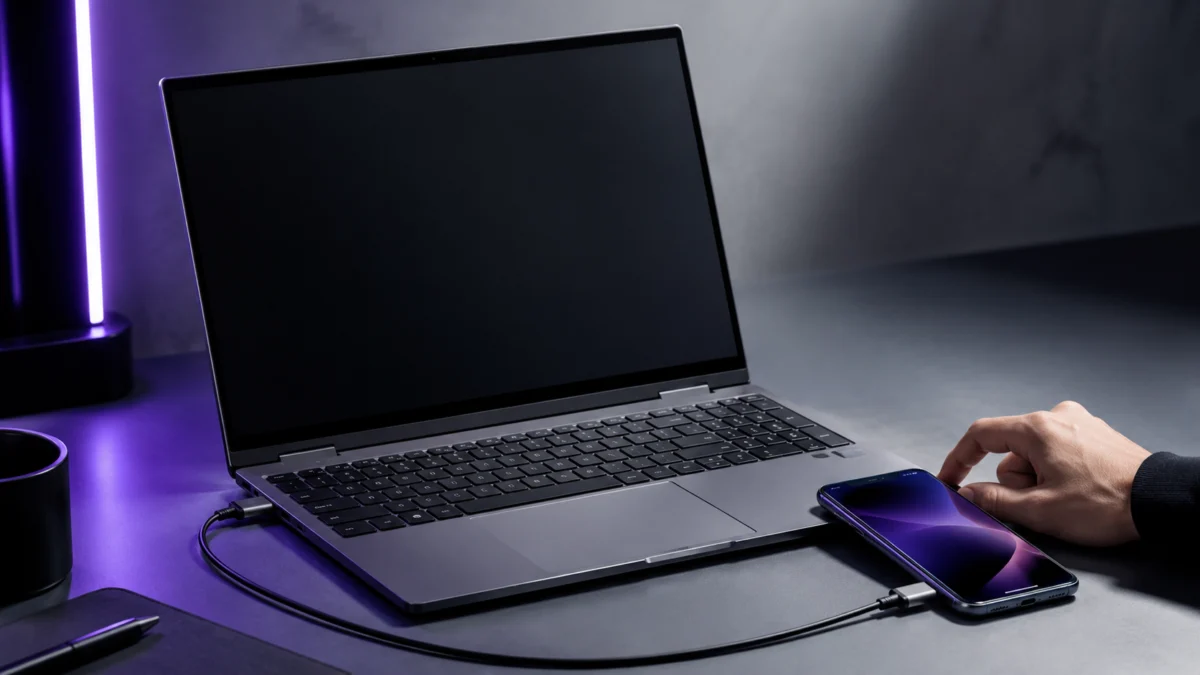
If you use a Samsung Galaxy S, Note, or Fold and want a keyboard-and-screen setup without carrying a second laptop, a lapdock is the most seamless way to run DeX. Before you spend $250 to $400, however, three things matter: not all Galaxy phones support DeX, no lapdock offers MacBook-level trackpad precision, and return policies from overseas sellers can cost more than you expect. This guide covers the top options—NexDock 360, NexDock XL, UPERFECT X Pro 15.6, and Dopesplay DR148—rates each by real use case, and explains when a portable monitor with a Bluetooth keyboard is actually the smarter buy.
- Quick Answer: Which Lapdock Should You Buy?
- What a DeX Lapdock Is—and What It Is Not
- Samsung DeX Compatibility: Check Before You Buy
- Best Samsung DeX Lapdock Options
- NexDock vs UPERFECT vs Dopesplay: Full Comparison
- Lapdock vs Portable Monitor + Keyboard
- What to Check Before Buying
- Common Problems to Watch For
- How We Researched
- FAQ
Quick Answer: The Best Samsung DeX Lapdock Depends on How You Work
For most DeX users, the NexDock 360 is the best overall lapdock: reliable wired connection, portable build, and a 360-degree hinge that gives you a fallback tablet mode when the trackpad frustrates you. For large-screen productivity, the NexDock XL or UPERFECT X Pro 15.6 offer 15.6-inch 120Hz screens with wireless phone charging. If trackpad precision matters to your workflow, skip lapdocks entirely and use a portable monitor paired with a Bluetooth keyboard instead.
*This page contains affiliate links. Fixory may earn a commission if you purchase through these links, at no additional cost to you.
| Pick | Best For | Screen | Battery | Wireless DeX | Wireless Charging |
|---|---|---|---|---|---|
| NexDock 360 | Most users / portability | 13.3″ IPS Touch 1080p | 44Wh | No (add-on) | No |
| NexDock XL | Large screen + wireless charging | 15.6″ IPS Touch 1080p 120Hz | 57Wh | Yes (Miracast) | Yes |
| UPERFECT X Pro 15.6 | Wireless DeX at competitive price | 15.6″ IPS Touch 1080p 120Hz | 10800mAh | Yes (Miracast) | Yes |
| Dopesplay DR148 | Budget entry point | 14.1″ IPS Touch 1080p | See note* | No | No |
*Dopesplay DR148 battery capacity differs across official product pages. Verify before purchasing. NexDock uses Wh; UPERFECT and Dopesplay use mAh—direct runtime comparison requires matching voltage specs.
What a DeX Lapdock Is—and What It Is Not
A DeX lapdock is a clamshell shell—display, keyboard, trackpad, and internal battery in one unit—that your Galaxy phone drives over a single USB-C cable. Your phone’s processor runs DeX on the lapdock’s screen while the lapdock simultaneously attempts to charge your phone. It looks exactly like a laptop but runs Android apps in desktop mode, not Windows or macOS software.
This matters because DeX is Android. The mobile versions of Microsoft Office, Google apps, and many productivity tools run well in DeX, but they are not the full desktop equivalents. If your workflow requires software that only exists on x86 Windows or macOS—specific enterprise tools, advanced Adobe features, or legacy applications—a lapdock will not fulfill that need. At a similar price point, a budget Windows laptop delivers broader software compatibility.
Where lapdocks genuinely excel: writing, email, light spreadsheet work, media consumption, remote desktop access (which runs the distant machine’s OS, not Android), SSH-based coding, and any workflow that runs natively on Android. For those use cases, a lapdock eliminates the second device entirely.
It is also worth clarifying what a portable monitor with keyboard is: a standalone screen without integrated input hardware. You add a separate Bluetooth keyboard and mouse. The setup takes longer to assemble, but gives you higher-quality input hardware than any built-in lapdock trackpad currently provides.
Samsung DeX Compatibility: Check Before You Buy
DeX requires a Galaxy device with a USB-C port supporting DisplayPort Alternate Mode (DP Alt Mode). Not every Galaxy phone or tablet meets this requirement, and buying a lapdock for an incompatible device is a common and expensive mistake.
⚠️ Devices that do NOT support DeX (wired or wireless):
- Galaxy Z Flip series — all generations, including Z Flip7 and Z Flip7 FE. These phones lack the hardware required for DP Alt Mode output.
- Galaxy Tab S9 FE, Tab S10 FE, Tab S10 Lite. Budget FE and Lite tablet variants omit HDMI output capability.
- Most Galaxy A-series budget smartphones.
Devices that support DeX: Galaxy S series (S8 and later), Note series (Note 8 through Note 20), Galaxy Fold series (all generations including Z Fold7 and Z TriFold), and Galaxy Tab S series (Tab S4 and later, excluding FE/Lite models noted above). Verify your specific model on Samsung’s official DeX support page before purchasing.
Best Samsung DeX Lapdock Options
The four options below cover the main purchase scenarios for DeX lapdocks in 2026. Each is evaluated on display quality, keyboard and trackpad usability, battery behavior, portability, and the support and return situation that affects real buyers. Fixory has not conducted hands-on testing of any lapdock in this guide. All evaluations are based on official specifications and patterns confirmed across multiple community reports.
NexDock 360 — Best Overall for Most DeX Users
The NexDock 360 is the most consistently recommended lapdock in the Samsung DeX community, and for straightforward reasons. Its 13.3-inch 1080p IPS touchscreen, aluminum chassis, 44Wh battery, and 360-degree hinge combine portability and build quality that other lapdocks at this price point do not match. At approximately 1,190g, it is light enough for daily carry.
The wired-first design keeps the DeX connection stable. Connect your Galaxy phone via USB-C and DeX launches immediately. The lapdock delivers 5V/2A (10W) back to your phone during use, which maintains or slowly charges the phone during moderate DeX sessions. For high-load tasks—heavy multitasking, sustained video rendering—this output may not keep pace with the phone’s power draw, and the phone’s battery can gradually deplete despite the connection.
The 360-degree hinge provides a practical fallback. If the trackpad becomes frustrating during a typing-heavy session, fold the keyboard behind the screen into tent or tablet mode and use the touchscreen directly. This is the NexDock 360’s most underappreciated feature.
Check on Amazon
/
Official site
✅ Buy if: You want the most portable full-lapdock setup for DeX and travel frequently. Build quality and hinge flexibility matter more to you than screen size. You prefer wired DeX reliability and US or EU-based shipping support.
⚠️ Don’t buy if: You need a screen larger than 13.3 inches for extended productivity sessions. You expect laptop-quality trackpad precision—no lapdock delivers that.
NexDock XL — Best for Large-Screen Productivity
The NexDock XL is NexDock’s premium model, built for users who want a desktop-scale working surface in portable form. The 15.6-inch 120Hz IPS touchscreen, full-size keyboard, 57Wh battery, and quad speakers make it suitable for extended writing, spreadsheet work, and media consumption sessions. Its standout hardware feature is a built-in wireless charging pad integrated into the palm rest, which allows a compatible Galaxy phone to charge wirelessly while running DeX—eliminating USB-C cable management for users whose device supports it.
At approximately 1,910g, the NexDock XL is not a commuter device. It is suited to a fixed hotel desk or dedicated travel workspace where size and weight are acceptable trade-offs for a more complete working environment. NexDock ships from US and EU warehouses, which makes warranty claims and returns significantly easier for buyers in those regions compared to brands shipping exclusively from Asia.
Check on Amazon
/
Official site
✅ Buy if: You need a large screen for extended productivity work. Wireless phone charging built into the lapdock is important. Return support from US or EU-based shipping matters.
⚠️ Don’t buy if: You carry your setup daily and weight is a priority. You want the lowest-cost large-screen option—UPERFECT X Pro 15.6 is positioned competitively at a similar tier.
UPERFECT X Pro 15.6 — Best Wireless Option
The UPERFECT X Pro 15.6 competes directly with the NexDock XL. It offers a 15.6-inch 120Hz IPS touchscreen, a 10800mAh internal battery, a 360-degree hinge, and a built-in wireless charging pad. Wireless DeX via Miracast is supported, which removes cables entirely for Galaxy phones that also support wireless DeX output.
Wireless mode has two real limitations worth understanding before buying: Miracast restricts display output to 60Hz in most environments, and input latency is noticeably higher than a USB-C wired connection. For writing and email the difference is manageable; for anything requiring fast cursor response, connecting via USB-C is preferable.
Quality control reports in the DeX community are worth reading before purchasing. Multiple buyers have reported units arriving with USB-C port recognition issues, touchscreen calibration inconsistencies, or firmware update failures that permanently affected trackpad behavior. UPERFECT offers a warranty, but returns classified as non-quality-defective—or claims initiated outside the primary sales region—may require international shipping at the buyer’s expense. Purchasing through Amazon or a local retailer with independent buyer protection reduces this risk significantly.
✅ Buy if: You want wireless DeX and a 15.6-inch screen at a competitive price point. Wireless phone charging is a priority. You are purchasing through Amazon or a local retailer with clear return protection.
⚠️ Don’t buy if: You are buying direct from the overseas storefront and live outside their primary shipping region. You need reliable trackpad precision during extended typing—no lapdock in this guide solves this problem.
Dopesplay DR148 — Best Budget Entry Point (With Caveats)
The Dopesplay DR148 is a 14.1-inch 1080p IPS touchscreen lapdock with a 360-degree rotating design and dual speakers. It sits below NexDock and UPERFECT on price, making it an accessible entry point for users who want to test the DeX lapdock experience without a large upfront investment.
Dopesplay occupies an unusual position in this market: community research in r/SamsungDex confirms that Dopesplay operates as both a consumer brand and an ODM supplier for identical hardware sold under generic brand names on Amazon. A cheaper Amazon listing may contain the exact same physical hardware as a Dopesplay DR148, but typically comes with no firmware support pathway and no after-sales service. Dopesplay itself does provide a warranty and a direct support channel, which distinguishes it from anonymous alternatives.
One important pre-purchase note: official specs for the DR148 show different battery capacities on different product pages. Confirm the current specification directly on Dopesplay’s site before purchasing. Return terms for international buyers follow the same pattern as other overseas brands—review them carefully.
✅ Buy if: You want the lowest entry cost for a DeX lapdock experience. You understand the trackpad limitations before buying. You are purchasing through a platform with independent return protection.
⚠️ Don’t buy if: You are considering a generic no-name version of this hardware on Amazon without verifying the seller’s return policy. Long-term firmware support is important to you.
NexDock vs UPERFECT vs Dopesplay: Full Comparison
The table below compares confirmed specifications across all lapdock options covered in this guide. Price ranges are approximate and change with regional availability and promotions. Verify current specs and pricing directly with retailers before purchasing. Affiliate links may appear in product sections above.
| Model | Screen | Resolution / Refresh | Battery | Weight | Wireless DeX | Phone Charging | Hinge |
|---|---|---|---|---|---|---|---|
| NexDock 360 | 13.3″ IPS Touch | 1920×1080 / 60Hz | 44Wh | ~1,190g | No (add-on) | 5V/2A (10W) | 360° |
| NexDock (Standard) | 14″ IPS Touch | 1920×1200 / 60Hz | 38Wh | ~1,350g | No | 5V/2A (10W) | Standard |
| NexDock XL | 15.6″ IPS Touch | 1920×1080 / 120Hz | 57Wh | ~1,910g | Yes (Miracast) | Wireless pad | Standard |
| UPERFECT X Pro 15.6 | 15.6″ IPS Touch | 1920×1080 / 120Hz | 10800mAh | N/A | Yes (Miracast) | Wireless pad | 360° |
| Dopesplay DR148 | 14.1″ IPS Touch | 1920×1080 / 60Hz | Verify* | N/A | No | USB-C | 360° |
*NexDock reports battery in Wh; UPERFECT and Dopesplay in mAh. Direct runtime comparisons using these units are not reliable without matching voltage specs. Always check official runtime estimates for your specific use case.
Lapdock vs Portable Monitor + Keyboard: Which Setup Makes More Sense?
If precise cursor control, fast typing, or long input sessions are part of your DeX workflow, a portable monitor combined with a dedicated Bluetooth keyboard and mouse will outperform any lapdock. A lapdock’s convenience is real—one cable, instant setup—but the built-in trackpad in every current lapdock is a meaningful compromise, not a solved problem.
| Factor | Lapdock | Portable Monitor + Bluetooth KB & Mouse |
|---|---|---|
| Setup time | One USB-C cable, instant DeX | Pair keyboard and mouse each session |
| Trackpad / cursor | Built-in — palm rejection issues common | Use any dedicated mouse you choose |
| Keyboard quality | Built-in, varies by model | Choose a premium option (e.g. Logitech MX Keys Mini) |
| Portability | Single unit | Multiple items to manage |
| Price range | $250–$400 for a full lapdock | Can be lower with a budget portable monitor |
| Battery | Built-in, powers screen and charges phone | Monitor needs its own power source or USB-C from phone |
A recurring pattern in the Samsung DeX community is that many users who bought a lapdock eventually switched to a portable monitor plus dedicated Bluetooth mouse after extended use. The lapdock trackpad works for casual navigation, but extended typing sessions expose its limitations quickly. If you already carry a compact Bluetooth mouse or are willing to add one, the modular setup may suit your workflow better.
The lapdock still wins for travel scenarios where you want one bag, one cable, and a working DeX environment in under ten seconds. That convenience is the lapdock’s core value proposition—not trackpad quality.
What to Check Before Buying a Samsung DeX Lapdock
These seven checks address the most common causes of buyer regret in the Samsung DeX community—from purchasing a lapdock for an incompatible Galaxy device to misjudging international return costs. Most lapdock purchases that go wrong skip at least one of these. Work through each point for your specific device and use case before committing.
- Confirm your Galaxy device actually supports DeX. Check Samsung’s official DeX support page. Galaxy Z Flip series and most Galaxy A-series budget phones do not support DeX output. FE and Lite tablet variants also typically lack the required DP Alt Mode output.
- Verify your phone’s USB-C port outputs video. DeX requires DisplayPort Alternate Mode over USB-C. Not all USB-C ports—even on supported Galaxy phones—output video on all connectors equally.
- Understand the charging behavior under load. Lapdocks typically supply 5V/2A (10W) to your phone. During intensive DeX sessions, this may not offset your processor’s power consumption. Plan session length accordingly or carry your phone’s own charger as backup.
- Evaluate wireless DeX with realistic expectations. Miracast-based wireless DeX caps display output at 60Hz and introduces measurable latency compared to USB-C. For productivity work in a fixed location, wired is preferable unless you specifically need cable-free setup.
- Check display brightness against your environment. Most lapdock screens are in the 250–300 nit range. For use in bright environments or near windows, confirm the official brightness spec before buying.
- Read the return and warranty policy in full. Several brands advertise generous warranties but require international return shipping at the buyer’s expense for non-defective returns or out-of-region claims. When possible, purchase through Amazon or a local retailer with independent buyer protection.
- Set realistic trackpad expectations before buying. No current lapdock provides palm rejection comparable to a laptop trackpad. The standard workaround among experienced DeX users is to disable the trackpad with the Fn+Esc shortcut and use a compact Bluetooth travel mouse for precise work.
Common Problems to Watch For: Trackpad, Power, Quality, and Returns
Four problem categories recur consistently across Samsung DeX community reports: trackpad usability limitations, phone battery drain during intensive use, quality control variance on delivery, and hidden international return shipping costs. None are dealbreakers for every buyer, but each has caused genuine post-purchase regret for users who encountered them unprepared.
Trackpad Usability
The most widely reported frustration with DeX lapdocks is trackpad quality. Two specific problems come up repeatedly across multiple community threads. First, the absence of reliable palm rejection means the cursor jumps when the palm makes incidental contact during typing. Second, some lapdocks include hardcoded multi-finger firmware gestures that conflict with Android’s own navigation gestures, causing accidental app closures or unintended swipe actions.
The standard community workaround is to disable the trackpad entirely using Fn+Esc (available on most lapdock keyboards) and use a compact Bluetooth travel mouse instead. Some users also install third-party key-mapping apps to override conflicting firmware gestures.
Power Delivery During Heavy Use
Lapdocks typically supply your phone with 5V/2A (10W) while connected. When a Snapdragon processor runs DeX under sustained load—heavy multitasking, video streaming, or demanding applications—the processor’s power consumption can exceed the lapdock’s reverse charging output. The result is gradual phone battery depletion even while the lapdock’s own battery shows remaining charge. This does not affect all sessions, but users planning long DeX work sessions on demanding tasks should account for it.
Quality Control Variance
Multiple community reports across NexDock and UPERFECT models describe units arriving with USB-C port recognition failures, dead pixels, touchscreen calibration inconsistencies, or firmware update failures that permanently impaired trackpad function. These issues affect a minority of units but are frequent enough that thorough testing immediately on arrival—checking all USB-C ports, touchscreen responsiveness, and trackpad behavior—is strongly recommended before the return window closes.
Return and Warranty Costs
Multiple lapdock brands advertise extended return windows or warranties, but the fine print often specifies that returns classified as non-quality-defective, or warranty claims initiated from outside the primary sales region, require the buyer to cover international return shipping costs. For brands shipping from Asia, this can significantly offset the savings from choosing a budget option. Purchasing through Amazon, a major local retailer, or a platform with independent buyer protection substantially reduces this risk.
How We Researched These DeX Lapdocks
This guide is based on official product specifications from NexDock, UPERFECT, and Dopesplay product pages; Samsung’s official DeX compatibility documentation; and user reports drawn from multiple confirmed threads in the r/SamsungDex community on Reddit. We have not conducted hands-on testing of any lapdock in this guide. Performance claims, battery behavior notes, and compatibility information are drawn from official sources or identified community reports, and are qualified where the source is community-level rather than officially verified. Pricing is expressed in approximate ranges only; verify current pricing directly with retailers before purchasing.
FAQ: Samsung DeX Lapdocks and Android Desktop Setups
Does Samsung DeX work with all Galaxy phones?
No. DeX requires a Galaxy device with a USB-C port supporting DisplayPort Alternate Mode. Galaxy Z Flip series—all generations, including the Z Flip7 and Z Flip7 FE—do not support wired or wireless DeX. Most Galaxy A-series budget phones also lack this capability, as do FE and Lite variants of several Galaxy Tab models. Check your specific device on Samsung’s official DeX support page before purchasing a lapdock.
Will a lapdock keep my phone charged while I use DeX?
A lapdock supplies your phone with power (typically around 10W) while connected. During moderate DeX use, this maintains or slowly charges the phone. During heavy multitasking or processor-intensive tasks, the lapdock’s output may not outpace the phone’s power draw, and the phone’s battery can gradually deplete. For long or demanding sessions, bring your phone’s own charger as backup.
Is wireless DeX on a lapdock usable for productivity work?
Wireless DeX via Miracast works for writing, email, and light productivity, but has two limitations: display output is generally capped at 60Hz, and input latency is higher than a wired USB-C connection. For work requiring fast cursor response or high-refresh-rate content, a USB-C cable provides a noticeably better experience.
Why do so many users complain about lapdock trackpads?
Lapdock trackpads lack the palm rejection algorithms found in modern laptop trackpads. Incidental palm contact during typing moves the cursor unintentionally. Some lapdock firmware also includes hardcoded gestures that conflict with Android navigation. The reliable workaround is to disable the trackpad via keyboard shortcut and use a compact Bluetooth mouse instead.
Is a cheap Windows laptop a better buy than a lapdock?
For some workflows, yes. If your work requires software that only runs on x86 Windows or macOS—specific professional tools, legacy applications, or full-feature desktop software—a budget Windows laptop at a comparable price delivers more functional compatibility than a lapdock running Android apps in DeX mode. The lapdock makes sense only if everything you need is available as an Android-compatible application.
What is the difference between a lapdock and a portable monitor with a keyboard?
A lapdock integrates the screen, keyboard, trackpad, and battery into a single clamshell unit—one USB-C cable gives you a full setup. A portable monitor is just the display; you add a separate Bluetooth keyboard and mouse. The modular approach gives you better input quality because you choose the input hardware, but it requires more setup time and more items to carry.