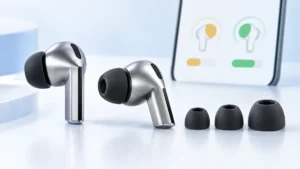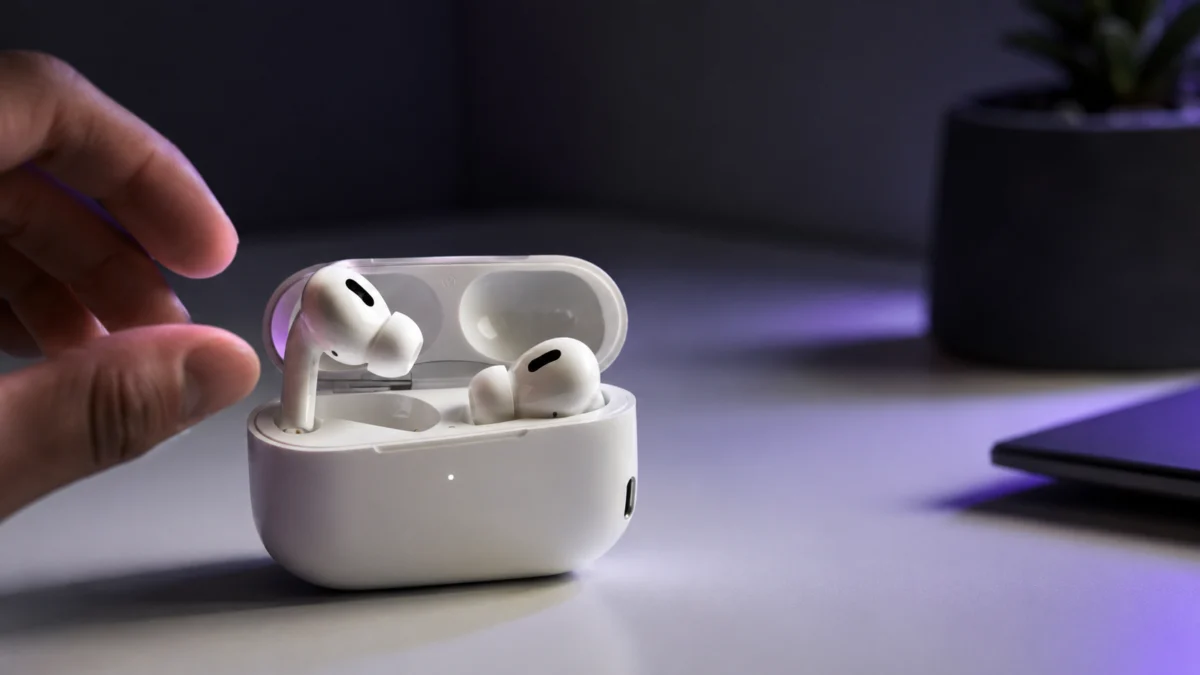
If your left or right AirPod Pro 2 is stuck at 0%, disappears from the battery widget, or only charges when you reseat it in the case, the problem is almost always one of three things: dirty charging contacts, insufficient case battery, or a pairing glitch. This guide walks through the safe fixes to try in order — based on Apple’s official support guidance and recurring community reports — before you book a repair or replacement.
These steps apply to AirPods Pro 2 with the USB-C charging case.
The Bottom Line: Most One-Side Charging Issues Come Down to Contacts, Case Power, or a Pairing Glitch
Apple Support: If your AirPods won’t charge
When only one AirPod charges, the underlying cause is usually one of the following:
- Dirty charging contacts — Skin oil, pocket lint, and earwax residue build up on the metal contacts at the base of the AirPod stem or inside the case. Even a thin layer can interrupt the charging connection intermittently.
- Insufficient case battery — If the case itself is low on charge, it may power one AirPod but not the other, or stop charging both before they reach 100%.
- Pairing or firmware glitch — A corrupted Bluetooth state can cause one AirPod to appear unresponsive or stuck at a fixed percentage. A full reset typically resolves this.
In rarer cases, a hardware fault — a damaged contact pin inside the case or a failed battery cell in one AirPod — is the cause. The steps below help you rule out the common causes first, so you are not replacing hardware unnecessarily.
Safe to try: Cleaning contacts with a dry lint-free cloth · Fully charging the case and retesting · Reseating both AirPods · Factory reset and re-pair
Avoid these (not recommended by Apple): Lifting contact pins with a needle or toothpick · Applying isopropyl alcohol, compressed air, or contact spray into the case · Using any abrasive tool on the contacts
First, Check Whether the Problem Is the AirPod, the Case, or the Cable
Before cleaning anything or resetting, spend two minutes narrowing down which component is causing the issue. This tells you exactly where to focus.
- Check the case battery first. Open the AirPods case near your iPhone. The battery widget (or the popup that appears when you open the lid) should show the case charge level separately from the AirPods. If the case is below 20%, charge it fully using a known-good USB-C cable before testing anything else.
- Swap the AirPods between sides. Place the left AirPod in the right slot and the right AirPod in the left slot. Close the lid, wait 10 minutes, then check the battery widget again. If the problem follows the same AirPod to a different slot, the fault is likely in that individual AirPod. If the problem stays in the same slot regardless of which AirPod is in it, the fault is likely in the case contact for that slot.
- Try a different USB-C cable and power source. A faulty cable or underpowered adapter can prevent the case from charging reliably, which then causes inconsistent AirPod charging. Use the cable that came with the case, or try a different Apple-certified USB-C cable.
According to multiple community reports, cases where the problem follows the AirPod — not the slot — most often resolve after cleaning the stem contacts or performing a reset. Cases where the problem stays in one slot regardless of which AirPod is in it more often indicate a hardware issue with the case itself.
How to Clean the AirPod Stem and Case Contacts Safely
Dirty contacts are the most common cause of intermittent one-side charging. The fix is straightforward, but the method matters — using the wrong materials can damage the contacts or introduce moisture into the case.
Apple’s official cleaning guidance for AirPods Pro recommends the following approach:
- Use a dry, lint-free cloth. A microfiber cloth or the type used for glasses cleaning is appropriate. Do not add any liquid to the cloth when cleaning the contacts.
- Wipe the metal contacts on the AirPod stem. These are the small gold or silver dots at the base of each AirPod. Rub gently in a circular motion. Do not press hard.
- Wipe the contact area inside the case. Use the same dry cloth to gently clean the small raised contact points at the bottom of each AirPod slot inside the case.
- Remove visible debris with a dry cotton swab. If lint or earwax is visible in the case slots, use a dry (never wet) cotton swab to gently dislodge it. Do not push material deeper into the slot.
Do not use the following on the contacts or inside the case:
- Isopropyl alcohol or any liquid cleaner
- Compressed air canisters
- Metal tools, needles, or toothpicks to lift or adjust contact pins
- Contact cleaning sprays or electrical contact restorer products
After cleaning, place both AirPods back into the case, close the lid, wait five minutes, then open the lid near your iPhone and check whether both AirPods now appear in the battery widget with charging indicators.
Reseat Both AirPods and Check the Battery Widget Again
Sometimes a one-side charging issue is not a dirt problem but a seating problem. If an AirPod is not fully seated in its slot, the contact points do not align correctly and charging stops or never starts.
- Remove both AirPods from the case completely.
- Look inside the case slots for any visible obstruction — lint, debris, or a foreign object that could be preventing full seating.
- Reinsert both AirPods firmly until you feel or hear them click into position.
- Close the lid and wait at least 30 seconds.
- Open the lid near your iPhone. Check the battery widget or the popup display.
What the battery widget readings mean:
- A percentage shown for both AirPods — both are recognized and charging normally
- One AirPod shows “—” or does not appear — the case is not recognizing that AirPod; try reseating it or cleaning the contacts again
- Both show 0% with no change after several minutes — the case may not have enough charge, or there is a pairing issue; proceed to the next steps
How to Reset and Re-Pair Your AirPods Pro 2
If cleaning and reseating did not resolve the issue, a factory reset clears any firmware or Bluetooth state that may be causing one AirPod to behave differently. This does not erase audio settings permanently — you will re-pair and reconfigure them afterward.
Apple Support: How to reset your AirPods and AirPods Pro
- On your iPhone, go to Settings → Bluetooth.
- Find your AirPods Pro in the device list. Tap the info icon (ⓘ) next to them.
- Tap “Forget This Device” and confirm. This removes the pairing from your iPhone.
- Place both AirPods in the charging case and close the lid. Wait 30 seconds.
- Open the lid. On the back of the case, locate the small Setup button (the oval button on the rear).
- Press and hold the Setup button for about 15 seconds until the status light on the front of the case flashes amber (orange), then flashes white. Release the button when you see the white flash.
- Hold the open case close to your iPhone. The setup animation should appear on the iPhone screen. Follow the on-screen steps to re-pair.
After re-pairing, place both AirPods in the case and leave them for 10–15 minutes. Then open the lid and check the battery widget. According to community reports, many cases where one AirPod was stuck at a fixed percentage or appeared dead inside the case resolved after a full reset and re-pair.
When to Contact Apple Instead of Trying More Fixes
If you have worked through cleaning, reseating, and a factory reset and one AirPod still will not charge, the problem is likely hardware-related. The following patterns are the clearest indicators that the issue is beyond what a user-level fix can address:
- The non-charging AirPod consistently shows “—” or does not appear in the battery widget regardless of how it is seated or which slot it is in
- The problem slot in the case consistently fails to charge any AirPod placed in it, even after cleaning
- The affected AirPod charges correctly in a friend’s case, but not in your own — confirming the case hardware is the fault
- The affected AirPod does not charge in any case you try — confirming the AirPod itself has a battery or contact hardware failure
- You purchased the AirPods Pro 2 within the past year and have not subjected them to physical damage or liquid exposure — standard Apple Limited Warranty may cover the fault
For hardware issues, contact Apple directly through Apple Support or visit an Apple Store or Apple Authorized Service Provider. Individual AirPod replacements and case replacements are available through Apple’s repair service at a set fee if the device is out of warranty.
How We Researched
This article is based on Apple’s official AirPods Pro support documentation, including Apple’s guidance on AirPods charging, resetting AirPods Pro, and cleaning AirPods Pro. Charging behavior and battery widget interpretation are based on Apple’s published iOS and AirPods documentation. Real-world usage patterns — including contact contamination as the most frequently cited cause and reset as an effective resolution — reflect recurring reports confirmed across multiple community forums and support threads. Fixory has not conducted hands-on lab testing. No contact pin manipulation, chemical cleaning agents, or physical disassembly is recommended in this article, as Apple’s official guidance does not support those methods.
Conclusion
One AirPod Pro 2 not charging is almost always fixable before you call Apple Support. Start by confirming the case has enough charge, then clean the stem and case contacts with a dry lint-free cloth, reseat both AirPods carefully, and run a factory reset if the problem persists. If one AirPod remains unrecognized or dead in the case after all of these steps, the fault is most likely hardware — and Apple’s repair service can replace just the affected AirPod or the case without replacing the entire set.