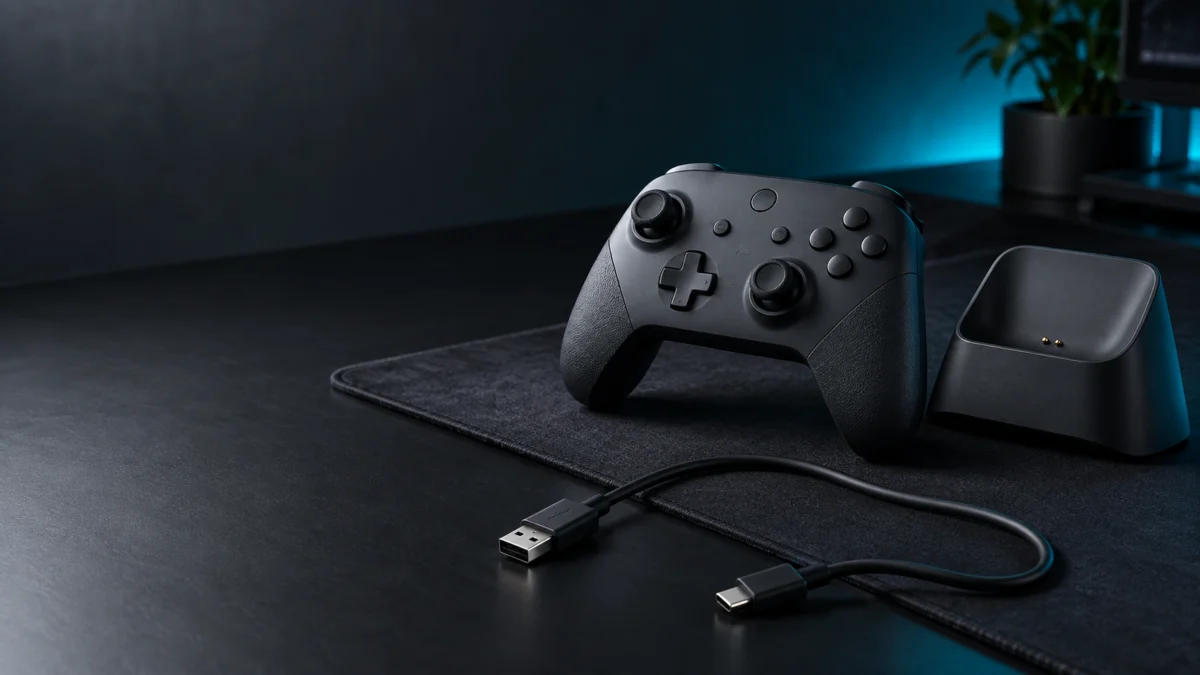
If your 8BitDo Ultimate 2 Wireless will not charge, take the dock out of the circuit and watch one specific light. Lift the controller off the dock, connect the bundled cable to the USB-C port on the controller, and observe the Power LED. The manual describes that LED as staying solid while the controller is charging, which gives you a documented signal to judge by.
Two things to know first. A controller that responds while a cable is attached is not evidence that its battery is charging. And the manual states the controller shuts down if no connection is established within a minute of powering on, which is worth ruling out before you read a shutdown after unplugging as a dead battery.
Quick Fix Checklist
Work through these six checks in the order given. Each one changes a single variable, so you can see which change altered the result. Keep everything else identical between attempts. Nothing here requires opening the controller or a button combination meant for another function.
- Confirm the controller is the Ultimate 2 Wireless and not the 2C or an older Ultimate.
- Confirm the power source feeding the dock is actually supplying power.
- Reseat the cable at both ends, changing nothing else.
- Reseat the controller on the dock, changing nothing else.
- Bypass the dock and connect the controller directly, changing nothing else.
- Repeat the direct connection with a second cable, if you have one that meets the manual’s conditions.
Know Which Light You Are Looking At
This controller and its dock carry four separate indicators, and a charging problem is easy to misread if you watch the wrong one. The manual labels a Status LED, a Power LED and the Fire Ring on the controller, plus a Charging LED on the dock.
The Power LED is the battery indicator. The manual describes three states:
- It blinks when the battery is low
- It stays solid while the controller is charging
- It turns off once charging is complete
That last state causes the confusion, because a light going dark looks the same whether a charge finished or never began.
The Status LED is a connection indicator. 8BitDo’s Steam instructions describe it blinking rapidly during pairing and staying solid once a connection succeeds.
The Fire Ring is the RGB lighting around the joysticks. The official FAQ confirms its effects are adjustable in 8BitDo Ultimate Software V2, so what it is doing may simply reflect a configured profile. Check your lighting settings before reading anything into it.
The dock has its own Charging LED, and it is not the Power LED on the controller. We are not stating what its states mean, because that definition is outside what we confirmed. Record what it does and treat it as an observation, not a verdict.
The official FAQ also documents a joystick and trigger calibration combination. It is not presented there as a charging reset, so do not run it while chasing a power problem.
How the Controller Powers Itself Off
The manual documents three power-off behaviors, and not knowing them is an easy way to misread a charging test. Two of them shut the controller down within minutes on their own, which can look like a battery that will not hold a charge when the battery is fine.
- If no connection is established within one minute of powering on, it shuts down.
- Once connected, fifteen minutes without input also shuts it down.
- While it is connected by cable, the manual states it does not shut down this way.
So you cannot judge the battery by powering the controller on and waiting. Connect it to a device first, through the 2.4G adapter or over Bluetooth, and keep using it. A shutdown a quarter of an hour after you stop is documented.
Check Power to the Dock
The dock draws power from whatever you plug its cable into, so start there. A sleeping or powered-down PC may not supply power to its USB ports. Check the power source first, then the cable at both ends, and then how the controller sits on the dock.
The official product page lists the dock separately from the 2.4G adapter in the box. If you have been plugging in the adapter and expecting the controller to charge from it, rule that out first.
The check takes 4 steps.
- Move the dock’s cable to a power source you have seen charge another device, not a sleeping computer or an unpowered hub.
- Unplug and reseat the cable at both ends, since a partially seated connector can look fully inserted.
- Lift the controller off the dock and place it back on, checking that it sits flat against the contacts.
- Watch the controller’s Power LED after each placement, and note the dock’s Charging LED separately.
Keep any inspection of the contacts visual. Bending or sanding them is not a maintenance step described in the manual.
Compare the Dock With a Direct USB Connection
Take the dock out of the circuit and connect the controller to a powered USB port using its own USB-C port. Watch for the Power LED going solid, the manual’s charging state. An unlit LED is not automatically a failure, since the manual gives that state for a completed charge too.
The comparison takes 5 steps.
- Remove the controller from the dock and set the dock aside completely.
- Connect the bundled cable to a power source you have already seen charge another device, then to the controller.
- Watch the Power LED and write down what it does. Solid is the state the manual associates with charging.
- Leave the connection in place. The manual gives a charging time of four hours, so use that as your reference for a full charge.
- Disconnect the cable, power the controller on with the Home button, and connect it to a device before judging. Without a connection established within a minute, it shuts down.
If charging appears necessary under the conditions below and the Power LED never went solid, the cable is another variable to check. An unlit LED alone does not establish a cable fault. The manual asks owners to use the battery, charger and accessories supplied by the manufacturer, so run this step only with a cable that meets those conditions. If you do not have one, skip it and take your observations to the retailer or to 8BitDo.
Read Your Results and Decide What to Change Next
Use the table below only when there is reason to believe charging is needed. Failure to run unplugged alone does not establish that reason; consider the connection and automatic shutdown conditions above. The manual gives an unlit Power LED as the completed-charge state, so on a controller that may already be full, no light tells you nothing about a fault.
| Power LED on the dock | Power LED on a direct connection | Second cable | What to change next |
|---|---|---|---|
| Any result | Any result | Any result | If nothing indicated the battery needed charging, the comparison is inconclusive. Do not identify a faulty cable or dock from this result alone. |
| Never goes solid | Goes solid | Not needed | Points to the dock or its power source. Retest the dock on a different powered port before assuming it failed. |
| Never goes solid | Never goes solid | Goes solid | The original cable is a possible cause. Retest the dock with the working cable under comparable conditions, since the dock may be fine. |
| Never goes solid | Never goes solid | Never goes solid | Nothing further on your side. Gather your notes, including what told you a charge was needed, and contact support. |
| Goes solid on some placements only | Goes solid | Goes solid | How the controller sits on the dock. Record which placements produced a solid Power LED. |
A firmware update is not a documented fix for this symptom, at least not within the histories we checked. On the support page, the published controller history covers v1.02 to v1.07 and the adapter history covers v1.01 to v1.06. No charging entry and no dock indicator entry appears in either of those lists.
Other 8BitDo models have dock indicator entries in their own histories, which belong to the models they are published under. If you update firmware for a separate reason, 8BitDo Ultimate Software V2 is the tool for this model.
Finally, resist concluding that the battery has failed because nothing worked. These checks give you no way to observe the cell itself, so a symptom that survives them is a reason to ask the manufacturer rather than a diagnosis.
When to Contact 8BitDo, and What to Include
If nothing you changed produced a solid Power LED, and something told you a charge was needed, you have reached the end of these checks. Contact support rather than opening the controller, and send the observations you recorded rather than your conclusions.
Include the following:
- The exact model name from the packaging or product listing
- Roughly when and where you bought it
- What the controller’s Power LED and the dock’s Charging LED did in each test
- Which power sources you used for the dock and for the direct connection
- The current firmware version, if you were able to read it in Ultimate Software V2
Start with the retailer you bought it from, and use the support section of 8BitDo’s official site for manufacturer contact.
Do not open the controller or attempt to remove the battery. The manual’s safety notes ask owners to avoid disassembly, modification and self-repair. They also ask owners to use accessories supplied by the manufacturer. Check your warranty terms before taking any step that alters the hardware.
How We Researched
This article is based on manufacturer documentation and official support materials. We have not conducted hands-on lab testing. The official PDF manual for this controller is image-based rather than selectable text, so its English section was reviewed as page images. The indicator and battery behavior above comes from that reading. Our sources were:
- The official PDF manual, English section
- The product page
- The product FAQ
- The support and firmware index
- The Steam compatibility instructions
- The Ultimate Software V2 page
Two limits are worth stating. We did not confirm the color of the Power LED while charging, or what each state of the dock’s Charging LED means, so neither appears above. Among the sources checked, we did not confirm charging reports for this model across multiple community threads.
Frequently Asked Questions
Why does the charging light turn off?
This answer covers the controller’s Power LED only. The manual describes it as turning off once charging is complete, so an unlit Power LED is consistent with a finished charge and does not by itself show that charging failed. The dock’s Charging LED is a separate indicator we are not defining here.
Why does the controller only work while it is plugged in?
Two documented behaviors can look like this. The manual states the controller does not shut itself off while connected by cable, and that it shuts down if no connection is established within a minute of powering on. Connect it to a device on battery power and watch the Power LED first.
How long should a full charge take?
The manual gives a charging time of four hours for this controller. Treat that as the reference for a full charge, not as a deadline that proves a fault. A session running longer is not on its own evidence of a problem, and a shorter one is not proof of success.
Can I follow the Ultimate 2C charging instructions instead?
No. The Ultimate 2C and the Ultimate 2 Bluetooth are different products, and 8BitDo publishes a separate manual and firmware track for each. Button combinations and indicator behavior documented for one model do not transfer to another, even within the Ultimate range.
What to Do Next
Judge charging by the Power LED going solid, and compare the dock against a direct connection one change at a time. Treat an unlit LED as inconclusive unless something told you a charge was needed. If the direct connection lights and the dock does not, the dock side is next.
Keep the log you built while working through the checks. It gives support something specific to work from, and stops you replacing a dock over a light you had not identified.