If your Reolink RLC-811A shows a live picture but reports no microSD card, do not format anything yet. A working live view proves nothing about storage: video reaches your phone over the network whether or not a card is installed. Confirm first which storage you are looking at. Reolink documents that for a camera added to a Reolink NVR or Home Hub, the camera’s own SD card cannot be reached through that interface, and that accounts other than the original admin account cannot open the storage settings. Either condition can hide a working card. Check the access path and requirements first, then reseat the card, and only then format it — formatting erases every recording.
Quick Checklist Before You Format Anything
Five checks come before any destructive step, and three of them never require touching the card. Work through them in order. Confirm the account, access path, card requirements and installation conditions before deciding whether to format.
- Signed in with the original admin account? Reolink states user accounts cannot access storage settings.
- Camera on a Reolink NVR or Home Hub? Its own SD card is not reachable through that interface.
- On the camera’s Storage page, not the recorder’s? In the App: Camera Settings → Camera Information → Storage.
- Does the card meet the published speed class, file system and card standard?
- Camera powered off when the card went in? Reolink warns this can otherwise damage the card.
How to Check/Format the microSD Card in Reolink Device
Why the RLC-811A Reports No SD Card
Reolink documents three related states for this fault: a Storage page reading No SD card detected, one reading Not detected, and a card that is recognised but shows 0 GB. The cause can sit in the card, its seating, its specification, or the interface you are using.
SD Card Can Not Detected on Reolink Device
| What you see | What it tells you | Where to go next |
|---|---|---|
| No SD card detected or Not detected | The camera is not reading a card in its slot | Confirm the requirements, then reseat with the camera powered off |
| Card recognised but showing 0 GB | Reolink documents this with the not-detected symptom | Same route, ending in a format or a second card |
| No Storage option, or Format greyed out | Check for an account or interface restriction | Use the original admin account, or connect to the camera directly |
| Correct capacity shown, but playback empty | The camera is reading the card; the question moves to recording | Check the recording schedule and overwrite settings |
| Card reads on a computer but not in the camera | The card is readable, so file system and specification are worth checking | Confirm it is FAT32 and meets the requirements |
Keep the two recording destinations separate. Reolink states that the RLC-811A saves recordings to its microSD card without an NVR, and to the NVR when it works with one. If your camera sits on a recorder, the storage screen you reach most easily belongs to the recorder.
Check the Card Requirements for Your RLC-811A
Reolink requires Class 10 or higher, FAT32 formatting, and either SDXC or an SDHC card of 32 GB or less. For 4K recording it recommends V30 or higher. The official capacity figures differ, but 256 GB falls within the published limits discussed below.
| Requirement | What Reolink publishes |
|---|---|
| Read and write speed | Class 10 or higher |
| File system | FAT32 |
| Card standard | TF type SD, SDXC, or SDHC up to 32 GB |
| Video speed class | V30 or higher recommended for 4K (a minimum sustained write speed) |
| Capacity | Stated differently across official pages — see below |
How to Choose microSD Card for Reolink Device
On capacity, the pages genuinely differ. The specification lists a slot maximum of 512 GB; Reolink’s FAQ for the same camera states 256 GB. The card selection guide adds a third layer: its table gives 512 GB for RLC series hardware outside a short list of older versions, but a note beneath says only PoE models currently on sale have been tested at 512 GB, and elsewhere only 256 GB is guaranteed.
We are not resolving that here. The pages agree on the lower figure: 256 GB or less falls inside every published capacity limit we checked. That settles the published limits only — speed class, file system and fit for your particular unit still need checking. Above 256 GB the discrepancy is live, and Reolink itself suggests testing with a lower-capacity card.
Note your hardware version before contacting Reolink. In the Client it sits under Camera Settings → Info, with the model, UID and firmware version. For a camera on a Reolink NVR, Reolink states this is visible only on the NVR’s own monitor.
How to Find out Reolink Device System Information
Reseat the Card Correctly Before You Format
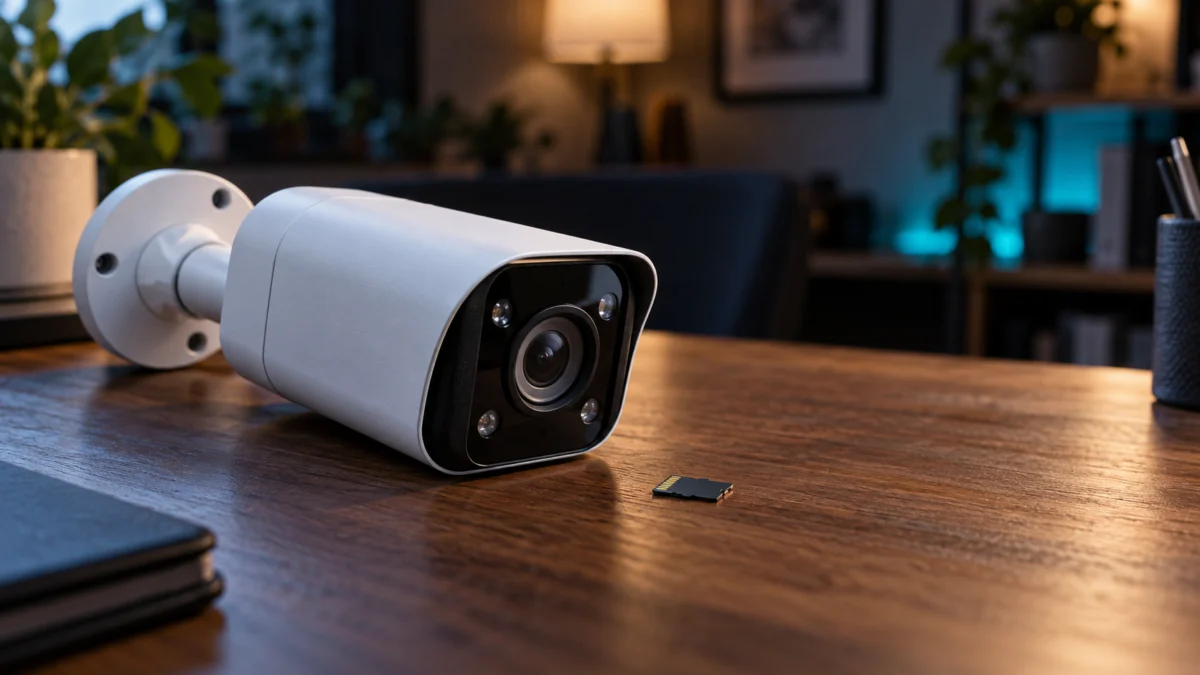
Reseating is non-destructive, and Reolink lists correct installation and orientation among the first things to check, so it belongs before anything that erases data. The RLC-811A has no power button, so the first task is cutting power to it without damaging the card in the slot.
Reolink’s guidance for PoE cameras is to unplug the Ethernet cable when power comes from a PoE injector, switch or NVR. If you use the optional DC adapter, disconnect it at the power port on the camera’s tail cable, or unplug it at the outlet.
How to Power off PoE Cameras and WiFi Cameras
The reseat takes 4 steps.
- Power the camera off by whichever method matches your setup. Reolink warns that inserting or removing a card while it runs can damage the card.
- Unscrew the cover at the back of the camera to reach the microSD slot.
- Push the card in until it locks. Reolink’s guide describes an audible click; a properly seated card will not pop back out.
- Screw the cover back on tightly, restore power, and reopen Storage once the camera has booted.
How to Install a microSD card for Bullet Cameras
If Storage now reports a capacity, the camera is reading the card again. If not, read the warning below before choosing to format; testing another card is a separate option.
Format the Card or Test a Different One
Formatting erases everything on the card, so decide first whether any recording on it still matters. Testing a second card leaves the original untouched. Which route you take depends on whether the camera can see the card at all: one it cannot detect has to be formatted on a computer.
Reolink is explicit that formatting erases all data and that anything important should be backed up first. If the card is readable in a computer and holds footage you need, copy it off first. If it is unreadable everywhere, recovery tools are a separate decision.
Where the camera can see the card, including one reported as 0 GB or not formatted, formatting in the camera takes 3 steps.
- Open the Storage page: App → Camera Settings → Camera Information → Storage, Client → Camera Settings → Storage, or browser → Device Settings → Storage.
- Select Format, then confirm.
- Wait a few minutes for the camera to reboot, then reopen Storage and check the capacity reads correctly.
Where the camera cannot see the card, Reolink’s instruction is to format it to FAT32 on a PC. Reolink’s PC guide notes that File Explorer offers direct FAT32 formatting only for cards of 32 GB or smaller. For larger cards, its walkthrough uses DiskGenius. A USB card reader is also needed. If a card reads on a computer but not in the camera, check which file system it holds, because Reolink requires FAT32.
If the format fails, Reolink describes three signatures: the card stays marked as not formatted, the operation returns a failure message, or it appears to succeed while free space is unchanged. Reolink notes that system files, wear-levelling reserve and metadata may use some capacity. Reolink’s steps also add a firmware check.
How to Format a microSD card on PC
SD Card Format Failed on Reolink Device
The last piece of evidence is a second card. Reolink’s guidance is to test with another card meeting the specification: if the camera reads it, suspicion moves to the first card; if it reads neither, suspicion moves to the camera. That narrows the fault; it does not confirm a faulty slot.
Fixory may earn a commission from purchases made through links in this article. This does not change which products we cover or what we say about them.
If you already have a spare card meeting the requirements, use it — borrowing beats buying for a test. If not, 256 GB falls within the published limits discussed above; the other card requirements still apply. Reolink sells a microSDXC card in that capacity for its own cameras. A new card does not guarantee a fix.

Please check the Amazon product page for the latest price and availability.
If the Card Still Is Not Detected
At this point the useful move is to hand Reolink a complete picture rather than start over. Collect the model, hardware and firmware versions, the card details, what the Storage page shows, and every check you have run, then open a support request.
Reolink asks for a short description of the problem and a summary of what you have tried. Include the following details with your request.
- Model, hardware version and current firmware version
- Card brand, capacity, speed class and its last format
- The exact wording on the Storage page, and whether the option appears
- Whether the camera is standalone or on an NVR or Home Hub
- The result of the second-card test, if you ran one
Submit a Request – Get More Support from Reolink
One branch is worth separating out. If Storage reports the correct capacity but playback stays empty, the camera is reading the card and the question has moved to recording. Reolink’s guide for a camera that is not recording covers the schedule, manually captured video not being saved to the card, the overwrite setting, time-lapse files consuming capacity, and time synchronisation. Work through those before formatting again.
Reolink Camera Not Recording to SD Card
We have kept a factory reset out of the early steps. It is not listed in the not-detected support article cited above.
How We Researched
This article draws on Reolink’s manufacturer documentation and official support material: the RLC-811A support page, the model FAQ, the card selection guide, and the support articles covering card detection, installation, formatting and recording faults. We have not conducted hands-on lab testing and do not own the hardware.
Two limits are worth stating. The capacity discrepancy above sits in Reolink’s own material and is not something we resolved, so we report both figures rather than pick one. We also found no user reports on this fault confirmed across multiple threads, so nothing here claims how often it occurs or which brands are involved.
Frequently Asked Questions
Three questions follow directly from the checks above. In short: a live picture proves nothing about storage, a 0 GB reading is documented alongside the not-detected symptom rather than separately, and Reolink’s own pages do not state one capacity ceiling for every RLC-811A.
Does a working live view mean the SD card is working?
No. Live video streams over the network and never passes through the card, so the picture looks identical with a healthy card, a faulty card, or none at all. Only the Storage page shows what the camera can see.
Why does the card show 0 GB?
Reolink lists a card recognised but displaying 0 GB alongside the not-detected symptom in the same guide, so follow the troubleshooting route in that guide. Work the same order: requirements, reseating, then formatting or a second card.
Do all RLC-811A cameras support the same card capacity?
Reolink’s published pages do not give one answer. The specification lists a 512 GB maximum, the model FAQ states 256 GB, and the selection guide says only 256 GB is guaranteed outside the PoE models tested at 512 GB. A 256 GB card sits inside all three.
The Bottom Line
The order matters more than any single step. Confirm the access path and account, confirm the card meets the published requirements, reseat it with the camera powered off, and only then format or swap. That order leaves the destructive step until last, after the checks that cost you nothing.
Check Reolink’s official specifications and support material for your own hardware version before acting, and confirm the capacity figures with Reolink rather than settling them from a table. This article is not a substitute for manufacturer support, and nothing here guarantees continuous recording or the recovery of footage on a card.