
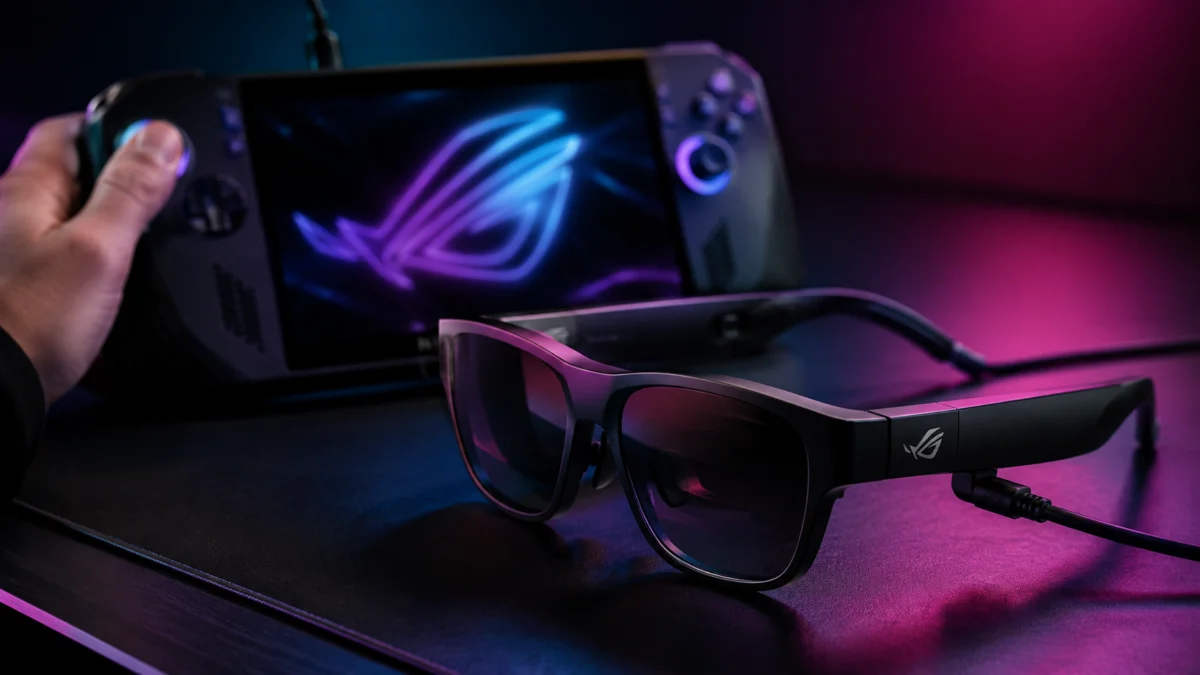
Short answer: Buy the ROG Xreal R1 if you own a ROG Ally or ROG Xbox Ally and want its ACSE dual-screen control panel and the bundled ROG Control Dock. If you game mainly on a Steam Deck, gaming laptop, or console, look at the Xreal One Pro or VITURE Luma Pro XR first — ACSE does not run on those devices, so you would pay a premium over the One Pro for features you cannot use.
The ROG Xreal R1 makes the strongest case for ROG Ally and ROG Xbox Ally owners who want a private large-screen gaming setup without a physical monitor. The price — in the $800–$900 range — is steep, but it includes something the Xreal One Pro and VITURE don’t offer: deep ACSE integration that turns your Ally’s 7-inch touchscreen into a live control panel while you play on a virtual 171-inch display.
That said, the “240Hz” headline deserves scrutiny upfront. Frame Rate Boost achieves 240Hz by upscaling from 540p — vertical resolution is halved to reach the higher refresh rate. Motion clarity improves in fast-paced games, but text readability and fine detail take a measurable hit. Whether that trade-off makes sense depends entirely on what you play and which device you’re connecting.
If you own a Steam Deck, gaming laptop, or console without ROG-specific software, the around $250 premium over the Xreal One Pro is difficult to justify. This guide breaks down exactly who should buy the ROG Xreal R1, who should skip it, and what to verify before buying.
Check at Best Buy
/
Official ASUS ROG page
/
Official XREAL page
- ROG Xreal R1 at a Glance
- The Truth About “240Hz”
- Who Should Buy the ROG Xreal R1?
- Who Should Not Buy It (or Should Wait)?
- Device Compatibility: ROG Ally, Steam Deck, PC, and Console
- ROG Control Dock Explained
- ROG Xreal R1 vs. Xreal One Pro vs. Portable Monitor
- Potential Downsides
- Buying Checklist Before You Buy
- Frequently Asked Questions
- Final Verdict
Quick Comparison: ROG Xreal R1 vs. the Alternatives
| ROG Xreal R1 | Xreal One Pro | VITURE Luma Pro XR | Portable Gaming Monitor (category) | |
|---|---|---|---|---|
| Price | ~$850 | ~$600 | ~$500 | ~$300–$500 |
| Refresh Rate | 120Hz native / 240Hz (Frame Rate Boost — 540p upscaled) | 120Hz | 120Hz | 144–240Hz (native) |
| Resolution | 1080p (540p vertical at 240Hz) | 1080p | 1200p | 1080p or 1440p |
| FOV | 57° | 57° | 52° | N/A |
| Peak Brightness | 700 nits | 700 nits | Up to 1,000 nits (manufacturer claim) | 300–500 nits |
| Vision Correction | Prescription insert (separate purchase) | Prescription insert (separate purchase) | Built-in diopter adjustment (up to −4.0D) | N/A |
| Dock Included | ROG Control Dock | No | No | N/A |
| ROG Ally ACSE Integration | Yes (full dual-screen control) | No | No | No |
| Connection | USB-C (DP Alt Mode) | USB-C (DP Alt Mode) | USB-C (DP Alt Mode) | USB-C / HDMI |
What Early Buyers and Reviewers Are Saying
Based on retailer feedback, independent reviews, and multiple threads across r/Xreal, r/OLED_Gaming, and r/SteamDeck, three concerns appear repeatedly in early discussion about the ROG Xreal R1.
The price premium draws the most criticism. According to multiple posts on r/Xreal and r/OLED_Gaming, a recurring complaint is that the R1 shares core hardware with the Xreal One Pro yet costs around $250 more — with the gap explained primarily by ACSE software integration and the bundled Control Dock. Several users noted that at close to $1,000 after tax, a 32-inch 4K 240Hz OLED monitor becomes a comparable purchase for home use (source).
The 240Hz upscaling method is the most important technical caveat. When technical details of Frame Rate Boost — specifically that vertical resolution drops to 540p at 240Hz — became public, multiple threads on r/OLED_Gaming described disappointment. The concern was that a 171-inch virtual screen rendered from a 540p source would show visible degradation on fine details and UI elements (source).
Near-sighted users flag the lack of built-in vision correction. Compared to the VITURE Luma Pro XR’s built-in dial adjustment (up to −4.0D), the ROG Xreal R1 requires a separately purchased prescription lens insert. Multiple posts on r/Xreal cited the added cost and process as a meaningful barrier for glasses wearers (source).
On the other side, ROG Ally owners responding in the same threads consistently cited the ACSE dual-screen experience as genuinely differentiated — describing the ability to manage settings and brightness without pausing gameplay as a “game-changer” for travel and shared-living setups.
ROG Xreal R1 at a Glance: What Makes These Gaming AR Glasses Different?
The ROG Xreal R1 is purpose-built for the ROG Ally ecosystem. The key differentiator is not the display hardware — which it shares with the Xreal One Pro — but the ACSE (Armoury Crate SE) integration that turns the Ally’s 7-inch screen into a live control panel, and the included ROG Control Dock that extends compatibility to consoles and PCs.
The display uses a Sony-made Micro OLED panel at 0.55 inches per eye, running at 1920×1080 native resolution. The optics use Xreal’s X-Prism design, the same found in the One Pro. Physical weight is 91g. The lenses dim electrochromically across three levels and switch to automatic transparency in Anchor Mode — the stabilized, fixed-position viewing mode. Bose-tuned dual speakers and a noise-cancelling microphone are built in. IPD is fixed per SKU: the R1-N covers 57–66mm and the R1-B covers 66–75mm.
According to ASUS ROG’s official product page, the glasses connect via a single USB-C cable with DisplayPort Alt Mode. The ROG Control Dock — included in the box — adds HDMI 2.0 (×2), DisplayPort 1.4, and USB-C data and power ports for connecting consoles, gaming PCs, and non-USB-C devices.
The Truth About “240Hz”: What Frame Rate Boost Actually Does to Image Quality
Frame Rate Boost reaches 240Hz by halving vertical resolution to 540p and algorithmically upscaling back to 1080p. Horizontal resolution stays at 1920. This is a deliberate engineering trade-off, not a defect — the X1 spatial coprocessor inside the glasses was designed around a 120Hz target, and pushing to 240Hz requires reducing the data throughput it processes per frame.
The practical result splits into two scenarios. In fast-paced games — competitive shooters, action games with rapid camera movement — Frame Rate Boost reduces motion blur and improves perceived smoothness in ways that some users will find meaningful. In games that depend on sharp text, detailed UI, RPG menus, or strategy game maps, the upscaling process introduces visible softness. The 171-inch virtual screen amplifies this: what looks acceptable on a physical 55-inch TV at 540p becomes more noticeable when rendered across a virtual display that size.
According to technical analysis published during the preorder window, the upscaling method is a real engineering constraint. An ASUS product representative acknowledged in a community forum that Frame Rate Boost is a scaling mode — not native 240Hz output — and that the trade-off was intentional to manage thermal and bandwidth limits on the X1 chip.
If 240Hz at full 1080p resolution is your primary reason for choosing the R1 over the Xreal One Pro, that expectation needs adjustment before purchase.
Who Should Buy the ROG Xreal R1?
The ROG Xreal R1 is the right choice for ROG Ally or ROG Xbox Ally owners who game in shared spaces, travel frequently, or want a private large-screen experience without a physical monitor. The around $250 premium over the Xreal One Pro is justified by the ACSE integration and Control Dock — but only if you’re in that specific ecosystem.
✅ Buy if…
- You own a ROG Ally or ROG Xbox Ally and want to use your Ally’s 7-inch screen as a live control panel while gaming on a virtual 171-inch display.
- You play fast-paced games (shooters, action, fighting) and want 240Hz Frame Rate Boost, and you understand the 540p upscaling trade-off.
- You travel regularly or live in a shared space where a physical monitor isn’t practical, and you want the highest-spec AR glasses currently available for handheld gaming.
- You plan to connect multiple devices — gaming PC, Xbox, PS5, and your Ally — through the Control Dock and want a unified AR display hub.
- You have a normal IPD (57–75mm) and either don’t need vision correction or are prepared to order a custom prescription insert separately.
❌ Don’t buy if…
- You own a Steam Deck, gaming laptop, or console only — ACSE doesn’t run on these devices, and the around $250 premium over the Xreal One Pro has no functional payoff.
- You primarily play RPGs, strategy games, visual novels, or any title where sharp text and fine UI detail matter more than motion clarity.
- You need built-in vision correction — the VITURE Luma Pro XR’s dial-in diopter adjustment (up to −4.0D) is a better fit at a lower price.
- You’re comparing against a physical 32-inch 4K 240Hz OLED monitor for home use — at this price range (plus potential prescription insert cost), a physical display is a competitive alternative.
- You have an IPD outside the R1-N (57–66mm) or R1-B (66–75mm) ranges — verify your IPD before purchasing.
Who Should Not Buy It (or Should Wait)?
Steam Deck users, non-ROG PC gamers, and near-sighted users without a plan for the prescription insert get a worse value proposition from the ROG Xreal R1 than from cheaper alternatives. If you don’t need ACSE or the Control Dock, the Xreal One Pro delivers the same optics and display hardware for around $250 less.
There is also a case for waiting. As of late June 2026, the R1 is no longer just a CES preview: Best Buy lists it at $849.99 with order availability, while XREAL’s US store still labels it as a preorder with expected July 2026 shipping. Independent reviews have also started to appear. Display technology in AR glasses is advancing quickly, and a follow-up generation with native 240Hz output — without the Frame Rate Boost upscaling compromise — is a reasonable expectation within 12–18 months. If the 540p upscaling limitation matters to your use case, waiting for more long-session reviews and firmware follow-ups gives you better measured data before committing to a purchase in this price range.
ROG Ally, Steam Deck, PC, and Console Compatibility: What to Check First
The ROG Xreal R1 experience varies significantly by which device you connect. ACSE integration is the key dividing line — devices that support it unlock the R1’s full feature set; devices that don’t reduce the R1 to a premium version of the Xreal One Pro at a higher price.
ROG Ally / ROG Xbox Ally
This is the R1’s target platform. Connect via USB-C directly, and ACSE activates automatically. The Ally’s 7-inch touchscreen becomes an interactive control panel — you can adjust brightness, lens transparency, aspect ratio, and toggle Frame Rate Boost without leaving your game. According to ASUS ROG’s official product documentation, this dual-screen mode is exclusive to Armoury Crate SE-compatible devices.
Steam Deck
The Steam Deck supports USB-C DisplayPort Alt Mode, so the R1 connects and displays natively. 3DoF tracking works. However, ACSE does not run on SteamOS, so there is no dual-screen integration. More practically, the Steam Deck’s APU has a ceiling well below what’s needed to push 120Hz or 240Hz in demanding 3D titles — the connection works, but Frame Rate Boost offers no real benefit on hardware that can’t produce 120+ FPS in those games. According to multiple posts on r/SteamDeck, the R1 and similar AR glasses are most useful on Steam Deck for streaming via Moonlight, light 2D indie titles, and video playback — not demanding 3D gaming (source).
Windows Gaming PC / Gaming Laptop
Connect via USB-C (DP Alt Mode) directly or through the ROG Control Dock. ASUS’s DisplayWidget Center software provides overlay controls including GamePlus features (AI crosshair, frame counter). A high-end discrete GPU can output 240Hz — this is the only platform outside the ROG Ally where Frame Rate Boost delivers its full intended benefit. For gaming laptops without USB-C DP Alt Mode output, the Control Dock’s DP 1.4 input is an alternative path.
Xbox Series X/S / PlayStation 5
Connect through the ROG Control Dock’s HDMI 2.0 input. Output is capped at 1080p/120Hz — 240Hz is not available via HDMI 2.0. ACSE does not apply. The experience is functionally equivalent to using a lower-cost AR glasses model with the same HDMI input. If console gaming is your primary use case, the R1’s premium features are inaccessible.
Nintendo Switch
Direct connection is not possible. The Switch requires its official dock for HDMI output, which then needs to route through the ROG Control Dock’s HDMI input. This two-device chain works in principle but adds cable complexity. Portable mode connection is not supported.
Smartphones (iPhone 15/16 Pro, USB-C Android)
DP Alt Mode-compatible smartphones connect directly via USB-C. The display works, but 240Hz output is not available. This is a secondary use case — video streaming, remote desktop, and productivity — rather than a gaming configuration.
ROG Control Dock Explained: Essential or Redundant for Your Setup?
The ROG Control Dock is essential if you want to connect the R1 to consoles, non-USB-C PC ports, or multiple devices without recabling constantly. It is redundant if you connect only to a ROG Ally or a single USB-C PC and never switch devices.
The dock provides HDMI 2.0 (×2), DisplayPort 1.4, USB-C data and power, and handles signal routing to the glasses through a single USB-C cable. According to ASUS ROG’s specifications, total system power consumption with the dock is under 7.5W — the dock itself draws approximately 3W.
For a user who wants to switch between a ROG Ally, a gaming PC, and an Xbox from a single desk or travel kit, the Control Dock eliminates the need to unplug and replug the glasses between sessions. That convenience has real value in multi-device setups. For a user who owns only a ROG Ally, the dock is included in the box but functionally optional for the primary use case.
ROG Xreal R1 vs. Xreal One Pro vs. Portable Monitor: Which Makes More Sense?
The around $250 premium over the Xreal One Pro is justified only for ROG Ally owners. For everyone else, the Xreal One Pro delivers the same Sony Micro OLED panel, the same X-Prism optics, the same 57° FOV, and the same 120Hz native refresh rate at a lower price — without the ACSE integration, but without the price gap either.
Check XREAL One Pro on Amazon
/
Official XREAL One Pro page
The VITURE Luma Pro XR‘s most practical advantage over both is built-in diopter adjustment (up to −4.0D). If you’re near-sighted and don’t want to manage a separate prescription insert order, the VITURE Luma Pro XR at around $500 is worth serious consideration — particularly for Steam Deck and console users where ACSE offers no benefit.
Portable gaming monitors make sense if you game at a fixed location (hotel desk, shared room), need native 240Hz without upscaling compromises, want higher than 1080p resolution, or find wearing glasses for extended sessions uncomfortable. A 16-inch or 18-inch portable monitor in the $300–$500 range offers native 240Hz and 1440p in some configurations — at the cost of physical footprint and reduced privacy. For home use, a full-size 32-inch 4K 240Hz OLED monitor enters the same price bracket as the R1 after tax.
The honest framing: the ROG Xreal R1 is not competing with portable monitors on value per pixel. It is selling privacy, portability, and ROG Ally ecosystem integration. If those three things solve a real problem in your setup, the premium is defensible. If they don’t, it isn’t.
Potential Downsides: Price, Resolution Trade-Off, Comfort, and Cable Management
The five most significant limitations are price, the 240Hz resolution trade-off, the absence of built-in vision correction, fixed IPD per SKU, and tethered cable dependency. Here is what each means in practice.
- Price: In the $800–$900 range, the ROG Xreal R1 costs around $250 more than the Xreal One Pro and around $350 more than the VITURE Luma Pro XR. Add a prescription lens insert if needed, and total cost approaches or exceeds $1,000 for some buyers. Multiple community threads on r/Xreal and r/OLED_Gaming describe this premium as difficult to justify unless ACSE integration is a core requirement (source).
- 240Hz resolution trade-off: Frame Rate Boost upscales from 540p vertical resolution. Technical analysis and early independent reviews identify this as a real image quality compromise. For text-heavy content and detail-dependent game genres, 120Hz at full 1080p may produce a better experience than 240Hz at 540p upscaled.
- 1080p ceiling: The native display is 1080p per eye. At 57° FOV and a 171-inch virtual size, pixel density is lower than a close-range physical monitor. This is inherent to the current state of micro-OLED AR glasses broadly — not unique to the R1 — but it is worth setting expectations against.
- No built-in vision correction: Near-sighted users need to purchase a custom prescription insert separately. This adds cost and requires an extra purchase step before the glasses are fully usable. The VITURE Luma Pro XR’s built-in dial removes this friction entirely.
- Fixed IPD per SKU: IPD is not adjustable. The R1-N covers 57–66mm and the R1-B covers 66–75mm. Buyers should measure their IPD before ordering. An IPD outside these ranges cannot be accommodated.
- USB-C cable dependency: The glasses operate via a single tethered USB-C cable. Cable routing from head to device adds physical constraints in some gaming positions. Wireless AR glasses remain a future product category.
- X1 coprocessor thermal behavior: Technical analysis published during the preorder window noted potential concerns about the X1 spatial coprocessor’s thermal headroom when running at 240Hz sustained. Independent long-session reviews post-launch will provide clearer data. This should be treated as an open question, not a confirmed issue.
- No 6DoF without external camera: 3DoF and Anchor Mode are built in. Six degrees-of-freedom tracking requires an external camera accessory. If you expected full spatial AR capability from this product, 3DoF is the native limit.
Buying Checklist Before You Buy
Confirm these five points before ordering. Each one has a direct impact on whether the R1 delivers value for your specific setup.
- Verify your IPD. Measure interpupillary distance before ordering. R1-N is 57–66mm; R1-B is 66–75mm. There is no return path if IPD falls outside the purchased SKU’s range.
- Identify your primary device. If it is a ROG Ally or ROG Xbox Ally, the R1’s premium features are fully accessible. If it is a Steam Deck, gaming laptop, Xbox, or PS5, evaluate whether the Xreal One Pro or VITURE Luma Pro XR serves your needs at a lower price.
- Confirm USB-C DP Alt Mode support. The glasses require DisplayPort Alt Mode over USB-C. Not all USB-C ports support this. On gaming laptops, verify that the USB-C port outputs DisplayPort — many output USB only, or Thunderbolt without DP Alt Mode.
- Decide on 120Hz vs. 240Hz as your primary mode. If your primary games are text-heavy, menu-driven, or detail-dependent, 120Hz at full 1080p is likely a better daily driver than Frame Rate Boost at 540p upscaled. Know before you buy which mode you’ll actually use.
- Plan for vision correction if needed. If you are near-sighted, factor the additional cost and process of a prescription insert order into your total purchase budget. VITURE Luma Pro XR is an alternative if built-in correction is a priority.
How We Researched
This article is based on ASUS ROG and Xreal official product specifications and documentation, current retailer and official-store availability pages, community discussion confirmed across multiple threads on r/Xreal, r/OLED_Gaming, r/SteamDeck, and r/ASUSROG, technical analysis published during the preorder window, an early hands-on preview from IGN at CES 2026, a one-hour hands-on review by GizmoSlipTech, and early post-launch independent review coverage. We have not conducted hands-on lab testing. All performance figures reflect manufacturer claims or independently reported findings from the sources listed. Final performance data — including long-session thermal behavior, real-world 240Hz motion clarity, and comfort over extended use — should be confirmed from additional independent reviews and firmware follow-up coverage.
Frequently Asked Questions
What is the best ROG Xreal R1 alternative?
For most non-ROG users, the Xreal One Pro is the closest alternative: it uses the same Sony Micro OLED panel, the same X-Prism optics, the same 57° field of view, and the same 120Hz native refresh rate, at a lower price — without ACSE integration or the bundled Control Dock. If you are near-sighted or game mainly on a Steam Deck or console, the VITURE Luma Pro XR is worth considering for its built-in diopter adjustment and lower price.
ROG Xreal R1 vs Xreal One Pro: which should you choose?
Choose the ROG Xreal R1 only if you own a ROG Ally or ROG Xbox Ally and want ACSE dual-screen control and the included Control Dock. For every other device, the Xreal One Pro delivers the same display and optics for less, so the R1’s premium has no functional payoff outside the ROG Ally ecosystem.
Is the ROG Xreal R1 good for handheld gaming PCs?
It depends on which handheld you own. On a ROG Ally or ROG Xbox Ally, ACSE unlocks the R1’s full feature set. A Steam Deck connects and displays through USB-C DisplayPort Alt Mode, but ACSE does not run on SteamOS, and the Steam Deck’s APU generally cannot push 120Hz or 240Hz in demanding 3D games — so it is most useful for Moonlight streaming, lighter 2D titles, and video rather than demanding 3D gaming.
Should you buy the ROG Xreal R1 now or wait?
If ACSE and the Control Dock solve a real problem for your ROG Ally setup, the R1 is the product built for that use. If the 540p upscaling behind Frame Rate Boost matters to the games you play, waiting for independent reviews gives you actual measured data before committing at this price range.
Final Verdict: Is the ROG Xreal R1 Worth It for Handheld Gaming?
The ROG Xreal R1 is the best AR glasses option available for ROG Ally and ROG Xbox Ally owners. ACSE integration is a genuinely differentiated feature — turning the Ally’s touchscreen into a live display controller mid-game is something no competing AR glasses product currently offers. The Control Dock adds meaningful multi-device flexibility. At this price point, you are paying a real premium for software integration and ecosystem fit, not just better hardware.
For everyone else, the value case is harder to make. Steam Deck users, console gamers, and non-ROG PC users get the same Sony Micro OLED display and X-Prism optics from the Xreal One Pro for around $250 less. The VITURE Luma Pro XR undercuts both on price and adds built-in diopter adjustment that neither Xreal product offers.
The 240Hz Frame Rate Boost is a real feature with a real resolution compromise. It will benefit players in fast-paced genres who understand the trade-off. It will disappoint anyone who expected native 240Hz at full 1080p.
If you own a ROG Ally, travel or game in shared spaces, and have been waiting for AR glasses that treat your handheld’s screen as part of the display system rather than an afterthought: the ROG Xreal R1 is the product built for you. If that description doesn’t fit your setup, look at the Xreal One Pro or VITURE Luma Pro XR first.









Comments