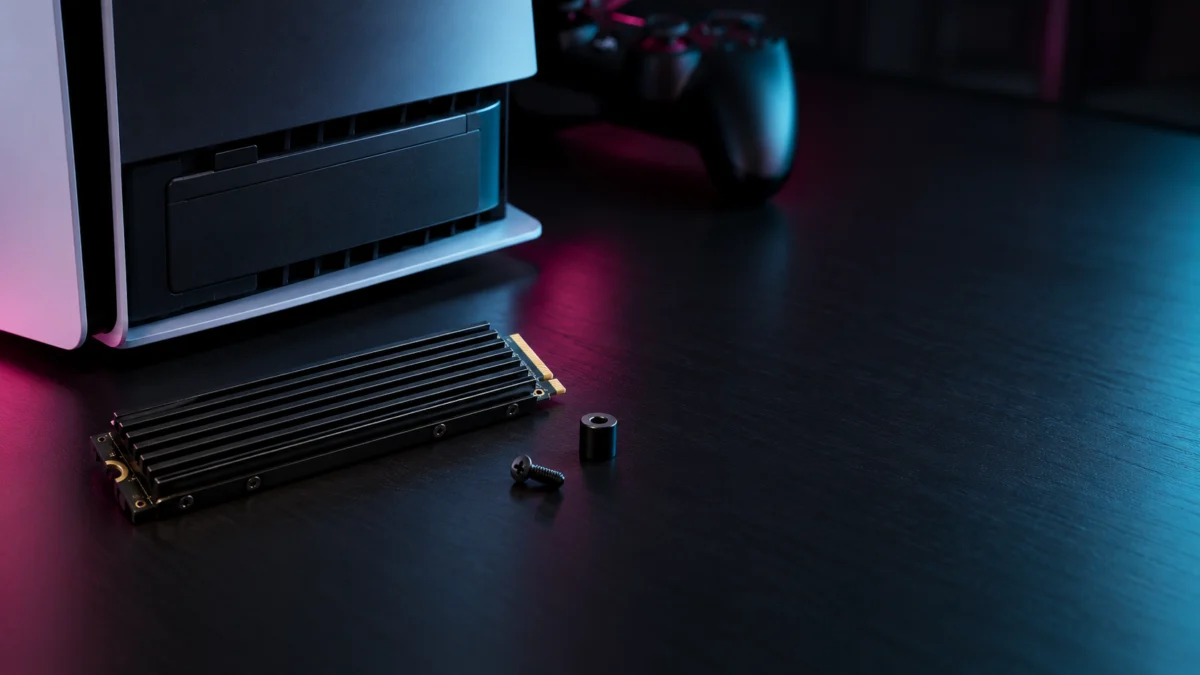
If your PS5 does not detect a WD_BLACK SN850X, do not replace the drive yet. Sony’s instructions say a PS5 shows a formatting guide the first time it boots with a newly installed M.2 SSD. If that guide never appears, check four things in this order: the drive’s model number, your PS5 system software, the spacer position, and whether the drive is fully inserted and lying flat.
Follow Sony’s PS5 M.2 SSD installation guide for your console model.
Quick Fix Checklist
- Check whether the model number ends in XHE (built-in heatsink) or X0E (no heatsink). SanDisk lists its own PS5 compatibility for the heatsink models; Sony also permits a suitable separately fitted cooling structure.
- Update the PS5 system software before installing the drive, as Sony instructs.
- Move the spacer to the 80 mm position, which matches the SN850X’s M.2 2280 size.
- Insert the drive diagonally and all the way into the connector, then check that it lies flat before you fasten the screw.
What the PS5 Shows: No Format Prompt, an Error, or a Boot Problem
What you see after powering on tells you where to start. A missing formatting guide points first to the model, seating, or system software. An error message means the console sees something in the slot. A problem that continues with the slot empty, or that affects a second SSD too, points toward the console instead.
Use this table to pick your starting point before you open the console again.
| What you see | What it suggests | Where to start |
|---|---|---|
| No formatting guide on the first boot after installation | The installation needs checking: system software, a suitable cooling structure, or incomplete seating | Check the model and software, then reseat the drive |
| An error saying the drive cannot be used | The console detects something in the slot, but the drive or its fit is not accepted | Confirm the model against Sony’s requirements, then reseat |
| A second PS5-compatible SSD is not detected either | The slot or console is more likely than the SN850X | Contact PlayStation Support before buying a new drive |
| The error continues with no SSD installed | A console-side problem that a new SSD will not fix | Console repair; remove the SSD before sending the PS5 |
Sony’s guide explains what should happen after installation, but a dedicated procedure for when the formatting guide does not appear is not documented in the official material we checked.
Confirm the Exact SN850X Model and PS5 M.2 Requirements
SanDisk lists PS5 compatibility for the SN850X heatsink models only. Those model numbers end in XHE, such as WDS100T2XHE or WDS400T2XHE; the non-heatsink versions end in X0E. Check the label, confirm the drive against Sony’s requirements below, and update your PS5 system software before installing, as Sony instructs.
See SanDisk’s WD_BLACK SN850X specifications for the heatsink variants.
| Item | Sony’s PS5 requirement | SN850X with Heatsink (SanDisk spec) |
|---|---|---|
| Interface | PCIe Gen4 x4 M.2 NVMe SSD (M key) | PCIe 4.0 x4, M.2 |
| Capacity | 250 GB to 8 TB | 1 TB to 8 TB |
| Form factor | 2230, 2242, 2260, 2280, or 22110 | M.2 2280 |
| Width including cooling | Up to 25 mm | 0.92 in (1–2 TB) / 0.96 in (4–8 TB) |
| Thickness including cooling | Up to 11.25 mm | 0.35 in (1–2 TB) / 0.41 in (4–8 TB) |
| Sequential read | 5,500 MB/s or faster recommended | Up to 7,300 MB/s (1–4 TB), 7,200 MB/s (8 TB) |
Sony also splits the thickness limit into space above and below the board. SanDisk publishes only the overall height, so the practical check is SanDisk’s own PS5 compatibility listing for the heatsink models.
If you have a non-heatsink SN850X, Sony says an M.2 SSD must not be used without a heat-dissipation mechanism such as a heatsink or heat transfer sheet. You can attach one yourself, but Sony notes that cooling structure sizes vary greatly. If you added a third-party heatsink, check it first. Sony also recommends against adding another heatsink to a drive that already has one built in.
SanDisk’s product page now states that the WD_BLACK SN850X is sold as the SANDISK Optimus GX PRO 850X. For PS5 and PS5 Pro system software compatibility, SanDisk refers owners to the SN850X support page.
For downloads and warranty service, visit SanDisk’s SN850X product support page.
Power Down and Reseat the Drive Using Sony’s Model-Specific Steps
A careful reinstall costs nothing and rules out the physical problems Sony warns about: a spacer in the wrong groove, a drive not inserted all the way, or a cooling structure blocking the board or screw. Sony’s steps differ between the CFI-1000 group and the CFI-2000/7000 group, so check your console’s model number first.
You need a #1 Phillips screwdriver and a well-lit table. Do not turn the console on while the cover is off. The installation check takes 7 steps.
- Shut down and discharge static. Turn the PS5 off, disconnect the AC power cord and all cables, and let the console cool. Touch a grounded metal object before you handle the drive.
- Remove the cover for your model group. On the CFI-1000 group, remove the base, place the console logo-side down with the power button facing you, then lift the top-left corner of the cover and slide it off. On the CFI-2000/7000 group, remove the triangle cover.
- Open the expansion slot. Remove the screw on the expansion slot cover and lift the cover off. If the SN850X is already installed, remove its screw, lift the drive slightly, and pull it out diagonally upward.
- Set the spacer to 80 mm. Remove the screw and spacer, then move the spacer to the position for an 80 mm drive. The SN850X is M.2 2280, which Sony lists as an 80 mm length.
- Insert the drive fully. Hold the drive by its edge, align it with the notch on the connector, and insert it diagonally upward, firmly and all the way in. For the CFI-1000 group, Sony specifies that the circuit board must rest flush on the spacer without the cooling structure getting in the way.
- Fasten and close. Tilt the drive down, fasten it with the screw, and make sure the heatsink does not block the screw. Reattach the slot cover. For the CFI-1000 group, Sony notes that a slot cover that will not close properly likely means the cooling structure exceeds the size requirements.
- Reassemble and power on. Reattach the console cover, reconnect the cables, and turn the PS5 on. The formatting guide should appear. Formatting erases everything on the drive, and you should not turn off the power while it runs. Afterward, the drive appears under Settings → Storage → M.2 SSD Storage.
Sony publishes an installation walkthrough video for each model group on its M.2 guide page.
Still Not Detected? Separate a Drive Problem From a Console or Slot Problem
If a careful reinstall on current system software still shows nothing, test one side at a time. An error that remains with the slot empty points to the console. A second compatible SSD that also fails points to the slot or console. If a compatible PC cannot detect the drive either, the SN850X becomes a stronger suspect.
- Remove the SN850X and boot the PS5. If an error or boot problem continues with the slot empty, the console is the likely cause. A replacement SSD will not fix it.
- Try another PS5-compatible SSD, if you have one. If it is not detected either, the slot or console is the more likely cause.
- Check the SN850X in a PC, if you have one with a free M.2 (M-key) slot. SanDisk’s Dashboard app (Windows only) monitors drive health and keeps the drive up to date. If a compatible PC cannot detect it, contact SanDisk about a possible drive fault. Dashboard can check health only after the PC recognizes the drive.
Only open a PC if you are comfortable doing so. The PC check is optional, and warranty support is available without it.
What Other SN850X Owners Have Reported
Two separate community threads on iFixit describe an SN850X that a PS5 did not detect. These are individual reports, not evidence of a product-wide defect, and neither thread confirms a cause.
- In a December 2022 thread, an owner of the 1 TB heatsink model reseated the drive several times, but the formatting screen never appeared, and the drive was returned. Another participant advised checking that the drive is fully inserted and the spacer is centered.
- In a March 2023 thread, a PS5 recognized neither an older SSD nor a new SN850X, then showed an incompatible-SSD error. The error continued after the drive was removed and after a reset from Safe Mode.
Individual case: the December 2022 iFixit thread.
Individual case: the March 2023 iFixit thread.
The second case shows why the empty-slot test matters: when the error continues without any SSD, replacing the drive does not address the problem.
Check Support and Warranty Options Before Replacing the SSD
Before buying a new drive, use the support you already have. SanDisk lists a 5-year limited warranty for the SN850X; check the terms for your region on SanDisk’s support site. If the console is the problem, Sony says to remove the M.2 SSD before sending the PS5 for repair.
- If the tests point to the SN850X: start a warranty request through SanDisk’s support site. If you bought the drive recently, your retailer’s return policy may also apply.
- If the tests point to the console: contact PlayStation Support. According to Sony, installing an M.2 SSD that meets the requirements and following the instructions generally does not affect the console warranty. Damage caused by an improper installation is not covered.
When Replacement Makes Sense: Choose Capacity and the Correct Heatsink Model
Replace the SSD only after the checks above point to the drive and warranty service is not an option. Choose a heatsink model that SanDisk lists as PS5-compatible, and match the capacity you actually need. SanDisk now sells the SN850X line as the SANDISK Optimus GX PRO 850X, whose heatsink versions are listed for PS5 and PS5 Pro.
This article may contain affiliate links.
SanDisk lists the capacities and PS5 compatibility in its Optimus GX PRO 850X with Heatsink data sheet.
| Option | Buy if | Don’t buy if |
|---|---|---|
| SANDISK Optimus GX PRO 850X 1 TB with Heatsink (SDSP81100TAH) | A 1 TB drive was enough and you only need a working replacement | The console, not the drive, failed the tests above |
| SANDISK Optimus GX PRO 850X 4 TB with Heatsink (SDSP81400TAH) | You also want much more room for games; SanDisk lists it at 24 mm wide and 10.31 mm tall, within Sony’s limits | Your current capacity is enough, or warranty replacement is still available |

Please check the Amazon product page for the latest price and availability.
Please check the Amazon product page for the latest price and availability.
Whichever you choose, check the model number on the product page before ordering. The heatsink and non-heatsink versions have similar names.
FAQ
Does the SN850X without a heatsink work in a PS5?
SanDisk lists PS5 compatibility for the heatsink models only. Sony requires a heat-dissipation mechanism and allows you to attach one yourself, but the total size must stay within Sony’s width and thickness limits.
Do I need to format the SN850X on a PC first?
Sony’s instructions do not include a PC step. The PS5 shows its own formatting guide on the first boot and formats the entire drive; Sony does not support formatting only part of an M.2 SSD.
Will installing an M.2 SSD void my PS5 warranty?
Sony says that, in general, coverage is not affected if the drive meets the requirements and you follow the installation instructions. Damage caused by an improper installation is not covered.
How We Researched
This article is based on Sony’s official M.2 SSD installation guide, SanDisk’s product page and data sheet, and two community reports on iFixit from SN850X owners. We have not conducted hands-on lab testing. Specifications and compatibility claims are attributed to Sony or SanDisk, and user experiences are identified as individual community reports.
Conclusion
An SN850X that a PS5 does not detect can be a setup problem rather than a dead drive. Confirm the heatsink model, update the system software, move the spacer to 80 mm, and reseat the drive using Sony’s steps for your model group. If the error continues with the slot empty, take it to PlayStation Support rather than buying a new SSD.