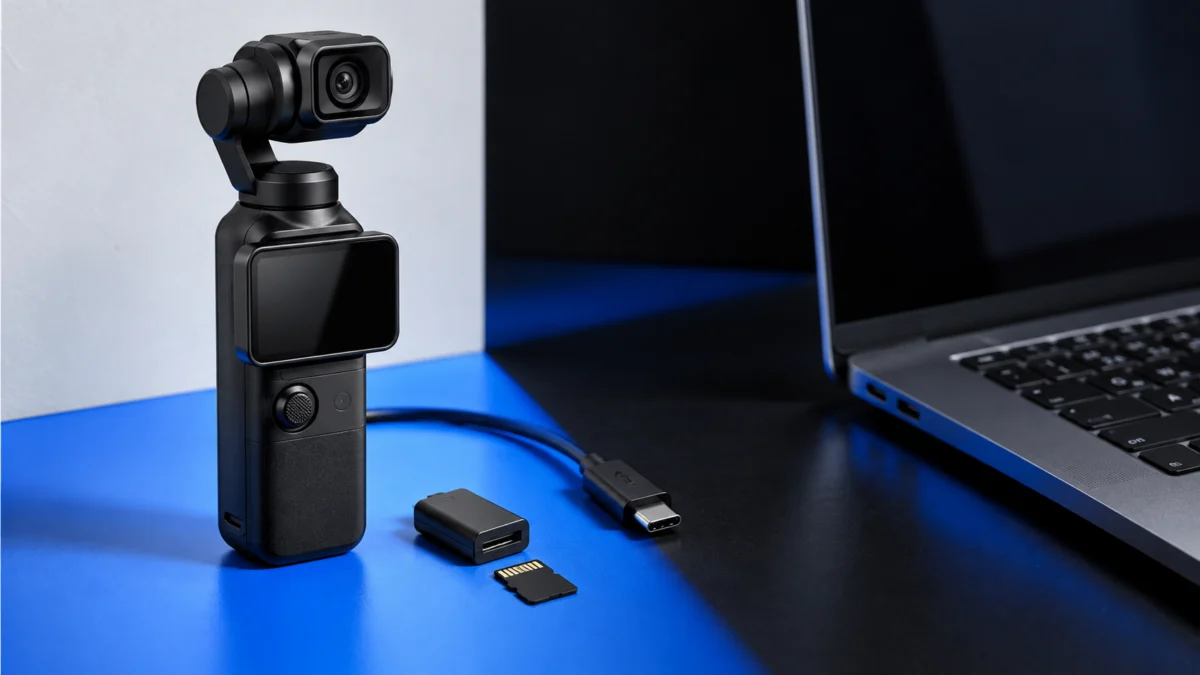
If Windows 11 does not see your DJI Osmo Pocket 3, check the camera’s connection state before changing Windows settings. The Pocket 3 appears as a drive after you select the file-transfer option on the pop-up that opens on the camera screen: Cancel leaves it charging, and Webcam turns it into a video input instead of storage. The camera also has no built-in storage, so a missing or unreadable microSD card leaves Windows nothing to mount.
Work through the four checkpoints below in order. Do not format the card, uninstall anything, or buy a replacement cable until you know which checkpoint actually fails. Your footage lives only on the microSD card, so protect it before you change anything.
Start Here: Find Where the Connection Stops
Identify your symptom before trying any fix. Four failure points cover nearly every Pocket 3 case: no pop-up on the camera, a pop-up you accepted but no drive in Windows, a visible drive with missing clips, and a camera that stays unreadable everywhere. The table sends you to the matching section.
| What you see | Where the path breaks | Go to |
|---|---|---|
| Camera charges, but no pop-up appears on its screen | The camera never entered its USB transfer state | Section 3 |
| You selected the transfer option, but nothing appears in This PC | Windows side: mounting or driver | Section 4 |
| A camera drive appears, but clips are missing or will not copy | Storage, folder path, or file format | Section 5 |
| Nothing works on any port or PC, and you still need the footage | Direct USB path unavailable | Section 6 |
What the Pocket 3 Actually Supports for File Transfer
DJI documents three export routes: a direct USB connection, a microSD card reader, and wireless download through the DJI Mimo app. The user manual states the camera has no built-in storage and that footage can only be stored on a microSD card, so the card is part of the transfer path.
- Direct USB: power the camera on, connect it, then choose the file-transfer option on the camera screen.
- Card reader: remove the card and read it on the computer. DJI lists this as an alternate export method.
- DJI Mimo: wireless download to a phone, useful for a few clips.
When the handle or battery handle is mounted, the manual describes the handle’s rear USB-C port as being for charging or for external audio devices, not as the file-transfer route. Connect the supplied Type-C to Type-C cable to the camera’s own USB-C port instead.
DJI Osmo Pocket 3 downloads and manuals
If the Camera Never Shows a Connection Prompt
No pop-up means the camera never entered its transfer state, so Windows has nothing to detect. Power the camera on before you plug it in, use the supplied Type-C to Type-C cable, and connect to the camera’s own USB-C port rather than a handle. The fix takes 6 steps.
- Power the camera on first. DJI’s export guide starts by powering on the camera, then connecting it with the provided cable. This sequence lets you watch for the transfer prompt as soon as the cable is connected.
- Use the supplied cable, connected directly. Plug into a port on the PC itself rather than a hub or monitor, and detach the handle so the cable reaches the camera’s USB-C port.
- Watch the screen the moment you connect. DJI’s support material says an option pops up on Osmo Pocket 3 and that you should select File Transfer; the user manual describes the same pop-up as Transfer File/OTG Connection. DJI notes that screens vary by firmware, so match the intent rather than the exact wording.
- Do not tap Cancel or Webcam. The manual states that Cancel charges the device only and that Webcam turns the camera into a webcam input. Both leave Windows without a drive.
- Confirm a card is inserted and readable. Swipe right on the camera screen to view recent footage. If playback fails there, the card is the problem, not Windows.
- Restart, then change one variable at a time. DJI’s not-recognized article says to restart the device when the File Transfer prompt does not appear, then change the cable, the computer port, and the card in that order.
DJI Osmo Series Footage Export Guide
If You Chose File Transfer but Windows Shows No Drive
When the camera confirms the connection and Windows still shows nothing, the problem sits in mounting or drivers. Work from the file system outward: check This PC first, then the device entry, then the port and its power settings, and only then move to a second computer. The fix takes 5 steps.
- Open This PC and look for the camera drive. DJI’s export guide describes opening This PC and double-clicking the camera drive; there is no desktop software to check.
- Reinstall the device entry. For the case where Windows reports an unrecognized USB device, DJI’s article says to open Device Manager, find the DJI USB device under Disk drives, right-click and uninstall it, then reconnect the camera and let Windows finish driver installation.
- Try a different USB port. A general Windows check rather than a DJI instruction: use a port on the computer body that you know carries data for other devices, avoiding hubs and monitor passthroughs.
- Turn off USB selective suspend. DJI’s article lists the Windows USB power settings among its checks. Open Control Panel → Hardware and Sound → Power Options → Change plan settings → Change advanced power settings → USB settings → USB selective suspend setting, and disable it.
- Test on a second computer. If the camera mounts elsewhere, the fault is on the original PC. If it fails everywhere, move to the card reader route in Section 6 so your footage is safe while you keep troubleshooting.
DJI support: camera not recognized by a computer
If the Drive Appears but You Cannot Find or Copy Your Clips
A visible drive means the connection works, so the remaining issue is storage, folder location, or file format. DJI’s export guide gives one path: open the camera drive, then DCIM and the DJI 001 folder, and copy the files into a local folder. Check these four things.
- The folder name may not be DJI 001. The Pocket 3 has a Naming Management setting for editing folder and file naming rules, so check every folder inside DCIM before concluding the clips are gone.
- Thumbnails that fail to render are not missing files. The manual’s default video compression is Efficiency (HEVC), with Compatibility (H.264) available instead. Files that preview poorly can still copy normally, so copy first and judge playback afterwards.
- Slow-motion audio is a separate file. The manual states that slow-motion clips carry no audio and that the audio is stored as a standalone file at the same path, so copy the whole folder rather than the video files alone.
- A stalled copy is not a corrupt card. The manual’s guidance for an interrupted transfer is to reconnect the device. Retry before assuming the card has failed, and never format a card that still holds footage you need.
Transfer Files Safely With a microSD Card Reader
If the direct USB path stays unreliable, move the card instead of the camera. Because all Pocket 3 footage lives on the microSD card, a reader gets your clips off it without depending on the camera’s USB behaviour. DJI lists a card reader as an alternate export route. The fix takes 4 steps.
- Power the camera off, then gently push the microSD card to partially eject it and remove it.
- Insert the card into a reader connected to your PC, and open the resulting drive in This PC.
- Copy the entire DCIM folder to a local drive before you open, rename, edit, or delete anything.
- Verify that the copied clips play from your PC, then return the card to the camera.
If the reader itself never appears in This PC, the problem is no longer your camera but how Windows 11 handles external storage, which we cover in our guide to a portable SSD not recognized on Windows 11.
AD / Affiliate disclosure: the accessory suggestions below are monetized links. We only suggest hardware at the point where a diagnostic result makes it relevant.

Please check the Amazon product page for the latest price and availability.
When Replacing the Cable, Card, or Reader Is Actually Justified
Replacement hardware only makes sense once a free check has isolated a single variable. If you have not confirmed the camera prompt, the card, and a second USB port, buying parts just adds unknowns. Three results genuinely point to hardware, each to a different purchase.
| What your testing showed | What that means | Reasonable next step |
|---|---|---|
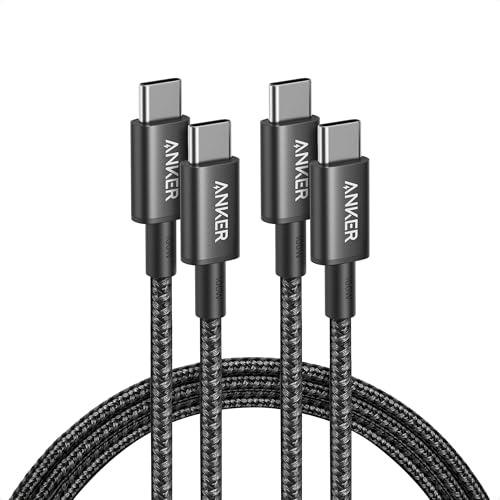
| A different cable produces the prompt, the original never does | The original cable carries power only, or is damaged | A USB-C cable rated for data transfer |
| The camera cannot play back its own footage, or the card fails in a reader too | The card, not the connection, is the limit | A card meeting the official requirements |
| Direct USB stays unreliable, but the card reads fine in a borrowed reader | You need a route that bypasses the camera | A microSD card reader of your own |
For cards, the official manual is specific: the Pocket 3 requires a UHS-I Speed Grade 3 rating, supports cards up to 512GB, and uses the exFAT file system. Its recommended list includes SanDisk Extreme Pro, Kingston Canvas Go! Plus, Kingston Canvas React Plus, and Lexar Pro cards. Check DJI’s current compatibility information before buying, since recommended lists are revised over time.
Please check the Amazon product page for the latest price and availability.

Please check the Amazon product page for the latest price and availability.
How We Researched
This article is based on the DJI Osmo Pocket 3 User Manual, which we read in full, plus DJI’s current footage-export and device-recognition support pages. We have not conducted hands-on lab testing. Camera behaviour, storage requirements, screen options, and the Device Manager, restart, and USB power-setting steps were checked against those official sources. General Windows checks are labelled separately.
We did not include community reports: several user-group threads describe this symptom, but their contents sit behind a login and could not be confirmed. DJI states that its screenshots are for reference and that interfaces vary by product and firmware version, so match on-screen wording by intent. Check the manufacturer’s current documentation for your firmware before acting, and copy your footage before any format or reset step.
Frequently Asked Questions
Why does my Osmo Pocket 3 only charge when I connect it to my PC?
One documented reason is that the transfer prompt was dismissed. The manual states that selecting Cancel on the pop-up charges the device only. A charge-only cable can also prevent data transfer. Disconnect, power the camera on, reconnect, and watch the screen.
Does the Pocket 3 have internal storage I can copy from instead?
No. The user manual states that footage can only be stored on a microSD card and that the camera has no built-in storage. If no card is inserted, there is nothing for Windows to show you, however the USB connection behaves.
Can I transfer footage without using the camera at all?
Yes. Because every clip is on the microSD card, a reader gets your files onto the PC without the camera taking part. DJI lists a card reader as an alternate export method, making it a practical bypass when the direct USB path is unavailable.
Is this a Windows 11 problem or a DJI problem?
Both are possible, which is why the order of checks matters. If other USB storage mounts normally on the same PC, suspect the camera side first. Other brands fail the same way for their own reasons, as in our guide to the Insta360 X5 USB mode not showing on a PC.
Conclusion
The fastest route to your footage is not a new cable. It is knowing which checkpoint fails: the camera prompt, the Windows drive, the folder contents, or the card. Start at the camera, then move outward into Windows, keeping the footage intact as you go. No accessory guarantees a working connection on every PC, but a clear failure point usually turns into a short fix.