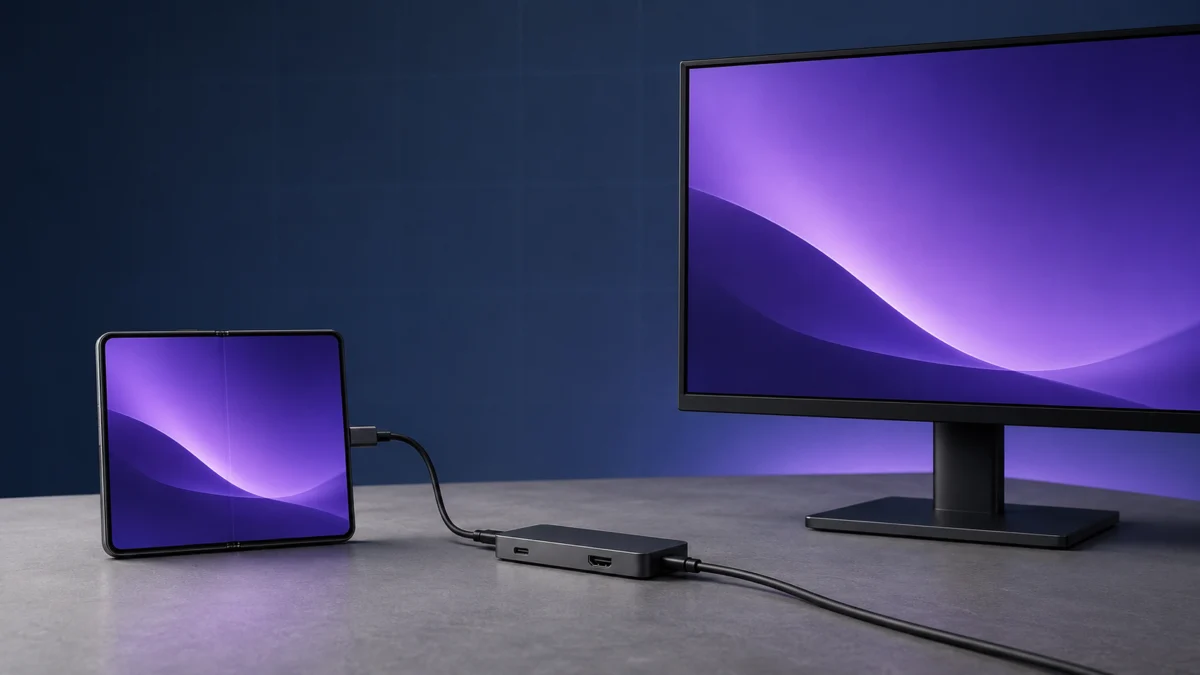
If your Galaxy Z Fold8 shows the phone screen on an external monitor instead of the Samsung DeX desktop, the video path is working at that moment, so the display mode is the first thing to check. Mirroring does not rule out every intermittent cable or port problem, but it makes an immediate hardware failure less likely.
Open Settings, tap Connected devices, tap Samsung DeX, tap Connected display, and select Extend. On a first connection, also look for the Full Desktop mode prompt on the phone and tap Start. Check both before replacing hardware or resetting the phone.
Samsung’s troubleshooting article for this symptom opens with a restart and software update. This guide puts the mode check first because mirroring can be a selected display state. The order is: mode, connection type, hardware, then the cases where none of those apply.
Quick Fix Checklist: Three Things to Check Before Changing Anything
Check the first-connection prompt, the DeX icon in Quick settings, and the Connected display setting. These checks do not require a new cable, an update, or a factory reset. Samsung’s DeX setup guide documents the prompt and Quick settings control.
- First-connection prompt: unlock the phone, find the Full Desktop mode prompt, and tap Start.
- DeX icon: swipe down with two fingers and tap the desktop-shaped DeX icon.
- Connected display: go to Settings → Connected devices → Samsung DeX → Connected display and select Extend.
Identify What You Connected To: Monitor, Windows PC, or Wireless Display
The correct fix depends on what sits at the other end of the connection. A monitor or TV supports wired DeX. A Windows PC does not, because Samsung ended DeX for PC on devices running One UI 7 and later. A wireless display needs Miracast support and both devices on the same Wi-Fi network.
| What you connected to | DeX support | What to check first |
|---|---|---|
| Monitor or TV via USB-C to HDMI | Wired DeX. Samsung recommends a genuine Samsung HDMI adapter or cable. | Connected display set to Extend and the first-run prompt. |
| Monitor or TV via a USB-C hub | Wired DeX through the hub’s HDMI output. | The mode settings, then a direct connection without the hub. |
| Lapdock with USB-C video input | Wired DeX as an external display. | The input port and cable designated for video. |
| Windows PC over USB | Not supported on One UI 7 or later. | Use Link to Windows instead. |
| Smart TV or Smart Monitor wirelessly | Wireless DeX. | Miracast support and the same Wi-Fi network. |
The end of DeX for PC is often reported as though DeX itself had been discontinued. Only the desktop application was retired. Samsung’s Galaxy Z Fold8 product materials confirm that DeX remains available on the phone.
Turn On DeX and Set the Connected Display to Extend
Samsung publishes a six-step sequence for an external display that mirrors the Galaxy screen instead of launching DeX: restart, update, verify the connection, open DeX, set Connected display to Extend, then test another display. Follow the sequence in order if the immediate mode change does not hold.
- Restart the phone.
- Check for software updates: Settings → Software update, or use Smart Switch on a PC.
- Check the connection: reseat both ends of the compatible USB-C to HDMI cable, adapter, or hub.
- Tap the DeX icon: open the full Quick settings panel and tap DeX.
- Set Connected display to Extend: use the Settings path above.
- Test another display: if DeX starts there, compatibility or input handling on the first display is more likely.
Samsung wrote that troubleshooting article for devices that began defaulting to mirroring after an update to One UI 8. The Galaxy Z Fold8 launched with Android 17 and One UI 9, so use the article for the documented setting path, not as proof that the Fold8 has the same software bug.
Rule Out the Cable, Adapter, Hub, and Monitor
If the external display shows nothing, this is not a mirroring problem. A charge-only USB-C cable carries power but no video, a thick case can stop the connector seating fully, and the monitor may be set to the wrong input. Change one variable at a time.
| What you see | What it suggests | What to do next |
|---|---|---|
| Phone screen mirrored, DeX icon present | The video path works and mirroring is selected. | Set Connected display to Extend. |
| Phone screen mirrored, DeX controls unavailable | A policy or configuration may be blocking DeX. | Check whether the phone is managed. |
| Black screen or “No signal,” phone charges | Power connects, but video may not be carried. | Remove the case and try a video-rated cable or adapter. |
| Black screen, monitor never registers an input | The display input or connection may be the problem. | Switch inputs, then test another display. |
| No display and no charging | The connector may not be making contact. | Inspect and gently clean the port, then test another cable. |
The fastest isolation sequence is: remove the case, connect the phone directly without a hub, use a cable known to carry video, then try a second monitor or TV. If DeX starts only when the hub is removed, replace the hub. Samsung publishes no minimum power figure for wired DeX, so treat hub power as a variable rather than a universal requirement.
Fixory may earn a commission from purchases made through links in this article.
If the direct test isolates the adapter or hub, choose hardware that explicitly requires USB-C DisplayPort Alt Mode. The Cable Matters USB-C to HDMI 2.1 adapter is a direct video adapter. The Anker Nano 7-in-1 USB-C hub adds HDMI, a dedicated PD input, and data ports. Confirm your source port supports DisplayPort Alt Mode before buying either.
Managed Devices, Another Display, and When It Is a Hardware Fault
A work-issued phone is a case that cable changes may not fix. Samsung documents enterprise configurations that block DeX or leave a device in mirroring with controls unavailable. Rule that out before treating the Fold8 as faulty, then test a second display.
If Your Galaxy Z Fold8 Was Issued by an Employer or School
Samsung documents Knox Customization Configurator devices that mirror instead of starting DeX. A separate Knox Service Plugin article covers managed devices on Android 16 and One UI 8.0 where a DeX auto-start policy failed after setup or an OS upgrade.
Samsung says that issue was resolved in One UI 8.5, so it is not evidence that a Fold8 on One UI 9 has the same bug. For an affected older managed device, the interim workarounds were to restart after connecting HDMI or tap the Quick Panel DeX icon. If the DeX entry is missing, greyed out, or reverts on a managed phone, contact your IT administrator. Do not remove or bypass a management profile on a device you do not own.
Test a Second Display and a Different Connection Setup
Testing another monitor or TV separates a phone-side problem from display-side compatibility. If DeX starts on the second display, the first display’s input handling or supported mode is more likely. Samsung also states that touchscreen displays are not supported when using DeX.
A DeX-oriented lapdock consolidates the display, keyboard, trackpad, and battery into one setup; the Elecrow CrowView Note is one such USB-C option. A portable monitor such as the ViewSonic VG1655 simplifies the display connection but still needs separate input devices. Confirm USB-C video and power behavior for your phone before buying. For more all-in-one choices, compare lapdocks for Samsung DeX.
When to Contact Samsung
Hardware becomes more likely only after the mode settings, cable, hub, and a second display are ruled out. A useful signal is a split result: Wireless DeX works normally, while wired connections produce no image on any monitor with a cable known to carry video.
Before contacting support, check your warranty and protection-plan status. Samsung’s repair-options page lists service routes for the Galaxy Z Fold8, while the Samsung Care+ page explains plan coverage. Eligibility, turnaround, and cost depend on region, purchase channel, and coverage; a repair is not guaranteed to resolve the symptom.
How We Researched
This article is based on official Samsung product pages, support documentation, and Samsung Knox enterprise documentation. We did not conduct independent hands-on lab testing. Menu paths, the six-step sequence, compatibility statements, and enterprise-management behavior are attributed to Samsung’s published materials.
The Galaxy Z Fold8 is a recent release, and some cited documentation was written for earlier models and One UI versions; those limits are stated where relevant. We also found no confirmed, multi-source user reports specific to the Fold8 for this symptom, so nothing here is presented as a community finding.
Frequently Asked Questions
These answers address whether the Fold8 supports DeX, why controls may be unavailable, and what happened to DeX on Windows. Each stays within Samsung’s published documentation and separates phone-to-monitor DeX from the retired desktop application so the two connection paths are not confused.
Does the Galaxy Z Fold8 Support Samsung DeX?
Yes. Samsung’s Galaxy Z Fold8 product materials list Samsung DeX for connecting to a display, keyboard, and mouse. Samsung’s general DeX compatibility list did not yet include the Fold8 when checked, which is a documentation gap rather than a statement that the phone is unsupported.
Why Is the DeX Option Missing or Greyed Out?
Enterprise device management is a documented explanation. Samsung describes Knox-configured phones that mirror instead of starting DeX, and Knox policies can control whether DeX is available. If an employer or school issued the phone, ask its IT administrator whether a DeX restriction applies.
Can I Still Use Samsung DeX with a Windows PC?
Not through the DeX for PC application. Samsung says it is unsupported on devices released with or updated to One UI 7 or later and points users to Link to Windows. This does not affect wired DeX to a monitor or TV.
Conclusion
A mirrored screen shows that the video path is functioning at that moment, so start with display mode rather than immediately assuming the phone itself has failed. Set Connected display to Extend and accept the first-run Full Desktop mode prompt.
A blank external display is a separate problem: remove the case, bypass the hub, try a video-rated cable, and test another display. Only after those checks and any managed-device restriction have been ruled out should the Fold8 itself become the focus.