
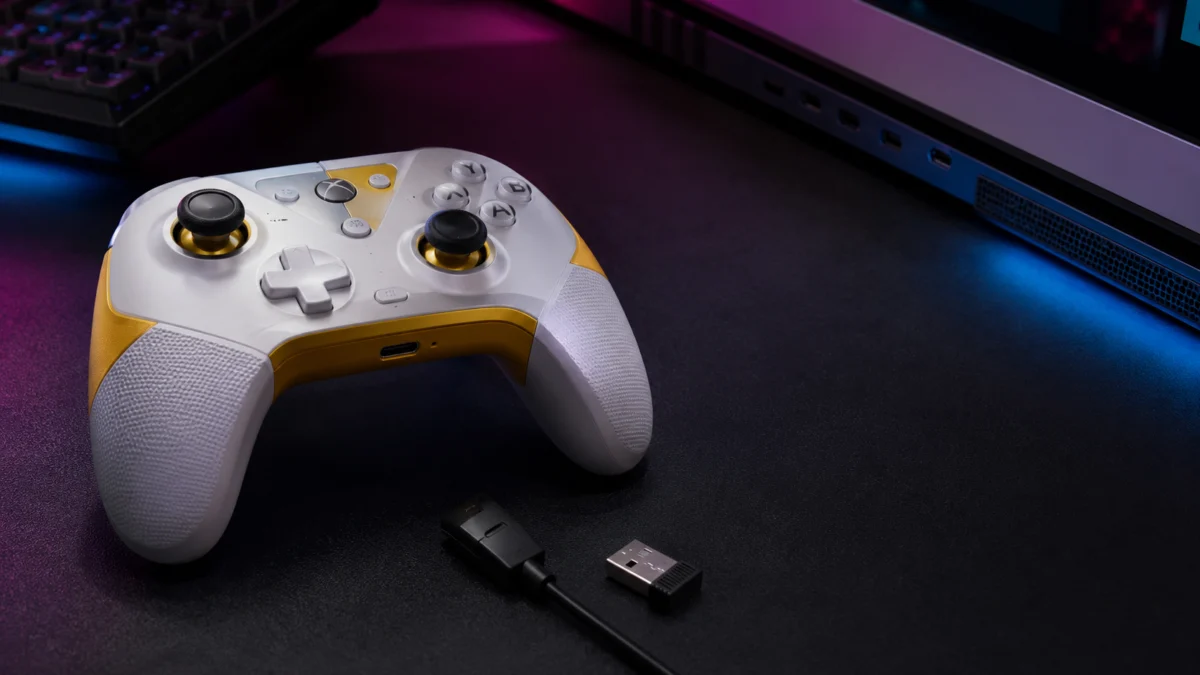
If your GameSir G7 Pro 8K is not working on your PC, the fastest path to a fix is to identify where the failure happens rather than guessing. Three different problems bring most people here: the controller is not recognized on the PC at all, it works in Windows but does not show up in GameSir Connect, or Steam detects it but the rear buttons and gyro do not appear in Steam Input. Two facts explain most of these: GameSir lists PC support for this model over wired and 2.4GHz connections only (not Bluetooth for the documented Windows path), and GameSir Connect needs the controller in XInput mode over the dongle or a USB-C cable. Use the map below to jump to your exact symptom.
Start here: pinpoint which stage is failing
“Not working” can mean several different things, and each has a different fix. Before changing anything, match what you see to the correct stage so you do not apply the wrong fix to the wrong layer. Check them in a logical order: Does Windows see any controller? Does the 2.4GHz receiver pair? Does GameSir Connect list it? Does Steam detect it? Do the advanced inputs appear? Did a firmware update fail?
| Symptom | Most likely stage | Go to |
|---|---|---|
| Nothing happens when connected; no light or no device | Windows detection / power / cable | Windows detection section |
| Wired works, but the 2.4GHz dongle will not connect | 2.4GHz receiver pairing | Receiver section |
| Windows sees a controller, but GameSir Connect shows nothing | Connection mode (XInput) or wrong app | GameSir Connect section |
| You installed an app, but the controller never lists | GameSir Connect vs GameSir Nexus | GameSir Connect section (Nexus note) |
| An update stops partway or the controller seems stuck | Firmware update recovery | Firmware section |
| Steam detects it, but a game does not respond | Steam Input / per-game config | Steam detection section |
| Steam sees it, but rear buttons or the gyro are missing | XInput layout limits / mode switching | Steam Input advanced section |
Check the connection method first: USB-C wired or the 2.4GHz receiver
Before diving into any single symptom, confirm the connection method, because most later steps depend on it. According to GameSir’s official FAQ, the G7 Pro 8K PC supports wired and 2.4GHz wireless connections only. Bluetooth on this model is for Android, iOS-style, and Switch modes rather than the documented Windows path, so if Bluetooth pairing to a PC fails for basic detection, that is expected: use the USB-C cable or the included 2.4GHz receiver instead.
The two supported PC connection methods behave differently, so it helps to test both when troubleshooting:
- USB-C wired: Connect the controller to the computer with a USB-C cable. This is the simplest path and a useful baseline test, because it removes the wireless dongle from the equation.
- 2.4GHz receiver: Set the mode switch to Receiver mode, power on with the Home button, then insert the included receiver into a USB port and wait for the connection. A solid Home light indicates a successful connection.
Both wired and 2.4GHz connections support up to an 8000Hz polling rate according to GameSir’s official specifications. If wired works but the receiver does not, the problem is isolated to the dongle pairing rather than the controller itself, so jump to the receiver section. Keep one detail in mind throughout: GameSir Connect and firmware updates require XInput mode over the dongle or cable, which is why so many “not showing” problems trace back to the connection method.
If Windows does not detect the controller at all
When Windows shows no controller and no activity, the issue is usually power, mode, cable, or port rather than software. Confirm the controller is powered on with a solid light, the mode switch matches your connection method, and you are using a known-good USB-C cable and port. A wired test confirms the controller itself is alive.
The fix takes 5 steps.
- Set the mode switch to the correct position (Receiver mode for the dongle) and hold the Home button to power on. Note that GameSir’s FAQ warns that setting the mode switch to the middle position turns the controller off.
- Connect over USB-C directly to a rear motherboard port on a desktop, avoiding front-panel and hub ports for this test.
- Swap the USB-C cable for a different data-capable cable. A charge-only cable can power the controller without carrying data, which looks like a “not detected” problem.
- Try a different USB port, ideally a USB 3.0 (blue) port, to rule out a single faulty port.
- If there is still no light, follow the reset step in the firmware section below.
Once Windows detects the controller over a wired connection, you have confirmed the hardware works and can move on to the wireless or software layers.
If the 2.4GHz receiver will not pair or keeps disconnecting
If the wired connection works but the 2.4GHz receiver will not connect, re-pair the dongle and controller. GameSir’s tutorial says that if the receiver connection fails, you press the pairing button on the receiver and hold the pairing button on the controller to re-enter pairing mode. A solid Home light confirms success once they link.
The fix takes 4 steps.
- Move the receiver to a different USB port, preferably one directly on the PC rather than through a hub, and keep the controller within a short range during pairing.
- Confirm the mode switch is set to Receiver mode and the controller is powered on before inserting the dongle.
- Reduce nearby 2.4GHz interference where possible, such as other wireless dongles clustered in adjacent ports.
- Use GameSir’s official force pairing procedure and tool if normal re-pairing repeatedly fails. GameSir’s FAQ links to a dedicated force pairing tutorial and tool for the dongle.
Only use pairing tools and firmware distributed through GameSir’s official channels. Do not install unofficial pairing utilities or files shared informally, as they can put the controller or dongle into an unrecoverable state.
If the controller works but does not appear in GameSir Connect
If Windows sees the controller but GameSir Connect shows nothing, the usual causes are the wrong app or the wrong connection mode, not a hardware fault. GameSir Connect can fail to list a controller that Windows detects perfectly well, because Connect only shows it under specific conditions. Work through the app choice and connection mode below before assuming anything is broken.
Make sure you are using GameSir Connect, not GameSir Nexus
The GameSir G7 Pro 8K PC uses GameSir Connect, not GameSir Nexus. GameSir’s official device list places the G7 Pro 8K among the controllers Connect supports, alongside Tarantula Pro, Cyclone 2, Super Nova, Nova 2 Lite, and T3 Lite. Installing Nexus and waiting for the G7 Pro 8K to appear is one of the most common reasons it never shows up.
This mix-up is easy to make because both apps come from GameSir. Nexus is the app for GameSir’s Xbox-licensed controllers, and GameSir has publicly noted that the G7 Pro 8K PC does not work with Nexus. If you have Nexus open and the controller is not listed, that is expected behavior, not a fault. Open GameSir Connect instead. If you already installed Nexus, you can leave it installed; it simply will not manage this controller.
Connect via the dongle or USB-C cable in XInput mode
GameSir Connect lists the G7 Pro 8K only when it is connected to the PC via the dongle or a USB-C cable in XInput mode, according to GameSir Connect’s official FAQ. If the controller is in another mode, it can be fully usable in Windows and games yet invisible in Connect.
- Receiver: Toggle the mode switch to Receiver mode, press Home to power on, and insert the included receiver into a USB port. A solid Home light means it connected.
- Wired: Connect the controller to the PC with the USB-C cable.
Bluetooth is not documented as the connection for GameSir Connect configuration and firmware on this model, so do not assume it works the same way for the app. Use the receiver or USB-C cable for anything Connect handles.
If GameSir Connect still does not list the controller
If you are in GameSir Connect with the controller connected via the dongle or cable in XInput mode and it still does not appear, work through the connection before touching the app. The fix takes 5 steps.
- Confirm the mode switch is set correctly and the Home light is solid, indicating a completed connection.
- Re-pair the receiver: press the pairing button on the receiver, then hold the pairing button on the controller to re-enter pairing mode.
- Switch the connection method; if you were on the receiver, try the USB-C cable directly, or vice versa.
- Move the receiver or cable to a different USB port, ideally one directly on the PC rather than a hub.
- Fully close GameSir Connect and reopen it after the controller shows a solid Home light.
If the controller appears after switching between receiver and cable, the earlier connection was the issue, not the app. If nothing changes across every method, move to the app-update and firmware steps below.
If GameSir Connect will not update or the controller icon is missing
GameSir has documented a Microsoft Store bug where GameSir Connect does not receive the latest updates automatically, which can leave the controller icon missing or the app out of date. The official fix is to uninstall the current app and reinstall it, either from the Microsoft Store again or by using the direct GameSir Connect download.
Reinstalling replaces the outdated Store build with a current one, so a controller that a stale app could not display often appears after the reinstall. If you keep hitting update problems through the Store, the direct download avoids the Store’s update path entirely. After reinstalling, reconnect the controller via the dongle or cable in XInput mode and reopen the app.
Firmware itself is updated from the upgrade icon in the top-right corner of GameSir Connect. What it updates depends on the connection: by dongle it updates the dongle, by cable it updates the controller. If the option seems missing, the current connection method usually does not match the firmware you are trying to update, so switch methods and reopen the app.
If a firmware update failed or the controller appears stuck
If a firmware update failed or the controller seems stuck, GameSir provides an official reset and force-update path. First, reset it: set the mode switch to Bluetooth, hold Home to power on, and if the light stays off after about two seconds, use the recessed reset button on the back as described in GameSir’s FAQ.
If the controller still will not update normally, GameSir’s official force-update path takes 2 steps.
- Force update the dongle: Power off the controller by holding the logo button for about five seconds, unplug the dongle, open GameSir Connect, then hold the pairing button on the dongle while plugging it into the PC. If done correctly, an update window appears.
- Force update the controller: Open GameSir Connect first without the controller connected, then hold the logo and menu buttons while connecting over USB-C. The update window should appear so the process can finish.
Use only firmware distributed through GameSir Connect or GameSir’s official pages. Do not attempt firmware downgrades using files shared through informal channels, as an interrupted or mismatched update is what leaves a controller stuck in the first place.
If Steam detects the controller but a game does not respond
If Steam sees the controller but your game does not respond, the input is likely handled at the wrong layer. According to multiple community reports, when GameSir software is inactive, the G7 Pro 8K reports itself as a standard Xbox controller. This affects how Steam Input and games interpret it, so it can be detected yet not behave as expected.
Check these Steam-side items:
- Steam Input: In Steam, open the controller settings and confirm Steam Input is enabled or disabled deliberately for the game in question, since the correct setting depends on the game.
- Duplicate detection: If both Steam Input and the game’s native controller support are active, inputs can conflict. Test with one path at a time.
- Per-game behavior: Some games respond to a generic XInput controller and some do not. If Steam detects it but one specific game is unresponsive, the issue is usually game-side configuration.
If Steam detects the controller but a single specific game will not respond, that per-game situation is covered in more depth in our Steam per-game troubleshooting guide. If instead your issue is that the rear buttons or gyro never show up in Steam Input, that is a different layer, covered next.
If rear buttons, bumpers, or the gyro are missing in Steam Input
If Steam detects your G7 Pro 8K as an Xbox controller but the rear buttons, extra bumpers, and gyro do not show up in Steam Input, the controller is not broken. By default it runs in XInput mode, which cannot describe those extra inputs, so Steam never sees them until you switch modes or use a workaround. There is no single Steam setting that adds them while the controller stays in XInput.
Officially, the G7 Pro 8K includes four extra inputs and a 6-axis gyroscope: two lockable back paddles (R4/L4), two mini-bumpers (R5/L5), and motion sensing, all configurable through the Windows-only GameSir Connect app. GameSir’s documentation does not mention Steam or Steam Input support, and GameSir Connect requires the controller in XInput mode via USB-C or the 2.4GHz dongle. Whether Steam exposes the extra inputs depends entirely on which connection mode the controller is in.
The reason is that Steam Input reads XInput, and XInput enforces a fixed layout: two sticks, one D-pad, two analog triggers, and ten digital buttons. It has no slots for back paddles, extra bumpers, or gyroscope data, so those inputs are stripped before Steam ever receives them. This is an API limitation, not a hardware defect. Separately, the open-source SDL library that Steam Input relies on received a dedicated code addition in early 2026 that maps the G7 Pro 8K’s raw HID data, including the gyroscope and all four extra buttons, which confirms the hardware can transmit those inputs. Whether your specific Steam client already uses that code is a separate question, covered at the end of this section.
Identify the current mode by LED color first
The G7 Pro 8K switches between connection modes with physical switches and button shortcuts, and each mode changes how the PC recognizes it. Identify the current mode by LED color before changing any mapping, because the same Steam Input steps behave differently depending on the mode.
| Mode (LED) | How Steam sees it | Exposes in Steam Input | Main trade-off |
|---|---|---|---|
| XInput (White/Green) | Standard Xbox controller | Sticks, D-pad, triggers, 10 buttons only | No gyro, no R4/L4/R5/L5 in Steam. Required for GameSir Connect. |
| Blue Mode (Blue) | DualShock 4 controller | Gyro, rumble, R4/L4 (as touchpad clicks) | R5/L5 mini-bumpers become unusable. |
| Yellow Mode (Yellow) | Generic Android HID gamepad | Gyro and all four extra buttons | Rumble disabled; reported D-pad bug. |
Blue Mode is activated with Home plus the Apple shortcut over Bluetooth; Yellow Mode with Home plus A. Because the trade-offs differ so much, decide what you need most (gyro, all buttons, or rumble) before you start remapping.
Getting the rear buttons and bumpers to work
In XInput mode, rear buttons and extra bumpers will not appear in Steam Input, because XInput has no slots for them. You must switch modes or handle them outside Steam entirely. Your realistic options, in order of how disruptive they are:
- GameSir Connect cloning (most stable): In XInput mode, clone a face button (for example A or a bumper) onto R4/L4/R5/L5. This is processed on the controller itself, so it works in any game with no Steam Input involvement.
- Blue Mode: Steam interprets R4 and L4 as the DualShock 4 touchpad’s left and right clicks, so you can map those two independently. R5 and L5 have no DualShock 4 equivalent and stay unmapped.
- Yellow Mode: Steam Input can see all four extra buttons here, but the mode carries the rumble and D-pad issues described below.
According to multiple community reports, mapping the rear buttons to keyboard keys in GameSir Connect can cause a game to flicker between controller and keyboard prompts and stutter when the mapped paddle is pressed, because the engine keeps switching input types. This does not affect every game, but it makes keyboard-mapped paddles unreliable in fast-paced titles.
Getting the gyro to work
The gyro does not appear in Steam Input in XInput mode, because XInput carries no motion data. According to multiple community reports, switching to Blue Mode is the more stable way to get gyro-to-mouse working inside Steam, since it presents the controller as a DualShock 4 that Steam Input already supports for motion, and rumble continues to work.
GameSir Connect also offers a native gyro-to-mouse feature, but according to those same community reports, the native translation can stutter when the right analog stick is moved at the same time. If you specifically need gyro plus all four extra buttons at once, only Yellow Mode exposes that combination, with the compromises below.
Yellow Mode and Steam Deck caveats
According to multiple community reports, Yellow Mode exposes gyro and all four extra buttons but disables rumble, and holding a rear button can prevent the mechanical D-pad from registering inputs. That makes it a fallback rather than a first choice for games that need vibration or simultaneous D-pad use.
On Steam Deck and SteamOS, behavior depends on how you connect. When paired through the 2.4GHz dongle, the Deck recognizes the controller as an Xbox controller and the Xbox button can wake it from sleep. According to multiple community reports, connecting over standard Bluetooth instead can cause the Xbox/Home button to stop registering, so it no longer opens the Quick Access menu. There is also a practical limit: GameSir Connect is Windows-only, so you cannot update firmware, change RGB, or configure hardware-level button cloning directly on the Deck. Set those profiles on a Windows PC first, save them to the controller’s onboard memory, then pair it back to the Deck.
The 8000 Hz polling rate versus Steam Input trade-off
According to multiple community benchmarks, you generally cannot use the controller’s 8000Hz polling rate and Steam Input’s advanced mapping at the same time, because enabling Steam Input adds a translation layer that throttles the effective joystick polling rate well below the hardware’s ceiling. The practical decision splits cleanly:
- If raw latency is the priority (competitive FPS on stick aim), disable Steam Input for that game and give up gyro and overlay mapping.
- If gyro aiming or custom rear-button actions matter more, keep Steam Input on and accept the lower polling rate.
There is no current setting that delivers both simultaneously, so pick based on what the specific game rewards.
GameSir Connect vs Steam Input: which to use
Use GameSir Connect for hardware and firmware-level changes, and Steam Input for software translation; running both to solve the same task, such as tuning stick curves in both at once, tends to produce inconsistent input. Cloning inputs in GameSir Connect is processed on the controller itself, so it is immune to Steam Input’s polling-rate penalty.
| Use GameSir Connect for | Use Steam Input for |
|---|---|
| Firmware updates and connectivity fixes | Gyro-to-mouse translation for aiming |
| Hardware polling-rate clock (e.g., 1000 Hz vs 8000 Hz) | Independent rear-button actions (after switching to Blue or Yellow Mode) |
| Cloning face buttons onto R4/L4/R5/L5 (zero added latency) | Per-game action sets and mode-shifting |
| RGB lighting | — |
Native support through Steam Beta
Native, uncompromised support is more likely to arrive through the Steam Beta client than through any single firmware update, since the early-2026 SDL code for the G7 Pro 8K reaches players through Steam’s Beta channel before merging into the Stable branch. When that reaches your client is not something you can force. According to multiple community reports, some Beta users see the controller recognized correctly in HID modes with the advanced overlay unlocked, though the implementation is still described as experimental and can introduce secondary issues around polling stability and rumble. Firmware updates through GameSir Connect remain worth applying for connectivity and audio-jack issues, but whether a specific firmware version resolves the Yellow Mode rumble and D-pad behavior is not confirmed by official sources, so treat any such claim cautiously until GameSir documents it.
When to reset, re-pair, reinstall GameSir Connect, or contact support
Choose the recovery step that matches your stage rather than trying everything at once. Escalating in order avoids creating new problems while chasing the original one.
| Situation | Recommended action |
|---|---|
| No power, no light, or a stuck update | Hardware reset via the back reset button |
| Wired works but the dongle will not connect | Re-pair the receiver, then use the official force pairing tool |
| Windows detects it but GameSir Connect does not | Confirm you are using Connect (not Nexus) in XInput mode over dongle/cable, then reinstall Connect |
| Steam sees it but rear buttons or gyro are missing | Switch to Blue or Yellow Mode, or clone the buttons in GameSir Connect |
| Persistent failure across cable, dongle, and reset | Contact GameSir official support |
If the controller fails across a known-good cable, a known-good port, a re-paired dongle, and a hardware reset, the problem may be a hardware fault. In that case, contact GameSir’s official support with your model, connection method, and app version rather than continuing to reinstall software.
Related guides
Some symptoms are better handled by a dedicated guide. If your problem is broader than this troubleshooting flow, these send you to the right fix instead of the wrong one.
- For specs, polling rate, button layout, and buying considerations, see the GameSir G7 Pro 8K guide.
- For general Windows 11 controller Bluetooth pairing issues, see the Windows 11 Bluetooth controller guide.
- For Android or iPhone controller detection and mobile-game compatibility checks, see the phone controller troubleshooting guide.
- If you use a desktop PC or an unstable Bluetooth adapter, see the Bluetooth adapter for PC controllers guide.
- If the controller works but Steam shows the wrong (Xbox) button prompts, see the Steam button glyph guide.
Check on Amazon
/
Official site
How We Researched
This guide consolidates our GameSir G7 Pro 8K PC troubleshooting coverage. It is based on GameSir’s official FAQ, the official Windows connection tutorial, and the GameSir Connect software page, supported by the primary-source SDL code changes that add G7 Pro 8K HID support, Steam Input’s official documentation, and recurring community reports from Reddit and platform forums. We have not conducted hands-on lab testing. Connection methods, polling rate, firmware recovery, GameSir Connect requirements, and the Microsoft Store update behavior are attributed to official documentation. Controller-behavior, mode-dependent, and Steam-side claims are attributed to consistent community reports rather than a single post, and are stated conditionally because they can change with Steam client updates and firmware versions.
GameSir FAQ
/
GameSir tutorial
/
GameSir Connect
FAQ
Can I use the GameSir G7 Pro 8K over Bluetooth on Windows?
GameSir’s FAQ lists PC support for this model over wired and 2.4GHz wireless connections only. Bluetooth modes on this controller are intended for Android, iOS-style, and Switch use rather than as the documented Windows connection path, so use USB-C or the 2.4GHz receiver on a PC. Separately, Blue and Yellow emulation modes (which can use Bluetooth) exist specifically to expose advanced inputs to Steam, not for GameSir Connect.
Does the G7 Pro 8K use GameSir Connect or GameSir Nexus?
The G7 Pro 8K uses GameSir Connect. GameSir’s official device list includes the G7 Pro 8K under Connect, and GameSir has publicly stated the G7 Pro 8K PC does not work with Nexus, which is meant for its Xbox-licensed controllers. Installing Nexus is one of the most common reasons the controller never appears. Connect also requires the dongle or cable in XInput mode to list the controller.
Why don’t the rear buttons or gyro show up in Steam Input?
Because the controller defaults to XInput, which supports only ten digital buttons and has no slots for R4/L4/R5/L5 or motion data, so Steam Input never receives them. They appear only after switching to Blue Mode (DualShock 4 emulation) or Yellow Mode (Android HID), or when the rear buttons are cloned to a face button in GameSir Connect. Each mode has its own trade-offs around rumble and which buttons stay mappable.
Should I use wired USB-C or the 2.4GHz receiver first?
Start with the USB-C wired connection when troubleshooting. It removes the wireless dongle as a variable and confirms the controller is detected by Windows at all. Once wired detection is confirmed working, move on to testing the 2.4GHz receiver, then the GameSir Connect and Steam software layers in order.
Conclusion
When the GameSir G7 Pro 8K is not working on a PC, diagnose by stage rather than guessing: Windows detection over USB-C, the 2.4GHz receiver, GameSir Connect (Connect not Nexus, XInput mode required), firmware recovery, then Steam. Bluetooth is not the documented PC detection path for this model, so focus on wired and 2.4GHz. In Steam, remember that XInput hides the gyro, back paddles, and extra bumpers, so choosing the right mode (Blue for gyro, GameSir Connect cloning for reliable rear buttons, or a plain XInput connection for raw 8000Hz latency) matters more than hunting for a single setting. If every stage checks out and the controller still fails, contact GameSir’s official support. For related issues, use the targeted guides linked above.








