
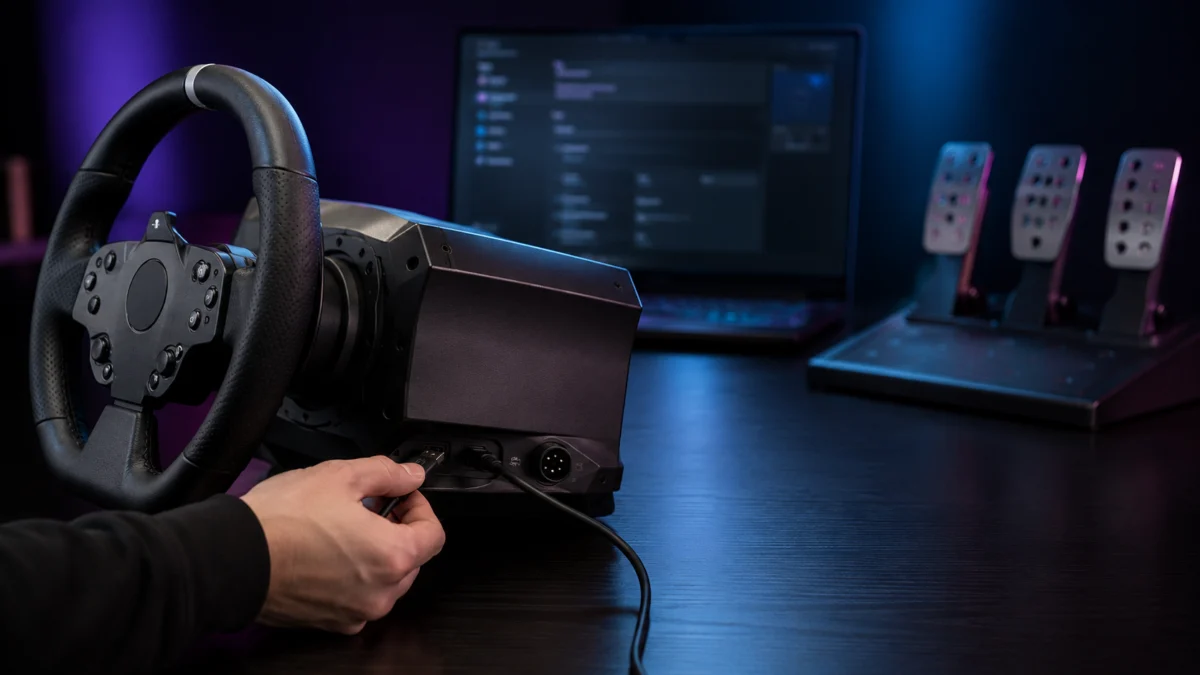
If your racing wheel is not detected on your PC, the most useful first step is to recognize that “not detected” is not one problem — it is five separate layers that fail independently. A wheel can be invisible to Windows, visible to Windows but missing from its own software, visible in software but dead inside a game, working except for force feedback, or working except for the pedals. Before changing any setting, plug the wheel directly into a rear motherboard USB port with no hub, power it with its original supply where one is required, and install the current manufacturer software. Then use the table below to find your exact failure layer. Brand workflows differ: Logitech, Thrustmaster, MOZA, and Fanatec do not share the same driver, firmware tool, or recovery process, so this guide keeps them separate. If you are weighing a replacement instead of a repair, our sim racing wheel buying guide covers the current lineup.
First, find which layer is actually failing
Detection failures fall into five layers: the Windows USB layer, the manufacturer software layer, the game input layer, the force-feedback layer, and the pedal/accessory layer. Windows seeing the wheel, the brand software seeing it, and a game seeing it are three independent states — one can work while another fails. Match your symptom in the table first, then jump to that section instead of trying every fix.
| Symptom | Most likely layer | Where to start |
|---|---|---|
| Wheel not detected anywhere (no LED/calibration, nothing in Windows) | Power / USB / firmware | Basics, then firmware recovery |
| Detected in Windows, but missing from the brand software | Manufacturer software | Brand software section |
| Detected in software, but the game does not respond | Game input (Steam Input / mapping) | Steam & game section |
| Steering works, but there is no force feedback | Force feedback | Force feedback section |
| Wheel works, but pedals or shifter do not | Pedal / accessory | Pedals & shifter section |
| Wheel vanished or got stuck after a firmware update | Firmware | Firmware recovery section |
Use the Windows “USB game controllers” panel as your reference point throughout: press the Windows key, type joy.cpl, and open it. If your wheel is listed there, Windows detects it and the problem is higher up the stack (software, game, or mapping). If it is not listed, the failure is at the power, cable, USB, or firmware level.
Check the basics: power, USB port, cable path, and mode
Before any software step, connect the wheel base directly to a rear USB port on your PC’s motherboard, not a front-panel port, hub, or extension cable, which can under-power or destabilize the connection. Use the original power supply if your wheel ships with one, set the base to PC mode if it has a mode switch, and connect pedals and shifter to the base as the manual specifies. Then re-check joy.cpl.
The first checklist below resolves a large share of “not detected” cases. The fix takes 6 steps.
- Plug the wheel base directly into a rear motherboard USB port. Avoid hubs, front-panel ports, and long or low-quality cables.
- If your wheel uses an external power adapter, confirm it is connected at the wheel, the adapter, and the wall socket. According to Logitech’s support guidance for the G923, a slowly blinking LED usually indicates the wheel is not receiving power.
- Let the base complete its power-on calibration (most wheels rotate fully each way, then center).
- If the base has a PC/console mode switch, set it to the correct mode for your platform.
- Connect pedals, shifter, or handbrake directly to the base per the manufacturer’s documentation.
- Open joy.cpl and confirm the wheel appears under installed game controllers.
Note: Do not assume every wheel needs an external power brick — power requirements are model-specific and should be checked against your wheel’s official specifications. Removing a USB hub is broadly recommended, but it does not fix every case.
If your wheel disappears only after working for a while, the cause is often USB power saving rather than the wheel itself. In Device Manager, expand Universal Serial Bus controllers, open each USB Root Hub → Power Management, and uncheck “Allow the computer to turn off this device.” Disabling USB selective suspend in your Windows power plan addresses the same behavior. Multiple community reports tie sudden mid-session dropouts to this setting, so it is worth checking before assuming hardware failure.
Check the official software for your wheel brand
Each brand uses its own software, and a wheel that Windows detects can still be missing from that software until the current version is installed and running. Install the correct tool for your brand, run it (as administrator if detection is flaky), and confirm the base, motor, and wheel appear. The four ecosystems below do not share drivers or firmware tools, so use only the one for your wheel.
Logitech (G HUB)
For Logitech G-series wheels such as the G923, G29, and G920, the supported PC software is Logitech G HUB. According to Logitech’s support documentation, the G923 requires G HUB to be installed for force feedback to function on PC, and steering functions must be mapped in the game’s control options. If G HUB does not detect the wheel, a clean reinstall — removing existing G HUB files, then reinstalling the latest version — is a commonly reported fix across community threads.
Thrustmaster (My Thrustmaster Panel / Control Panel + Firmware Update)
Thrustmaster splits tools by model generation. Newer wheels use My Thrustmaster Panel, while many force-feedback wheels use the Control Panel together with a Firmware Update tool, and the required “PC — Drivers Force Feedback” driver must be installed first. Thrustmaster’s own guidance recommends connecting the wheel alone, without other USB devices, to avoid conflicts. Verify which tool applies to your exact model rather than assuming one tool covers the whole range.
MOZA (Pit House)
MOZA wheels use MOZA Pit House, which pairs with a Firmware Manager. According to MOZA’s support guidance, if the device is missing from the Windows “USB game controllers” list or Pit House cannot detect it, check the power cable, connect the base directly to the PC without a USB hub, and try a different USB port. MOZA notes that a USB hub or front-panel port is a recurring cause of dropouts, and recommends a direct rear-port connection.
Fanatec (Fanatec App)
Fanatec wheel bases use the Fanatec App, which includes the driver and Firmware Manager. Fanatec’s support documentation strongly recommends connecting the base directly to a motherboard USB port and avoiding hubs or extension cables. If the base is detected but a wheel rim registers no input, Fanatec’s first step is to reseat the wheel on the quick release, since that is usually a contact issue rather than a software one.
If the wheel is detected but does not work in Steam or a game
If your wheel shows up in its software but not in a game, the game input layer is the problem, and Steam is the most common culprit. Steam Input’s Generic Gamepad support can capture or block DirectInput wheels, and many racing games require you to select the wheel and map it manually. Fixing this is separate from anything in the brand software — the device is detected, but the game is not reading it correctly.
- In Steam, open Settings → Controller and disable Generic Gamepad / Steam Input for the affected game. According to a Valve staff post, enabling generic gamepad support blocks DirectInput devices, which is exactly how racing wheels are normally seen.
- In the game’s control settings, select your wheel as the active device and create or restore a wheel profile rather than relying on a controller preset.
- Manually rebind steering, throttle, brake, and clutch if the game did not auto-map them, and delete conflicting or empty bindings.
- Close other input remappers (such as vJoy-based tools) while troubleshooting, since multiple mappers running at once is a frequent source of conflicts.
Note: Do not assume a supported wheel always auto-maps, and do not apply one game’s fix to every title. Official wheel support and mapping menus vary by game, so verify against the specific game’s settings.
If force feedback does not work
When steering responds but there is no force feedback, separate three different cases: no FFB at all, weak FFB, and missing enhanced effects (such as Logitech TRUEFORCE). The checks differ. Start with power for wheels that require an external supply, then the brand software, then the in-game FFB toggle, and finally whether the game supports your wheel’s enhanced effects at all.
- No FFB at all: confirm power (a slowly blinking LED on the G923 indicates no power, per Logitech), confirm the brand software is installed and running, and confirm FFB is enabled in the game.
- Weak FFB: check in-game FFB strength and the wheel’s software profile; some games default low or apply the wrong device profile.
- Missing enhanced effects: these depend on the game explicitly supporting the feature, so verify the title’s compatibility rather than assuming a firmware update will add it.
For a Logitech G923 specifically — where the wheel turns but force feedback is absent or feels disabled in-game — see our dedicated guide: Logitech G923 force feedback not working. Avoid assuming a firmware update always restores FFB; it is one possible step, not a universal fix.
If pedals, shifter, or handbrake do not respond
Pedals and shifters connect to the wheel base rather than directly to the PC in most setups, and they are ecosystem-specific. A non-responsive accessory is most often a connection or mapping issue, not a broken part. Confirm the cable is seated in the correct base port, verify axis movement in the brand software or joy.cpl Test tab, then map it in-game. Never assume cross-brand compatibility.
- Reconnect the accessory to the base per the manual. Logitech pedals, for example, use an RJ12-style cable to the wheelbase, and a loose or dirty connection stops them from registering.
- Verify the axis responds in software or in joy.cpl → Properties → Test before blaming the game.
- Map accelerator, brake, and clutch manually in the game’s control settings. According to Logitech’s support guidance, some games invert pedal controls, so set them deliberately.
- If only steering is recognized while pedals and shifter are not, multiple community reports point to in-game rebinding as the fix rather than a hardware fault — check your configuration before assuming the unit is defective.
If a firmware update fails or the wheel disappears after an update
If your wheel stopped being detected right after a firmware update, the firmware is likely incomplete, and the recovery path is bootloader mode with the official tool — not repeated replugging or unofficial files. Stop cycling the USB connection, keep the base connected directly to the PC, and use only the manufacturer’s recovery process. Never install unofficial firmware, unofficial drivers, or registry hacks from random sources.
- Thrustmaster: the “wake-up” / bootloader procedure applies specifically when the base will not power on and appears to have lost its firmware. Thrustmaster’s guidance is to connect the wheel alone, ensure the latest Force Feedback driver is installed, and follow the model-specific boot-button steps.
- Fanatec: with the base connected via USB and the latest Fanatec App installed, holding the power button for about 8 seconds enters bootloader mode so the firmware updater can re-flash the base. Detach the wheel and accessories first, and use a direct USB connection.
- MOZA: if Pit House cannot detect the base after an update, MOZA documents an offline Firmware Update Tool whose button colors indicate state (a gray button means the device is not detected; close Pit House first if a port-occupied message appears).
Important: Do not unplug or power off the device mid-flash, as interrupting an update is a common cause of bricking. If the base will not enter bootloader at all and Windows never sees it, stop reflashing and contact the manufacturer.
If your issue is specifically with the Thrustmaster T598, My Thrustmaster Panel, or firmware recovery on that model, see our focused guide: Thrustmaster T598 not detected.
When to contact support or consider upgrading
If you have isolated the failure to hardware, the next steps are to confirm the diagnosis and then use the manufacturer’s support process. Test the wheel on another USB port and, where possible, another PC; if it is detected there, the problem is on the original PC’s driver or USB side rather than the wheel. Capture screenshots of the software detection state to speed up a support ticket.
- Try a different USB port and, when practical, a different PC to separate a PC-side issue from a wheel fault.
- Save the detection state shown in the brand software and in joy.cpl as evidence.
- Use the manufacturer’s official support or RMA process if hardware failure is suspected; do not keep reflashing a base that will not enter bootloader.
If you decide to replace or upgrade rather than repair, our sim racing wheel buying guide compares current options by use case. If you are specifically choosing a wheel for PS5 or Gran Turismo 7, where console licensing and direct drive compatibility matter, see our PS5 direct drive wheel compatibility guide before buying.
FAQ
Why does Windows detect my wheel but the game does not?
Windows detection, manufacturer software detection, and in-game detection are three separate layers. A wheel listed in joy.cpl can still be blocked or remapped by Steam Input, or simply not selected and mapped inside the game. Disable Generic Gamepad support for that game, choose the wheel as the active device, and map the controls manually.
Does removing a USB hub always fix detection problems?
No. A direct rear-motherboard USB connection is broadly recommended by Logitech, MOZA, and Fanatec, and it resolves many cases caused by under-powered or unstable hubs. But it is one step, not a guaranteed fix. If a direct connection does not help, move on to power, driver, mode, and firmware checks.
Will a firmware update fix a wheel that is not detected?
Sometimes, but not always. A firmware update can recover a base that lost its firmware, and bootloader recovery is the documented path when a wheel disappears after an interrupted update. However, a firmware update is not a universal fix for detection or force-feedback problems, and updating without need can introduce new issues. Match the fix to the failure layer.
How We Researched
This article is based on manufacturer documentation and official support materials from Logitech, Thrustmaster, MOZA, and Fanatec, alongside community reports from official forums, sim racing forums, and platform support threads where the same pattern appeared across multiple posts. We have not conducted hands-on lab testing. Any compatibility claims, software requirements, or recovery procedures are attributed to official sources or clearly identified community reports, and brand-specific steps are kept separate because these ecosystems do not share drivers, firmware tools, or recovery workflows.
Conclusion
“Racing wheel not detected on PC” is really five separate problems, and the fastest route to a fix is identifying which layer failed before touching settings. Start with a direct USB connection and power, confirm the wheel in joy.cpl, then work up through the brand software, the game’s input and mapping, force feedback, and accessories — using only the workflow for your specific brand. Reserve firmware recovery for cases where the wheel disappeared after an update, and escalate to manufacturer support only once isolation points clearly to hardware.








