A Wi-Fi 7 USB adapter can upgrade a Windows laptop or desktop to Wi-Fi 7 without opening the case — but only if your setup meets a few conditions first. You need a free USB 3.0 port, Windows 10 or 11 (with Windows 11 version 24H2 or later required for MLO), and a Wi-Fi 7 router on the other end of the connection. If any of those pieces are missing, the adapter will still work, but it will fall back to older Wi-Fi standards and you won’t see Wi-Fi 7 benefits. This guide walks through exactly what to check before buying: your Windows version, USB port type, 6GHz support, MLO requirements, and router compatibility. We also compare USB adapters against internal card swaps like the Intel BE200, and cover the most common problems users report after installation.
What Is a Wi-Fi 7 USB Adapter, and What Does It Actually Do?
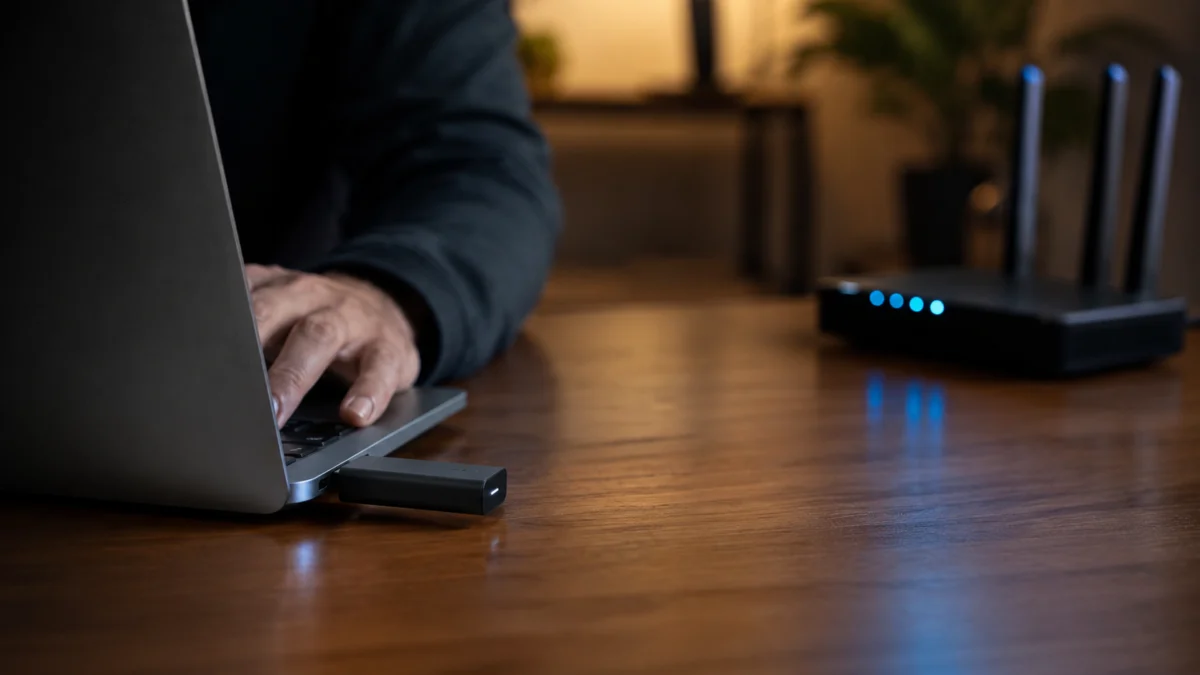
A Wi-Fi 7 USB adapter is an external wireless module that plugs into a USB port and replaces your computer’s built-in Wi-Fi for network connections. It adds support for Wi-Fi 7 (802.11be) features such as the 6GHz band, MLO, and 4K-QAM — without requiring you to open your PC or replace any internal hardware.
When you plug one in and install its driver, Windows treats it as a new wireless network adapter. Your laptop’s older internal Wi-Fi card stays in place; you simply connect through the USB adapter instead. Current models such as the TP-Link Archer TBE400U are tri-band devices, supporting the 2.4GHz, 5GHz, and 6GHz bands with combined theoretical link rates in the 6.5Gbps class (up to 2882Mbps on 6GHz, 2882Mbps on 5GHz, and 688Mbps on 2.4GHz).
One number worth understanding up front: those link rates are radio-side theoretical maximums. The USB 3.0 connection itself has a practical throughput ceiling of roughly 4.8Gbps according to manufacturer materials, and real-world speeds depend on your router, internet plan, distance, and interference. A Wi-Fi 7 USB adapter raises the ceiling — it does not guarantee any specific speed.
Can a USB Adapter Really Add Wi-Fi 7 to an Old Laptop?
Yes — a USB adapter is a legitimate way to add Wi-Fi 7 to an older laptop, as long as the laptop has a USB 3.0 port and runs Windows 10 or 11. However, you only get Wi-Fi 7 features if your router also supports Wi-Fi 7. Without a Wi-Fi 7 router, the adapter connects using older standards and changes very little.
This is the single most common misunderstanding around these products. Wi-Fi 7 is a link between two devices: your adapter and your router (or access point). Manufacturer documentation is explicit that features like MLO, 320MHz channels, and 4K-QAM require both the access point and the PC’s operating system to support them. If your router is Wi-Fi 6 or Wi-Fi 5, a Wi-Fi 7 USB adapter behaves as a backward-compatible adapter on those older standards — sometimes still an improvement over a very old internal card, but not a Wi-Fi 7 upgrade.
The operating system matters too. TP-Link’s official user guide for the Archer TBE400U lists Windows 10 and 11 as supported, and specifies that MLO — the Wi-Fi 7 feature that combines multiple bands into one connection — requires Windows 11 version 24H2 or later. If your laptop is stuck on Windows 10, the adapter can still connect, but you should not expect the full Wi-Fi 7 feature set.
Wi-Fi 7 USB Adapter vs Internal Wi-Fi 7 Card: Which Should You Choose?
Choose a USB adapter if you want a tool-free upgrade, your laptop’s internal card is hard to access, or you have an AMD system where Intel BE200 compatibility is a known concern. Choose an internal M.2 card if you are comfortable opening your PC, your system is compatible, and you want Bluetooth included.
The Intel BE200 is the most common internal Wi-Fi 7 M.2 card, but it comes with a well-documented caveat: multiple retail listings explicitly state that the BE200 does not support AMD motherboards or AMD-based laptops. For AMD users, that turns a cheap card swap into a compatibility gamble. A USB adapter sidesteps the problem entirely, because it connects through standard USB rather than the M.2 slot.
| Factor | Wi-Fi 7 USB adapter | Internal Wi-Fi 7 card (e.g., Intel BE200) |
|---|---|---|
| Installation | Plug into USB port, install driver | Open PC, swap M.2 card, manage antennas |
| AMD compatibility | Works over standard USB | BE200 widely noted as not supporting AMD platforms |
| Bluetooth | Typically not included | Usually included (e.g., Bluetooth 5.4 on BE200) |
| Warranty risk | None — no disassembly | Opening some laptops can affect warranty |
| Portability | Move between PCs freely | Fixed to one machine |
| Throughput ceiling | Limited by USB 3.0 (~4.8Gbps practical) | PCIe link, higher theoretical ceiling |
One trade-off to note: most Wi-Fi 7 USB adapters handle Wi-Fi only. If your current internal card also provides your laptop’s Bluetooth, that internal card keeps doing Bluetooth duty even after you switch Wi-Fi to the USB adapter — which is fine, but worth knowing so the behavior doesn’t surprise you.
What to Check Before Buying: Windows Version, USB Port, 6GHz, MLO, and Router Support
Before buying a Wi-Fi 7 USB adapter, verify five things: your Windows version (11 24H2 for MLO), a USB 3.0 or faster port, your region’s 6GHz availability, MLO support on both adapter and router, and that your router actually broadcasts a Wi-Fi 7 network. Missing any one of these reduces what the adapter can deliver.
| Check | Why it matters | If not met |
|---|---|---|
| Windows 10/11 (64-bit); Windows 11 24H2+ for MLO | Official supported OS list; MLO is gated by OS version | Adapter connects, but MLO and some Wi-Fi 7 features stay unavailable |
| USB 3.0 (or faster) port | USB 2.0 ports throttle bandwidth far below Wi-Fi 7 rates | Severe speed limits even with a perfect wireless link |
| Wi-Fi 7 router with 6GHz enabled | Wi-Fi 7 features require support on both ends | Connection falls back to Wi-Fi 6/6E/5 behavior |
| 6GHz available in your region and router settings | 6GHz visibility depends on regulatory region, router config, and drivers | 6GHz network never appears in your network list |
| Latest adapter driver installed | Community reports frequently tie missing bands and instability to outdated drivers | Missing 6GHz, unstable connection, or unrecognized adapter |
| WPA3 enabled on the router | Manufacturer guidance ties Wi-Fi 7 connections to WPA3 encryption | Adapter may not connect at full Wi-Fi 7 capability |
Also check the physical port type. Some adapters, like the Archer TBE400U, include both USB Type-C and Type-A connectors in one unit, which helps if your laptop only has one type free. Others, like the larger high-gain TBE400UH, use Type-A with a desk cradle. Make sure the connector matches a port you can actually spare.
Example Products to Check: TP-Link Archer TBE400U and TBE400UH
The TP-Link Archer TBE400U and TBE400UH are among the few Wi-Fi 7 USB adapters with full official documentation, Windows driver pages, and confirmed MLO support. The TBE400U is a compact dual-port (Type-C and Type-A) stick; the TBE400UH adds high-gain external antennas and a cradle for better reception at distance.
TP-Link Archer TBE400U
The TBE400U is a BE6500-class tri-band adapter announced for global release at IFA 2025. Its standout design choice is the dual-port form factor: both a Type-C and a Type-A connector on one device, so it fits modern thin laptops and older machines alike. It supports MLO, WPA3, and beamforming, connects over USB 3.0, and installs without a CD. TP-Link lists Windows 10 and 11 as supported, with MLO requiring Windows 11 24H2 or later.
Disclosure: Fixory may earn a commission from links in this section, at no extra cost to you.
Check on Amazon
/
Official site
TP-Link Archer TBE400UH
The TBE400UH delivers the same BE6500-class tri-band rates but trades the compact stick design for two adjustable high-gain antennas and a detachable USB 3.0 cradle with a 1.2-meter cable. That makes it the better pick for desktops, or for any setup where the router is rooms away and reception is the priority rather than portability. The driver ships pre-loaded on the device for plug-and-install setup. One detail from independent review coverage worth knowing: using the cradle extension cable was observed to reduce download speeds slightly compared to plugging the adapter in directly.
Before buying either model — or any Wi-Fi 7 USB adapter — apply the same checklist above: confirmed Windows driver support, explicit 6GHz and MLO documentation, and a real manufacturer support page. Avoid generic unbranded listings that name only a chipset.
Common Problems: Slow Speed, No 6GHz Network, Adapter Not Detected, or MLO Not Working
The most frequently reported problems with Wi-Fi 7 USB adapters are a missing 6GHz network, slower-than-expected speeds, the adapter not being recognized, and MLO behaving differently than expected. Most reports trace back to driver versions, Windows versions, USB port choice, or router-side settings rather than defective hardware.
No 6GHz network visible. According to TP-Link’s own support guidance, a missing 6GHz band usually comes down to client-side support, outdated drivers or OS, or regional mismatches — 6GHz operation can be unavailable if the router and client device were purchased for different countries. Community support cases for TP-Link USB adapters show the same pattern, with driver updates as the first recommended fix. Before assuming the adapter is faulty, update the driver from TP-Link’s download page, confirm Windows is fully updated, and check that your router is actually broadcasting on 6GHz.
MLO not working the way you expected. According to multiple community reports, some users have found that MLO on the TBE400UH connected two bands at a time rather than all three simultaneously, and that network profiles did not always register cleanly in Windows. This does not appear to affect every setup, and Windows 11 24H2 is the documented baseline for MLO — but if you are buying specifically for a particular MLO behavior, treat tri-band simultaneous linking as something to verify rather than assume.
Slow speeds. Check three things in order: the USB port (a USB 2.0 port caps throughput dramatically), the band you are connected to (2.4GHz will always be slow), and physical placement. If your adapter came with a cradle and extension cable, remember that review coverage observed minor speed loss through the cable — useful for reception, but plug in directly when raw speed matters.
Adapter not detected. TP-Link’s troubleshooting guidance for the TBE400U recommends trying a different USB port, reinserting the adapter, and reinstalling the driver, and confirms the supported OS list (Windows 10/11). If the adapter is detected but unstable, switching USB ports is the documented first step.
Who Should Buy a Wi-Fi 7 USB Adapter — and Who Should Upgrade Another Way?
Buy a Wi-Fi 7 USB adapter if you already own a Wi-Fi 7 router, run Windows 11 24H2, have a free USB 3.0 port, and don’t want to open your PC. Skip it if you don’t have a Wi-Fi 7 router yet — upgrade the router first, because the adapter alone changes nothing.
Buy a Wi-Fi 7 USB adapter if:
- You have a Wi-Fi 7 router and your laptop or desktop is the bottleneck
- Your system is AMD-based and the Intel BE200’s compatibility limits rule out a card swap
- You don’t want to open the case, or your laptop’s Wi-Fi card is soldered or hard to reach
- You want one upgrade you can move between multiple PCs
Consider another path if:
- You don’t own a Wi-Fi 7 router — that upgrade comes first
- You’re still on Windows 10 and want MLO, since MLO requires Windows 11 24H2 or later
- You need Bluetooth upgraded at the same time — internal cards typically bundle it, USB Wi-Fi adapters typically don’t
- Your PC is Intel-based, easy to open, and you want the highest throughput ceiling — an internal card avoids the USB 3.0 limit
How We Researched
This article is based on manufacturer documentation and official support materials — primarily TP-Link’s product pages, user guide, and download center for the Archer TBE400U and TBE400UH — along with retail product listings for Intel BE200 compatibility notes, independent review coverage, and community reports from TP-Link’s official support forum. We have not conducted hands-on lab testing. All performance figures are theoretical link rates from official specifications, and community-reported issues are presented as environment-specific reports, not product-wide verdicts.
Conclusion: Verify the Checklist, Then Buy with Confidence
A Wi-Fi 7 USB adapter is the easiest path to Wi-Fi 7 on an existing Windows PC — no screwdriver, no M.2 compatibility research, no warranty worries. The catch is that it only delivers when the rest of the chain is ready: a Wi-Fi 7 router with 6GHz enabled, Windows 11 24H2 if you want MLO, a USB 3.0 port, and an up-to-date driver. Run through that checklist before you order. If every box is checked, an adapter like the Archer TBE400U (portable, dual-port) or TBE400UH (high-gain, desk-bound) is a low-risk upgrade. If your router is still Wi-Fi 6 or older, start there instead — the adapter can wait.