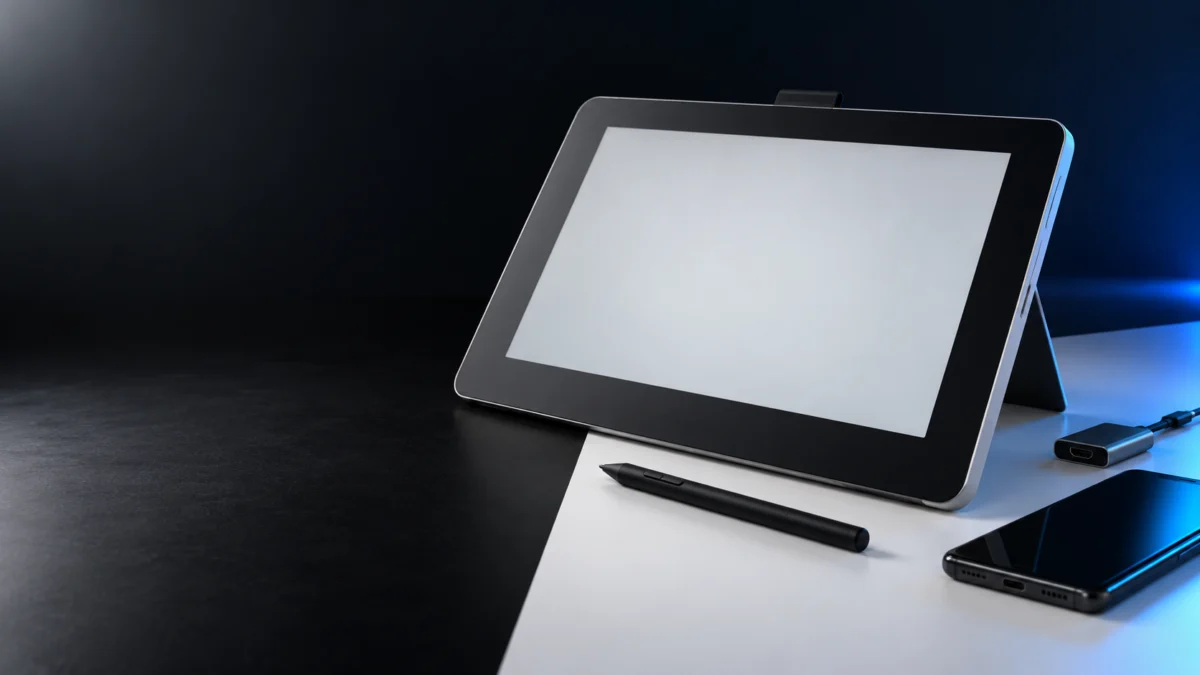
If the pen on your Wacom One DTC133 does nothing after you connect the display to an Android phone or tablet, check compatibility and the connection before assuming a hardware fault. The DTC133 Android support pages we checked describe compatibility and connection checks rather than a separate pen-only repair. Start with your Android device and adapter, check the drawing app, reconnect the display and USB data in Wacom’s stated order, and then follow its Android mode instruction if the unit still does not work.
Which checks apply depends on which of three states you are in: no image at all, an image but no pen response, or a working pen with no pressure. In the middle case, a visible image does not prove the whole connection is correct. Video and pen data travel over separate legs of the same cable. Below we work through Wacom’s checks in the order Wacom presents them, and flag where the official material stops.
Confirm Your Model and Which Pen Problem You Have
The DTC133 is a separate product from the Wacom One 12 (DTC121) and the Wacom One 13 Touch (DTH134), and their cables and setup steps are not interchangeable. Confirm your model first, then identify which of three symptoms you have, because each one points to a different set of checks.
The DTC133 connects through the bundled X-shape cable, which splits into HDMI, USB-A, power and display connections. If your setup uses a single USB-C cable instead, check the model label before applying these DTC133 instructions.
| What you are seeing | Where to start |
|---|---|
| No image on the DTC133 screen at all | Device compatibility, adapter ports, and the full connection order, including power |
| Image appears, but the pen does nothing | Device, adapter and app eligibility first, then the USB-A data connection, then Android mode |
| Pen moves the cursor, but pressure is ignored | Start with app-level pressure settings |
Check Your Android Device, Adapter, and App Against Wacom’s Lists
Wacom states that the DTC133 works with select Android devices that support screen output, not with every Android device. Wacom also publishes a list of third-party adapters alongside that device list, and a separate list of apps it confirmed on Android. Check the device, adapter and app separately; an app missing from the tested list is not necessarily incompatible.
A phone with a USB-C port is not automatically a supported phone, an adapter that carries video is not automatically a supported adapter, and an app that accepts finger input is not automatically an app Wacom verified with this display.
Wacom: DTC133 Android compatibility
Your Android device
Wacom maintains the device list on its Product Compatibility page rather than inside the support article, so check the page as it stands today rather than an older list. Absence from an older list is not proof that a device is unsupported, and presence on one is not proof that it still is.
Your adapter
Wacom describes the adapter requirement in two places, and together they are more specific than either alone. One states that a USB-C hub with Type-C to HDMI and USB-A function is required alongside the bundled X-shape cable. The other states the adapter needs HDMI, USB-A, and a USB-C port for power input.
Wacom: required Android accessories
Wacom points readers to the same Product Compatibility page for third-party adapters. Check that the information you use applies to the DTC133. We are not naming specific adapter models here, because we could not confirm from Wacom’s published page which adapter list belongs to the DTC133 rather than to another Wacom product.
Your drawing app
Wacom’s support page, marked updated July 19, 2022, lists the following Android software as tested with the Wacom One through a USB-C adapter. This historical list does not establish which apps are currently available or supported:
- Wacom Bamboo Paper
- Ibis Paint
- Medibang Paint
- Adobe Sketch
- Infinite Painter
- TopHatch Concepts
Wacom: Android software tested with DTC133
Wacom does not state that pen input fails outside this list, so treat it as a check rather than a cause. If your pen does nothing in one app, try another suitable drawing app you already have available; Wacom’s tested list can serve as a reference. A different result can help identify whether the problem depends on the app, but this test alone does not establish the cause.
Reconnect the Display, USB Data, and Power in Wacom’s Order
Wacom specifies the connection order for the DTC133 on Android, and states that the steps must be followed in that order. The X-shape cable’s USB-A leg is the data connection, so an image on screen does not confirm that pen data has a path to your Android device.
The connection procedure has three steps.
- Connect the Wacom One HDMI and USB-A (data) connections to the USB-C hub.
- Connect the USB-C hub to the compatible Android device via the USB-C connection.
- Connect the power USB cable to the power adapter and plug it into an AC outlet.
Wacom: DTC133 Android connection order
If you originally connected the hub to your phone before attaching the display, disconnect and rebuild the connection in this order. Wacom gives no reason for the sequence, so we cannot tell you what fails when it is wrong, only that Wacom treats the order as part of the procedure.
Power is worth checking even when the screen is lit. Wacom’s User Help notes that a device connected to an insufficient power supply may not be bright enough or may not operate properly, and advises connecting to a power source for the extra power needed. A hub drawing power from the phone alone is not what Wacom describes.
Wacom User Help: Android and Chromebook
Switch the DTC133 to Android Mode
After compatibility and connection issues have been excluded, Wacom instructs users of a DTC133 that still does not work on Android to long-press the power button for six seconds, which switches the display to Android mode. Wacom does not call this a reset, and does not describe it as a pen-specific fix.
Wacom: DTC133 Android mode troubleshooting
Two details in that instruction are easy to lose. The first is position: Wacom places the six-second press after the compatibility and connection checks, not before them. The second is wording. The DTC133 Android support article calls this switching to Android mode; it does not describe the operation as a factory reset or a hard reset.
Wacom’s entry point for this instruction is a DTC133 that does not work, without distinguishing a blank screen from an unresponsive pen. So it is a documented step for your situation, but not a documented fix for it. If the pen still does nothing afterwards, Wacom’s sequence ends and directs you to its support team.
If the Pen Draws but Pressure Is Missing
Pressure that does not register is a different problem from a pen that does not register at all, and it has a different first check. Many applications require pressure sensitivity to be enabled in the app itself. Wacom publishes no DTC133-specific pressure procedure for Android in the material we checked.
Wacom: general pen pressure troubleshooting
Wacom’s general pressure article covers products broadly, and parts of it do not transfer here. The driver diagnostics concern desktop setups, and the Windows Ink instruction specifically applies to Windows. Wacom’s User Help states that driver installation is not required when using the device with Android, so reinstalling or updating a Wacom driver is not an Android step, whatever a general troubleshooting guide suggests.
If pressure works in one confirmed app and not another, the app is the variable. If it works in none of them, that is worth reporting to support as a separate symptom from an unresponsive pen.
What to Record Before Contacting Wacom Support
Wacom’s documented sequence ends with contacting support, so the useful step before that is recording what you have already excluded. A ticket that states your device, adapter, app, connection order, and display behaviour gives support something to work from, rather than a report that only says the pen does not work.
- Android device manufacturer and exact model number, plus the Android version
- Adapter or hub manufacturer and model, and which ports it provides
- Whether power was connected to an AC outlet through the supplied power adapter
- The order in which you made the connections
- Whether the DTC133 screen shows an image, and whether it looks dim
- Which app you tested in, including whether you tried one on Wacom’s confirmed list
- Whether the pen moves the cursor at all, and whether pressure registers
- Whether you performed the six-second power button press, and what changed
Nothing on this list requires a diagnosis from you. It records what state the setup is in, which is what the checks above establish.
How We Researched
This article is based on Wacom’s official support articles for the DTC133, Wacom’s DTC133 User Help, and Wacom’s Product Compatibility page. We have not conducted hands-on lab testing, and no performance or compatibility claim here comes from anything other than Wacom’s own documentation.
Two limits are worth stating plainly. First, we did not find community reports that combine the DTC133, a confirmed Android setup, and an unresponsive pen in sufficient numbers to describe any pattern, so this article makes no claims about how often this happens. Second, statements here about what Wacom does not document apply to the DTC133 Android support pages we checked, not to every page Wacom publishes. Wacom’s support library is large, and a procedure we did not find may exist on a page we did not open.
FAQ
Does the DTC133 work with any Android phone or tablet?
No. Wacom states that the Wacom One works with select Android devices that support screen output, and maintains the current list on its Product Compatibility page. A USB-C port on its own is not the requirement.
Is the six-second power button press a factory reset?
Not according to Wacom. Wacom describes the six-second long press as switching the Wacom One to Android mode. The DTC133 Android support article does not describe this operation as a hardware factory reset.
Do I need to install a Wacom driver on Android?
No. Wacom’s User Help states that driver installation is not required when using the device with Android or ChromeOS. Driver reinstallation steps you find in general Wacom troubleshooting articles are aimed at Windows and macOS.
Conclusion
Wacom’s DTC133 material supports a clear sequence and stops at a clear point. You can confirm your model, check your Android device, adapter and app against Wacom’s lists, rebuild the connection in Wacom’s stated order with power supplied from an outlet, and switch the display to Android mode. Each of those is documented for the DTC133 specifically.
The DTC133 Android pages we checked do not document a separate pen-only repair. If the pen is still unresponsive after those checks, the honest next step is Wacom Support with your notes in hand, not a replacement pen or a new hub bought on a guess. Buying hardware to fix a condition you have not isolated is how a compatibility problem turns into an expensive compatibility problem.