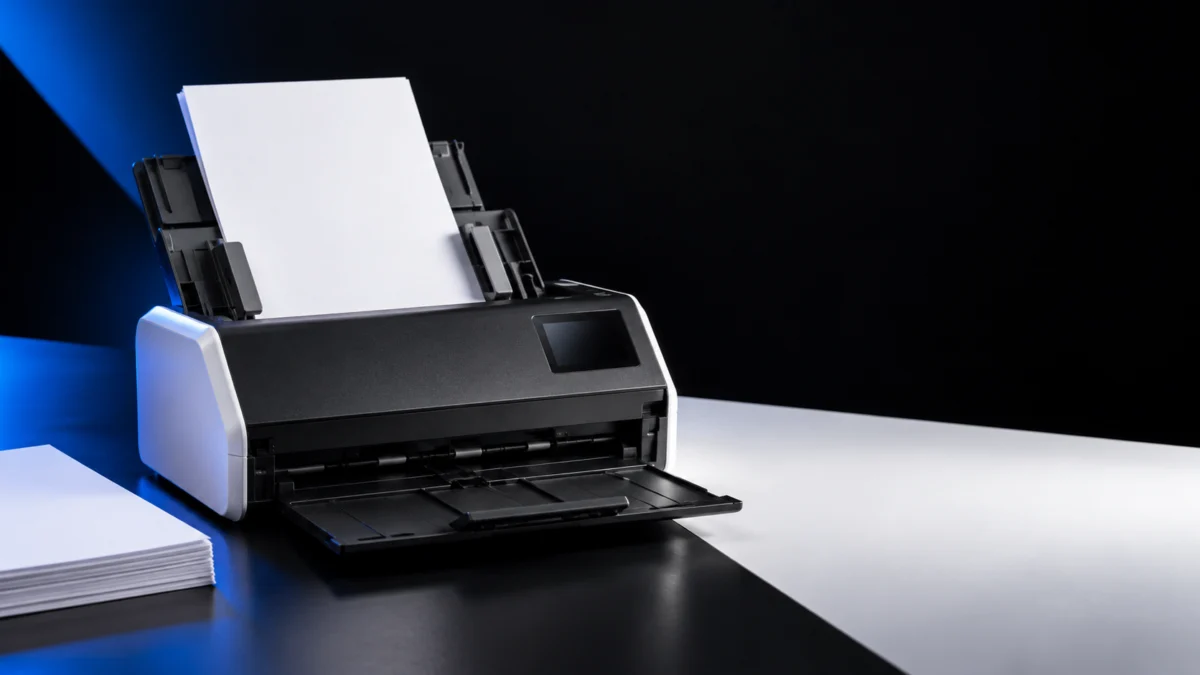
If your Brother ADS-1800W jams or will not pull paper, read the message on its LCD before you order a replacement roller. Brother uses three separate thresholds on this scanner, and they sit far apart. Scheduled Maintenance Alert appears once the Pick Up Roller and Separation Pad have handled more than 5,000 sheets, and it asks you to clean them. Replace Separation Pad appears after 10,000 sheets. Replace Pickup Roller appears after 100,000 sheets. The maintenance alert alone does not call for a replacement pick-up roller.
Brother lists several checks to make before considering roller replacement. Brother’s own cause list for a document that was not fed opens with paper dust and an overloaded ADF, and it includes a Feed Selector left in Plastic Card Mode. This guide follows Brother’s documented order.
Match Your Symptom to the Right Next Step
The ADS-1800W has three distinct feeding failures, and Brother lists different causes for each one. A document that is not fed points to mode, capacity, and obstruction checks. A document that jams adds sensor dust to that list. A multifeed points to loading, curl, and the Separation Pad. Start from the row that matches what you see.
| Symptom | Check first | Check next | Escalate when |
|---|---|---|---|
| Nothing feeds at all | Feed Selector position, ADF capacity, obstructions | Paper dust on the Pick Up Roller and Separation Pad; Pick Up Roller Cover | Checks and cleaning do not restore feeding |
| The document jams partway through | Clear the jam and remove every scrap of torn paper | Document condition, Pick Up Roller and Separation Pad, sensors | The same jam returns on supported documents |
| Several sheets feed at once | Fan and stagger the pages, flatten curl, reload correctly | Separation Pad seating, Pick Up Roller Cover film | Multifeeds continue with correct documents and loading |
| A long document jams | Confirm Long Paper is selected for Document Size | Document condition and the feed path | Jams continue under supported long-paper settings |
| Jams keep coming back | Confirm the documents are within Brother’s specification | Clean, then read the usage counters | The LCD names a consumable, or damage is visible |
Brother ADS-1800W Scanning and Other Problems guide
Some ADS-1800W owners have posted about pages feeding at an angle and about several sheets being pulled in together. Those posts record the symptom but not what was cleaned or replaced afterwards, so they cannot tell you how often this happens. Read them as confirmation that the symptoms exist on this model, not as a failure rate.
Reddit ADS-1800W skew and multifeed report
Coolblue ADS-1800W paper-jam review
Read the LCD Message Before You Buy Anything
Your ADS-1800W tells you which consumable it is asking about, and each message means something different. Scheduled Maintenance Alert is a cleaning request. Replace Separation Pad and Replace Pickup Roller are replacement requests for two different parts. Match the message to the indicated action before ordering a part.
| LCD message | What Brother says causes it | What it is asking you to do |
|---|---|---|
| Scheduled Maintenance Alert | The Pick Up Roller and Separation Pad have been used for over 5,000 sheets | Clean both parts. Brother warns that jams and quality loss may follow otherwise |
| Replace Separation Pad | The Separation Pad has been used for more than 10,000 sheets | Replace the Separation Pad, not the roller |
| Replace Pickup Roller | The Pick Up Roller has been used for over 100,000 sheets | Replace the Pick Up Roller. Brother notes scanning errors may occur if you leave it |
| Feed Selector Error | The Feed Selector is set incorrectly | Set it to the left for ADF scanning and to the right for the Card Slot |
| Clean Document Position Sensor / Clean Card Sensor | The sensor is dirty with paper dust | Clean the sensor |
| Document Jam | Paper Guides, document settings, paper dust on the rollers, or a curled document | Clear the jam, then correct whichever of those applies |
Brother ADS-1800W Error and Maintenance Messages guide
You do not have to wait for a message. On the ADS-1800W, press Settings → Machine Info. → Usage Counters. The LCD shows Pickup Roller Count and Separation Pad Count, so you can check usage before ordering a replacement. Brother notes that the standard cycle varies with how and what you scan, so treat the counters as guidance rather than an expiry date.
Brother ADS-1800W Check Replacement Cycles guide
Clear a Document Jam Safely
Open the Front Cover before gently removing a jammed document, as Brother’s procedure instructs. Take out the loose paper first, open the cover, then remove the jammed sheet gently and check the feed path for fragments.
The fix takes 4 steps.
- Remove any paper from the ADF that is not jammed.
- Open the Front Cover.
- Gently pull the jammed document out of the machine, then check inside for ripped paper and remove any scraps you find.
- Take out any remaining paper from the ADF, then close the Front Cover by pushing it gently in the centre.
If the jam followed a multifeed, confirm that the pages scanned before it was detected were saved, then restart from the next page or from the beginning of the document.
Brother ADS-1800W Document Jam guide
Check the Document, the Loading, and the Feed Selector
Almost everything on Brother’s cause list for a document that was not fed costs nothing to check. The Feed Selector may be sitting in Plastic Card Mode, the stack may exceed the ADF’s capacity, the media may fall outside the supported thickness, or the leading edges may be aligned too neatly. Work through these before you touch the rollers.
The fix takes 6 steps.
- Slide the Feed Selector to the left and confirm it is in ADF Mode, then remove any plastic card left in the Card Slot.
- Remove foreign objects and ripped paper from the ADF, and cancel Remote Setup if it is running.
- Check the document against the specification below, flatten any curl, and remove staples, paper clips, tape, and sticky notes. Do not load pages of differing thickness or paper quality together.
- Reduce the stack so it stays within the ADF’s capacity.
- Fan the pages several times along both edges, align them, then set the leading edges at a slight angle in the feed direction. Brother states that this step is necessary to avoid multifeeds, jams, and no feeds.
- Adjust the Paper Guides to the width of the document and load it face down, top edge first, until you feel it touch the inside of the machine. Feed thin pages slowly so the edge does not fold.
| Specification | Supported range |
|---|---|
| Width | 2.0 in. to 8.5 in. |
| Length | 2.76 in. to 14.0 in., or up to 197 in. with the Long Paper function |
| Weight | 13.8 lb to 34.1 lb |
| Thickness | 0.003 in. to 0.006 in. Use the optional Carrier Sheet for thinner originals |
| Maximum pages | Up to 20 sheets, measured with 20 lb plain paper |
The 20-sheet figure is measured with 20 lb plain paper, so heavier or mixed stacks are not covered by it. Brother also warns that the chemicals in receipts and carbonless paper can damage and shorten the life of the Separation Pad and Pick Up Roller, and advises cleaning both when jams become frequent. For long originals, selecting Long Paper from the Document Size menu is what stops the machine from treating the page as a jam.
Brother ADS-1800W Acceptable Documents guide
Brother ADS-1800W Load Standard Size Documents guide
Clean the Pick Up Roller and the Sensors
Brother’s documented cleaning method uses one thing: a soft, lint-free cloth slightly moistened with water. There is no approved solvent, alcohol, or rubber restorer in the ADS-1800W procedure, so adding one is your own risk. The roller comes out of the machine for cleaning and goes back in a specific orientation.
The fix takes 8 steps.
- Turn off the machine and unplug it from the computer or the AC Adapter.
- Open the Top Cover and the Front Cover.
- Clean the glass strips in the document feeder unit with a soft lint-free cloth moistened with water.
- Pinch the Pick Up Roller Cover, then pull the cover up and remove it.
- Slide the Pick Up Roller to the right edge, then pinch it and pull it out of the machine.
- Clean the Pick Up Roller with a soft, lint-free cloth slightly moistened with water.
- Confirm the left and right sides of the roller before refitting it, place it into the machine, then slide it to the left edge while turning it and close the Pick Up Roller Cover.
- Close the Front Cover and the Top Cover, then scan a test page.
Brother warns that careless handling of the Separation Pad and the area around it can cause serious damage to the machine. The published procedure covers the Pick Up Roller and the glass strips, not removing or scrubbing the pad. If the pad is folded or not seated correctly, reseat it rather than working on it.
Sensor dust is a separate cause of jams. With the machine off and both covers open, wipe the Document Scanning Position Sensor and the Card Sensor with a soft lint-free cloth moistened with water. This is the step to try when you have removed every scrap of paper and the machine still reports a jam.
Brother ADS-1800W Clean the Scanner and Rollers guide
Brother ADS-1800W Clean the Sensors guide
When to Replace a Part — and When to Contact Brother
Replace a consumable when the LCD names it or when the usage counter sits near Brother’s published cycle, not because the scanner jammed once. The two parts wear at different rates and carry different part numbers, so the message on screen decides which one you order.
| Part | Part number | Standard replacement cycle | Message that points to it |
|---|---|---|---|
| Separation Pad | SP-2001C (written SP2001C on Brother’s store listings) | 10,000 sheets | Replace Separation Pad |
| Pick Up Roller | PUR-2001C (written PUR2001C on Brother’s store listings) | 100,000 sheets | Replace Pickup Roller |
Brother states that this cycle varies with the usage environment and the documents you scan, so 100,000 is a reference point rather than a failure date. Brother Genuine PUR-2001C is listed for the ADS-1800W among other models, which is why a seller’s own compatibility claim is no substitute for checking the part number against Brother’s fitment list.
Brother ADS-1800W Replacement Supplies guide
The replacement follows the same mechanics as cleaning: the roller slides out to the right, and the new one goes back with its left and right sides confirmed. Reset the Pick Up Roller Counter afterwards and confirm that Pick Up Roller Count reads 0.
Resetting that counter is housekeeping after a replacement, not a repair. Zeroing it on a roller you have not changed clears the reminder without changing anything the paper touches.
Brother ADS-1800W Replace the Pick Up Roller guide
This article may contain affiliate links.

Please check the Amazon product page for the latest price and availability.

Please check the Amazon product page for the latest price and availability.
Brother USA PUR2001C product page
Some symptoms are not yours to fix. When the Pick Up Roller Cover film is folded or missing, Brother’s documented response is to contact your Brother dealer or Customer Service for a cover replacement rather than to keep cleaning or swapping the roller. If supported documents still jam after these checks and cleaning, ask Brother for guidance before buying further parts.
Before ordering, check the part number against Brother’s fitment list for your model and the terms of any warranty still in force. This article is general guidance, not a substitute for Brother’s own service assessment.
FAQ
Does resetting the Pickup Roller Counter fix a paper jam?
No. Brother places the reset at the end of the replacement procedure, as the step that confirms Pick Up Roller Count reads 0 after a new part is fitted. Resetting it on a worn roller clears the reminder and leaves the feed path as it was.
How many sheets can the ADS-1800W ADF really hold?
Up to 20 sheets, measured with 20 lb plain paper. Heavier or mixed stacks are not covered by that figure, and Brother advises against loading documents of varying page thickness or paper quality at the same time.
Can I use alcohol or a cleaning solution on the Pick Up Roller?
Brother’s procedure for this model specifies a soft, lint-free cloth slightly moistened with water and lists nothing else. Cleaning agents and rubber restorers are not part of the documented method.
How We Researched
This article is based on Brother’s en-US online User’s Guide for the ADS-1300, ADS-1350W, and ADS-1800W, on Brother USA’s product page for the PUR2001C pick-up roller, and on a small number of community and retail reports where they were available. We have not conducted hands-on lab testing. Every specification, threshold, and procedure above is attributed to Brother’s own documentation; the user reports are identified as such and are not used to estimate how often these problems occur.
Conclusion
The ADS-1800W tells you what it needs, provided you read the message rather than the symptom. A maintenance alert at 5,000 sheets asks for a cloth. A replacement message at 10,000 or 100,000 sheets asks for a specific part number. Work down in that order and the only part you buy is the one your scanner named.