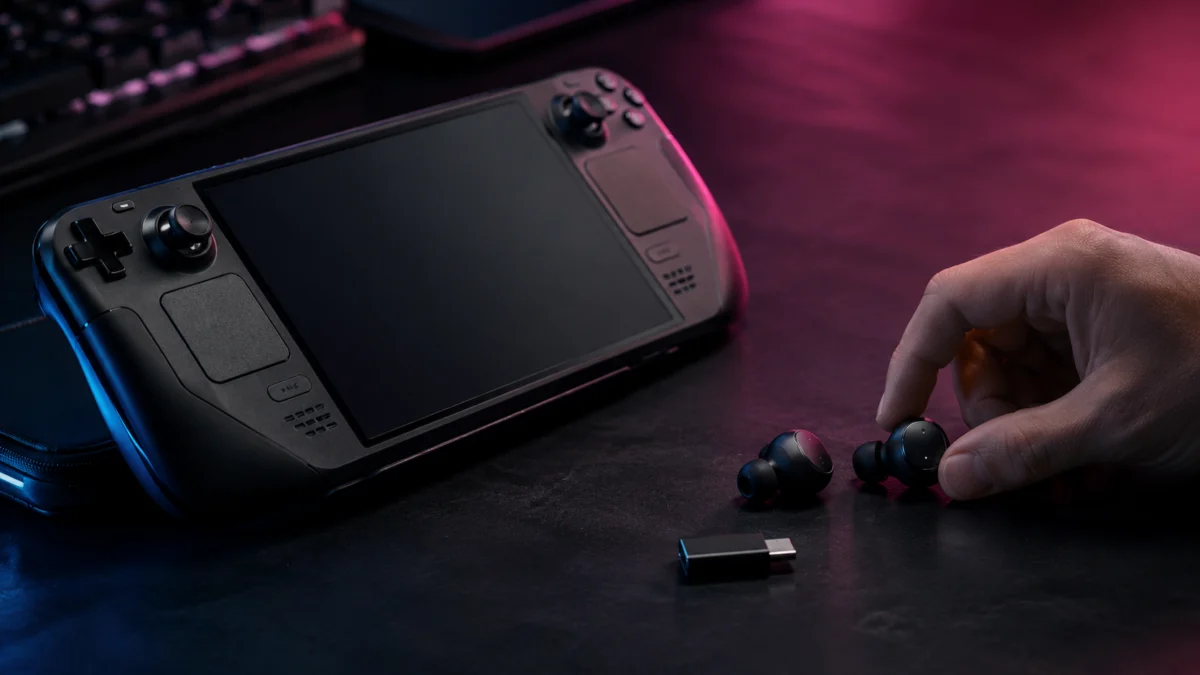
If your Steam Deck OLED has noticeable Bluetooth audio delay while gaming, the most likely cause is the codec being negotiated between the Deck and your earbuds — not a hardware defect. The Steam Deck OLED uses Bluetooth 5.3, which is a genuine upgrade over the LCD model’s 5.0, but a newer Bluetooth version alone does not eliminate latency. What matters is which audio codec is active, whether SteamOS lets you control it, and whether your earbuds support the right one. This guide walks through the actual causes of Bluetooth delay on Steam Deck OLED, what SteamOS settings can and cannot change, and when switching to a 2.4GHz USB-C dongle is a more reliable path than chasing codec compatibility.
Why Bluetooth Audio Delay Happens on Steam Deck OLED
Bluetooth audio delay on Steam Deck OLED comes from how the codec is negotiated at the moment of connection, not from a flaw in the Bluetooth 5.3 hardware itself. When two Bluetooth devices connect, they agree on the lowest common audio codec both support. If your earbuds and the Deck only share SBC — the default fallback codec — you can expect roughly 150 to 250 milliseconds of delay. That is enough to make sword strikes, gunshots, and menu sounds feel disconnected from what you see on screen.
SteamOS uses PipeWire for audio, which supports several codecs beyond SBC: aptX, aptX Low Latency (aptX LL), aptX HD, LDAC, and AAC. The key variable is whether your earbuds support any of these, and specifically whether they support aptX LL, which is the only Bluetooth codec available on SteamOS that brings latency down to a range that most players find acceptable for gaming (roughly 20 to 40 milliseconds when stable).
Two codecs that are not available on Steam Deck are worth knowing before you shop:
- aptX Adaptive — Qualcomm’s newer successor to aptX LL. It is not supported on SteamOS or Linux because the protocol is not open and would require reverse engineering. Many current earbuds marketed as “low latency” support aptX Adaptive but not aptX LL, which means they may not deliver low-latency audio on Steam Deck even if they claim low-latency Bluetooth elsewhere.
- LC3 (LE Audio / Bluetooth Low Energy Audio) — The Steam Deck OLED’s Bluetooth 5.3 chip is hardware-capable of LC3, but as of early 2024, SteamOS had not yet implemented it due to the version of PipeWire in use. Whether LC3 support has been added in more recent SteamOS updates is worth checking in current release notes before relying on it.
Check Whether the Delay Is From Bluetooth, the Game, or Video Output
Before adjusting any codec settings, confirm that Bluetooth is actually the source of the delay. Not all audio latency on Steam Deck comes from wireless audio transmission. There are three distinct delay sources that can look identical from the outside.
Test 1: Switch to Wired Audio
Plug in a wired headphone or earbud to the 3.5mm jack on the top of the Steam Deck and play the same game. If the audio lines up correctly with wired, the delay you heard was Bluetooth codec latency. This is the most common scenario and the one this guide focuses on.
Test 2: Check Whether the Delay Only Appears in Certain Games
Some games have inherent audio mixing or processing delays independent of your audio output device. If wired audio also sounds delayed in a specific game but not others, the issue is in the game’s audio engine rather than your earbuds. This is worth ruling out before spending time on codec settings.
Test 3: Check Docked / External Display Mode
Multiple Steam Deck users have reported audio-to-video sync drift when using the Deck docked with an external display. If your delay only appears when connected to a TV or monitor via USB-C, the issue may be display processing lag rather than Bluetooth. Try enabling Game Mode on your TV and disabling any upscaling or post-processing features. This is separate from Bluetooth latency and is not fixed by changing codecs.
What SteamOS Settings and Codec Compatibility Can Actually Change
SteamOS lets you select a specific Bluetooth codec in Desktop Mode, and choosing aptX LL (aptX Low Latency) instead of SBC or standard aptX reduces Bluetooth audio delay significantly. Here is how to do it, along with what to realistically expect.
How to Change the Bluetooth Codec in Desktop Mode
- Hold the Power button and select Switch to Desktop.
- Right-click the volume icon in the system tray (bottom-right of the KDE taskbar) and open Audio Volume settings, or open System Settings → Audio.
- Select your connected Bluetooth device and look for a codec dropdown or codec selection option. This option only appears when a Bluetooth audio device is connected.
- Select aptX Low Latency if it appears. If it does not appear, your earbuds do not support aptX LL and the setting will not be available.
- Return to Game Mode.
In some SteamOS versions, the codec selected in Desktop Mode carries over into Game Mode. In others, Game Mode reverts to a different codec on its own. There is no native codec selection screen inside Game Mode itself. This inconsistency has been reported by multiple users across multiple SteamOS versions, and it means you may need to re-enter Desktop Mode to reapply the codec after rebooting.
Related Steam Community discussion
The aptX LL Stability Caveat
Even when aptX LL is successfully selected and carried into Game Mode, it has a known behavior difference from standard aptX or SBC: because its audio buffer is very shallow (around 20 milliseconds), it is more sensitive to wireless interference and software stalls. Several users have reported that aptX LL performs well for the first 20 to 30 minutes and then begins crackling or stuttering, particularly in environments with other nearby Bluetooth devices or active Wi-Fi traffic.
If you experience this pattern, switching to aptX HD may restore stable audio at the cost of significantly higher latency. aptX HD prioritizes audio quality over low latency and tends to maintain a more stable connection.
Related Steam Community discussion
What About AirPods, AAC, and Non-aptX Earbuds?
AirPods (all generations) and many popular true wireless earbuds from Sony, Bose, and Samsung use AAC or proprietary codecs rather than aptX LL. On Apple devices, AAC is implemented with low latency. On SteamOS and Linux generally, AAC codec support exists but does not carry the same low-latency optimization. Multiple Steam Deck OLED users have reported choppy or intermittent audio with AirPods Pro 2 specifically. If your earbuds do not support aptX LL, the codec path to low-latency Bluetooth gaming on Steam Deck is effectively closed.
When 2.4GHz Wireless Earbuds Are a Better Option
If aptX LL is not available for your earbuds, or if you find aptX LL unstable in Game Mode, a 2.4GHz USB-C dongle earphone or headset bypasses the Bluetooth audio stack entirely. This is the approach most Steam Deck users who prioritize consistent low latency end up settling on.
Why 2.4GHz Dongles Work Differently
A 2.4GHz wireless audio device uses its own proprietary radio protocol transmitted through a USB-C dongle rather than the system Bluetooth stack. SteamOS treats it as a standard USB audio device, which means there are no codec negotiation issues, no Game Mode vs Desktop Mode inconsistencies, and no aptX LL stutter risk. Manufacturer-claimed latency for 2.4GHz gaming earbuds is typically in the 15 to 30 millisecond range, though these figures come from manufacturer documentation rather than independent testing.
The USB-C Port Tradeoff
The Steam Deck has a single USB-C port. Plugging in a 2.4GHz dongle means you cannot charge the Deck via USB-C at the same time — unless the dongle includes USB-C passthrough charging. Some products include a passthrough port on the dongle itself, allowing simultaneous charging. If charging while gaming is important to you, confirm passthrough support before buying.
Check on Amazon / Official site
If you use a dock with additional USB-A or USB-C ports, the port conflict is not an issue — you can plug the dongle into any available port on the dock while charging through another.
Checklist Before Buying New Earbuds for Steam Deck OLED
Use this checklist to avoid buying earbuds that will not reduce latency on Steam Deck, regardless of what the product listing claims.
Codec Compatibility Check (For Bluetooth Earbuds)
- Does the product page explicitly list aptX Low Latency (aptX LL) support? Not aptX HD, not aptX Adaptive — specifically aptX LL. If not listed, assume it will not work in low-latency mode on Steam Deck.
- Does the listing say “aptX Adaptive” only? aptX Adaptive is not supported on SteamOS. Earbuds that only support aptX Adaptive will connect via standard aptX or SBC, not low-latency mode.
- Is the earphone Apple AirPods or a Sony / Bose model using a proprietary codec? These will connect via AAC or SBC on Steam Deck and will have higher latency.
2.4GHz Dongle Check
- Does the dongle use USB-C? The Steam Deck’s only external port is USB-C. USB-A dongles require an adapter or a dock.
- Is USB-C passthrough charging supported? If you plan to game while charging, confirm the dongle passes through power. This is not a universal feature.
- Is “Steam Deck compatible” listed or confirmed? Most 2.4GHz USB audio devices work plug-and-play on SteamOS, but compatibility claims from the manufacturer are useful as a secondary check.
- What is the latency claim, and does it specify the connection mode? Manufacturer latency figures (15ms, 25ms, 30ms) apply to the 2.4GHz connection, not to Bluetooth mode. Confirm which mode the spec refers to.
Before You Buy: What to Try First
- Test your current earbuds in Desktop Mode and manually select aptX LL if available. Confirm it carries over to Game Mode.
- If aptX LL is available but stutters, try moving away from other Bluetooth devices or switching your Wi-Fi to a 5GHz band to reduce 2.4GHz congestion.
- If your earbuds do not support aptX LL and the delay is unacceptable, a 2.4GHz USB-C dongle option is the more reliable path forward for gaming use.
- If you primarily listen to music or watch video content rather than playing reaction-dependent games, standard aptX or even SBC may be acceptable depending on your sensitivity to sync offset.
How We Researched
This article is based on the official Steam Deck OLED technical specifications from Valve, SteamOS audio architecture documentation, PipeWire codec support documentation, and community reports from Steam Community discussion forums. Bluetooth codec behavior, Game Mode vs Desktop Mode inconsistencies, and aptX LL stability patterns were assessed based on reports confirmed across multiple threads and users over the 2022–2025 period. We have not conducted hands-on lab testing. Manufacturer latency figures for 2.4GHz earbuds are attributed to product documentation and are not independently verified. Codec availability in SteamOS may change with future PipeWire or SteamOS updates.