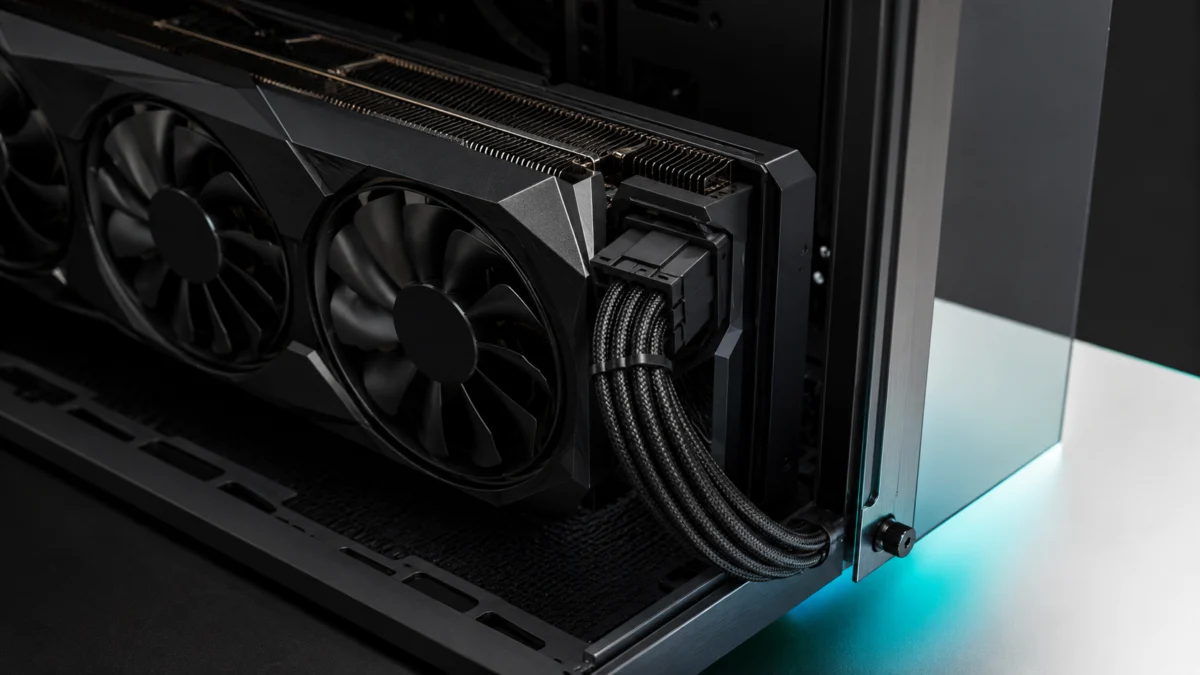
If you are installing an RTX 5090 in a mid-tower or dual-chamber case, there is a real chance the 12V-2×6 power cable will contact the side panel once it is closed. Most RTX 5090 AIB models stand between 145mm and 150mm tall — up to 13mm taller than the Founders Edition — and a straight cable requires at least 35mm of clear space beyond the card edge to route without bending. Add those numbers together: a 149mm card needs roughly 184mm of unobstructed space between the GPU and the side panel. Many popular mid-tower and dual-chamber cases cannot provide that without modification.
This guide covers how to measure your case before installation, why cable pressure creates a direct melt risk rather than just a cosmetic problem, what measurement data shows about native cables versus bundled adapters, and what to verify before first power-on. No single cable or solution eliminates all risk; the goal here is to help you identify and address the specific issues in your setup before damage occurs.
Why RTX 5090 Card Height Creates a New Clearance Problem
The RTX 5090 Founders Edition measures 304mm × 137mm × 40mm at two slots wide — a compact reference design relative to the Blackwell generation. Third-party AIB cards from ASUS, MSI, Gigabyte, and others are substantially larger, with card heights reaching 146mm to 150mm and slot thicknesses of 3.5 to 4.0 slots. That height difference is the root cause of cable clearance problems in a large number of builds, including cases that were considered spacious for previous GPU generations.
| Model | Dimensions (L × H × W mm) | Slots | Recommended PSU |
|---|---|---|---|
| NVIDIA Founders Edition | 304 × 137 × 40 | 2.0 | 950W |
| ASUS ROG Astral OC | 358 × 149 × 76 | 3.8–4.0 | 1000W (1200W+ for OC builds) |
| ASUS TUF Gaming OC | 348 × 146 × 72 | 3.6 | 1000W |
| MSI Gaming Trio OC | 359 × 149 × 70 | 3.5–4.0 | 1000W (ATX 3.1 required) |
| Gigabyte AORUS Master | 360 × 150 × 75 | 4.0 | 1000W |
| Zotac AMP / Solid | ~330 × ~140 × ~70 | 3.0 | 1000W |
| PNY Triple Fan | 329 × 138 × 71 | 3.5 | 1000W |
| Gainward Phantom | 332 × 146 × 70 | 3.5 | 1000W |
The difference between the Founders Edition’s 137mm height and a 150mm AIB may sound small, but it matters when a straight cable adds another 35mm to 40mm of required routing space beyond the card edge. For the largest current AIB models, that puts the total clearance requirement at 185mm to 190mm — a figure that a significant number of popular mid-tower and dual-chamber cases cannot provide with the side panel fully closed.
How to Measure Whether Your Case Has Enough Room
Before installation, use this formula: Card Height (mm) + Minimum Cable Routing Margin (35mm) = Required Internal Clearance. For a card measuring 149mm, the minimum required clearance is 184mm. For a 150mm card, it is 185mm. If your case specification lists a GPU height clearance or CPU cooler height clearance, measure the actual internal width from the GPU slot area to the side panel — published specs do not always account for cable routing margin.
Community reports confirm that this problem appears even in cases that were expected to provide adequate room. Users building in the Lian Li O11 Vision Compact and the Corsair iCUE 5000X found that cards at 149mm to 150mm caused the cable to press against the glass panel, making it impossible to close. One user reported pre-calculating 20mm of remaining clearance based on official case specs and still experienced cable interference — indicating that the required routing margin can exceed what published measurements suggest.
If your case does not provide enough room, the most reliable fix is a vertical GPU mount bracket. Rotating the card 90 degrees reorients the 12V-2×6 connector toward the back of the case rather than the side panel, eliminating cable-to-panel interference entirely. This introduces a separate consideration around thermal performance, which is addressed in the checklist section below.
What Happens When the Cable Bends Under Pressure
Forcing the side panel shut while the cable contacts it is not a minor issue — it is the most direct way to introduce a connector melt risk. The reason is structural, rooted in how the RTX 5090’s 12V-2×6 connector handles power distribution internally.
The connector uses six 12V pins on the GPU side. Unlike a design where each pin connects individually to the board, all six pins share a single internal metal strip — a busbar — that connects to the GPU at one point. This means the GPU has no mechanism to detect which individual pin has lost contact. If cable pressure causes one pin to shift and break contact, the GPU continues requesting the same amount of power. The remaining pins absorb that load: in a 600W draw scenario, a single disconnected pin can redirect up to 50A onto the others. This concentration of current, known as slack-picking, generates rapid localized overheating and is a primary cause of connector melt incidents.
A separate but related problem has been documented specifically with the yellow-tipped adapter bundled with some MSI RTX 5090 models. MSI designed the yellow marking as a visual warning: if the yellow is visible, the cable is not fully seated. Multiple user reports — corroborated by coverage in PC Gamer, Tom’s Hardware, and Videocardz — describe a consistent pattern in which connectors were fully inserted and clicked at installation, with the yellow marking completely hidden, but gradually crept back outward over repeated heat cycles. This phenomenon has resulted in connectors partially backing out of the GPU socket without the user noticing, leading to the adapter and socket fusing together from the resulting heat.
One community case documented a user running an MSI Gaming Trio RTX 5090 in a small form factor case who experienced connector melt twice within a short period. Community analysis pointed to two compounding factors: the confined space forced the cable into an acute angle, and restricted airflow elevated ambient temperatures around the connector, increasing electrical resistance and accelerating the failure. This illustrates that small cases significantly amplify both cable stress and thermal risk at the connector.
Native Cable vs. Bundled Adapter vs. 90-Degree Cable: What to Check
Community testing using current measurement tools such as Thermal Grizzly WireView found that NVIDIA’s bundled squid adapter (16-pin to 4×8-pin splitter) produced up to 1.5A of current imbalance between individual pins under load. High-quality native 12V-2×6 cables from ATX 3.1-compliant PSUs kept pin-to-pin imbalance within approximately 0.2A under the same conditions. That difference is significant: a pin carrying disproportionately high current generates more heat at exactly the point where contact quality is most critical.
Native ATX 3.1 Cables
A native 12V-2×6 cable from an ATX 3.1-compliant PSU — one cable, no intermediate splitter — is the most reliable option for minimizing pin current imbalance. Seasonic’s official handling documentation for their native cable specifies that both ends must be fully seated and locked with a click, that the cable must not be bent at or near either connector end, and that once inserted, the cable should not be routed in any direction that creates tension at the connector. Corsair has stated, based on their internal testing, that using a native 12V-2×6 cable from their ATX 3.1-compliant units handles RTX 5090 power delivery reliably — while also advising against third-party cable extensions or adapters for cards drawing above 500W.
If your PSU predates ATX 3.1 / PCIe 5.1, verify whether a native 12V-2×6 cable is available for your specific model before assuming an upgrade is required. Not all older PSUs support backward-compatible native cables.
Bundled Adapters
If you use the bundled 16-pin to 4×8-pin adapter, one rule applies without exception: each of the four 8-pin connectors must attach to a separate, independent cable from the PSU. Zotac’s official installation documentation explicitly prohibits daisy-chaining — connecting two 8-pin ends from the same branched cable — and recommends sizing your PSU so that the full system load stays within roughly 75% of the PSU’s rated capacity for long-term reliability.
90-Degree Cables
Right-angle 12V-2×6 cables eliminate the cable-to-panel clearance problem at the connector level by routing the cable horizontally from the start. However, they are not compatible with every RTX 5090 AIB model. CableMod’s official compatibility list designates several major models — including the ASUS ROG Astral, ASUS TUF Gaming, and Gigabyte AORUS Master — as incompatible with their 90-degree cable. The issue is that the heatsink or shroud geometry on these cards physically prevents the connector latch from seating correctly in either Variant A or Variant B orientation. Forcing insertion on an incompatible model creates the same contact problem the cable was intended to prevent.
Users who confirmed a compatible fit reported stable current readings across extended sessions. But because compatibility varies by AIB model and production variant, the only way to confirm a 90-degree cable will physically fit your GPU is to look up your exact card model on the cable manufacturer’s compatibility page before purchasing — not after.
Note that some native 90-degree cable options, including certain Corsair ATX 3.1 variants, have experienced extended periods of stock shortage due to demand. Factor in potential wait times when planning your build or cable replacement.
Active Monitoring and Next-Generation Protection
Some manufacturers have introduced additional protection features. MSI’s GPU Safeguard+ monitors current levels in real time and triggers an immediate throttle-down plus audible alarm on detection of a fault. Gigabyte’s T-Guard Active Thermal Monitoring watches connector temperature continuously. ASUS’s ROG Equalizer cable uses a passive metal bridge to help distribute load across pins, though independent testing by overclocker Der8auer found up to 3.6A of current imbalance still present with the cable in use, suggesting the equalization is partial rather than complete.
Third-party options such as the Aqua Computer AMPINEL monitor all six 12V lines independently for current, voltage, and temperature, and can actively cut power through an eight-stage alarm system if any pin exceeds a threshold — before thermal failure occurs. Interest in devices of this type among RTX 5090 owners reflects how many users feel a passive safety-checked installation is insufficient for a card at this power level.
Pre-Install Safety Checklist Before Powering On
Work through the following items before running the system for the first time. These steps do not eliminate all risk, but they address the documented causes of failure that appear consistently across community reports and media coverage.
-
Run the clearance math.
Confirm your card’s height from the manufacturer’s spec sheet. Add 35mm minimum for cable routing. If the total exceeds the available distance between the GPU and your side panel, do not force the panel shut. Measure the actual internal dimension rather than relying solely on published case specs. If clearance is insufficient, install a vertical mount bracket before proceeding. -
No daisy-chaining.
If using the bundled 16-pin to 4×8-pin adapter, connect each of the four 8-pin ends to a completely separate, independent cable from the PSU. Connecting two ends from the same branched cable violates manufacturer guidance regardless of PSU wattage rating. -
Perform the click-and-hide test.
Insert the connector until you feel and hear a clear click. If using an MSI yellow-tipped adapter, confirm the yellow marking is fully hidden with no visible gap. Run a finger along the connector seam. If you cannot confirm both the click and complete seating, reseat the cable before powering on. -
Check for cable tension after routing.
Once connected and routed, the cable should have a relaxed curve with no pulling or sharp bending at the connector. If closing the side panel creates any visible tension or changes the cable angle at the connector, the panel should not be closed until the cable route is adjusted or the connector position is changed. -
Reinspect after two weeks of use.
Open the side panel after the first two weeks and visually inspect the connector. Thermal cycling can cause a connector to shift outward gradually. If any gap is visible at the seam, or if the yellow marking has reappeared on an MSI adapter, reseat the cable immediately before continuing to use the system. -
Verify 90-degree cable compatibility before buying.
If you plan to use a right-angle cable, look up your exact AIB model on the cable manufacturer’s compatibility page. Confirm the card is listed as compatible and identify whether Variant A or Variant B applies. Do not assume compatibility based on the connector type alone.
Vertical Mounting and Undervolting: Addressing Both Problems Together
If clearance is the primary concern, a vertical mount resolves the cable-to-panel issue entirely by reorienting the connector. However, vertical mounting places the GPU fans closer to the side panel, which can reduce intake airflow and raise temperatures under load. One documented implementation with an ASUS ROG Astral RTX 5090 in a Lian Li O11 Dynamic found that vertical mounting increased peak GPU temperature from approximately 65°C to 75°C.
Applying an undervolt offset the thermal penalty while also reducing the sustained current through the connector. Setting the voltage to approximately 925mV reduced average power draw from 555W to 479W — a reduction of roughly 76W — while maintaining the same average frame rate in Cyberpunk 2077 at 4K maximum settings. GPU temperature returned to approximately 70°C, and fan speed dropped from an average of 74% to 64%. Reducing wattage this way addresses the temperature increase from vertical mounting and lowers the absolute current load on the 12V-2×6 connector simultaneously.
Undervolting is not universally required, and results vary by card and cooling configuration. The point is that vertical mounting and undervolting can be applied together to solve the clearance problem while avoiding the thermal trade-off that vertical mounting introduces on its own.
How We Researched
This article is based on official product specifications published by NVIDIA and AIB manufacturers including ASUS, MSI, Gigabyte, Zotac, PNY, and Gainward; official cable handling documentation from Seasonic and Corsair; news coverage of documented connector incidents from PC Gamer, Tom’s Hardware, and Videocardz; and community reports from Reddit threads where the same patterns — side-panel interference, MSI adapter sneaking out, and CableMod compatibility issues — were confirmed across multiple independent posts. Numerical data for vertical mounting and undervolting performance is drawn from available YouTube documentation of a real implementation. Fixory has not conducted hands-on lab testing or independent electrical measurements. All figures, compatibility information, and technical claims are attributed to the sources identified above and are subject to change as manufacturers issue updates or revisions.
Key Takeaways
The 12V-2×6 connector represents a genuine improvement over 12VHPWR in its insertion design — shorter sensing pins and longer conductor terminals mean the GPU requires full physical seating before authorizing full power. But the physical scale of RTX 5090 AIB cards, the busbar architecture that cannot detect individual pin failure, and documented cases of bundled adapters shifting over time mean that installation choices carry real consequences at this power level.
Check your clearance math before installation. Use a native cable from an ATX 3.1-compliant PSU if your unit supports it. Verify 90-degree cable compatibility against your specific AIB model before purchasing. Reinspect the connector after the first two weeks of use. These steps address the documented causes of failure that appear consistently in community reports — and they cost nothing except time.