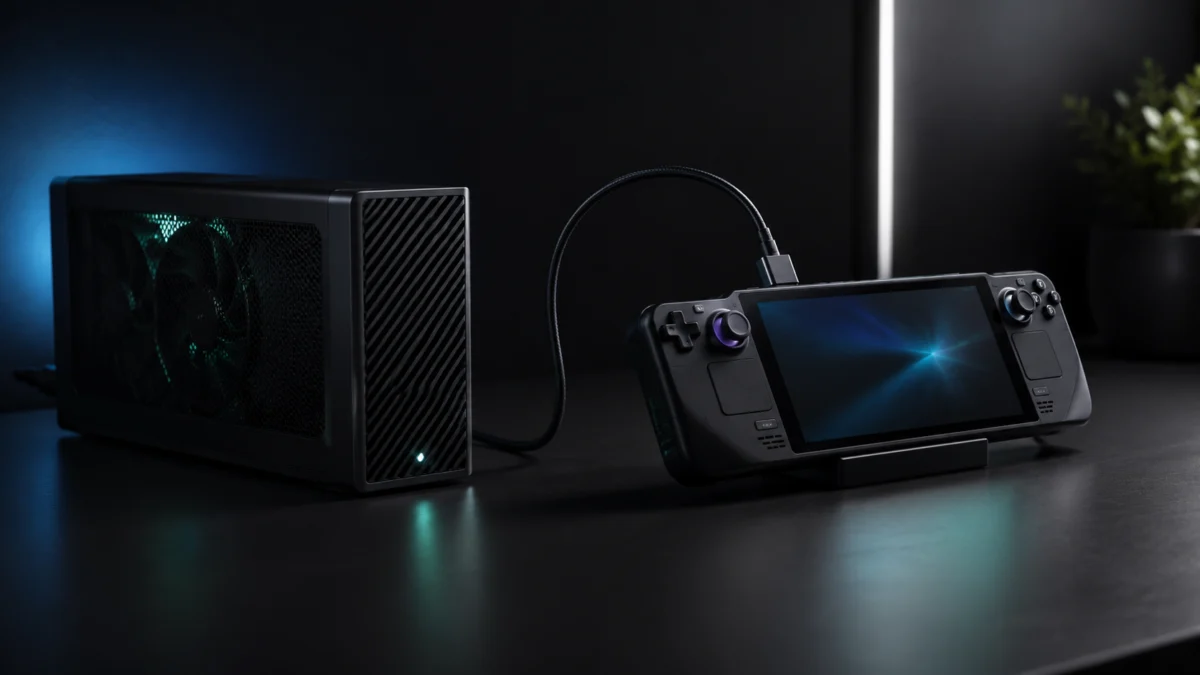
If your ROG Ally X or ROG Xbox Ally X is charging through a dock but the GPU never appears in Device Manager — no matter how many times you reinstall drivers — you are dealing with one of two separate problems that need different fixes. The first is a hardware handshake failure at the USB4 level, most commonly triggered by Windows Fast Startup bypassing PCIe enumeration during boot. The second is Nvidia Error 43, a driver-level software refusal that happens after the handshake itself succeeds. This guide covers both in order, starting with the lowest-risk steps. Before anything else, confirm you are using the correct port on the device.
The Bottom Line — Two Problems, Two Fix Paths
The most common cause of “eGPU not detected” on the ROG Ally X is not a defective dock. It is Windows Fast Startup combined with an incorrect power-on sequence. Disabling Fast Startup and BIOS Fast Boot, then following the cold boot sequence in Step 3, resolves the detection problem for the majority of affected setups. If the GPU already appears in Device Manager with a yellow warning triangle, skip directly to the Error 43 section.
| What you see | Most likely cause | Where to start |
|---|---|---|
| GPU does not appear in Device Manager at all | USB4 handshake failure (firmware, boot sequence, or Fast Startup) | Steps 1 through 3 in this guide |
| GPU appears with yellow triangle — Error 43 | Nvidia driver-level software refusal | Fix for Nvidia Error 43 section |
| AMD eGPU connected, but stuttering or blue screen occurs | WHEA PCIe bus errors from ASPM power-state conflicts | Fix for AMD eGPU WHEA Errors section |
| eGPU detected, games run, but GPU stays below 50% utilization | 15W CPU power clamping issue | Known Unresolved Issue section |
Quick Fix Checklist
- Are you using the left USB-C port on the Ally X?
- Have you updated Armoury Crate SE, MyASUS, Windows, BIOS, and PD_FW?
- Is Windows Fast Startup disabled in Control Panel?
- Is BIOS Fast Boot set to Disabled in UEFI?
- Did you power on the eGPU first, wait 15–30 seconds, and then power on the Ally X?
- Does the GPU appear in Device Manager after following those steps?
If the GPU is still absent from Device Manager after all of the above, proceed to the Hardware Warnings section to check dock and cable compatibility before assuming a hardware defect.
Check the Right Port First
The ROG Ally X has two USB-C ports, but only the left port supports eGPU connections. The right port operates at USB 3.2 Gen 2 speeds — a maximum of 10 Gbps — and does not support PCIe tunneling. An eGPU connected to the right port will not be detected regardless of the dock, cable, or driver installed.
Official ROG Xbox Ally X specifications
The left USB-C port — located near the left trigger — is the USB4 port running at up to 40 Gbps. It supports PCIe tunneling, DisplayPort, and Power Delivery 3.0. This is the only port on the device capable of communicating with an external GPU.
If you have been using the right port, move the cable and work through the steps below before making any other changes.
Step 1 — Update Everything Before Changing Any Settings
Outdated firmware is one of the most consistent causes of USB4 handshake failures on the Ally X. ASUS released Power Delivery Firmware version PD_FW 0019 specifically to improve USB4 port stability and eGPU handshake reliability. ASUS support staff have recommended this update in the official forum for users experiencing detection failures with docks such as the AORUS AI Box and AOOSTAR AG03. Update all of the following before making any other changes.
Related ASUS ROG Forum discussion
- Open Armoury Crate SE → My Devices → check for firmware and MCU updates and install all available
- Open MyASUS → Update Center → install all pending updates
- Run Windows Update → check for updates → install all, including optional driver updates
- For BIOS and PD_FW: visit the official ASUS ROG Xbox Ally X BIOS and firmware support page and download the latest versions manually
Official ASUS BIOS and firmware downloads
AMD eGPU Users: Driver Sideloading Is No Longer Necessary
If you are using an AMD-based eGPU such as the OneXGPU or GPD G1, the previous requirement to manually sideload AMD Radeon drivers has been resolved. As of the Armoury Crate SE update incorporating AMD driver version 25.5.1 or later, ASUS’s official graphics driver natively supports external AMD GPUs without workarounds. The current recommended process is to use DDU (Display Driver Uninstaller) to cleanly remove any previously installed driver, then reinstall the latest official version through Armoury Crate SE or MyASUS.
Step 2 — Disable Windows Fast Startup and BIOS Fast Boot
Windows Fast Startup does not perform a full shutdown. It saves the kernel session to the SSD in a hibernate-like state, and on the next power-on it restores that saved state without running a complete hardware scan. Because a newly connected eGPU dock depends on being enumerated during that hardware scan, Fast Startup causes the device to be silently missed. Disabling Fast Startup is required before the cold boot sequence in Step 3 can work reliably.
Disable Windows Fast Startup
- Open Control Panel → Power Options
- Click “Choose what the power buttons do” in the left panel
- Click “Change settings that are currently unavailable”
- Uncheck “Turn on fast startup (recommended)”
- Click Save changes
Disable BIOS Fast Boot
- Shut down the ROG Ally X completely
- Hold the Volume Down (−) button and press the Power button to enter UEFI BIOS
- Press F7 to enter Advanced Mode
- Navigate to the Boot menu → locate Fast Boot → set to Disabled
- Press F10 to save and exit
Step 3 — The Cold Boot Sequence (The 15-Second Rule)
Plugging an eGPU cable into a running ROG Ally X is consistently unreliable and frequently results in a frozen system or a missed device. The correct approach is a structured cold boot sequence that gives the eGPU’s internal controller time to fully initialize before the Ally X BIOS starts its hardware scan. This sequence — widely referred to in the eGPU community as the 15-Second Rule — is the most effective tool for resolving “not detected” failures after firmware is up to date.
Related ASUS ROG Forum discussion
- Shut down the ROG Ally X completely — not sleep, not hibernate, a full shutdown
- Power off the eGPU enclosure as well
- Connect the USB4 cable from the eGPU dock to the left USB-C port on the Ally X
- Power on the eGPU enclosure
- Wait 15 to 30 seconds. This delay allows the dock’s internal controller (such as ASM2464PD) to complete its initialization and make the PCIe bridge visible to the host before the BIOS begins its scan
- Power on the ROG Ally X
- After Windows loads, open Device Manager → Display adapters and check whether the GPU is listed
Note on BIOS version behavior: Community reports in the ASUS ROG forum indicate that BIOS version 316 allowed this cold boot sequence to work with docks including the AORUS AI Box. After an update to BIOS version 317, the workaround stopped functioning for some dock and configuration combinations. If the cold boot sequence worked previously but stopped after a BIOS update, check the current status of the relevant forum thread before attempting a BIOS rollback.
Step 4 — Install GPU Drivers Only After the eGPU Appears in Device Manager
A GPU driver installer cannot install anything if the GPU is not registered by Windows. Running the Nvidia or AMD installer before the GPU appears in Device Manager will produce a “no compatible hardware found” error and exit without making changes. Confirm the GPU is listed in Device Manager — even if it shows a warning icon — before downloading any driver package.
For Nvidia eGPUs
- Open Device Manager → Display adapters → confirm the Nvidia GPU is listed
- Download the latest Game Ready Driver from nvidia.com
- Run the installer → select Custom Installation → check Perform a clean installation
- Restart Windows
- If the GPU still shows Error 43 after restart, proceed to the next section
For AMD eGPUs
- Use DDU in Safe Mode to cleanly remove any previously installed Radeon or ASUS graphics driver (if not completed in Step 1)
- Reboot and follow the cold boot sequence again
- Install the latest official graphics driver through Armoury Crate SE or MyASUS
Fix for Nvidia Error 43 on ROG Ally X
Nvidia Error 43 (Code 43) means the GPU is physically connected and visible to Windows but the Nvidia driver is rejecting it in software. This is not a hardware fault. Adding two specific registry values — RM1774520 and RM1457588 — instructs the driver to bypass this block. This fix has been confirmed across multiple independent community reports in r/eGPU and related forums.
Method A — Automated Script
The eGPU community maintains a script (the “nvidia-error43-fixer”) that automates this registry edit. A PowerShell version is available as a community-maintained GitHub Gist. To use it:
- Download the script to a local folder
- Right-click the file → Run as Administrator
- The script locates your GPU’s Driver Key in the registry and adds the required values automatically
- Restart Windows after the script completes
If the script exits without making changes — because it does not detect an active Error 43 state — proceed to Method B.
Method B — Manual Registry Edit
- Open Device Manager → Display adapters → right-click the Nvidia GPU → Properties → Details tab → select Driver Key from the dropdown and note the value (for example,
0001) - Open Registry Editor (regedit) as Administrator
- Navigate to the following path, replacing
00xxwith your Driver Key number:HKEY_LOCAL_MACHINESYSTEMCurrentControlSetControlClass{4d36e968-e325-11ce-bfc1-08002be10318}0xx - Right-click in the right pane → New → DWORD (32-bit) Value → name it
RM1774520→ set the value to1 - Restart Windows
- If Error 43 persists, return to that registry path and add a second DWORD value:
RM1457588→ set to1 - Restart again
⚠️ Before editing the registry: Export a backup of the relevant key first — File → Export in Registry Editor. Incorrect registry changes can require Windows recovery to repair.
Fix for AMD eGPU WHEA Errors and BSODs (OneXGPU / GPD G1)
AMD-based eGPUs do not typically trigger Error 43, but they frequently cause stuttering, freezes, or blue screens driven by WHEA PCIe bus errors. This occurs because Windows’ ASPM (Active State Power Management) attempts to move the PCIe link into a low-power state during operation — a transition that conflicts with the sustained high-bandwidth demands of a USB4-connected eGPU. Two changes address this, and both have been confirmed across multiple community reports in r/eGPU, r/ROGAlly, and r/OneXPlayer.
Related AMD eGPU WHEA discussion
Part 1 — Add TdrDelay Registry Values
- Open Registry Editor as Administrator
- Navigate to:
HKEY_LOCAL_MACHINESYSTEMControlSet001ControlGraphicsDrivers - Right-click → New → DWORD (32-bit) Value → name it
TdrDelay→ set to10(decimal) - Create a second DWORD value → name it
TdrDdiDelay→ set to20(decimal) - Close Registry Editor
These values extend the timeout window before Windows terminates the GPU driver during brief power-state transitions, which eliminates many WHEA-triggered crash events.
Part 2 — Disable ASPM via bcdedit
- Open Command Prompt as Administrator
- Run the following command:
bcdedit /set {current} pciexpress forcedisable - Restart Windows
⚠️ Important side effect: This command disables ASPM system-wide. When using the ROG Ally X as a portable device without an eGPU attached, battery life will be noticeably shorter than normal. This is a trade-off, not a background-only change.
To restore the default power behavior when you are no longer using an eGPU, run the following command as Administrator and restart:
bcdedit /set {current} pciexpress default
Hardware Warnings — The Dock, Cable, and Thunderbolt 5 Trap
The most expensive mistake ROG Ally X eGPU buyers make is purchasing a Thunderbolt 5 dock on the assumption that it is backward compatible with the Ally X’s USB4 port. Thunderbolt 5 docks using the Intel JHL9480 controller have shown severe handshake incompatibility with the Ally X across a significant number of ASUS ROG forum threads and community reports. Thunderbolt 5 docks should be avoided until ASUS officially confirms compatibility through an MCU or PD_FW update.
Related ASUS ROG Forum discussion
Disclosure: This section contains affiliate links. Fixory may earn a commission if you purchase through these links, at no additional cost to you.
Dock Compatibility Reference
| Dock | Interface | Controller | Ally X Compatibility | Notes |
|---|---|---|---|---|
| ADT-Link UT3G | USB4 v1 (64 Gbps) | ASM2464PD | ✅ Highest | Best stability and GPU performance. Requires a separate ATX or SFX power supply — DIY setup required. Widely available on Amazon. |
| AOSTAR AG02 | USB4 (40 Gbps) | ASM2464PD | ✅ Good | More plug-and-play than the UT3G. Reliable when the cold boot sequence is followed. Apply the Error 43 registry fix for Nvidia GPUs. |
| Razer Core X V2 | Thunderbolt 3 (40 Gbps) | Intel Alpine / Titan Ridge | ✅ Very stable | Discontinued — check Amazon Renewed or eBay for used units. The mature TB3 protocol delivers high reliability on the Ally X. |
| AOSTAR AG03 | Thunderbolt 5 (80 Gbps) | Intel JHL9480 | ❌ Avoid | PD negotiation loop reported by multiple users. Not reliably usable with current Ally X firmware. |
| Minisforum DEG2 | Thunderbolt 5 (80 Gbps) | Intel JHL9480 | ❌ Avoid | Same JHL9480 controller as the AG03. GPU failing to appear in Device Manager reported consistently across forum and community threads. |
| AORUS 5090 AI Box | Thunderbolt 5 (80 Gbps) | Intel JHL9480 | ⚠️ Inconsistent | Worked with BIOS 316 for some configurations; has shown inconsistencies in some setups following the update to BIOS 317. Not a reliable purchase at this time. |
Check ADT-Link UT3G on Amazon
/
Check AOSTAR AG02 on Amazon
Read the handheld PC eGPU dock buying guide
The Cable Factor
A low-quality or uncertified cable is an underreported cause of “Not Detected” errors and is the cheapest variable to rule out before blaming the dock or GPU. Community reports have identified the following specifications as reliable for the Ally X:
- Passive USB4 cables rated at 40 Gbps, 0.8 m or shorter
- Intel-certified Thunderbolt 3 cables — the certification confirms 40 Gbps passive capability
- Cables from brands such as Cable Matters and Satechi, available in the US market, have appeared in successful connection reports across community forums
Avoid cables without visible USB4 or Thunderbolt certification markings. Generic USB-C cables may not support the signaling required for PCIe tunneling, even if they can deliver power and video.
Known Unresolved Issue — The 15W CPU Power Clamping Bug
If your eGPU is detected and running but GPU utilization stays below 50% even in demanding games, check whether the Ally X CPU is throttling to approximately 15W. This is a widely reported issue in which the Ally X power-management logic — designed to balance power between the integrated Radeon 780M and the CPU — appears to fail to release the CPU power cap when an eGPU is active and the integrated GPU is idle. The cause has not been officially confirmed by ASUS, but the pattern is consistent across multiple forum threads and user setups.
Related ASUS ROG Forum discussion
Under this issue, CPU clock speeds can drop from above 4.0 GHz to around 2.7 GHz during gaming sessions, creating a CPU bottleneck that limits eGPU performance regardless of the GPU model. This has been reported across setups using RTX 5060, RTX 5070, and other discrete eGPUs. Monitoring with HWiNFO64 can confirm whether CPU power is being artificially capped during a gaming session. A fix would require an EC (Embedded Controller) or MCU firmware update from ASUS.
How We Researched
This guide is based on ASUS official product specifications for the ROG Ally X and ROG Xbox Ally X, firmware release documentation from the ASUS ROG support pages, and extended reporting from the ASUS ROG community forum — including the thread “XBOX Ally X Not Detecting TB5 EGPU” and the “PSA: Currently Xbox Ally X is not compatible with Thunderbolt 5” advisory thread. Community discussions across r/eGPU, r/ROGAllyX, r/ROGAlly, and r/OneXPlayer provided the basis for the cold boot sequence, registry fix methods, dock compatibility findings, and WHEA error resolution. Registry and bcdedit procedures referenced here are drawn from community-documented solutions confirmed across multiple independent reports in those communities. We have not conducted hands-on lab testing. The effectiveness of any procedure may vary based on your specific dock model, GPU, cable, and current BIOS version.
Final Recommendation
Work through the steps in order: confirm the left port, run all firmware updates, disable Fast Startup and BIOS Fast Boot, and complete the cold boot sequence before drawing any conclusions about dock or GPU quality. If the GPU appears in Device Manager but shows Error 43 with a Nvidia card, the registry fix resolves it in most cases without requiring hardware changes. AMD eGPU users experiencing crashes or heavy stuttering should apply the TdrDelay values and bcdedit change before treating the situation as a compatibility dead end.
If the GPU still does not appear after all of the above, the most likely remaining hardware cause is a Thunderbolt 5 dock using the Intel JHL9480 controller. Switching to a USB4 dock with ASM2464PD — the ADT-Link UT3G or AOSTAR AG02 — is the most reliable path forward based on current community experience. If you are still choosing a dock, the guide below covers the full eGPU dock landscape for handheld PCs.