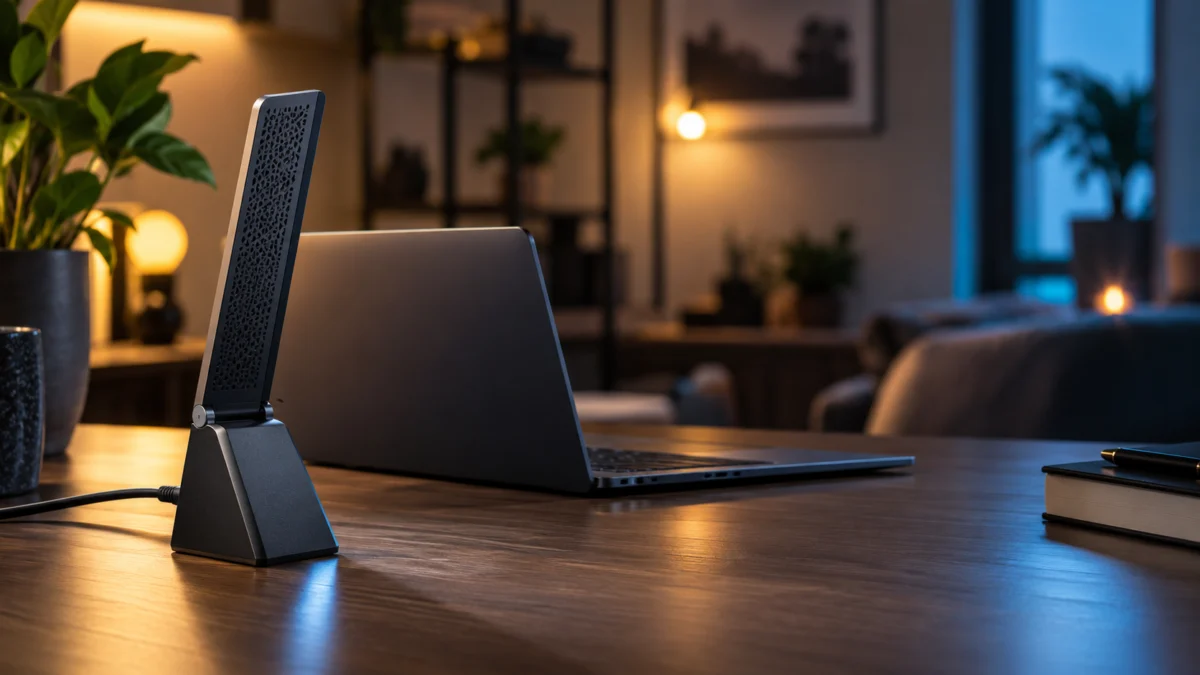
If your NETGEAR A8000 is not detected on Windows, start by identifying what Windows actually shows, not by reinstalling the driver. “Not detected” covers four different situations; a driver-related error points first to checking the software and considering a reinstall.
Two situations are often mistaken for a detection failure. An unlit adapter LED appears in NETGEAR’s manual as a troubleshooting trigger with its own checks, not as proof of a dead adapter. A missing 6 GHz network is a band question rather than a detection question: NETGEAR states that Windows 11 is required to connect on the 6 GHz band, while Windows 10 supports only the 2.4 GHz and 5 GHz bands.
The checks below run in the order that preserves information: confirm what Windows shows, change the USB connection, reinstall the driver, then look at startup and power behavior. If the adapter is still missing on a supported setup, the final section covers what to prepare for NETGEAR support.
Start Here: Is Windows Detecting the A8000?
Open Device Manager and your Windows network list before you change anything. The A8000 lands in one of four states: missing entirely, listed with an error, listed and enabled but not connecting, or working until you reboot. Each state points to a different next check. Record what you see before reinstalling.
To check: right-click the Start button, select Device Manager, and expand Network adapters. Leave the window open and unplug and replug the adapter so you can see whether anything appears or disappears. Then open Settings > Network & Internet to see whether a Wi-Fi connection is listed at all.
| What you see | What it means | Where to go next |
|---|---|---|
| Nothing appears or disappears in Device Manager when you replug the adapter | No detection change is visible; check the USB connection next | USB port and cradle checks |
| A device appears, but with a warning icon, an error, or an unfamiliar name | Record the device name and error, then check the driver | Driver verification and reinstall |
| “NETGEAR A8000” is listed under Network adapters and enabled, but you cannot connect | Detection already succeeded; this is a connection or band issue | Band and network checks, not detection |
| It works, then stops after a reboot or after the PC sleeps, and replugging restores it | Check power and USB behavior next; this does not establish the cause | Startup and sleep checks |
One requirement is worth confirming before you spend time on any of this. NETGEAR lists Windows 10 and Windows 11 Consumer Editions (32/64-bit) as the supported operating systems for the A8000, with best performance on a USB 3.0 port and compatibility with USB 2.0. A setup outside that list falls outside the stated support requirements.
NETGEAR A8000 specifications and system requirements
Check the USB Port and Included Cradle
If Windows does not list the adapter at all, change the USB connection before anything else. NETGEAR’s manual tells you to remove and reinsert the adapter and to try a different USB port on your computer. Use only the cable supplied with the cradle, because NETGEAR advises against substituting another USB cable.
The fix takes 4 steps.
- Remove the adapter and insert it directly into a USB port on the computer, without the cradle.
- If nothing changes, try a different USB port, including a USB 2.0 port. This is a diagnostic move, not a downgrade: NETGEAR states the adapter works best on USB 3.0 but is compatible with USB 2.0 and USB 1.1.
- If you prefer to use the cradle, connect it only with the USB cable supplied in the box. NETGEAR does not recommend other cables, and says using one may affect performance and correct operation.
- After each change, look at Device Manager again before moving on, so you know which connection produced which result.
NETGEAR A8000 user manual (PDF)
| Connection | What to observe | What the result tells you |
|---|---|---|
| Adapter plugged directly into a USB 3.0 port | Whether Device Manager changes when you insert it | Baseline for comparison with the cradle connection |
| Adapter in the supplied cradle with the supplied cable | Whether behavior differs from the direct connection | Record any difference; this alone does not identify the faulty part |
| Same adapter in a different port on the same PC | Whether one port enumerates it and another does not | Port-specific behavior points at the computer’s USB side |
According to multiple reports in NETGEAR’s official community, some users found the A8000 was not recognized in one USB port while working in another port on the same PC, and others restored a dropped adapter by moving it to a different port. This does not happen on every setup, so treat it as something to test rather than a known defect.
NETGEAR Community: A8000 USB-port detection report
Verify and Reinstall the A8000 Driver
Reinstall the A8000 software only after the USB side checks out. NETGEAR’s documented order is to update Windows first, then run the A8000 installation program from the supplied thumb drive or the official download page. Use NETGEAR’s official A8000 software source rather than a third-party driver download.
The fix takes 5 steps.
- Install pending Windows updates first. NETGEAR’s setup instructions tell you to make sure the computer is running an up-to-date version of Windows 10 or Windows 11 before installing the adapter software.
- Remove the existing installation: Start > Settings > Apps > Netgear A8000 WiFi 6 & 6E Adapter > Uninstall. The installation program can also remove the software through its own Uninstall option.
- Download Windows software for the A8000 from the NETGEAR software release page linked below, or use the installation program supplied on the USB thumb drive in the box.
- Run the installer, approve the User Account Control prompt, and insert the adapter when the installer asks for it. The installer offers to disable other Wi-Fi adapters, and NETGEAR recommends doing so for best performance.
- Restart the computer. NETGEAR notes that the adapter can lose its IP address if you upgrade the adapter software without rebooting afterwards.
NETGEAR A8000 Windows software release page
The link below the steps is an official Windows software release page for the A8000. It is not a confirmation that the linked release is the latest available.
If the A8000 Only Fails at Startup or After Sleep
An adapter that works until you reboot or wake the PC is a different problem from one Windows never sees. NETGEAR documents Windows USB Selective Suspend, which is enabled by default, as a cause of network disconnection. If replugging restores the adapter, check power settings without assuming they are the cause.
The fix takes 3 steps.
- Open Power Options > Edit Plan Settings > Change Advanced Power Settings > USB Settings.
- Set USB selective suspend setting to Disabled.
- Restart the computer and check whether the adapter comes up on its own, without unplugging and replugging it.
Beyond that official setting, community reports point at per-device power management. According to multiple threads in NETGEAR’s official community, some users found that the adapter stopped responding until it was replugged or toggled in Device Manager, and more than one user reported improvement after clearing Allow the computer to turn off this device to save power in the adapter’s own properties, or on the USB Root Hub entries. These are environment-specific reports rather than an official fix, so check the setting on your own system rather than assuming it applies.
NETGEAR Community: periodic disconnect and power-setting reports
The same pattern appears at boot. Community reports describe an A8000 that had to be unplugged and replugged after every startup before the PC would connect, and another where the adapter did not automatically rejoin its usual network on some startups. Both are worth separating from a permanent detection failure: if the adapter appears reliably after a replug, Windows can detect the hardware at that point; record when the failure occurs without assuming its cause.
NETGEAR Community: adapter not starting on boot
When to Contact Support or Consider a Replacement
Contact NETGEAR support when the adapter is still not detected on a supported setup after the USB, driver, and power checks. Before that, try the adapter on a second Windows PC. If it works there, check the first computer’s setup further: replacing the adapter may not resolve the problem.
Have this ready before you open a case, so the conversation starts from evidence rather than guesswork:
- The model on the adapter (A8000) and where it was purchased
- Your Windows edition and version, and whether Windows Update is fully current
- Which USB ports you tested, and whether you used the cradle or a direct connection
- Exactly what Device Manager shows, including any error text or unfamiliar device name
- Which checks from this article you already ran, and what each one changed
NETGEAR support: wireless adapter not detected
Two limits are worth stating plainly. Check NETGEAR’s official specifications, support terms, and warranty conditions before concluding that a unit is faulty, since coverage depends on where and when it was purchased. And working through these checks does not guarantee that every adapter can be recovered; some cases end at a support case or a replacement.
Disclosure: Fixory may earn a commission from links in this section, at no extra cost to you.
If support confirms a hardware fault, or you decide to replace the adapter with the same model after everything above, the A8000 is sold on Amazon.com. Replace it only once the USB port, the driver, and the computer’s power settings have been ruled out, because a second unit has exactly the same requirements as the first and will meet the same conditions on the same PC.
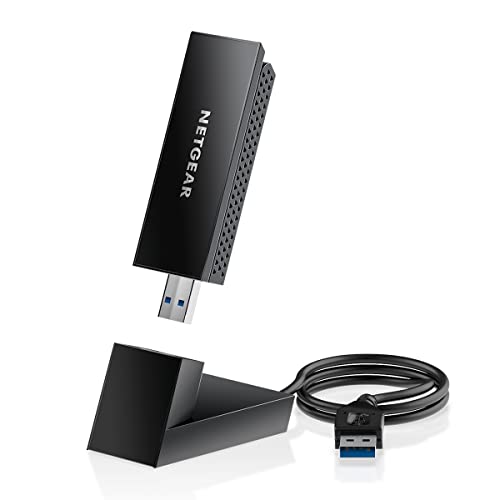
Please check the Amazon product page for the latest price and availability.
If you are weighing a move to a different standard rather than a like-for-like replacement, our guide on what to check before switching to a Wi-Fi 7 USB adapter covers the operating system, port, and router conditions that decide whether such an upgrade is worth it. Treat that as a purchase decision, not a fix: the same USB, driver, and power checks in this article apply to any USB adapter you plug into the same computer.
Wi-Fi 7 USB Adapter for Laptop: What to Check Before Buying One
FAQ
Is a missing 6 GHz network the same as an undetected adapter?
No. A missing 6 GHz network is a band availability issue, not a detection failure. NETGEAR states that Windows 11 is required for the 6 GHz band and that Windows 10 supports only 2.4 GHz and 5 GHz. Check Device Manager first to confirm the adapter itself is present.
Should I replace the adapter if it works on another PC?
Not by itself. Working on a second PC shows the adapter is being detected somewhere, which points at the first computer’s USB ports, drivers, or power settings. Work through those checks and contact NETGEAR support before buying a replacement, since a new adapter would meet the same conditions.
Do I need the NETGEAR software, or will Windows detect the A8000 on its own?
NETGEAR’s documented setup uses the A8000 installation program, supplied on a USB thumb drive in the box and also available from the official download page. The manual describes joining a network through the adapter’s standalone driver, so install the official software rather than relying on Windows alone.
How We Researched
This article is based on NETGEAR’s official documentation for the A8000 — the user manual, quick start guide, and product page — together with reports posted in NETGEAR’s official community. We have not conducted hands-on lab testing. Every specification and setting path above is attributed to official documentation.
Environment-specific behavior is identified as a community report rather than a product-wide verdict. Where a behavior appeared in only a single community post, we left it out instead of presenting it as a pattern.
Conclusion
Start by identifying what “not detected” means on your PC. If nothing appears, check the USB connection. If a device appears with an error, record it and check the driver. If failure follows a reboot or sleep, check power behavior. If the adapter is listed and enabled but offline, check the connection or band. These are starting points, not confirmed causes.
Run the checks in that order and you will either be connected, or you will have something specific to tell NETGEAR support: the port you used, what Device Manager showed, and what changed at each step. That beats replacing an adapter that may never have been the faulty part.