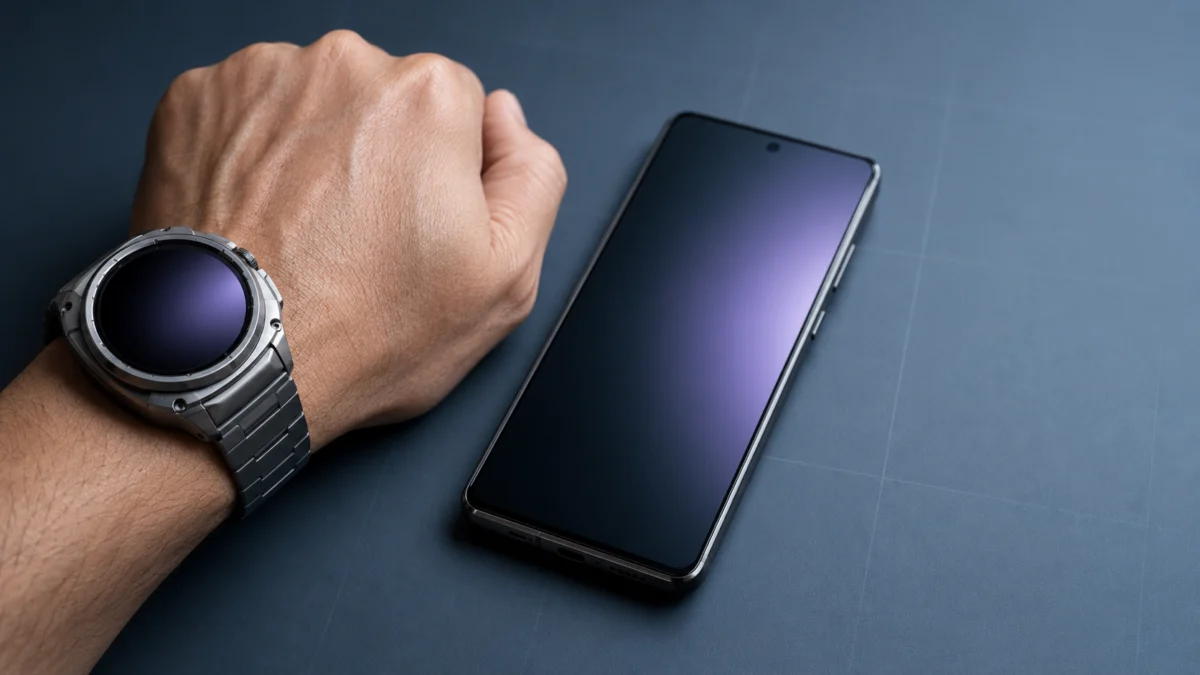
If your Galaxy Watch Ultra2 will not connect to your Android phone, start setup from the Galaxy Wearable app rather than your phone’s Bluetooth settings. Samsung’s official instructions for Wear OS Galaxy watches begin in Galaxy Wearable. Pairing directly from Android’s Bluetooth menu can leave the watch listed on the phone without completing registration in the app.
Four stages can fail independently: Bluetooth pairing, Galaxy Wearable registration, Samsung and Google account sync, and LTE or eSIM activation. Identify which one stopped before you erase anything. A factory reset belongs near the end of this process, not the beginning.
Samsung announced Galaxy Watch Ultra2 on July 22, 2026, opened US pre-orders that day, and scheduled general availability for August 7. Its official specifications require Android 13.0 or higher, more than 1.5 GB of memory, and a phone that supports Google Mobile Services.
Quick Answer: Start Setup in Galaxy Wearable, Not Bluetooth Settings
Install Galaxy Wearable from Google Play and begin pairing inside the app. Galaxy Watch Ultra2 requires Android 13.0 or higher, more than 1.5 GB of memory, and Google Mobile Services. Wear OS Galaxy watches cannot pair with an iPhone.
Samsung’s Wear OS Galaxy Watch setup guide and Ultra2 specifications establish these requirements:
- Android: version 13.0 or higher for Galaxy Watch Ultra2.
- Google Mobile Services (GMS): required for device activation. Confirm support with your phone’s manufacturer if you are unsure.
- Memory: more than 1.5 GB.
- iOS: not supported. Wear OS Galaxy watches do not pair with an iPhone or iPad.
- Standalone setup: only LTE models can be set up without a phone.
Samsung’s general watch-and-phone compatibility list had not yet added Galaxy Watch Ultra2 when this article was checked. Do not apply the Android 11 minimum shown there for Galaxy Watch Ultra, Watch7, or Watch8 to Ultra2; Samsung’s Ultra2 announcement specifies Android 13.0 or higher.
Confirm You Have Ultra2, Not the Earlier Galaxy Watch Ultra
Check the model on Samsung’s official Galaxy Watch Ultra2 product page before applying any fix. Galaxy Watch Ultra2 is the 2026 titanium 47mm model with an 800 mAh battery, a 1.52-inch display rated up to 5,000 nits, and EN13319 dive certification. The earlier Galaxy Watch Ultra uses a smaller battery and a different processor.
This matters because fixes and firmware behavior are not interchangeable between generations. Galaxy Watch Ultra2 ships with Wear OS 7 and One UI 9 Watch, so an unofficial workaround written for the earlier watch may not apply.
Quick Fix Checklist
Run these five checks before anything more invasive. They cover basic setup problems without erasing data and take only a few minutes. If the watch still does not appear in Galaxy Wearable after you complete all five, move on to the diagnostic table in the next section.
- Charge the watch before retrying setup.
- Remove any existing entry for the watch from your phone’s Bluetooth settings.
- Grant Galaxy Wearable the Nearby devices and Location permissions shown on your phone.
- Turn Bluetooth off and back on, then restart both the phone and the watch.
- Open Galaxy Wearable and search for the watch from inside the app.
Identify Where Galaxy Watch Ultra2 Pairing Stops
Match your symptom to the stage that failed before changing any settings. Bluetooth pairing, Galaxy Wearable registration, account sync, and LTE activation are separate processes, and each can fail for different reasons. Resetting the watch addresses only some of them and erases data that has not synced.
| Where setup stops | Stage that failed | What to check |
|---|---|---|
| Watch never appears in the Galaxy Wearable search list | Bluetooth discovery | Nearby devices and Location permissions; whether the watch is at its welcome screen rather than already paired to another phone |
| Pairing code does not appear, or the two codes do not match | Bluetooth handshake | Restart both devices, confirm the codes again, and retry from inside Galaxy Wearable |
| Setup stalls in the final stage while the watch is being prepared | Account sync or a background process | Allow Google Play services permissions; if the option exists, clear its wearable storage; set Galaxy Wearable to unrestricted battery use |
| Phone Bluetooth shows the watch as connected, but the app shows it as not connected | Wrong entry point | Remove the watch from Bluetooth settings, then restart setup from inside Galaxy Wearable |
| Google account copy does not finish | Network or account sync | Retry on an unrestricted connection; temporarily disable a VPN, private DNS, or ad blocker; check for work-profile restrictions |
| Pairing completes, but LTE activation fails | Carrier provisioning | Contact your carrier. This is separate from Bluetooth pairing |
This order follows Samsung’s watch connection troubleshooting guide, which checks restart, permissions, unpairing, and app updates before a reset.
Reports involving Galaxy Watch5 and another earlier Wear OS Galaxy Watch setup describe late-stage stalls that improved after phone-side wearable data was cleared. These are community reports about earlier models, not evidence of an Ultra2-specific defect. Check whether the same phone-side option exists before concluding the watch is faulty.
Clear Old Bluetooth Pairings and Reset the Galaxy Wearable Side
Clean up the phone before you reset the watch. Old Bluetooth entries, missing permissions, battery limits, and stale wearable data can survive a simple restart. The fix takes 6 steps. Work through them in order; each step is less disruptive than the one after it.
- Open Settings → Apps → Galaxy Wearable → Permissions, and allow Nearby devices and Location if your phone shows them.
- Open Settings → Connections → Bluetooth, then unpair any existing entry for the watch.
- Open Settings → Apps → Galaxy Wearable → Battery, and set it to unrestricted if your phone offers that option.
- Open Settings → Apps → Galaxy Wearable → Storage, then clear the app data. This removes watch settings stored on the phone.
- If setup still stalls and your phone offers the menu, open Settings → Apps → Google Play services → Storage → Manage wearable storage, then clear the wearable data.
- Restart the phone, open Galaxy Wearable, and search for the watch again.
Menu names and paths differ between phone manufacturers and Android versions, so the exact wording on your device may not match. Step 4 clears settings held on the phone, not data stored on the watch itself.
Non-Samsung Android Phones Need One Extra Check
Set Galaxy Wearable to unrestricted battery use if your phone limits background activity. Samsung’s compatibility guide says messages, calls, and many Samsung Health tracking features work on Samsung and other Android phones. Samsung Health Monitor features such as ECG are limited to supported Samsung Galaxy phones, with availability also depending on country and device. A missing Health Monitor feature is therefore different from a pairing failure.
Move the Watch to a New Phone or Reset It Without Losing Data
Use the watch’s transfer function when you are switching phones. Samsung documents the Transfer watch to new phone path under the watch’s settings. Reset the watch only when transfer fails or the watch cannot pair with any qualifying phone, because a reset permanently erases anything that has not synced.
Before you reset, do both of the following:
- Open Samsung Health and complete a manual sync, so recent health data is stored in your account rather than only on the watch.
- Back up the watch from the Galaxy Wearable app on the phone it is currently paired to.
Follow Samsung’s official reset instructions rather than an unofficial button sequence. Samsung states that after a recovery-mode reset, you must sign in to the same Samsung account that was on the watch. Confirm that you can access that account before using recovery mode, especially with a second-hand or display unit.
Separate Phone Pairing, LTE Activation, and Hardware Failure
Bluetooth pairing and LTE activation succeed or fail independently. If the watch shows as connected inside Galaxy Wearable, pairing is finished and the remaining problem is carrier provisioning. Treat a hardware fault as the last explanation, after the watch fails on more than one qualifying phone.
When Only LTE Activation Fails
Contact your carrier first. LTE availability depends on your country, region, carrier, and plan. Watch-line or eSIM provisioning requires carrier support, so a failed or pending carrier activation cannot be completed by repeating Bluetooth pairing.
When you contact them, ask your carrier to confirm the following:
- Whether your current plan is eligible for a paired smartwatch line.
- Whether the phone and watch lines must be on the same account and use a number-sharing service.
- Whether the watch’s eSIM or EID is recognized on the carrier’s network.
- Whether activation is pending or has failed on the carrier side.
Current setup paths differ among Verizon Number Share, AT&T NumberSync, and T-Mobile’s Galaxy Wearable activation flow. Plan eligibility, watch-line terms, and pricing change over time, so confirm the current conditions directly with your carrier.
Signs of a Hardware Fault
A hardware fault becomes more plausible only after a factory reset and a test with more than one qualifying phone. The signs below are reasons to contact Samsung support or your retailer rather than continue changing settings on your own.
- The Bluetooth address is missing or shown as unavailable in the watch’s device information screen.
- A factory-reset watch is not detected by two or more different qualifying Android phones.
- The connection drops repeatedly with the phone only a few centimeters away.
- Your carrier cannot register the EID and the Bluetooth connection is also unstable.
If your watch matches one or more of these, use Samsung’s US support entry point or contact the retailer about warranty, repair, return, or exchange. Return and exchange windows differ by retailer and carrier and are time-limited, so check yours before spending more time troubleshooting.
You can also check the Samsung Galaxy Watch Ultra2 on Amazon.com if you need a replacement or repurchase option.
Disclosure: Fixory may earn a commission from qualifying purchases made through links on this page. This does not affect the troubleshooting steps above.
How We Researched
This article is based on Samsung’s official product page, Newsroom specifications, and official support documentation, plus community reports from earlier Wear OS Galaxy Watch models. We have not conducted hands-on testing. Compatibility and specification claims are attributed to official sources or clearly identified as community reports.
Galaxy Watch Ultra2 had not reached general US availability when this article was checked. Reports describing setup failures on earlier models are presented as patterns worth checking, not as confirmed Ultra2 behavior, and we have not estimated how frequently anything occurs.
Frequently Asked Questions
These questions come up often for readers whose watch will not pair. Each answer stays within what Samsung’s official documentation confirms, and anything specific to your carrier or phone manufacturer should be checked with them directly.
Can Galaxy Watch Ultra2 connect to an iPhone?
No. Samsung states that Wear OS Galaxy watches are not compatible with iOS devices. Galaxy Watch Ultra2 requires an Android phone with Google Mobile Services, so there is no supported Ultra2 setup path on an iPhone or iPad.
Do I need an LTE plan to finish setup?
No. Bluetooth pairing and LTE activation are separate steps, and Samsung’s setup guide allows the cellular-service step to be skipped. LTE availability depends on your country, region, carrier, and plan.
Does moving the watch to a new phone erase my data?
Use the watch’s transfer function and follow the on-screen prompts instead of starting with a factory reset. A full reset does erase data that has not synced. Sync Samsung Health and back up the watch from Galaxy Wearable before choosing the reset path.
What to Do Next
Work in this order: confirm the phone meets the Android, memory, and GMS requirements; start setup inside Galaxy Wearable; identify where the process stops; clean up the phone side; then reset the watch only if nothing else works. This sequence can resolve phone-side pairing problems without erasing data unnecessarily.
If the watch still will not pair after a factory reset and a second qualifying Android phone, stop troubleshooting and contact Samsung support or your retailer while the return or exchange window is still open. If pairing works but only cellular service fails, contact your carrier.