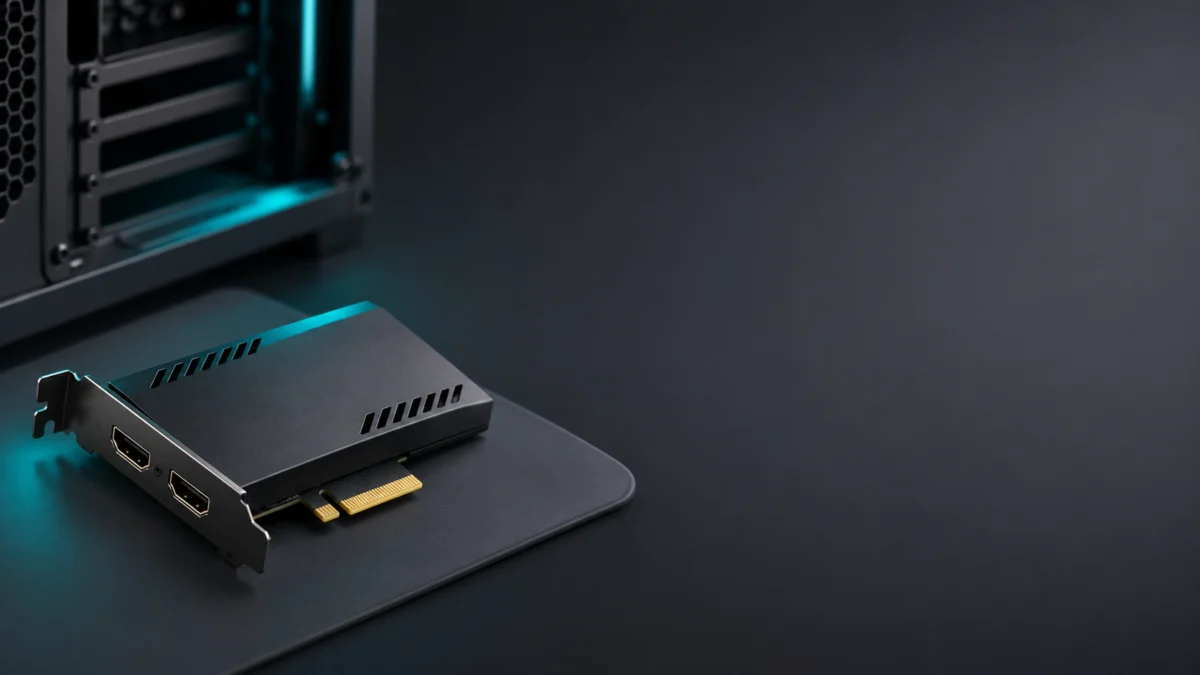
If your Elgato 4K Pro shows no signal, first work out which side is failing: the PCIe connection between the card and your PC, or the HDMI signal going into the card. Elgato’s installation guide asks for a “PCIe x4/x8/x16 slot size” with PCIe generation 2.0 and x4 lanes of available bandwidth, and a full-length slot on your motherboard does not guarantee those four lanes. Check your motherboard manual’s slot and lane-sharing table, then check HDCP and the HDMI wiring, before you consider replacing the card.
This guide covers the Elgato Game Capture 4K Pro in a Windows desktop PC. It does not cover the older 4K60 Pro or 4K60 Pro MK.2, the 4K X, or BIOS settings for any specific motherboard. It is based on Elgato’s official documentation, not hands-on testing.
Is This a PCIe Detection Problem or an HDMI Input Problem?
Treat “no signal” as two separate problems. If your capture software never finds the 4K Pro, suspect the PCIe side: the slot’s wiring, lane sharing, or seating. If the software finds the card but the preview stays black, suspect the HDMI side: HDCP protection, the IN/OUT wiring, cables, or the source’s output mode.
This split is a diagnostic shortcut we drew from Elgato’s documentation, not a rule Elgato publishes. A no-signal symptom on its own does not prove that your slot lacks lanes.
| What you see | Likely branch | Check first |
|---|---|---|
| Elgato Studio or OBS does not list the 4K Pro at all | PCIe side | Slot’s electrical lane width and lane-sharing rules in the motherboard manual |
| The card is listed, but the preview is black | HDMI side | HDCP on the source, HDMI IN vs HDMI OUT, cable seating |
| One source works and another does not | HDMI side | Whether the failing source sends HDCP-protected content |
| Capture stopped after you added an M.2 SSD or another PCIe card | PCIe side | The manual’s table of which slots and M.2 sockets can run at the same time |
Check Physical Fit and Electrically Available PCIe Lanes
The 4K Pro needs a slot that physically fits an x4 card and that actually provides four PCIe lanes. Elgato lists the interface as “PCIe 2.0 x4”. A slot can be full-length but wired for fewer lanes, so the shape of the slot alone does not tell you whether the card has the bandwidth it needs.
Elgato’s official requirements for the 4K Pro are:
| Requirement | Official value | What it means for you |
|---|---|---|
| Slot size | PCIe x4, x8, or x16 | The card does not fit an x1 slot |
| PCIe generation | 2.0 | Newer generations are forward compatible, according to Elgato |
| Available PCIe bandwidth | x4 lanes | The slot must be wired for, and actually given, at least four lanes |
| Operating system | Windows 10 64-bit or higher | The product page lists Windows only |
| Computer type | Desktop PC | The card cannot be used in a laptop |
Elgato’s PCIe guide describes full-sized x16 slots wired for only “two, four, or eight lanes”. A slot wired for two lanes falls short of the x4 requirement even though the card fits. Elgato points readers to the motherboard manual or manufacturer for the real lane width.
PCIe generation is a separate thing from lane width. Elgato says a PCIe 2.0 device works in a PCIe 3.0 or 4.0 slot. In the material we checked, Elgato always states the requirement as x4 lanes and never documents a newer-generation slot with fewer lanes as a substitute.
The lane check takes 4 steps.
- Find your exact motherboard model and download its manual from the motherboard manufacturer.
- Open the expansion-slot specification and find the slot the 4K Pro is in. Look for the electrical width, which may differ from the slot’s length. For example, Elgato shows a board whose full-size PCIe 3.0 x16 slot only supports up to x4 speed.
- Confirm the slot provides at least four lanes. If it provides fewer, pick a slot that the manual lists as x4 or wider.
- Before moving the card, follow Elgato’s installation order: “Power off your PC” and unplug it, open the case, put the card in an available PCIe x4 slot or larger, secure it with a screw if needed, then close the case and reconnect power.
For reference, Elgato’s 4K Pro product page includes this desktop-installation note: “Requires installation into a PCIe slot inside your desktop PC. Not compatible with laptops.”
Check the Motherboard Lane-Sharing Table
A slot that is wired for x4 may still be disabled or reduced in width by the board’s sharing rules. On motherboards that share resources between particular M.2 sockets and PCIe slots, installing an SSD or another card can affect the available slot. Check the exact motherboard manual for the combinations that apply to your board.
Elgato gives examples in which an occupied M.2 socket means “a PCIe slot may be disabled”. It also shows an older Elgato card affected when another PCIe device reduces an x4 slot to x1. Those examples explain why the motherboard manual matters; they do not establish the behavior of your particular board or prove a fault in your 4K Pro.
| Slot shape | Electrical wiring | Sharing that can limit it | Next document to check |
|---|---|---|---|
| x1 | x1 | Not relevant: the 4K Pro does not fit | Manual slot list, to find a larger slot |
| x4 or x8 | x4 or wider | May be disabled or narrowed when a listed M.2 socket or slot is in use | Manual’s M.2 and PCIe sharing table |
| x16 (full length) | x16, x8, or x4 | Same as above; check each M.2 socket and slot the manual lists | Manual’s slot specification and sharing footnotes |
| x16 (full length) | x2 | Already below the x4 requirement | Manual slot list, to find another slot wired x4 or wider |
| Any slot | Unclear in the manual | Unknown | Motherboard manufacturer’s support |
Don’t move or remove an M.2 SSD on a guess. Only change your drive layout if the manual shows that a specific M.2 socket is what disables or narrows the 4K Pro’s slot. If the table is unclear, ask the motherboard manufacturer before you change anything.
Separate HDCP and Input-Format Issues
If the PCIe side checks out, look at the HDMI path. The 4K Pro captures only unencrypted HDMI, and Elgato says content protected by HDCP will not display. Connect the source to HDMI IN and your monitor to HDMI OUT, push both cables fully in, and use HDMI 2.0 or newer cables for 4K60.
Elgato’s connection steps are:
- Connect your “unencrypted HDMI source” (for example, a gaming PC or console) to the HDMI IN port on the 4K Pro.
- Connect a second HDMI cable from the HDMI OUT port on the 4K Pro to your monitor or TV.
Elgato’s troubleshooting tips for this stage are:
- Make sure the HDMI source is unencrypted. Elgato says HDCP must be disabled, and it names streaming devices and some consoles as sources that send protected content.
- Check that both HDMI cables are fully inserted.
- Use HDMI 2.0 or higher cables for 4K60.
- Update your PC’s graphics drivers.
Capture and passthrough have different limits. The product page lists passthrough up to 8K60 but recording up to 4K60, so a picture on your monitor does not by itself mean the capture feed supports the same mode. Compare your source’s output settings with the supported-resolution list on the product page.
The software you use also matters. The current installation guide says “Download and install Elgato Studio Software” and notes that OBS Studio or similar applications also work. Elgato’s older requirements page was written for 4K Capture Utility and says that software other than 4K Capture Utility “will have different system requirements.” Check the requirements of the app you actually use rather than applying one app’s numbers to another.
When Does a Different Capture Device Make Sense?
A new 4K Pro will not fix a PC that cannot give the card four PCIe lanes. If no slot on your board provides x4 with your current drives and cards, or you only have a laptop, consider a USB-connected capture device. Check its own host-interface, operating-system and capture-format requirements before choosing a model.
Replacing the 4K Pro with another one makes sense only when both of these are true:
- Your PC meets the slot, lane, and Windows requirements above, with the card in a slot the manual confirms is not disabled by sharing.
- You have ruled out HDCP and cabling, and Elgato support has confirmed the card is faulty.
If both apply, the Elgato 4K Pro Internal Capture Card listing on Amazon US is a product-identity reference. We verified the listing identity through Amazon’s API, but have not confirmed a current seller, offer condition, price, stock or warranty. Check those details, including whether the selected offer is new or Renewed, before deciding to order.
How We Researched
This article is based on Elgato’s official 4K Pro installation guide, its PCIe explainer, its 4K Pro system-requirements page, and the US 4K Pro product page. We used the Amazon US listing only to confirm the product’s identity, not its price, stock, or condition. We have not conducted hands-on testing and did not check any specific motherboard, BIOS version, or firmware.
FAQ
Does the 4K Pro work in a PCIe 4.0 or 5.0 slot?
Elgato says PCIe is forward compatible, so a PCIe 2.0 device works in newer-generation slots. The slot still has to provide x4 lanes. A newer generation does not replace that requirement in the documentation we checked.
Can I use the 4K Pro with a laptop or an external enclosure?
Elgato states the card is not compatible with laptops and must be installed in a desktop PC’s PCIe slot. We found no official guidance on expansion enclosures, so we cannot confirm that they work.
Do I have to use Elgato Studio?
No. Elgato’s installation guide says OBS Studio or similar applications can also be used. Their system requirements can differ from Elgato’s published figures.
Conclusion
When an Elgato 4K Pro shows no signal, check the cheap things first: the slot’s electrical lane width, the motherboard’s lane-sharing rules, HDCP, and HDMI wiring. Only buy a replacement once your PC meets the x4 requirement and Elgato has confirmed the card has failed. If your PC cannot provide x4, investigate a USB model whose connection and capture requirements your PC can meet.