If your devices join the NETGEAR Nighthawk RS700S Wi-Fi but nothing loads, the device has joined the local Wi-Fi network; the next check is whether only that device is affected or the router has lost its internet path. Start with the RS700S Internet LED, then check whether the router received an Internet (WAN) IP address from your ISP. Those readings help narrow the cause to cabling, connection settings, the modem or ONT, or the ISP, without assuming a router fault.
The checks below cover new installs and connections that suddenly stopped, in an order that avoids losing settings. Leave the factory reset for last, because it erases the ISP login and MAC settings you may still need.
- Only one device offline? Check that device first.
- Internet LED off? Check the cable to the modem.
- Internet LED solid amber? Check the WAN address.
- Internet port shows 0.0.0.0? Check ISP settings and the modem.
- Address present, sites fail? Check DNS.
Why Does the RS700S Show Wi-Fi Connected but No Internet?
Your phone or laptop reports Wi-Fi as connected once it joins the RS700S network, even when the router itself has no working link to your internet provider. Wi-Fi status proves only the local connection. Internet access also needs a working cable to the modem or ONT, a WAN address from your ISP, and working DNS.
| Link in the chain | What confirms it works | If it fails, look at |
|---|---|---|
| Device to RS700S Wi-Fi | The device shows the network as connected | Wi-Fi password, the device itself |
| Device to router settings | routerlogin.net opens and you can sign in | Whether the device is on the RS700S network |
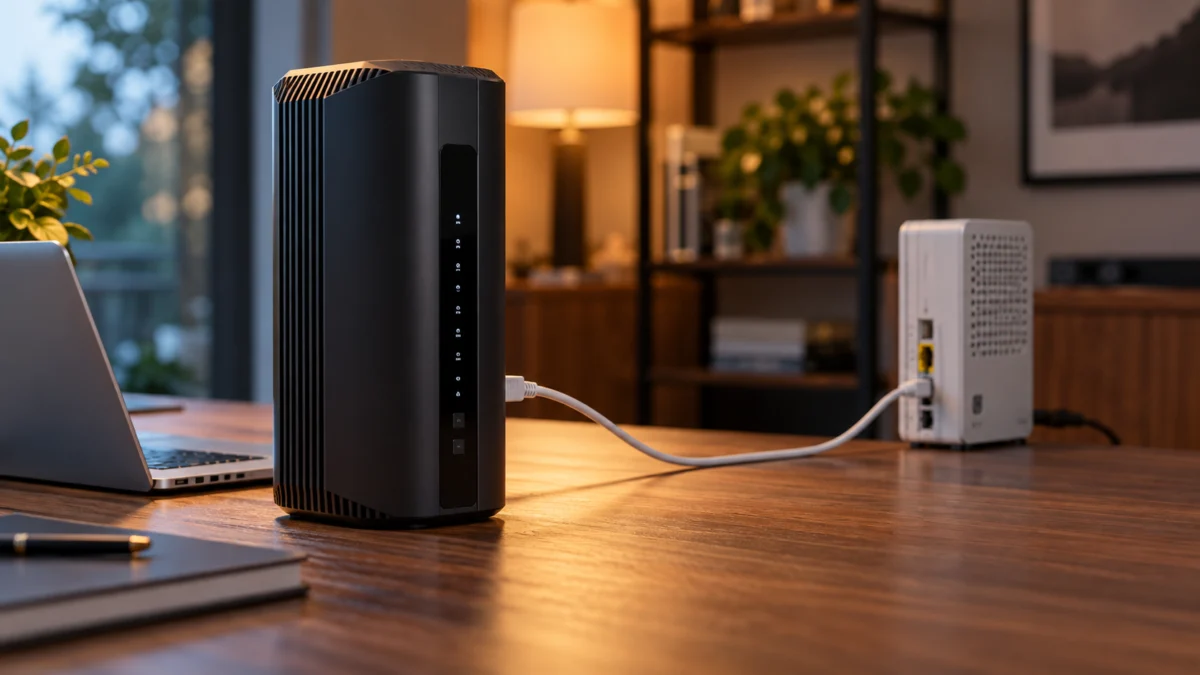
| RS700S to modem or ONT | The Internet LED indicates the port state; then check the WAN address | Cable, yellow Internet port, modem port |
| WAN address from the ISP | The Internet port shows an IP address other than 0.0.0.0 | Connection type, ISP login, MAC requirements, modem state |
| Name lookups | Websites load by name | DNS settings |
A new install adds one more case. NETGEAR’s RS700 user manual, which NETGEAR publishes as the RS700S manual, states that the router is not connected to the internet until you finish setting it up with the Nighthawk app. Joining its Wi-Fi before setup is complete gives no internet access, so download the app over cellular data. If the app still cannot install the router, the RS700S quick start guide says to turn off and disconnect the modem and router, reboot the modem, reconnect the router, and try again, or finish the installation in the router web interface at routerlogin.net.
NETGEAR RS700S quick start guide (PDF)
Is One Device Affected, or Every Device?
If only one phone or computer has no internet while other devices on the RS700S work, the shared internet connection is working for those other devices, so start with the affected device. If every wired and wireless device fails at the same time, skip device fixes and check the connection between the RS700S and your modem or ONT.
For a single affected device, forget the Wi-Fi network and rejoin it. The RS700 manual notes that a computer set to a static IP address should be changed to use DHCP.
Then connect a computer to an RS700S LAN port with an Ethernet cable. If it also has no internet, Wi-Fi is not the cause.
How Do You Check the RS700S-to-Modem Connection?
Look at the RS700S Internet LED first. Off means the router detects no Ethernet cable connected to the modem. Solid amber means a cable is connected, but the Internet connection is not ready yet. Solid white means the Internet connection is ready. Off points to cabling or ports, while amber points to addressing or ISP settings.
| Internet LED | Meaning in the RS700 manual | Next check |
|---|---|---|
| Off | No Ethernet cable is connected between the router and the modem | Cable, both ports, modem power |
| Solid amber | A cable is plugged in, but the Internet connection is not ready | WAN address and ISP settings |
| Blinking | The port is sending or receiving traffic | WAN address and DNS if sites still fail |
| Solid white | The Internet connection is ready | DNS, or the single-device checks above |
NETGEAR RS700 user manual (PDF)
The LED narrows the search but does not prove the router is faulty. If it is off, work through the physical path:
- Confirm the cable from the modem or ONT goes into the yellow 10G Internet port, not one of the LAN ports.
- Reseat the cable at both ends and confirm the modem is powered on.
- Swap in a different Ethernet cable you know works. The RS700S ships with one Ethernet cable in the box.
If the LED changes after a known-good cable swap, the old cable or its seating is suspect. NETGEAR’s manual calls for a Category 6 (Cat6) or higher-rated cable on the 10G Internet port. Buy one only if the swap test points to your old cable and you have no suitable spare, in a length that reaches the modem without strain.

Please check the Amazon product page for the latest price and availability.
Does the RS700S Have an Internet Address From Your ISP?
Sign in at routerlogin.net and check the IP address shown for the Internet port. NETGEAR’s general support guidance says 0.0.0.0 means the router has not obtained an address from your ISP. With no address, check the connection type and MAC requirements. With an address but no websites loading, check DNS.
The fix takes 5 steps.
- Sign in to the router. From a device on the RS700S network, open routerlogin.net and sign in with the user name admin and the password you created during setup.
- Read the Internet port address. Select ADVANCED, then read the IP address in the Internet Port pane. If it shows 0.0.0.0, the router has not obtained an address from your ISP. For an automatic IP connection, open Connection Status there to inspect the details.
- Check the WAN Preference. Select Internet to open the Internet Setup page. With one cable in the yellow port, the manual says to choose Internet Port (10 Gbps). Multi-Gig Internet (1 Gbps + 1 Gbps) is only for aggregating the Internet port with LAN port 4 on a modem that supports it.
- Match the connection type to your ISP. Use the login option only if your ISP requires one, such as PPPoE with the login name and password your ISP gave you. Enter a static IP, account name, or domain name only if your ISP provided one. To let the router detect the settings again, use ADVANCED > Setup Wizard.
- Apply and test. Click Apply, then Test. The manual says that if the NETGEAR website does not display within one minute, move on to its troubleshooting for when you cannot access the internet.
NETGEAR support: router accessible but no internet
During app setup, NETGEAR’s article on the “Internet not connected” error says your ISP may require a static IP or PPPoE connection type. The Nighthawk app does not support L2TP or PPTP; set those up in the router web interface.
NETGEAR support: Internet not connected during app setup
Some ISPs allow only one Ethernet MAC address. NETGEAR’s options are asking the ISP to register the router’s MAC address or selecting Use Computer MAC Address on the router. Ask your ISP first, so you do not add a setting your connection never needed.
If the Internet port has an address but websites still fail, the devices may not be getting working DNS servers. The RS700S uses Get Automatically from ISP by default. If you entered DNS servers by hand, confirm they match what your ISP gave you. Leave the MTU at its default unless your ISP or NETGEAR support tells you to change it, as the manual advises.
Is the Problem Your ISP or Modem, or the RS700S?
Connect a computer directly to the modem or ONT. If the computer gets internet but the RS700S does not after reconnecting and restarting the modem, focus on router settings, cabling, and whether the modem recognizes the router. If the computer also fails, contact your ISP before changing anything on the RS700S.
After a direct test, restart the network before you reconnect the router. NETGEAR’s support guidance says restarting the network may be needed to make a cable or DSL modem recognize a new router. Its power-cycle order has four steps:
- Turn off every device on the network, including the RS700S and the modem, and remove the modem’s backup battery if it has one. Wait 2 minutes.
- Turn on the modem first. Wait at least 5 minutes, longer for some modems, until its lights are stable per its own manual.
- Turn on the RS700S. When the connection is up, the Internet LED usually turns solid white.
- Turn on your other wired and wireless devices.
NETGEAR support: how to power cycle your home network
Two RS700S owners in the NETGEAR Community described the same pattern: internet on the router dropped suddenly, while a computer connected straight to the modem worked. One reported recovery after power cycling, confirming the Internet port cable, cloning the computer’s MAC address, and switching from PPPoE to DHCP, without isolating which step worked.
NETGEAR Community owner report: internet dropped suddenly
The other factory reset the router and then could not finish setup, with no resolution in the thread. Neither report establishes a known RS700S defect, but the second shows why a reset belongs last.
NETGEAR Community owner report: RS700S lost its internet
When you call your ISP, report the modem or ONT model, whether a directly connected computer works, the Internet LED state, and the Internet port address. If your modem is a NETGEAR CM2000 with a blinking Upstream light, look at the modem and cable-line side first.
CM2000 Upstream light blinking checks
When Are a Reset, NETGEAR Support, or a Replacement Justified?
Factory reset the RS700S only after the ISP, modem, cable, and settings checks, and only after you record your ISP login details. Contact NETGEAR support when the router still gets no WAN address while a computer connected directly to the same modem works. Consider a replacement only after support points to the router hardware.
The RS700 manual says that holding the Reset button for at least five seconds, until the Power LED blinks amber, returns the router to factory settings. That erases your PPPoE login, static IP details, and MAC setting, so write them down or back up the router settings first.
Before contacting support, register the router. NETGEAR’s RS700S product page states that the limited warranty is valid only if the router was bought from an authorized NETGEAR reseller and registered, and that free technical support lasts for a specified period. Have the firmware version, the modem or ONT model, and your WAN address reading ready.
If support confirms a hardware fault that warranty will not cover, the RS700S sits in the premium tier. Check whether a listing is new or renewed before buying. Other NETGEAR RS models differ in ports and speed, so they are not drop-in replacements.

Please check the Amazon product page for the latest price and availability.
This guide does not replace diagnostics from your ISP or NETGEAR support, or your warranty terms.
How We Researched
This article is based on NETGEAR’s RS700S quick start guide, the RS700 user manual NETGEAR links for the RS700S, the RS700S product page, three general NETGEAR support articles that do not list the RS700S by model, and two RS700S owner reports in the NETGEAR Community. We have not conducted hands-on lab testing. Owner reports are treated as individual reports, not known defects.
Frequently Asked Questions
Why does the RS700S Internet LED stay solid amber?
According to the RS700 manual, solid amber means a cable is plugged into the Internet port, but the Internet connection is not ready. Check whether the Internet port has an address from your ISP, then power cycle the modem and router in order.
Should I clone my computer’s MAC address on the RS700S?
Only if your ISP locks service to one MAC address. Ask your ISP first; they can often register the router’s MAC instead. If cloning is needed, the RS700S offers Use Computer MAC Address in its Internet settings.
Will a factory reset fix the RS700S having no internet?
Not if the fault is the cable, modem, or ISP. A reset erases your ISP login and MAC settings, and one RS700S owner could not complete setup afterward. Reset only after the other checks.
The Bottom Line
When the RS700S shows Wi-Fi connected but no internet, first test whether one device or every device is affected. Wi-Fi association alone does not prove that the router has internet access. Read the Internet LED, then the Internet port address. Those two checks decide whether you fix a cable, a setting, or call your ISP, before any reset or replacement.