On the NETGEAR CM2000, a blinking white Upstream LED means one specific thing: the modem is scanning for an upstream channel. That can happen during startup. If it persists or accompanies connection problems, check the modem status before assuming a hardware fault.
If the modem was just powered on, reconnected, or newly activated, give it up to 10 minutes to come online. If Upstream is still blinking after that, open http://192.168.100.1, go to Cable Connection, and check two things: whether the Upstream Bonded Channels heading reads (Partial Service), and how many upstream channels show Locked. Those observations help you decide what to ask your provider to check.
Do not factory reset and do not order a replacement before you have it. In both resolved cases we reviewed, the repair happened on the provider’s outside cable plant, not on the modem.
Confirm Which CM2000 Light Is Blinking
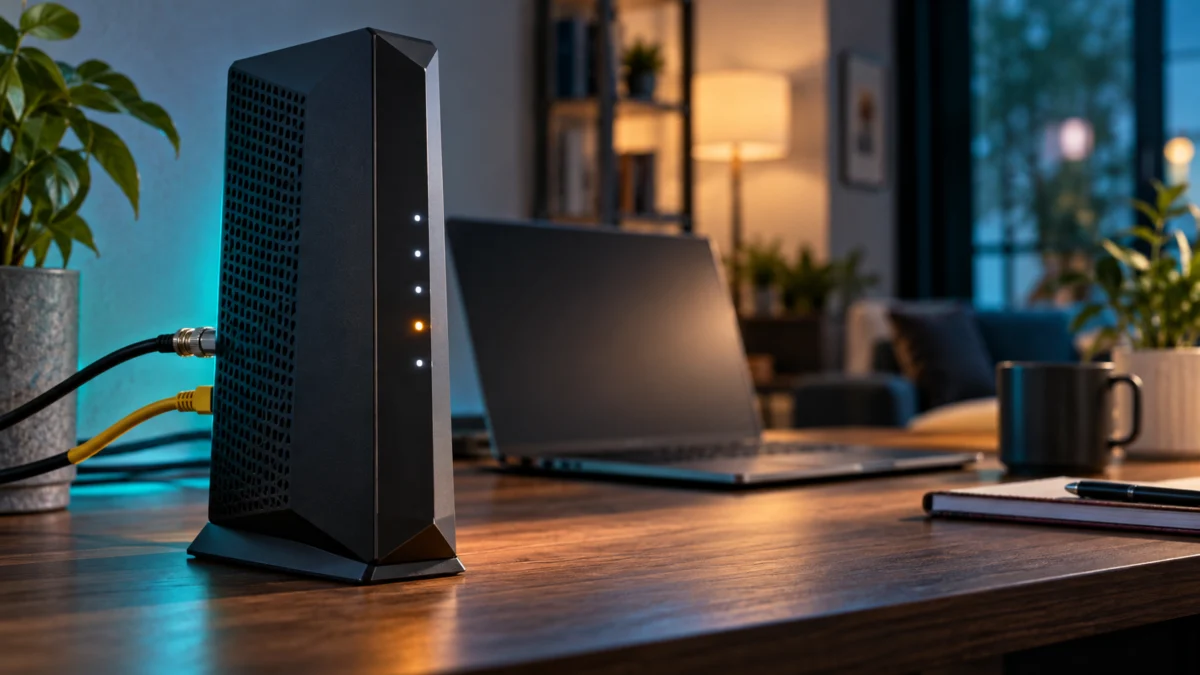
The CM2000 has five front LEDs, and only one reports upstream status. Per the official LED table, blinking white on Upstream means the modem is scanning for an upstream channel, while blinking white on Online means it is synchronizing with the provider’s CMTS. Identify the light before troubleshooting anything.
NETGEAR CM2000 user manual (PDF)
| LED | What each state means |
|---|---|
| Upstream | Solid white: two or more upstream channels locked. Solid amber: one locked. Blinking white: scanning for a channel. Off: none locked. |
| Downstream | Same four states, for downstream channels. |
| Online | Solid white: online. Blinking white: synchronizing with the provider’s CMTS. Off: offline. |
| Power | Solid white: power supplied. Off: no power. Solid red: too warm, might overheat. |
| Multi Gig Port | The Ethernet link to your router, not part of the coax path. The manual’s color descriptions for it overlap, so we do not restate them. It is also called the “Ethernet LED” elsewhere in the manual, as Online is called the “Internet LED”. |
| What you see | Online LED | Internet working? | Where to look next |
|---|---|---|---|
| Upstream blinking | Solid white | Yes, but unstable | Cable Connection page — look for the partial-service label |
| Upstream blinking | Blinking white | No | Registration incomplete — quick checks, then the coax path |
| Upstream blinking | Off | No | Coax path, then provider provisioning |
| Downstream blinking or off | Off | No | No downstream lock yet — start at the coax path |
| Upstream dim or dark | Any | Varies | Read the channel table instead of the light |
| All lights cycling | Cycling | No | Startup never completes — see the startup section |
The last two rows get filed under the same search but are not the same symptom. In one community report of a CM2000 whose upstream light dimmed and then went dark, the reply directed the owner to the connection status and event log rather than to the light. Use the channel table alongside the LED state; the light alone does not establish the cause.
Owner report: a dim or dark Upstream LED
Quick Checks Before You Change Anything
Five checks come before any reset. Wait out the startup window, confirm the coax is finger-tight at both ends, check whether an accessible splitter can be bypassed safely, power cycle once, and stop there. A factory reset erases the settings you configured without changing anything on the coax line, so it belongs later in this process, not first.
- Wait the full window. Official setup guidance allows up to 10 minutes for the modem to come online. Allow that startup window before judging a persistent blink.
- Check both ends of the coax. The connector should be finger-tight at the modem’s cable port and at the wall jack.
- Bypass splitters temporarily. Official troubleshooting for a modem that will not come online includes removing excessive splitters.
- Power cycle once. Unplug the power adapter, wait, plug it back in. Rebooting is not a factory reset.
- Stop before resetting. Holding the rear Reset button for at least seven seconds restores factory settings and erases your configuration, and changes nothing about the signal on the coax.
Check Whether the Modem Can Finish Starting Up
The CM2000 provisions in a fixed order: it scans and locks a downstream frequency, ranges the upstream channels, obtains a WAN address, and then connects to the internet. An upstream registration problem should be distinguished from repeated restarts. A modem whose lights cycle on and off repeatedly is a different symptom entirely.
That order is why Downstream matters even when Upstream is the light blinking: if no downstream channel locks, upstream ranging cannot begin at all.
Check whether you can reach the modem’s web interface. If http://192.168.100.1 loads and you can sign in, inspect its startup and channel status; access alone does not identify the cause. In one community report of a CM2000 whose lights ran through a repeating on-off cycle, the owner could not reach that page at any point — a different symptom that should be reported separately.
Owner report: repeated startup cycling
NETGEAR’s multi-model LED support article includes the CM2000, but uses green-or-white wording across models. The model-specific manual is the basis for the white LED descriptions here.
Check the Coax Connection and Local Cable Path
Official troubleshooting for a modem that will not come online points at the coax path first: connections secure at the modem and at the wall jack, and excessive splitters removed from the line. Everything past the wall jack, including building wiring and coax grounding, is not a do-it-yourself job.
- The run between the wall jack and the modem, checked for kinks, crushed sections, or visible damage.
- Whether it passes through a splitter, and whether the modem behaves differently connected straight to the jack.
- Whether the connector threads are corroded or loose at either end.
What not to do yourself: cut, re-terminate, or re-route the building’s coax, remove grounding hardware, or strip out distribution equipment whose purpose you have not confirmed. The manual directs coaxial shield grounding to the CATV system installer under building electrical code, which tells you who owns that work. In a rental or shared building, confirm the rules with your landlord or building manager, and ask your provider to handle anything from the wall jack outward.
Read the Cable Connection Page and Event Log
The Cable Connection page at 192.168.100.1 is the reading that decides your next move. It shows the startup procedure and the lock status of every downstream and upstream channel, and can show a (Partial Service) label, as in the owner report below. The event log adds observations for your provider. Use these 5 steps to collect them.
- Sign in. Connect a computer to the modem’s Ethernet port, or to a router connected to it, and open http://192.168.100.1. The user name is admin; the password is printed on the product label. Use the label value if you have not changed the admin password.
- Read the Startup Procedure table. Select Cable Connection. It shows whether the downstream channel is locked and whether connectivity and boot state report as operational — how far provisioning actually got.
- Read the channel tables. Scroll to Downstream Bonded Channels and Upstream Bonded Channels and count rows marked Locked against Not Locked. Note whether the upstream heading carries the (Partial Service) label.
- Open the event log. Go to ADVANCED > Administration > Event Log. Each entry has a time, a priority, and a description. Look for repeated critical entries about ranging on upstream channels.
- Record it, and do not clear the log. Copy the channel counts, the partial-service label, and the entries with their timestamps. Clearing the log removes entries you may need to share with your provider.
Two things keep this reading useful rather than alarming. The number of channels a modem locks depends on how many its provider uses, which the manual states directly, so there is no universal correct count. And we publish no “normal” power or signal-to-noise ranges here, so ask your provider to interpret the readings for your connection.
In one documented CM2000 case, the status text read Cable modem is in partial service mode, the upstream section was headed Upstream Bonded Channels (Partial Service), and only two of eight SC-QAM upstream rows were locked with neither OFDMA channel locked — while traffic still passed. The downstream tables also contained unlocked rows. The log filled with repeated critical entries reading No Ranging Response received – T3 time-out. Those are observations from that case, not a diagnosis of which component failed.
Owner report: partial service and outside-line repair
The CM2000 is officially specified for two OFDMA and eight SC-QAM bonded upstream channels. Those specifications are not a required lock count for every connection. In the reported case, partial service and working internet access occurred together.
What Owners Reported and What Actually Resolved It
CM2000 owners have reported persistent Upstream blinking in more than one community thread. One report describes working internet access with severe gaming latency. In the two resolved cases we reviewed, the repair happened on the provider’s outside plant, not inside the home.
In one, a technician found a faulty adapter on the utility pole feeding the property and replaced it with the drop cable to the house. In the other, an owner who had just swapped a CM1000 for a new CM2000 saw Upstream blink constantly from installation onward; a technician later found the buried cable outside, in the ground for roughly eighteen years, was damaged.
Owner report: outside cable replacement
That second case illustrates a useful limit of swapping modems as a test. The owner had reinstalled the old CM1000 as a test, and it worked fine. The later cable repair shows why that comparison did not rule out an outside-line problem in this case. Treat “my other modem works” as one data point, not a verdict — it tells you the line can carry a connection, not that the upstream path is healthy. None of this means a CM2000 cannot fail; it means a blinking Upstream light alone is not evidence that it has.
What to Tell Your ISP Before Resetting or Replacing the Modem
Give your provider observations, not conclusions. Separate what you actually saw from what you have not confirmed. Include the model, the LED state, the locked channel counts, the partial-service label, and the event log entries with their timestamps.
| Report as observed | Leave as unconfirmed |
|---|---|
| Model and how long it has been in service | Whether the modem is faulty |
| Which LED is blinking, and the Online LED state | Whether there is an outage in your area |
| Locked channel counts from the Cable Connection page | Whether signal levels are in or out of range |
| Whether the upstream section says partial service | Which equipment is responsible |
| Event log ranging entries, with timestamps | Whether a line replacement is needed |
| What you ruled out: splitters, connections, power cycle | Whether a different modem would behave differently |
Ask whether they can see your modem, whether it is registered on their system, and whether they can check upstream signal and line quality up to it. Those are questions their tools answer and yours cannot. Before posting logs on a public forum, remove the modem’s MAC address, serial number, and account details to avoid exposing device and account identifiers.
On the two actions people reach for first: a factory reset erases your configuration, rebooting is a different operation, and neither changes the signal arriving on the coax. Replacement is a decision for after the channel readings and your provider’s line check. This article helps you gather evidence; it does not replace your provider’s diagnostics, your warranty terms, or professional installation advice.
How We Researched
This article is based on the official CM2000 user manual, official support material, and community reports from the manufacturer’s forum and a major provider’s support forum. We have not conducted hands-on lab testing. LED definitions, startup and reset behavior, and channel specifications come from the official manual, which we opened and read directly. Symptom patterns are attributed to identified reports, and single reports are described as single reports. We could not open every page on the manufacturer’s knowledge base, so nothing here claims an absence of official documentation.
Frequently Asked Questions
Is a blinking Upstream light normal when I first plug in the CM2000?
Yes. Blinking white on Upstream means the modem is scanning for an upstream channel, part of normal startup, and official setup guidance allows up to 10 minutes to come online. Check further if it persists beyond that window or accompanies connection problems.
Will a factory reset fix a blinking Upstream light?
The blinking LED alone does not establish whether a reset would help. A factory reset returns the modem to default settings and erases your configuration; holding the rear Reset button for at least seven seconds triggers it. A reset does not repair a damaged coax connection. Read the channel table first.
Should I change the Starting Frequency to make the upstream lock?
Not on your own. The manual states that the starting frequency is generated automatically and that most connections never need it set manually. Enter a value only if your provider tells you which one to use — changing it speculatively adds a variable to a problem you are narrowing down.
The Bottom Line
A blinking white Upstream light on the CM2000 is a status report, not a diagnosis. It says the modem is scanning for an upstream channel. The Cable Connection page and event log help distinguish startup behavior from a persistent connection issue, but do not by themselves identify a fault outside your home.
So the order is: wait out the startup window, check the coax you can safely reach, then read the channel counts and the log. Take those readings to your provider with observations separated from guesses, and save the factory reset and the replacement purchase for after that conversation — in the resolved cases on record, neither was the answer.