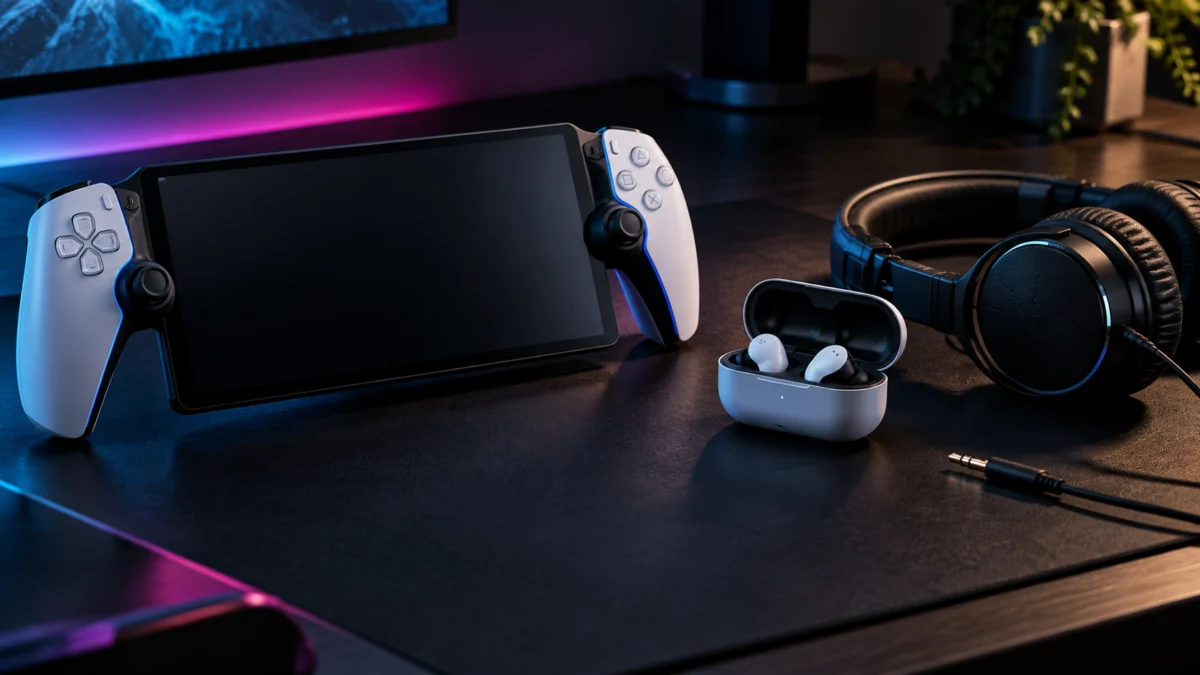
PlayStation Portal cannot pair with standard Bluetooth headphones or earbuds, and no Portal setting changes that. Sony’s official PS Portal troubleshooting page states that only devices using PlayStation Link can connect to the Portal wirelessly. Your working options are a wired headset in the 3.5 mm jack, or a PlayStation Link device such as PULSE Explore or PULSE Elite.
Find your situation first:
| Your situation | What it means | Where to go |
|---|---|---|
| You own standard Bluetooth headphones (AirPods, most wireless earbuds) | They cannot pair with PS Portal directly | Go wired, or compare wireless options |
| You own PULSE Explore or PULSE Elite and it won’t connect | A pairing, charge, or software issue to work through | Follow the 7-step PS Link fix |
| You own nothing wireless yet but need wireless audio on the Portal | Only a PlayStation Link device connects directly | Read the buying criteria first |
Why Ordinary Bluetooth Headphones Won’t Pair with PS Portal
PS Portal has no Bluetooth audio support, so there is no Bluetooth pairing screen to find. Its Settings menu includes a PS Link Device section but no Bluetooth section, and the only wireless audio control on the hardware is the PS Link button on the top edge. Sony’s troubleshooting page confirms that only PlayStation Link devices connect wirelessly.
Sony’s PS Portal audio troubleshooting page confirms the wireless compatibility limit.
PlayStation Link is Sony’s own lossless, low-latency wireless connection, not a Bluetooth profile. Thumbsticks’ 2026 PS Portal review confirms that standard Bluetooth headphones are still unsupported. Restarting or resetting the Portal won’t change that: Bluetooth audio is not listed among its features in the official documentation we checked.
Thumbsticks’ 2026 PS Portal review also discusses the Bluetooth audio limitation.
Check Whether Your Headphones Use PlayStation Link
Your headphones can connect to PS Portal wirelessly only if they support PlayStation Link. Sony’s PS Portal guide names two such devices: PULSE Explore wireless earbuds and the PULSE Elite wireless headset. Both have a PS Link button and ship with a PlayStation Link USB adapter. A headset without PlayStation Link cannot connect to the Portal wirelessly; a compatible 3.5 mm headset can connect through the audio jack.
Sony’s PS Portal guide lists compatible audio devices and the headset jack.
Three quick checks tell you which group you are in:
- The device or its charging case has a button documented as the PlayStation Link (PS Link) button.
- A PlayStation Link USB adapter came in the box.
- The product name is PULSE Explore or PULSE Elite.
If none of these apply, the device will not pair with PS Portal wirelessly. That includes headsets with their own USB wireless dongle: Sony documents the Portal’s USB port only for charging.
Why PULSE Packaging Mentions Bluetooth
PULSE Explore and PULSE Elite do support Bluetooth, but that connection is for phones and other mobile devices, not for PS Portal. Sony’s pairing guide for the Portal uses PlayStation Link only. The two work together: after pairing with the Portal, your PULSE device can also connect to a paired phone over Bluetooth at the same time.
Sony’s PULSE Explore Bluetooth instructions describe pairing with a mobile device.
Try a Wired 3.5 mm Headset You Already Own
The simplest free fix is a wired headset or earbuds with a 3.5 mm plug. Plug it into the headset jack on the bottom edge of PS Portal; there is nothing to pair. Sony’s guide also confirms that 3D audio works over a wired connection in supported games during Remote Play or Cloud Streaming.
If a wired device gives no sound, work through Sony’s official checks for wired audio:
- Make sure PS Portal is not muted and the volume is up.
- Confirm the headset uses a 3.5 mm plug and works on another device.
- Try a different wired headset, or check whether the Portal’s built-in speakers play sound.
Sony’s guide documents the USB port only for charging, so treat USB-C headphones and USB-C audio dongles as unverified on PS Portal. If your wired earbuds have no mic, the Portal’s built-in microphone still covers voice chat.
If Your PS Link Device Won’t Connect: Pairing, Charge, Updates, and Settings
When PULSE Explore or PULSE Elite won’t connect to PS Portal, work through the order in Sony’s troubleshooting guides: check volume and charge, update both devices, then switch or pair again, and reset the headset only at the end. The device reset described below keeps pairings and audio settings; the separate full wipe of PULSE Explore erases them.
The fix takes 7 steps.
- Check mute and volume. Make sure PS Portal is not muted, then raise the volume. Connected PS Link devices also have volume and mic settings under Settings → PS Link Device.
- Charge the device. Dock PULSE Explore earbuds in their charging case, or charge PULSE Elite with its USB cable. On PULSE Elite, a red-blinking indicator means low battery.
- Update the headset or earbuds. Sony’s PULSE Explore troubleshooting asks for earbud and USB adapter software 2.0 or newer. Updates arrive with PS5 system updates or through the PlayStation Link PC Driver on a Windows PC. The PC Driver route does not need a PS5.
- Update PS Portal. Swipe left from the top right of the screen to open the quick menu, then go to Settings → System → System Software → System Software Update.
- Switch the connection from your PS5. PS Link devices reconnect to the last device used, which may be your PS5. With PS Portal on, hold the earbud or headset PS Link button for about 2 seconds and follow the PS Link Device Nearby notification; if none appears, press the Portal’s PS Link button.
- Pair again. With PS Portal on and its initial setup complete, put PULSE Explore’s earbuds in the case and hold the case’s PS Link button, or turn on PULSE Elite and hold its PS Link button, for about 8 seconds until the indicator blinks blue quickly. Then press the PS Link button on PS Portal within 30 seconds.
- Reset the headset or earbuds. Hold the PS Link button on each PULSE Explore earbud for at least 12 seconds and dock them, or hold PULSE Elite’s button for at least 10 seconds and turn it back on. Pairings and audio settings are kept.
Follow Sony’s PS Portal pairing guide if the button sequence or PS5-to-Portal switch is unclear.
How to Confirm the Connection Worked
A successful connection shows on PS Portal itself. The Portal displays a connected state after pairing, and the quick menu shows a PS Link Device entry where you can see the connected device and its battery level. Check the indicator on the headset or case too: it stops blinking once the link is established.
If problems persist, PULSE Explore supports a full wipe: with both earbuds in the case, press the case’s PS Link button once, hold it for about 8 seconds until it blinks blue quickly, then hold it for another 8 seconds. This erases every PS Link and Bluetooth pairing and all audio settings, so you must pair everything again.
See Sony’s PULSE Explore reset and full-wipe instructions before clearing pairings.
Wireless Options and When Buying Another Device Makes Sense
Buy a PlayStation Link device only if you need wireless audio directly on PS Portal and do not already own one. It is the only wireless connection Sony documents for the Portal. If a wired headset suits you, or your existing PULSE device just needs re-pairing, there is nothing to buy.
| Option | Supported by Sony on PS Portal | Cloud Streaming | Microphone | What you need |
|---|---|---|---|---|
| Wired 3.5 mm headset | Yes | Yes | The Portal’s built-in mic is always available | Any 3.5 mm headset or earbuds |
| PlayStation Link device (PULSE Explore, PULSE Elite) | Yes | Yes | Built-in microphones on the device | A PS Link device |
| Bluetooth transmitter in the 3.5 mm jack | No, not documented | Not documented | Depends on the transmitter; not documented for the Portal | A third-party transmitter plus Bluetooth headphones |
| Wireless headset connected to your PS5 | No, not a Portal connection | No, Cloud Streaming does not run through your PS5 | Not documented | A PS5 headset, used within range of the console |
If you already own a wired headset, using it costs nothing extra and is fully supported. PlayStation Link is the wireless route Sony documents for the Portal. A transmitter lets you keep headphones you already own, but setup, audio delay, and mic limits are yours to solve, without official support.
Buy a PS Link device if:
- You need wireless audio on PS Portal itself, not only near your PS5.
- You do not own PULSE Explore or PULSE Elite.
- You want one device that also switches to your PS5, PC, or Mac over PlayStation Link.
Don’t buy one if:
- A wired headset works for how you play.
- You already own PULSE gear that stopped connecting; work through the 7-step fix first.
- You want to keep using AirPods or other Bluetooth headphones; a PS Link device won’t change that.
AD: The product links below are affiliate links. As an Amazon Associate, Fixory earns from qualifying purchases.
PULSE Explore Wireless Earbuds
PULSE Explore suits you if you want the more compact of the two PlayStation Link options for PS Portal. The earbuds charge in their case, pair with the Portal through the case’s PS Link button, and can switch to a PS5, PC, or Mac over PlayStation Link or connect to a phone over Bluetooth.

Please check the Amazon product page for the latest price and availability.
View PULSE Explore on PlayStation Direct for the official product details.
PULSE Elite Wireless Headset
PULSE Elite suits you if you prefer a headband-style headset with a retractable microphone. It pairs with PS Portal the same way, using the headset’s own PS Link button, and on PlayStation Direct it currently sits in the same price tier as PULSE Explore, so the choice comes down to fit and form factor.

Please check the Amazon product page for the latest price and availability.
View PULSE Elite on PlayStation Direct for the official product details.
What to Check Before Contacting PlayStation Support
Before contacting PlayStation Support, find out whether the problem follows the headset or stays with the Portal. Sony’s own troubleshooting ends by asking you to try the audio device with another compatible device. That single test tells you whether the headset or the Portal needs attention.
- Try the PS Link device elsewhere. Connect it to your PS5, PC, or Mac through its USB adapter. Failing there too points to the headset or earbuds.
- Try a wired headset on the Portal. If wired audio works but PS Link still fails after the 7 steps, note that for support.
- Check the Portal’s speakers. If they are silent but wired audio works, Sony suggests resetting PS Portal, which signs you out and erases all its data and settings. Do this last.
- Note your software versions. Record the PS Portal system software version and whether your PULSE device runs software 2.0 or newer.
How We Researched
This article is based on PlayStation’s official PS Portal user’s guide, PS Portal troubleshooting page, and PULSE support articles, cross-checked against independent PS Portal reviews from Reviewed and Thumbsticks. We have not conducted hands-on lab testing. Pairing steps and button timings come from Sony’s documentation; workarounds are attributed to their sources.
FAQ: Bluetooth Transmitters, PS5-Connected Headsets, and Phones
Can I use a Bluetooth transmitter with PS Portal?
Only as an unofficial workaround. A third-party Bluetooth transmitter plugged into the 3.5 mm jack sends the Portal’s wired audio output to Bluetooth headphones, but Sony does not document this setup. Microphone support, audio delay, and battery life depend on the transmitter and your headphones, so check the transmitter’s specifications before buying.
Can I hear PS Portal audio through a headset connected to my PS5?
Sometimes, during Remote Play only. Reviewed reported that a wireless headset using its own 2.4 GHz dongle, plugged into the PS5, played game audio while the Portal was muted, as long as the headset stayed within range of the console. This is not a Portal connection, Sony does not document it, and it cannot work with Cloud Streaming.
Read Reviewed’s PS Portal account for the PS5-side headset workaround.
Can my PULSE device stay connected to my phone while I play on PS Portal?
Yes. Sony’s PS Portal pairing guide says that after PULSE Explore or PULSE Elite pairs with the Portal, it also searches for a paired Bluetooth mobile device, so you can listen to both at once. Phone audio volume is controlled from the phone itself.
Conclusion
If Bluetooth headphones won’t connect to PlayStation Portal, nothing is broken: the Portal supports wireless audio only through PlayStation Link. A wired 3.5 mm headset is the free, fully supported fix. If you own PULSE Explore or PULSE Elite, run the 7 steps before replacing anything, and buy a PS Link device only when wireless on the Portal itself is a must.