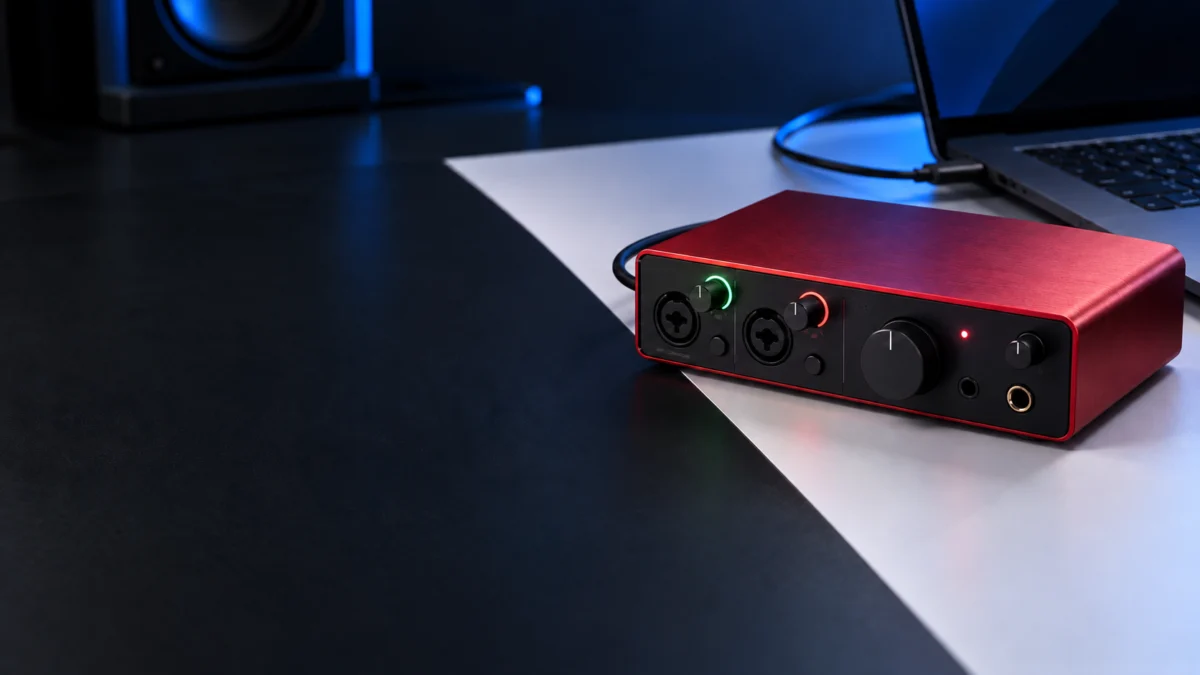
A flashing red USB icon on the Focusrite Scarlett 4i4 4th Gen means the interface is not getting enough power. Focusrite states that the 4i4 4th Gen needs at least 5V at 1.5A. While underpowered, it may still appear in your computer’s Sound Settings, but no audio reaches its outputs and Focusrite Control 2 cannot connect to it.
Source: Focusrite: The USB icon on my Scarlett 4i4 4th Gen is flashing red.
The fastest fix is already in the box. Unplug both cables, connect the included power supply to the rear port labelled 5V DC first, then reconnect the port labelled USB to your computer. If the icon still flashes red, work through the connection, the port, and the cable in that order before you buy anything.
What the Flashing Red USB Icon Means on the 4i4 4th Gen
A flashing red USB icon points to insufficient power; the light alone does not establish whether the hardware has a fault. Focusrite ties it to a supply below 5V at 1.5A, most often a USB-A port with no power supply connected. Recognition and power are separate checks: the 4i4 can be listed as an audio device while sending no audio at all.
The front panel uses several lights, and only one of them points to power. Use this table to confirm you are looking at the right one.
| What you see | What it means | What to do |
|---|---|---|
| USB icon lit green | Your computer recognises the 4i4 | Nothing; the connection is normal |
| USB icon lit white | The 4i4 is disconnected from your computer (standalone mode) | Check the cable between the port labelled USB and your computer |
| USB icon flashing red | The 4i4 is not getting enough power | Follow the fix below |
| Gain Halo around an input knob turns red | That input has clipped, or Auto Gain failed | Lower the input gain; this is not a power problem |
This guide covers the 4th Gen only. Focusrite publishes separate power documentation for the 3rd Gen 4i4, so confirm your model first. The 4th Gen has Auto and Safe buttons on its front panel.
Source: Focusrite: Scarlett 4i4 Hardware Features.
Quick Fix: Power the 4i4 in the Right Order
Start with the included power supply, because it takes your computer’s USB port out of the power equation. Focusrite’s user guide says to unplug both cables, connect the power supply to the 5V DC port first, and only then connect the USB cable to your computer. Check the USB icon after every step below.
The fix takes 5 steps.
- Push both cables in firmly. On the rear panel, press the USB-C plug until it clicks into place, and do the same for the 5V DC cable if you use it. Focusrite notes that a slightly loose connection can stop the interface from being recognised or from receiving enough power.
- Reconnect in the documented order. Unplug both cables. Connect the included power supply to the port labelled 5V DC, then connect the port labelled USB to your computer.
- Connect directly to the computer. Remove any hub, extension cable, or third-party adapter from the chain for this test.
- Try another port. Use a USB-C port if your computer has one. If it only has USB-A, try a different USB-A port with the supplied adapter and keep the power supply connected.
- Swap the cable. Test with a USB cable that is 2 m (6 ft) or shorter and supports USB 2.0 data at 480 Mbps.
Source: Focusrite: Scarlett 4th Gen USB connection and power.
When the icon turns green, open Focusrite Control 2 and play audio through your speakers or headphones. Both must work before you treat the problem as solved, because a listing in Sound Settings alone does not prove the 4i4 has enough power.
USB Port vs. 5V DC Port: Which Cable Goes Where
The 4i4 4th Gen has two rear USB-C ports with different jobs. The port labelled USB connects to your computer and carries power, two-way audio, and the Focusrite Control 2 connection. The port labelled 5V DC only adds power. Connecting the power supply never replaces the USB connection to your computer.
| Port label | Connect it to | What it carries |
|---|---|---|
| USB | Your computer | Power, two-way audio, Focusrite Control 2 connection |
| 5V DC | The included power supply | Extra power only |
Use the power supply that came in the box first; the user guide specifically says to use the original supply. If it is lost or damaged, Focusrite’s charger guidance recommends a charger rated for 7.5W for the 4i4 4th Gen, which matches the 5V at 1.5A requirement. The same guidance says your USB cable must also be rated for the charger’s power output.
Source: Focusrite: What USB charger can I use?.
USB-A, USB-C, Hubs, and Adapters
Your computer’s port type decides whether the 4i4 can run on computer power alone. Focusrite says every USB-C port on a modern computer supplies enough power for the 4i4 4th Gen, while a USB-A port without the power supply triggers the red icon. Its user guide adds that loud headphone playback can exceed some computers’ ports.
USB-A computers: Treat the power supply as required. The 4i4 4th Gen ships with a USB-C to USB-C cable and a USB-A to USB-C adapter for these computers. Focusrite advises against third-party adapters; if the supplied adapter needs replacing, it recommends a USB-C to USB-A cable instead.
USB-C computers: Bus power is normally enough, but the user guide warns that high-power situations, such as playing headphones at a high volume, can make the 4i4 disconnect or flash red on some computers. If the icon turns red only when you turn the volume up, keep the power supply connected to 5V DC.
One independent reviewer, writing for DJ LIFE Magazine, reported that an M1 MacBook Pro powered the 4i4 4th Gen on its own, while a 2021 Intel PC laptop needed the included power adapter. That is a single report, and it does not state the laptop’s port type. It still shows why the power supply is the safer default.
Source: DJ LIFE Magazine: Scarlett 4i4 4th Gen review.
Hubs and extensions: Focusrite recommends connecting the interface directly to your computer. If you must use a hub, use a powered hub with its own power supply. Avoid USB extension cables and repeaters, which Focusrite says can cause dropouts or stop the interface from connecting.
Test the Supplied Cable Before You Buy a Replacement
Buy a cable only after the power supply, a direct connection, and a second port have all failed to clear the red icon. The 4i4 4th Gen ships with a USB-C to USB-C cable. Focusrite recommends that any replacement be 2 m (6 ft) or shorter and support USB 2.0 data at 480 Mbps.
Check a replacement against these conditions:
- Length: 2 m (6 ft) or shorter. Focusrite says longer cables can affect audio quality and connectivity.
- Data: compatible with USB 2.0 (480 Mbps). A charge-only cable is not a valid test.
- Connectors: USB-C to USB-C for a USB-C computer, or USB-C to USB-A for a USB-A computer instead of a third-party adapter.
- Condition: replace the cable if its connector feels loose or the icon changes when you move the cable.
Source: Focusrite: What USB cable can I use?.
For an example of a manufacturer’s published data rating, see Anker’s USB-C cable specifications.
When to Contact Focusrite Support
Contact Focusrite Support if the USB icon still flashes red after the included power supply, a direct connection, another port, and a short USB 2.0 cable. Those checks cover the most likely connection and power causes you can test yourself. Ask support before buying more accessories.
Include these details in your request so support can start from where you stopped:
- Your model (Scarlett 4i4 4th Gen) and your computer model and operating system
- The port type you used (USB-C or USB-A) and whether a hub or adapter was involved
- Whether the power supply was connected to 5V DC during the test
- The USB icon colour, and whether the 4i4 appears in Sound Settings and Focusrite Control 2
Submit a request to Focusrite Support.
How We Researched
This article is based on Focusrite’s official Help Centre articles and the Scarlett 4i4 4th Gen user guide, cross-checked against two independent reviews of the 4i4 4th Gen from SoundGuys and DJ LIFE Magazine. We have not conducted hands-on lab testing. Power figures and procedures are attributed to Focusrite, and the single bus power observation is attributed to its reviewer.
FAQ
Can the Scarlett 4i4 4th Gen run on USB bus power alone?
Yes, when the computer port supplies at least 5V at 1.5A. Focusrite says modern USB-C ports do, while USB-A ports without the power supply trigger the red icon. Loud headphone playback can still exceed some ports, so keep the power supply handy.
Can I use a phone charger instead of the included power supply?
Focusrite recommends a charger rated for 7.5W for the 4i4 4th Gen, with a USB cable rated for the same output. Use the included supply first, since the user guide points to the original supply.
Why does my 4i4 show up in Sound Settings but play no audio?
Focusrite says an underpowered 4i4 4th Gen can still appear as an audio device, but sends no audio to its outputs and does not connect to Focusrite Control 2. Fix the power first; reinstalling software does not add power.
Why does the icon turn red only when I turn my headphones up?
High headphone volume raises the 4i4’s power draw. The user guide says some computers’ ports cannot keep up in that situation. Connect the included power supply to 5V DC so the 4i4 is not relying on the computer’s port alone.
Conclusion
A flashing red USB icon on the Scarlett 4i4 4th Gen is a power problem with a free first fix: reseat both cables, connect the included power supply to 5V DC, then connect USB to your computer. Check direct connection, another port, and a short USB 2.0 cable next. Buy a cable only if those checks point to it, and contact Focusrite Support if nothing clears the icon.