If your eero Max 7 keeps switching from wired backhaul to wireless, check your network topology before you replace a single cable. eero’s documentation requires every additional eero to connect through one gateway eero, and it warns that placing the gateway and remaining eeros together on one upstream switch causes a gateway conflict and network instability. Cable faults and switch features are real causes, but they sit further down the list. Work through the layers in order — topology, then ports and link negotiation, then the cable, then switch features, then software state — changing only one variable per attempt. That sequence is what tells you which layer actually failed.
Quick fix checklist
- Read the connection type on the individual eero’s detail page, not just the app home screen.
- Confirm every additional eero connects back to the gateway eero, directly or through a switch placed after it.
- Confirm no switch sits between your modem or ONT and the gateway eero.
- In bridge mode, confirm one eero is still wired and all connections funnel through it.
- Move the backhaul cable to a different port on the eero Max 7 and retest.
- Swap in a different Cat5e, Cat6, or Cat6a cable and retest.
- On a managed switch, disable Spanning Tree Protocol and IGMP, and remove VLANs and QoS.
- Reboot upstream to downstream: modem or ONT, gateway eero, switch, then remaining nodes.
Confirm Whether the eero Max 7 Actually Left Wired Backhaul
Do not judge from the eero app home screen alone. Open each eero’s own detail page and check its connection type there. eero support has advised customers to verify on the device page first, because the home screen can show a stale state. Confirm the symptom before you troubleshoot it.
eero documents two connection symbols. For a node, Wired means it is hardwired using Ethernet to the gateway eero, directly or via a network switch; for the gateway itself, it means a WAN connection over Ethernet. Wireless means the eero is on wireless mesh, with quality shown in up to four bars, where zero bars means it has lost its mesh connection and dropped offline.
That distinction matters because a dropped Ethernet link between nodes and a Wi-Fi client that keeps disconnecting look similar from the couch, yet live in different layers and need different tests.
| What you observe | Most likely layer | First thing to check |
|---|---|---|
| A node’s detail page flips between Wired and Wireless while the cable stays plugged in | Physical link or switch path | Port, cable, and switch features on that run |
| Node shows Wireless on the home screen but Wired on its detail page | App display state | Force-close and reopen the app, then recheck |
| Nodes stay Wired, but wired clients lose internet while Wi-Fi clients keep working | Switch or upstream path | Switch features, uplink port, gateway placement |
| Nodes stay Wired, but one laptop or phone keeps dropping Wi-Fi | Wireless client | Client adapter, driver, band or MLO settings |
| A node never appears as Wired at all after being cabled | Topology | Whether that run terminates behind the gateway eero |
If the wired backhaul stays stable but a Windows 11 Wi-Fi 7 client still disconnects, that is a client-side issue, and our guide to Wi-Fi 7 MLO disconnects on Intel BE200 adapters covers the adapter and router settings involved.
According to the eero Max 7 specifications, the device has two auto-sensing 10 Gigabit Ethernet ports and two auto-sensing 2.5 Gigabit Ethernet ports, and is compatible with internet plans up to 10 Gbps. Four ports per unit is more than most eero models carry, which widens the layouts available to you.
Check the Network Topology Before Replacing Cables or Hardware
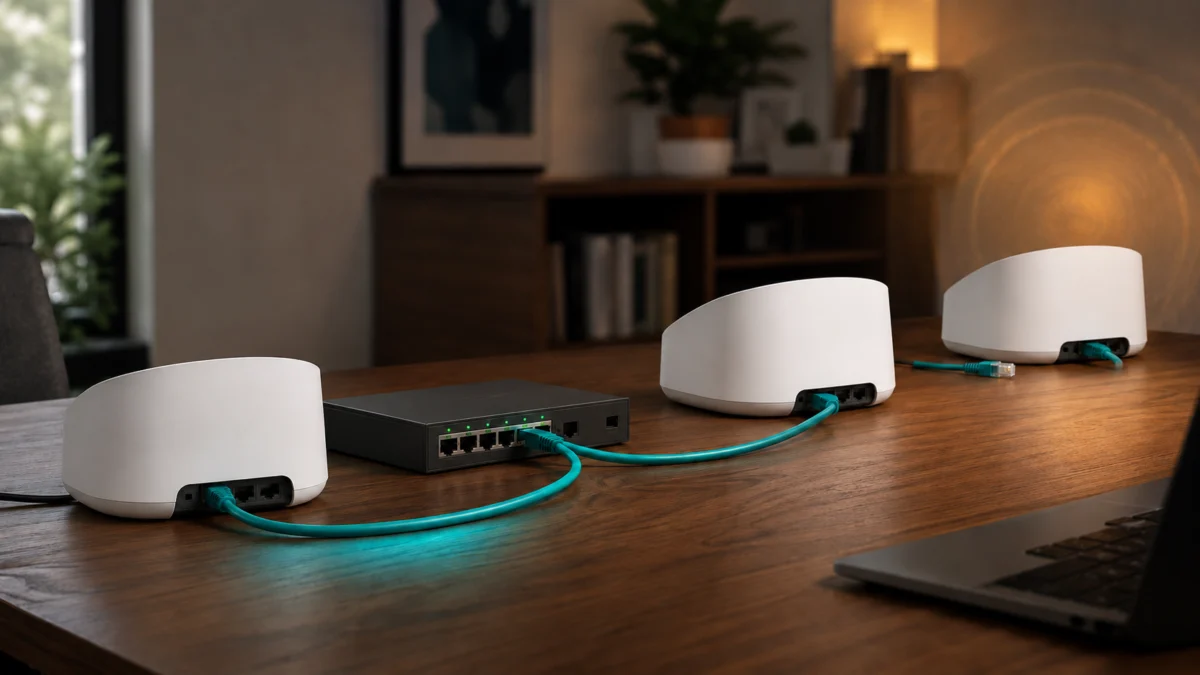
eero’s official rules are specific. Connect the switch after your gateway eero, never directly to the modem. Putting the gateway and remaining eeros together on one upstream switch causes a gateway conflict and network instability. In bridge mode, one eero must stay wired, and all connections must funnel through that single gateway eero.
The official eero topology guidance states that one Ethernet port on the gateway eero must connect to your modem, and that a switch belongs after the gateway eero in the network’s setup.
| Layout | Status per eero documentation |
|---|---|
| Modem or ONT → gateway eero → switch → other eeros | Documented as the standard way to add ports and wire nodes |
| Modem or ONT → gateway eero → eero → eero (daisy chain) | Documented as a supported alternative to a central switch |
| Modem or ONT → switch → all eeros including the gateway | eero warns this causes a gateway conflict and network instability |
| Switch placed on the modem, ahead of the gateway eero | eero instructs you to plug the switch into the eero, not the modem |
| Node cabled to a wireless eero | Documented: those devices communicate over wifi, so latency is higher |
The last row is worth reading twice. If a run terminates at a node that is itself meshing wirelessly, the traffic is not on a wired path no matter how good the cable is.
eero’s bridge-mode documentation adds a constraint for readers running an external router. Putting an eero network in bridge mode turns off eero network services while allowing the eeros to continue providing wifi access. One eero must remain wired into the network, and all connections must funnel through that gateway eero. If your external router feeds several eeros in parallel through a shared switch, that does not match the documented condition. eero gives the setting path as Settings → Advanced networking → DHCP & NAT, and notes that switching back to Automatic restarts the network and that devices may need to reconnect.
Test the 10GbE and 2.5GbE Ports, Cable Path, and Link Negotiation
Each eero Max 7 has two auto-sensing 10 Gigabit Ethernet ports and two auto-sensing 2.5 Gigabit Ethernet ports, and eero specifies Cat5e, Cat6, or Cat6a cable between nodes. Test the physical path by changing exactly one thing per attempt: one port, one cable, one run. Record every result.
The fix takes 6 steps.
- Write down the current wiring: which port on which eero, which switch port, which wall run. You cannot evaluate a change you did not baseline.
- Move the backhaul cable to a different port on the same eero Max 7 and leave it for a full day of normal use. If the symptom follows the port, the port is implicated; if not, it is cleared.
- Move the run to the other speed tier — 10GbE to 2.5GbE, or the reverse. Auto-sensing ports negotiate a rate with the far end, and a marginal run can behave differently at a different rate.
- Swap in a different cable of a category eero specifies, keeping everything else identical.
- If the run passes through a wall or patch panel, bypass it with a single temporary cable across the floor. This is the only way to separate the cable from its terminations.
- Recheck the node’s detail page after each change and note how long it stayed Wired.
Do not conclude a cable is bad because its category number looks old or new. eero’s stated requirement is Cat5e, Cat6, or Cat6a, and a run meeting that spec and terminating correctly is not disqualified by its label. Step 4 is not a category upgrade — it removes one variable. Keep a known-good spare cable on hand purely so you can perform that swap without guessing.

Please check the Amazon product page for the latest price and availability.
Check Managed-Switch Features and Simplify the Ethernet Path
eero recommends unmanaged switches, especially when eeros are hardwired to one another. If you must keep a managed switch, eero recommends disabling Spanning Tree Protocol and IGMP, and removing any VLANs or Quality of Service features. Simplify the Ethernet path first, then decide whether the switch itself needs replacing.
This position is documented, not inferred. eero states that most unmanaged switches work with eero, advises selecting one that fits your internet service speeds, and warns that the enhanced functionality on managed switches can negatively impact the throughput of your eeros. eero also notes that an eero port configures itself automatically once a switch is connected — there is no wired-backhaul toggle to enable, so a node that will not show as Wired points to the physical path or the topology, not to a setting you missed.
What Users Report About Intermittent Ethernet Backhaul Loss
According to multiple community reports on eero’s official forum, some users on earlier eero generations saw Ethernet backhaul fail intermittently and nodes fall back to wireless. Those reports are not confirmed for the eero Max 7, so treat them as a pattern to check rather than a diagnosis.
In one official community thread, a user running a gateway eero into an unmanaged switch that fed two further eeros described the wired path failing after periods ranging from hours to months, with the eeros sometimes falling back to wireless while Ethernet-connected devices stopped reaching the internet. A second user in the same thread reported the same pattern on a different unmanaged switch model, and said replacing it with an identical new unit did not resolve it. A third reported the symptom appearing after a software update.
Take two things from that and nothing more. An unmanaged switch is not automatically exonerated, and neither is a new one of the same model — which is why the substitution below is a test, not a fix. And these reports involve earlier eero hardware, with no confirmation that the eero Max 7 behaves the same way.
If you have disabled the managed features eero lists and the path still will not hold, put a plain unmanaged switch in that position temporarily, rated for your service speed. If a simple switch holds the link where a feature-rich one did not, you have located the layer without replacing anything permanently.
Reboot in a Controlled Order, Escalate to eero Support, or Replace One Component
Reboot from upstream to downstream, waiting for each device to come fully online before starting the next. Adaptive Ethernet Mode cannot explain node-to-node backhaul loss, because eero states it applies only to the gateway’s WAN port. If nothing holds, escalate with your recorded test results.
Order matters, because a node that comes up before its upstream path is ready can settle into a wireless mesh and stay there. Restart in this sequence, letting each device reach a steady state first: modem or ONT, gateway eero, switch, remaining eeros. eero documents its status light as blinking blue when an eero is ready to be added, solid white when it is online, and solid red when it was added but has no internet connection.
One common misattribution is worth clearing. eero describes Adaptive Ethernet Mode as a power-saving feature in eeroOS 7.1.0 and later that matches the gateway eero’s WAN port speed to actual internet speed, and lists the eero Max 7 among supported models. Crucially, eero states it applies only to the WAN port and does not currently apply to LAN ports. Because node-to-node backhaul runs over LAN ports, this feature does not explain a node dropping off the wired path. The toggle sits under Settings → Advanced networking → Eco Efficiency.
If every layer checks out and the link still will not hold, contact eero support rather than continuing to swap parts. eero support works down the same chain: the gateway eero’s spare port, the cable between gateway and switch, the switch itself, then the individual switch port. Bring your wiring layout, the eeroOS version, which node is affected, how long it holds before changing state, and each single-variable test result.
Two cautions before buying hardware. Check the manufacturer’s official specifications for any switch or cable against your own service speed and port layout, since a component that suits one topology may not suit another. And if your Ethernet runs are inside walls, in a shared riser, or terminate at a patch panel you do not own, consult a qualified installer, your landlord, or your building manager before altering them. No configuration described here guarantees uninterrupted operation.
How We Researched
This article is based on eero’s official support documentation and on reports posted in eero’s official community forum. We have not conducted hands-on lab testing. Every specification and configuration rule above is attributed to official eero material, and every user-reported pattern is clearly identified as a community report.
We worked from eero’s published support articles covering the eero Max 7 hardware, Ethernet backhaul between eeros, adding Ethernet ports and switches, managed versus unmanaged switch guidance, bridge mode, the app’s connection indicators, and Adaptive Ethernet Mode. Community reports were taken from a thread on eero’s official forum in which more than one user independently described the same failure pattern. Statements about what eero does or does not document apply only to the official pages we checked.
Frequently Asked Questions
These are the questions that come up most often once wired backhaul starts behaving inconsistently on an eero Max 7 network. Each answer stays within what eero’s official documentation confirms, and flags where a behavior depends on your specific configuration rather than applying to every setup.
Can the eero app show the wrong backhaul type?
eero support has directed customers whose node shows as wireless to check that eero’s own detail page, on the basis that the home screen may be showing a display state rather than the live connection. Check the detail page before treating a home screen reading as the symptom.
Can I connect all my eero Max 7 units to the same switch?
Only if that switch sits after your gateway eero. eero states all eeros can be connected to the gateway eero via an Ethernet switch, with the gateway connected to the modem or ONT. It separately warns that connecting the gateway and all remaining eeros to one shared upstream switch causes a gateway conflict and network instability.
Does Adaptive Ethernet Mode affect backhaul between nodes?
No. eero states that Adaptive Ethernet Mode applies only to the WAN port and does not currently apply to LAN ports. Since node-to-node backhaul runs over LAN ports, the feature is not a cause of a node leaving the wired path, though it can affect gateway WAN speed after a plan change or reboot.
The Bottom Line
Topology comes first. eero’s documentation requires all connections to funnel through one gateway eero, and warns that putting the gateway and all remaining nodes on one shared upstream switch creates a gateway conflict. Confirm that layer, then work down through ports, cable, switch features, and software state, changing one variable at a time.
Every layer below topology can produce the same symptom, so buying a cable or a switch before checking the layout means you may have fixed nothing while believing you did. Keep a written record of each single-variable test — that record is what turns a recurring annoyance into a diagnosis, and it is what eero support will ask you for.