If your monitor is not detected through the Razer Thunderbolt 5 Dock Chroma on Windows 11, start with three checks: confirm that the laptop uses the upstream port, verify that the display cable carries video, and check how many external displays the laptop’s Thunderbolt controller and GPU support. Razer states that the dock is limited by the bandwidth and display capabilities of the host, so replacing the dock may not restore a missing third screen. This guide separates four symptoms — no picture at all, only the second or third screen missing, video failing only at high refresh rates, and screens disappearing after sleep — and gives a check order that avoids unnecessary resets and returns.
Quick Answer: Check the Host’s Display Limit Before Replacing the Dock
Check your laptop’s Thunderbolt generation before suspecting the dock. Razer confirms that the dock falls back to the bandwidth and display capabilities of the connected host. A Thunderbolt 4 host cannot use the dock’s full Thunderbolt 5 display capability, while USB4 display support varies by laptop implementation.
Razer’s product page advertises three 4K displays at 144 Hz or a single 8K display at 60 Hz. Its RC21-0229x support page adds that triple-monitor support depends on the Thunderbolt controller inside your laptop, which is set by the laptop manufacturer rather than by the dock.
What “Triple 4K 144 Hz” Actually Depends On
The advertised triple 4K 144 Hz figure describes the dock attached to a Thunderbolt 5 host with a GPU able to drive those streams. Intel describes one Thunderbolt 4 port as supporting up to two 4K 60 Hz displays, so a third screen is outside that published configuration and must be checked against the laptop’s own specification.
| Host port on your laptop | Practical display guidance | Third monitor |
|---|---|---|
| Thunderbolt 5 | Razer advertises three 4K displays at 144 Hz; Intel lists dual 8K support for the standard | Possible if the host controller, GPU, monitors, and cables support the configuration |
| Thunderbolt 4 | Intel lists up to two 4K displays at 60 Hz or one 8K display | Outside Intel’s stated dual-4K configuration; check the laptop specification |
| USB4 | Varies by the laptop maker’s implementation | Not guaranteed; check the laptop’s specification sheet |
| USB-C without Thunderbolt support | Outside Razer’s stated compatibility | No display output should be expected |
See Intel’s Thunderbolt technology overview for the current Thunderbolt 4 and Thunderbolt 5 bandwidth and display comparison.
What Still Works? Separate Dock Detection, USB Devices, and Video Output
Test each function separately before changing anything. Chroma lighting, USB peripherals, Ethernet, the internal M.2 drive, and video output travel different paths inside the dock. Recording which of them work narrows the fault to the host connection, the display cable, the available bandwidth, or the dock hardware itself.
| What you observe | Most likely layer | Where to go next |
|---|---|---|
| No lighting, no USB, no network | Power or upstream connection | Confirm the 250 W adapter and the upstream port |
| USB, Ethernet and lighting work, no monitor appears | Display cable or port choice | Check the upstream port and both cables |
| One monitor works, the second or third does not | Host display ceiling or bandwidth | Compare your host generation, then reduce the load |
| Monitors work at 60 Hz but not above it | Bandwidth or cable rating | Lower resolution, refresh rate, HDR and color depth |
| Monitors go blank only after sleep | Graphics switching or GPU driver | Update graphics drivers; check the laptop maker’s notes |
| Windows never lists the dock at all | Host firmware or Thunderbolt configuration | Contact the laptop manufacturer about BIOS support |
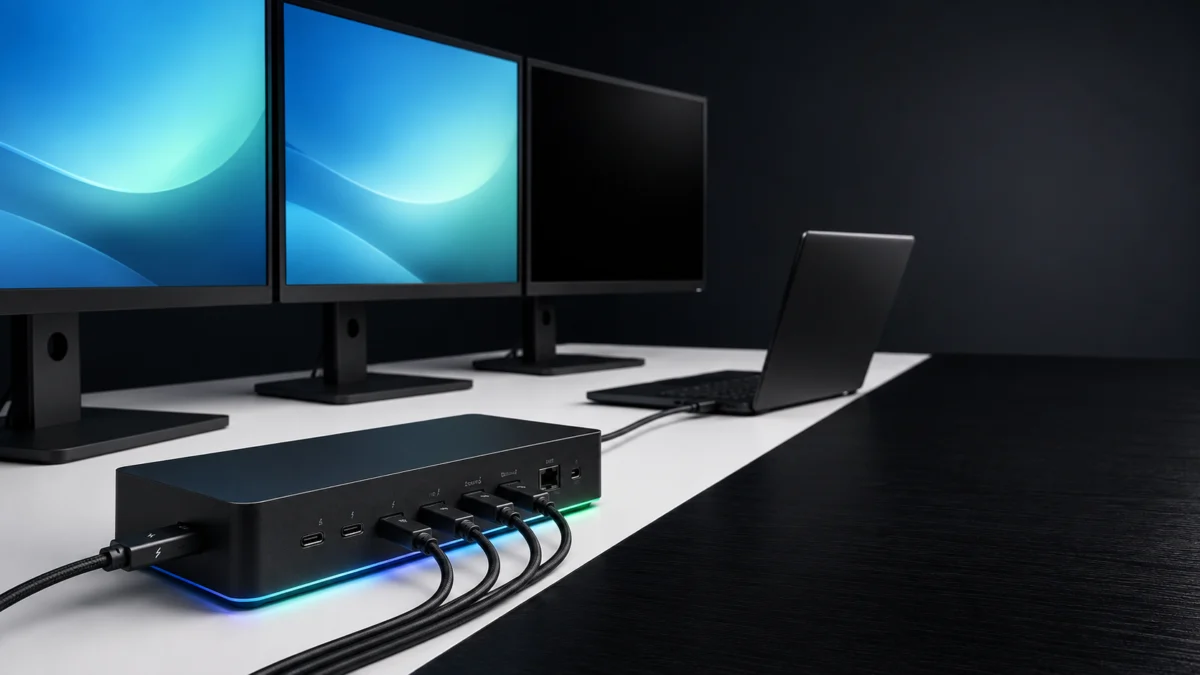
Confirm the dock’s port layout against Razer’s official product diagram while you do this, because the upstream and downstream Thunderbolt 5 connectors look identical on the rear panel.
Check the Upstream Port, the Supplied Cable, and Your Display Cable
Connect the laptop to the upstream Thunderbolt 5 port marked with a laptop icon, using the Thunderbolt 5 cable supplied with the dock. All video leaves the dock through the three downstream Thunderbolt 5 ports. Razer identifies cables that do not carry DisplayPort Alt Mode as a common reason displays produce no picture.
This dock has no HDMI or DisplayPort connector. Razer’s port list covers Thunderbolt 5 upstream and downstream ports, USB-A and USB-C data ports, Ethernet, audio, an SD slot and an internal M.2 slot — no dedicated video output. Every monitor connects through a downstream Thunderbolt 5 port.
- Upstream port: the host cable belongs in the port marked with the laptop icon. A host in a downstream port may draw power without passing video or PCIe data to Windows.
- Host cable: use the Thunderbolt 5 cable in the box. A charging cable that fits the same connector may carry only USB 2.0 data and no video.
- Display cable: for a Thunderbolt or USB-C monitor, Razer specifies a certified Thunderbolt cable or a USB-C cable with DisplayPort Alt Mode support. A monitor with only HDMI or DisplayPort inputs needs an adapter rated for your resolution and refresh rate.
- Monitor in isolation: connect the same monitor directly to the laptop with a known-good cable. If it fails there too, the monitor or cable is the variable.
AD: The links below are affiliate links. Fixory may earn a commission from qualifying purchases, at no additional cost to you.
Certified Thunderbolt 5 cable
/
USB-C to DisplayPort 2.1 cable
/
USB-C to HDMI 2.1 adapter
For the differences between certified Thunderbolt 5, Thunderbolt 4 and generic USB-C cables, see our Thunderbolt 5 cable guide.
Why the USB-C 3.2 Gen 2 Port Is Not a Video Port
Razer lists the single USB-C port as a 10 Gb/s USB-C 3.2 Gen 2 data port alongside the USB-A ports, not as a display connector. The company directs display connections through the downstream Thunderbolt 5 ports. If a monitor is attached to the data port, move it to one of those Thunderbolt ports first.
The connector is physically identical to the downstream Thunderbolt 5 ports, so verify the port label and check Windows again after moving the cable.
Reduce the Display Load, Then Update Windows, GPU Drivers, and Dock Firmware
The fix takes 7 steps. Work through them in order, because each step removes one variable. Lowering the display load first tells you whether the problem is available bandwidth or software, and that answer decides whether driver and firmware work is worth doing at all.
- Power-cycle the dock completely. Disconnect the host cable, unplug the 250 W adapter from the wall, wait about a minute, then reconnect power first and the host cable second.
- Confirm the physical routing. Host cable in the upstream port, every monitor on a downstream Thunderbolt 5 port, with cables that carry a video signal.
- Reduce the display load. Open Settings → System → Display, set the affected monitor to 60 Hz, turn off HDR, and drop 10-bit color to 8-bit. If the screen appears, available bandwidth or a display-mode limit is involved.
- Ask Windows to look again. Open Settings → System → Display → Multiple displays and select Detect.
- Update the graphics driver. Take it from your laptop manufacturer’s support page or the GPU vendor, then run Windows Update and restart.
- Update the dock firmware. Razer lists firmware v67.01_r1, dated July 2, 2026, with a stated stability improvement. The official procedure requires the laptop on wall power, applications closed, the dock connected through the upstream port, and the update left uninterrupted.
- Pause M.2 storage traffic temporarily. Do this only if screens drop during large transfers. Retest with transfers stopped and the internal drive idle. A difference identifies the combined storage-and-display workload as a variable to investigate, but it does not by itself prove a dock fault.
Razer describes this firmware as a stability improvement and does not state that it resolves specific display detection faults, so treat it as a baseline to reach rather than as a fix in itself.
One caution on BIOS settings. Community threads discuss changing host BIOS options such as Intel VMD or hybrid graphics to make a dock enumerate. Those changes can break a RAID array or leave a system unable to boot, and they fall outside what this article can advise. If Windows never lists the dock, contact your laptop manufacturer about Thunderbolt support and BIOS updates for your exact model instead.
What Multiple Community Reports Describe
Some community reports describe external screens dropping while large files are written to the dock’s internal M.2 drive, while others describe monitors staying blank after a hybrid-graphics laptop wakes from sleep. These reports do not establish one cause across all systems, so test whether the symptom follows the storage workload or sleep state on your own configuration before acting.
Test Another Host, Then Decide Whether to Contact Razer or Replace the Dock
Test the dock on a second laptop using a cable and a monitor you already know work. If video fails on both hosts, the dock is the variable worth escalating. If it works on the second host, the limitation belongs to the first laptop’s Thunderbolt controller, GPU, or firmware rather than to the dock.
Razer’s multi-monitor support guidance follows the same logic: connect the dock to a Thunderbolt 5 or Thunderbolt 4 port with the supplied cable, confirm each monitor’s resolution is within the supported range, and verify the cables are correctly rated.
Contact Razer support when:
- A single 1080p or 4K 60 Hz monitor produces no picture on two different laptops, using a cable and monitor confirmed to work elsewhere.
- The dock is not recognized on any host after a full power cycle and a confirmed upstream connection.
- The firmware update fails repeatedly or leaves the dock unresponsive.
- The unit produces abnormal noise, heat, or shutdowns during normal use.
A replacement dock may not help when:
- A third monitor is missing on a host whose published specification supports only one or two external displays.
- A repeatable screen drop appears only during sustained transfers to the internal M.2 drive; isolate the shared workload and host behavior before assuming a hardware defect.
- Screens are blank only after waking from sleep on a laptop with switchable graphics.
- The laptop discharges while gaming. The dock supplies up to 140 W, and a laptop drawing more under load needs its own adapter connected as well.
If you do replace the unit, confirm you are ordering the Thunderbolt 5 model rather than the older Thunderbolt 4 Dock Chroma, and check the color variant, since only the black version carries Chroma lighting. This dock sits in the premium tier, and Razer publishes its own warranty and return terms — review those first.
Check the Black Chroma model on Amazon
/
Check the Mercury model on Amazon
/
Official site
If the dock simply does not match your laptop’s display controller or your monitors’ inputs, our Thunderbolt 5 dock comparison covers models with native DisplayPort or HDMI outputs and different display-count behavior.
Frequently Asked Questions
Three questions cover common remaining cases. The dock works on a Thunderbolt 4 laptop but only at that host’s display limits, a missing third screen may reflect the host’s controller or GPU limit, and monitors with HDMI or DisplayPort inputs need an adapter because this dock has no native video connector.
Does the Razer Thunderbolt 5 Dock Chroma work with a Thunderbolt 4 laptop?
Yes. Razer states that the dock is backward compatible with Thunderbolt 4, Thunderbolt 3, and USB4 hosts, but that the connection is capped by the bandwidth and display capabilities of that host. In practice, a Thunderbolt 4 laptop remains limited to the display configuration supported by its own controller and GPU.
Why does only my third monitor fail to appear?
A third display needs a host controller, GPU, and display configuration that support three streams at once. Thunderbolt 4 guidance centers on up to two 4K displays, while USB4 capabilities vary by implementation. On a Thunderbolt 5 laptop, lowering resolution, refresh rate, HDR, or color depth may allow the third screen to appear.
Do I need an adapter to connect an HDMI or DisplayPort monitor?
Yes. This dock has no HDMI or DisplayPort connector, so monitors without a Thunderbolt or USB-C video input need an adapter on a downstream Thunderbolt 5 port. Choose one rated for your target resolution and refresh rate, since an under-specified adapter can leave the screen blank.
How We Researched
This article is based on Razer’s official product and support documentation, Intel and Thunderbolt Technology specification material, and community reports compared across multiple threads. We have not conducted hands-on lab testing. Specification figures come from official sources, and behavior described by users is identified as community reporting rather than as verified fact.
Single, uncorroborated reports were excluded, and no BIOS-level workaround is recommended here. Nothing in this guide replaces guidance from Razer support or your laptop manufacturer.
Conclusion: Confirm the Host Before Replacing Hardware
Work in one order: upstream port, supplied host cable, display cable, host display ceiling, then reduced display load, drivers, and firmware. Only after a second laptop shows the same failure is the dock itself the likely fault. That sequence can resolve a missing-monitor problem without an unnecessary return or purchase.
The dock cannot exceed what your laptop’s Thunderbolt controller and GPU allow. A missing third screen may be a host limit, and treating it as a defect can lead to a replacement that behaves the same way.