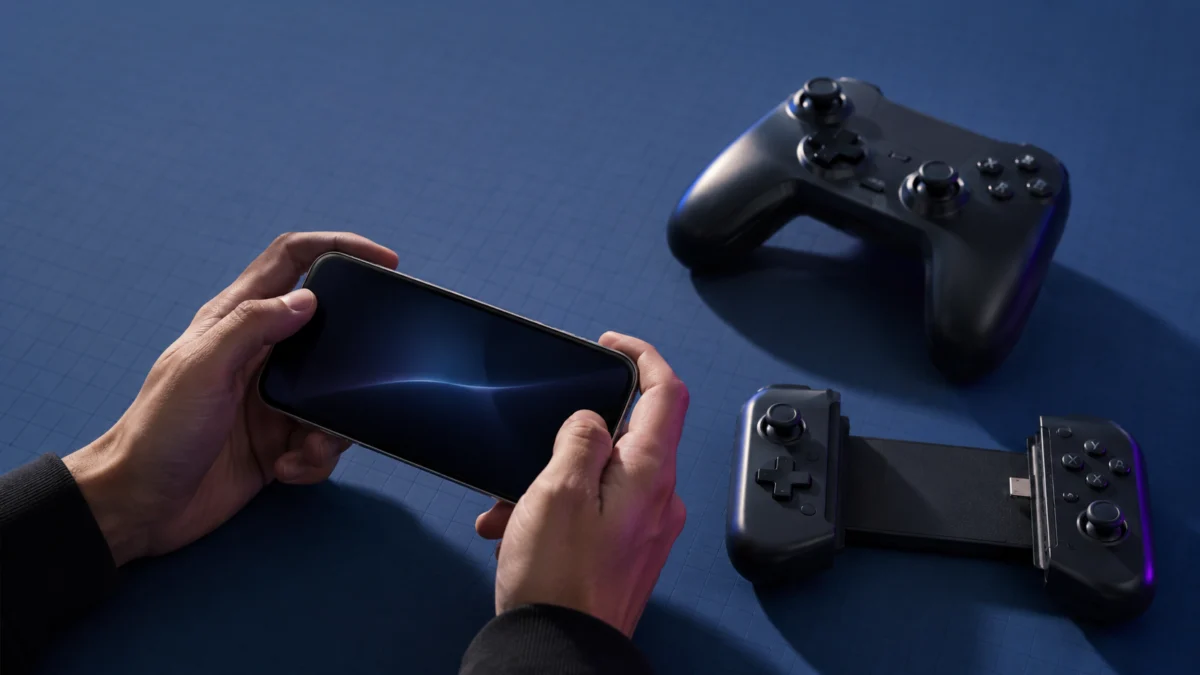
A phone connecting to a controller and a game accepting controller input are two separate layers — and most “controller not working” problems live in the gap between them. Your iPhone or Android phone can pair with a controller perfectly over Bluetooth, yet the game still ignores every button, because the game itself may not support controllers. Before changing any settings, identify which layer is failing: pairing (the phone never sees the controller), phone input (paired but no input anywhere), or game support (works in menus or other apps but not this game). This guide walks through each layer separately for iPhone and Android, then covers USB-C controllers, specific controller models, and cloud gaming, using only official documentation and patterns reported across community sources.
Start Here: Is the Problem Pairing, Phone Input, or Game Support?
Controller problems on phones fall into three layers: the phone never detects the controller, the controller pairs but no input registers anywhere, or the controller works on the phone but not inside one specific game. Identifying the layer first prevents re-pairing a controller when the real issue is an app that never supported controllers.
Match your exact symptom to the layer below, then jump to the matching section.
| Symptom | Most likely layer | Where to check |
|---|---|---|
| Controller never appears in Bluetooth settings | Pairing | Pairing mode + iPhone / Android sections |
| Pairing starts but fails or drops immediately | Pairing | Pairing mode, OS version, controller model |
| Paired and connected, but no input in any app | Phone input | Controller model notes (mode/firmware) |
| Phone menus respond, but the game ignores input | Game support | “Connected but not working in a game” |
| USB-C controller plugged in but nothing happens | Connection / host support | “USB-C mobile controller not working” |
| Cloud gaming or remote play app doesn’t detect it | App-specific support | “Cloud gaming and remote play checks” |
| Only some buttons or sticks respond | Mode / mapping | Controller model notes |
| Works in one game, not another | Game support | “Connected but not working in a game” |
The key distinction: a controller showing as “Connected” in your phone’s Bluetooth settings only confirms the phone-to-controller link. Whether the controller actually does anything depends on the game or app you open next. Keep these two layers separate as you work through the rest of this guide.
iPhone Checks: Bluetooth, iOS Version, and Game Compatibility
On iPhone, you pair most controllers through Settings → Bluetooth, then customize them under Settings → General → Game Controller. Apple supports Xbox, PlayStation, and other standard Bluetooth controllers, but two conditions must also be met: your iOS version must support that specific controller, and the game you open must offer controller support. A correct pairing alone is not enough.
Work through these checks in order. The fix takes 6 steps.
- Confirm Bluetooth is on. Open Settings → Bluetooth and make sure it is enabled.
- Remove any old pairing. If the controller was paired before, tap it in the Bluetooth list, choose Forget This Device, then start fresh. Stale pairings are a common cause of “won’t reconnect.”
- Put the controller into pairing mode. This is controller-specific — see the controller-by-controller section below. Pairing mode is different from simply turning the controller on.
- Select it in Bluetooth. In Settings → Bluetooth, tap the controller under Other Devices when it appears.
- Update if prompted. If iOS reports that the controller needs a firmware update, follow the manufacturer’s instructions to update it, then pair again.
- Check the game’s controller support. Open the game and look in its settings for a controller option. Apple Arcade games show a controller icon when they support one.
For Apple’s own setup instructions, see Apple’s guides on connecting a wireless game controller to your Apple device, including its dedicated steps for PlayStation and Xbox controllers.
Two caveats matter on iPhone. Some controllers can pair and connect automatically when plugged in with a USB cable that supports data and charging, but USB behavior varies by iPhone model and controller. And not every controller is supported on every iOS version — according to multiple guides, support for the Nintendo Switch Pro Controller on iPhone is reported to require iOS 16 or later, so older iOS versions may not pair it. Do not assume a controller that works on a PC will automatically work on your iPhone.
Android Checks: Bluetooth, USB-C, OTG, and Device Differences
Android supports controllers over both Bluetooth and a wired USB-C connection. Android has supported a wide range of game controllers for many versions, and modern Android accommodates popular gamepads, so a current phone generally pairs them without extra apps. Behavior can still differ between phone manufacturers, so an identical controller may not behave identically on every Android device.
Run these checks for a Bluetooth controller. The fix takes 5 steps.
- Enable Bluetooth. Open Settings → Connected devices → Connection preferences → Bluetooth and turn it on.
- Remove old pairings. Forget the controller if it was paired before, then re-pair from scratch.
- Put the controller into pairing mode using its model-specific button combination (see below), then choose Pair new device.
- Select the controller from the list when it appears and wait for it to connect.
- Confirm the game supports controllers. As on iPhone, a connected controller does nothing if the game has no controller support.
Android’s developer documentation covers how games support game controllers and how both wired and wireless gamepads are handled as input, which is useful background on why support can vary by game.
For a wired controller, Android uses USB host mode (often called OTG). Plug a USB-C controller directly into the phone’s USB-C port; for older controllers with a USB-A plug, you need a USB OTG adapter. Two points are worth checking before assuming the controller is faulty:
- USB host / OTG support varies by device. Most modern Android phones support it, but support and reliability can differ between manufacturers and chipsets.
- Manufacturer power settings can drop the connection. According to multiple community reports, some users see Bluetooth controllers disconnect after a period of inactivity on certain phones with aggressive battery optimization. Where this happens, setting the controller or Bluetooth app to unrestricted background activity has helped — check whether your device offers that option before concluding the controller is broken.
Controller-by-Controller Notes: Xbox, DualSense, Switch Pro, 8BitDo, USB-C
Most controller failures on phones come down to two misunderstandings: assuming “wireless” means “Bluetooth,” and assuming PC or console compatibility means phone compatibility. The notes below separate what is officially confirmed for each controller family from what depends on model, OS version, or mode. Always verify your exact model before buying for phone use.
Xbox controllers
For an Xbox controller, Bluetooth is the connection that matters on phones — and not every Xbox controller has it. Microsoft’s “Xbox Wireless” is a separate proprietary protocol used for console play that a phone cannot connect to. Only Xbox controllers with built-in Bluetooth can pair with a phone, so confirm your specific controller supports Bluetooth before troubleshooting further.
As widely reported, the Xbox Wireless Controller added Bluetooth starting with the model released alongside the Xbox One S, and later controllers including the Xbox Series X|S controller also support it; some earlier Xbox One controllers do not. A practical way to tell them apart: on Bluetooth-capable models, the plastic around the Xbox button matches the texture and color of the controller’s face, while on the older non-Bluetooth models it is a separate, glossy piece. To pair, press the Xbox button to power on, then hold the small Connect button on top until the Xbox button flashes rapidly.
PlayStation DualSense and DualShock 4
Sony’s DualShock 4, DualSense, and DualSense Edge controllers work with phones over Bluetooth, and on Apple devices they can also pair automatically when plugged in with a data-capable USB cable. To enter Bluetooth pairing mode, hold PS + Share on a DualShock 4, or PS + Create on a DualSense, until the light bar flashes.
Advanced features such as adaptive triggers and haptics are tied to the PS5 itself, and their availability varies or is unavailable when the controller is used on a phone.
Nintendo Switch Pro Controller
The Switch Pro Controller pairs over Bluetooth using the small Sync button on top, but its phone support is conditional and is not the controller’s primary use case. According to multiple guides, it connects over Bluetooth on modern Android phones, and on iPhone and iPad its support is reported to require iOS / iPadOS 16 or later. Because Nintendo does not document phone use directly, verify behavior on your own device rather than assuming it.
Even where it pairs, it is not as broadly supported across apps and cloud services as the Xbox or DualSense controllers. Check support per game or service rather than assuming it works everywhere.
8BitDo controllers
Many 8BitDo controllers have a hardware mode switch — commonly Switch, DirectInput, Xbox/XInput, and a dedicated mobile or Bluetooth position on newer models — and the wrong mode is a frequent reason a controller pairs but behaves oddly. Set the correct mode for your target device before pairing.
For Apple devices specifically, 8BitDo notes that controllers typically require a firmware update first, and the minimum supported iOS, iPadOS, or macOS version differs by model; check 8BitDo’s Apple compatibility page for your exact controller before assuming it is incompatible.
USB-C mobile controllers
USB-C clamp-style controllers depend on physical fit and port support as much as software. Confirm the controller matches your phone’s connector position and size, that any case is thin enough to fit, and that the manufacturer officially lists your phone’s OS version as supported.
As an example of the kind of requirement to check, popular USB-C clamp controllers state minimum requirements such as a recent iOS or Android version on phones with a USB-C connector. We cannot confirm fit for a specific phone-and-case combination here, so check the maker’s official supported-device list before buying.
Connected to the Phone but Not Working in a Game
If your controller shows as connected but does nothing inside a game, the game itself is the most likely limiting layer. Many mobile games have no controller support, and some support a controller only in menus or only during gameplay. This is not a fault in your phone or controller — it is a decision made by the game’s developer.
Check these in order:
- Look in the game’s own settings for a controller or input option and make sure it is enabled. Some games require you to manually select the controller.
- Confirm the game actually supports controllers. Check the App Store or Google Play listing or the developer’s site. Touch-first titles often require touch controls and ignore gamepads entirely.
- Test a known controller-friendly game. If the controller works in one game but not another, the problem is app support, not your hardware or pairing.
About key-mapping apps: third-party tools that translate controller input into on-screen touches exist, but they add input latency and can carry real risks — many online games and titles with anti-cheat or strict terms of service prohibit them, which can put your account at risk. We do not recommend using them to force controller support in games that don’t natively offer it, especially online or competitive titles.
USB-C Mobile Controller Not Working
When a wired USB-C controller doesn’t respond, the cause is usually physical fit, the phone’s USB host support, or a setup step on the controller itself — not a dead controller. Because a wired connection has more failure points than Bluetooth, work through the physical and host-support checks before assuming hardware failure.
- Physical fit and case interference. A case can stop a clamp controller from seating fully on the USB-C port. Remove the case and try a direct connection to confirm.
- Port condition and orientation. Check the USB-C port for lint or debris, and make sure the connector is fully seated.
- USB host / OTG support. On Android, the phone must support USB host mode for a wired controller to work; support can vary by device.
- iPhone USB-C behavior. On USB-C iPhones, wired controller behavior depends on the model and the app — confirm against the controller maker’s stated support rather than assuming.
- Firmware or companion app. Some USB-C controllers need a firmware update or a companion app configured before they work correctly.
- Hubs and adapters. A USB-C hub or adapter between the controller and phone can change behavior; test a direct connection first.
Cloud Gaming and Remote Play Checks
Cloud gaming and remote play apps each set their own controller requirements, so a controller that works in native mobile games can still fail inside a streaming app. Support differs by service and by phone OS — do not assume every service supports every controller on every device. Check the specific app’s official controller requirements.
Key service-specific points, based on each provider’s official documentation:
- GeForce NOW lists support for Microsoft Xbox controllers, Sony DualSense and DualShock 4 controllers, and MFi (Made for iOS) Bluetooth controllers in its official system requirements; on iPhone and iPad it offers an on-screen gamepad, but a physical controller is recommended for actual play.
- Xbox Cloud Gaming runs in the Xbox app or a browser and supports common Bluetooth and USB controllers, with Xbox-layout controllers being the most straightforward; verify your controller against Xbox’s list of tested cloud gaming controllers.
- PS Remote Play works on iPhone, iPad, and Android devices as well as PC and Mac, and supports PlayStation controllers over Bluetooth, with the exact controller and OS requirements varying by platform — for example, DualShock 4 and DualSense have different minimum Android and iOS versions. Check Sony’s official Remote Play requirements for your device.
- Steam Link supports most controllers the host device recognizes, but a controller still has to be detected by the streaming session, not just paired to the phone. See Valve’s Steam Link support page for app requirements.
When to Consider a Mobile Controller, Mount, or Accessory
If you’ve confirmed your phone, controller, and games are compatible and you simply want a better setup, a dedicated mobile controller or mount can help — but the order matters. Verify compatibility first, then choose the accessory, not the other way around.
- Consider a dedicated mobile controller once you’ve confirmed your phone’s OS and your target games support controllers.
- Use a phone mount or clip if you prefer a full-size Bluetooth controller rather than a clamp design.
- Consider a USB-C clamp controller only after checking your phone’s size, case fit, USB-C position, and the maker’s official OS support.
- Accessories like cooling fans or low-latency earbuds address heat and audio, not controller input — they are adjacent comforts, not fixes for a controller problem.
USB-C clamp controllers that list broad phone support include the Backbone One (USB-C), which lists Android and recent iPhone support; the Razer Kishi Ultra, which lists Android 12 or higher along with recent iPhone and iPad mini models; and the GameSir G8 Galileo (Type-C), which lists Android and recent iPhone support. Confirm your exact phone and case against each maker’s stated fit before buying, since clamp controllers depend on physical sizing.
Next Steps
If your testing points to the phone-and-controller layers covered above, those sections should isolate the cause. If instead the real issue is on PC or Steam — for example, the same controller failing to connect or be detected on a Windows PC — that is a different troubleshooting path. For a console controller on PC, see our Switch 2 Pro Controller PC setup guide.
FAQ
Why does my controller pair with my phone but not work in a game?
Because pairing and game support are separate layers. A controller showing as “Connected” only confirms the phone-to-controller link. If the game has no controller support, or supports it only in certain screens, it will ignore the input. Check the game’s settings and store listing for controller support, and test a known controller-friendly game to confirm.
Does an Xbox controller work over Bluetooth on iPhone?
Only if it’s a Bluetooth-capable model. Microsoft’s “Xbox Wireless” is a separate protocol from Bluetooth, and a phone can only connect to Xbox controllers that have built-in Bluetooth. Newer Xbox controllers, including the Series X|S controller, support Bluetooth; some older Xbox One controllers do not. Confirm your specific model before pairing.
Does PS Remote Play work with a controller on Android?
Yes. According to Sony’s official requirements, PS Remote Play runs on Android devices and supports PlayStation controllers over Bluetooth, though the minimum Android version differs by controller — DualShock 4 and DualSense have different requirements. Check Sony’s Remote Play page for your device and controller before relying on it.
Can I use the Nintendo Switch Pro Controller on my iPhone?
It is widely reported to work over Bluetooth on iPhone and iPad running iOS / iPadOS 16 or later, though Nintendo does not document phone use directly. Even when paired, controller support still depends on the individual game or app, so confirm both your iOS version and the game’s controller support.
How We Researched
This article is based on official platform and manufacturer documentation, plus issue patterns reported across community sources where noted in the text. We have not conducted hands-on lab testing. Compatibility and version-specific claims are attributed to official sources, and behavior that depends on the device, game, or app is described as reported rather than guaranteed.
- Manufacturer and platform support pages: Apple, Google/Android developer documentation, and 8BitDo.
- Official controller-support pages for cloud gaming and remote play: GeForce NOW, PS Remote Play, and Steam Link.
Conclusion
Fixing a controller that “won’t work” on a phone starts with separating the layers: pairing, phone-level input, and in-game support. Add the model facts — Xbox Wireless is not Bluetooth, PC support is not phone support, and each cloud or remote play service sets its own rules — and most cases resolve to one clear cause rather than a mystery.
Verify a controller’s official phone support before buying one specifically for mobile use.