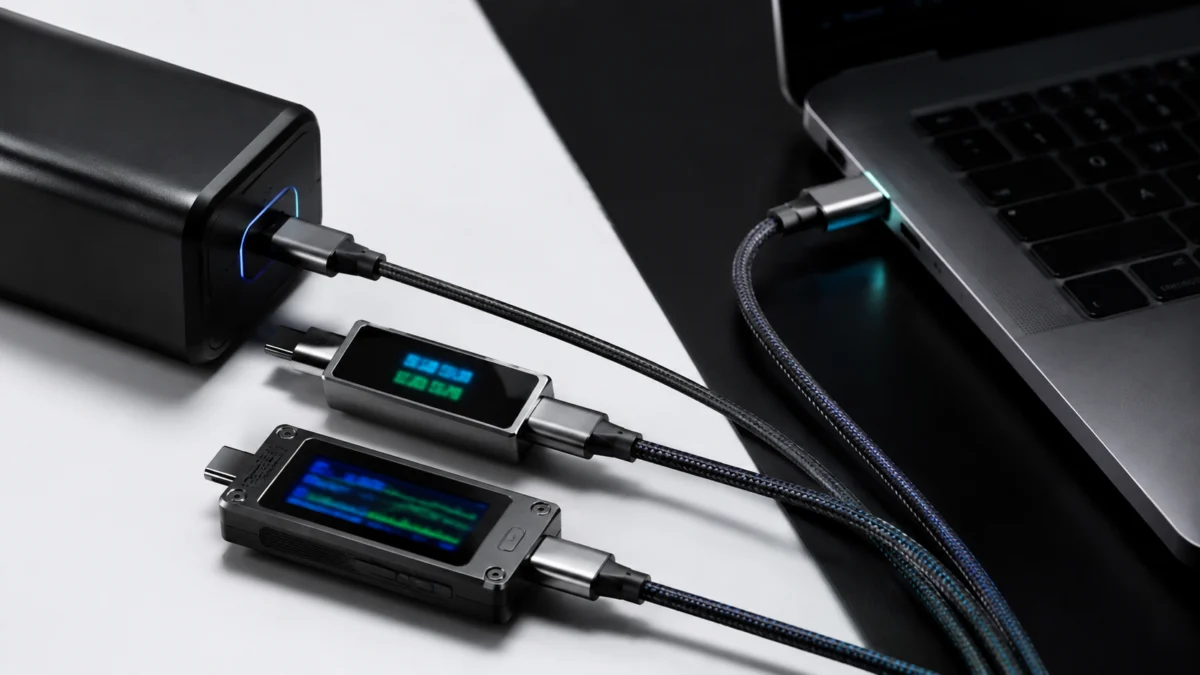
A USB-C power meter shows you the volts, amps, and watts flowing between a charger and your laptop in real time, which is enough to confirm whether a 240W charger is actually delivering 240W. But a basic meter cannot read the e-marker chip inside a cable or decode the PD handshake — for those, you need a protocol analyzer. If you just want to confirm your charger and cable are delivering full power, a simple inline meter like the Plugable USBC-VAMETER3 is the right tool. If you need to verify whether a cable is genuinely 240W-rated, read its e-marker, or debug why a laptop refuses to negotiate high wattage, you need a protocol analyzer such as the ChargerLAB Power-Z KM003C. This guide separates these tool types, explains what 240W USB-C charging actually requires, and matches each tool to the problem you are trying to solve — including the things no power meter can tell you.
Jump to a Section
- What Can a USB-C Power Meter Actually Measure?
- 240W USB-C Charging Explained: PD 3.1, EPR, Voltage, and Current
- Best USB-C Power Meters and Testers to Check
- Power Meter vs Cable Tester vs E-Marker Reader
- Common Mistakes When Testing USB-C Chargers, Cables, Docks, and Laptops
- FAQ
- How We Researched
- Final Recommendation
Quick Comparison: Power Meter vs Protocol Analyzer
The short version: an inline power meter like the Plugable USBC-VAMETER3 confirms how much power is flowing but cannot read a cable’s e-marker, while a protocol analyzer like the ChargerLAB Power-Z KM003C reads e-markers and decodes PD handshakes. Pick by the question you need answered, not by price alone.
Affiliate disclosure: Fixory may earn a commission from qualifying purchases made through links in this article, at no extra cost to you.
| Tool | Type | Reads e-marker? | Decodes PD handshake? | Measurement range | Best for |
|---|---|---|---|---|---|
| Plugable USBC-VAMETER3 | Inline power meter | No | No | 4.5–50V, 50mA–6.5A (101–240W EPR) | Quick “is full power flowing?” checks |
| ChargerLAB Power-Z KM003C | Protocol analyzer | Yes | Yes | 0–50V, 0–6A (240W PD) | Cable verification, PD debugging, R&D |
What Can a USB-C Power Meter Actually Measure?
A USB-C power meter measures voltage, current, and the resulting wattage in real time, and visualizes the direction of current flow. You connect it inline between a host device and a charger, dock, or accessory. It tells you the actual power being delivered at that moment — but it does not read the cable’s e-marker chip, decode the PD negotiation, or confirm USB4 or Thunderbolt compatibility.
According to Plugable’s official documentation, a meter like the USBC-VAMETER3 acts as a transparent interposer: it passes USB data and USB-C Alt Mode video through while monitoring power, so you can leave it connected during normal use. This makes it useful for several specific checks:
- Charger output: Confirm a charger actually delivers the wattage on its label under real load, not just at idle.
- Voltage drop under load: Spot a cable or port that sags below the negotiated voltage when the device draws current.
- Dock and accessory draw: Measure how much power a bus-powered drive or dock is pulling.
- Charging behavior: See whether your laptop is negotiating 100W, 140W, or full 240W from an EPR charger.
What a power meter cannot do is equally important. It reports the result of a PD negotiation, but not the negotiation itself. It shows that power is flowing, but not why a cable is capped at a lower wattage. If a 240W charger only delivers 60W, a meter tells you the symptom; identifying the cause — often a cable without the right e-marker — requires a protocol analyzer.
240W USB-C Charging Explained: PD 3.1, EPR, Voltage, and Current
240W USB-C charging is enabled by USB Power Delivery 3.1, which added an Extended Power Range (EPR) on top of the older 100W Standard Power Range. EPR introduces three new fixed voltages — 28V, 36V, and 48V — that enable 140W, 180W, and 240W respectively, all at 5A (48V × 5A = 240W). To reach these levels, the charger, the cable, and the device must all support EPR.
According to the USB-IF, PD 3.1 was announced in 2021 and raised the ceiling from the previous 100W limit, which was based on 20V at 5A. The new fixed voltages are paired with Adjustable Voltage Supply (AVS), which lets a device fine-tune the voltage between 15V and the maximum fixed voltage in 100mV steps for better thermal efficiency. EPR negotiation is led by the device drawing power, which must first establish a standard power contract before EPR can begin.
Why the Cable Matters as Much as the Charger
The cable is the most commonly overlooked link in a 240W setup. A USB-C cable rated to carry 5A must contain an e-marker chip that electronically declares its capability; without one, a charger limits output to 3A, capping power at 60W even if both ends support more.
According to USB-IF documentation and certification labs, EPR cables carry a specific requirement that distinguishes them from older 100W cables:
- EPR-capable e-marker: A 240W cable’s e-marker must declare support for the higher EPR voltages up to 48V, not just 5A at 20V like a 100W cable.
- Visible certification marking: Under the USB-IF program, certified 240W (EPR) cables must carry the official logo on the connector or overmold.
- Backward compatibility: A 100W e-marked cable used in an otherwise EPR-ready setup will cap negotiation at 100W.
This is why 240W environments now exist in mainstream hardware. The Framework Laptop 16, for example, is built around PD 3.1 EPR; according to Framework’s documentation, using a non-EPR cable limits it to lower voltages. That real-world constraint is exactly what a tester helps you diagnose.
Best USB-C Power Meters and Testers to Check
The right tool depends on whether you need quick power confirmation or deep protocol inspection. For everyday “is full power flowing?” checks, a simple inline meter is enough. For verifying cables, reading e-markers, and debugging stubborn charging, a protocol analyzer is the tool. Below are two widely available options that anchor each end of that range.
Best for Quick Power Checks: Plugable USBC-VAMETER3
The Plugable USBC-VAMETER3 is a compact inline meter built for the PD 3.1 EPR era, covering the 101–240W range. According to Plugable’s official specifications, it supports a 4.5–50V and 50mA–6.5A operating range, works bidirectionally in either orientation, and passes USB data (up to USB 3.1 Gen 2) and USB-C Alt Mode video through without interruption.
It is driverless with an integrated OLED display, so no PC or software is required — you read the values directly on the device. Plugable rates its accuracy at roughly ±3% against a professional multimeter, and explicitly notes it is not a replacement for professional test equipment. One documented limitation: it is not compatible with Intel Thunderbolt 3 devices.
✅ Buy if
- You want a pocketable tool to confirm a charger or dock is delivering full wattage
- You want zero software setup — read values right on the screen
- You need to leave it connected during normal use without blocking video or data
⚠️ Don’t buy if
- You need to read e-marker chips or decode the PD handshake
- You work with Thunderbolt 3 hardware
- You want to log data to a PC for analysis
Check on Amazon
/
Official site
Best for Cable and Protocol Verification: ChargerLAB Power-Z KM003C
The ChargerLAB Power-Z KM003C is a dual-USB-C protocol analyzer that goes well beyond reading volts and amps. According to ChargerLAB’s specifications, it handles up to 50V/6A (240W in PD), reads e-marker chips, runs a PD protocol analyzer, and detects a wide range of fast-charging protocols including PD 3.1 EPR. It uses a 20-bit ADC for precise measurement and connects to a PC via a driverless HID port for logging and waveform capture.
Its e-marker reading is the feature that separates it from a basic meter: it can report a cable’s declared power and data capabilities — for example, identifying whether a cable claims 240W EPR support. According to ChargerLAB’s documentation, e-marker reading requires an external power supply above roughly 5.1V during the test. This is a tool for people who need to know why a connection behaves the way it does, not just the live wattage.
✅ Buy if
- You need to verify whether a cable is genuinely 240W EPR-rated by reading its e-marker
- You want to decode PD handshakes and log data to a PC
- You debug charging across multiple cables, chargers, and devices regularly
⚠️ Don’t buy if
- You only need to confirm that power is flowing
- You want a tool with no learning curve or software
- You don’t need protocol-level detail
Check on Amazon
/
Official site
Power Meter vs Cable Tester vs E-Marker Reader
These three terms describe overlapping hardware but different jobs. A power meter measures live output. An e-marker reader interrogates what a cable claims to support. A protocol analyzer decodes the full PD negotiation. Many “USB-C testers” sold online are basic power meters; only higher-end analyzers read e-markers and decode handshakes, so the label alone does not tell you what a device can do.
| Function | What it answers | Tool that does it |
|---|---|---|
| Power measurement | How many watts are flowing right now? | Any inline meter (e.g., VAMETER3) or analyzer |
| E-marker reading | What power and data does this cable claim to support? | Protocol analyzer (e.g., KM003C) |
| Protocol analysis | What did the charger and device actually negotiate, and why? | Protocol analyzer (e.g., KM003C) |
The practical takeaway: a power meter and a protocol analyzer are not competing products at the same job — they answer different questions. A meter confirms the outcome; an analyzer explains the cause. If you only ever ask “is it charging at full speed?”, you do not need analyzer-level features. If you regularly ask “why isn’t this cable doing 240W?”, a basic meter will leave you guessing.
Common Mistakes When Testing USB-C Chargers, Cables, Docks, and Laptops
The most common testing mistakes come from assuming a single reading proves more than it does. A 240W number on a meter confirms that one negotiation succeeded — it does not certify that every cable, port, or device in your setup is fully compliant. Isolating the bottleneck requires testing one variable at a time, in the right order.
- Assuming “240W on the label” means full compatibility. A charger, cable, and laptop must all support PD 3.1 EPR independently. Any one weak link caps the whole chain.
- Blaming the charger when the cable is the limit. A non-EPR or 100W e-marked cable silently caps power. Swap in a known-good 240W EPR cable before suspecting the charger.
- Expecting a power meter to confirm Thunderbolt or USB4 compatibility. A power meter measures power; it is not a compatibility validator. The VAMETER3, for instance, is explicitly not compatible with Thunderbolt 3 devices, and passing power through a port does not prove a data standard is negotiated.
- Reading idle values instead of load values. Voltage and wattage shift under real load. Check readings while the device is actually drawing power, not at rest.
- Testing the cable and charger together. To isolate a fault, change one component at a time against a known-good reference, rather than swapping both at once.
For cable-specific questions — “is this actually a 240W cable?” — no power meter can answer definitively, because it only sees the negotiated result of your current setup. Reading the cable’s e-marker with a protocol analyzer is the only direct way to confirm what the cable itself claims to support.
FAQ
Three questions come up most often when buyers try to match a USB-C power meter to a real 240W charging problem. Each answer below stays within the tool capabilities documented above.
Can a USB-C power meter tell me if my cable is 240W-rated?
Not directly. A power meter only shows the wattage your current setup negotiated, which depends on the charger and device too. To confirm a cable’s own rating, you need a protocol analyzer that reads the e-marker chip, such as the ChargerLAB Power-Z KM003C.
Should I buy the VAMETER3 or the KM003C?
Choose the Plugable USBC-VAMETER3 if you only need to confirm power is flowing at the expected wattage. Choose the ChargerLAB Power-Z KM003C if you need to read e-markers, decode PD handshakes, or debug why charging is capped. They solve different problems.
Can these tools measure Thunderbolt 5 or USB4 connections?
They measure power on USB-C connections, but they are not compatibility validators for data standards. The VAMETER3 is documented as not compatible with Thunderbolt 3 devices. For data-standard verification, confirm host, cable, and device specs separately rather than relying on a power meter.
How We Researched
This article is based on manufacturer documentation, official support materials, and standards references where available. We reviewed Plugable’s official specifications for the USBC-VAMETER3, ChargerLAB’s official specifications for the Power-Z KM003C, and USB-IF documentation on USB Power Delivery 3.1 and Extended Power Range, along with Framework’s published information on 240W USB-C charging. We have not conducted hands-on lab testing. Any performance figures or compatibility claims are attributed to official sources or clearly identified community reports.
Final Recommendation
For most people, the question is not “which is the best USB-C tester?” but “what do I actually need to find out?” If you want to confirm that your 240W charger, cable, and laptop are delivering full power, a simple inline meter like the Plugable USBC-VAMETER3 does the job with no software and fits in a bag. It is the right fit for quick, repeatable checks.
If you need to go deeper — verifying whether a cable is genuinely 240W EPR-rated, reading e-marker chips, or debugging why a connection refuses to negotiate high wattage — a protocol analyzer like the ChargerLAB Power-Z KM003C is the tool built for that work. Match the tool to the question, and remember the one boundary that holds for every power meter: it can tell you what your setup negotiated, but only an analyzer can tell you why.