
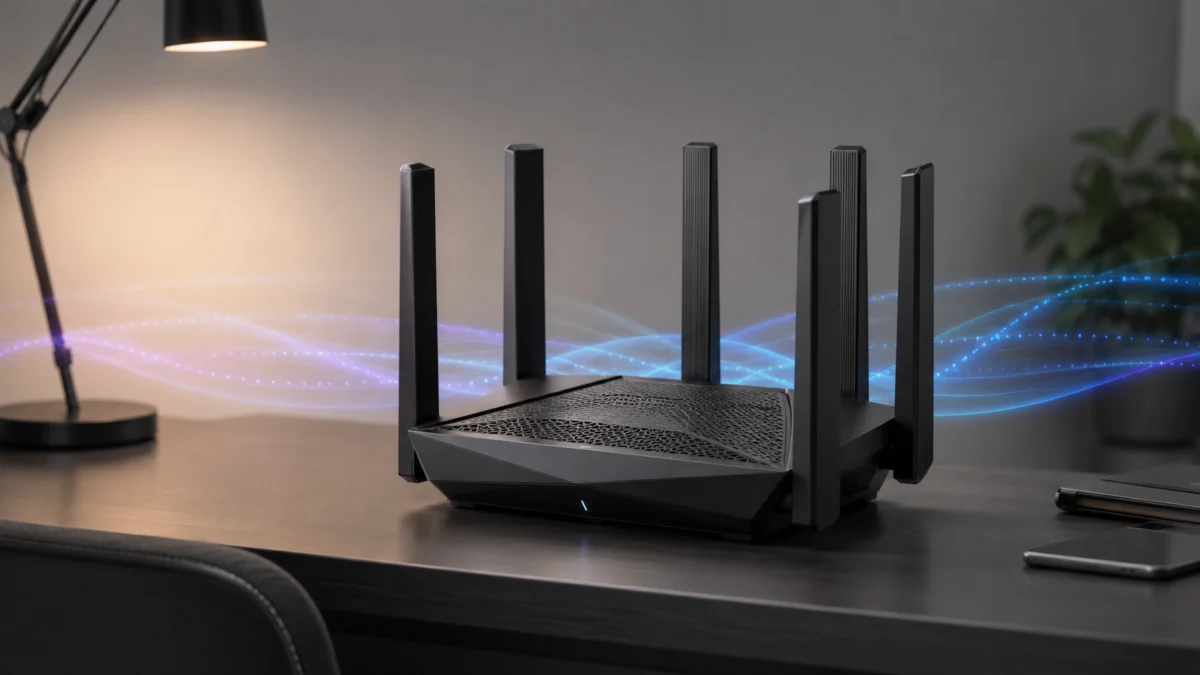
The Bottom Line: The TP-Link Archer BE9700 delivers among the strongest measured 6 GHz throughput in its price class — approximately 2,500 Mbps at close range — paired with a 10 Gbps WAN/LAN port that few direct competitors at this price tier offer. It is a well-engineered option for Wi-Fi 7-capable SOHO environments, but Multi-Link Operation (MLO) carries a documented firmware instability history that prospective buyers should understand, concrete walls can impose severe signal attenuation, and security features beyond the basic free tier require an ongoing paid subscription. For homes built on standard wood-frame construction with multi-gig fiber internet, it occupies a strong hardware sweet spot.
Quick answer: The TP-Link Archer BE9700 is a tri-band Wi-Fi 7 router with one 10 Gbps WAN/LAN port, one 2.5 Gbps WAN/LAN port, three additional 2.5 Gbps LAN ports, USB 3.0, TP-Link EasyMesh support, and MLO support. It is a strong fit for wood-frame homes, SOHO setups, multi-gig fiber users, and Wi-Fi 7 clients. Be cautious if you have concrete walls, need advanced security without a subscription, or plan to enable MLO before updating firmware.
Price range: Available in the $175–$250 range. This article contains affiliate links. [AD]
Buy it if: you have multi-gig fiber, Wi-Fi 7 client devices, and a wood-frame home or SOHO space, and you want a 10 Gbps WAN/LAN port. Think twice if: your home has concrete walls, most of your devices are older 2.4 GHz clients, or you need advanced security and parental controls without a subscription.
Check on Amazon
/
Official site
U.S. release date: May 2025
TP-Link Archer BE9700 Specs at a Glance
The Archer BE9700 is a tri-band Wi-Fi 7 router with one 10 Gbps WAN/LAN port, four total 2.5 Gbps-class Ethernet ports, USB 3.0, EasyMesh support, and MLO support. Its biggest hardware advantage is the 10 Gbps port; its biggest software caveat is TP-Link HomeShield’s paid feature tiers.
| Spec | TP-Link Archer BE9700 |
|---|---|
| Wi-Fi standard | Wi-Fi 7 / IEEE 802.11be |
| Bands | Tri-band: 2.4 GHz, 5 GHz, 6 GHz |
| Primary wired port | 1× 10 Gbps WAN/LAN |
| Additional wired ports | 1× 2.5 Gbps WAN/LAN + 3× 2.5 Gbps LAN |
| USB | 1× USB 3.0 |
| Mesh | TP-Link EasyMesh |
| MLO | Supported; update firmware before enabling |
| Best for | Wood-frame homes, SOHO, multi-gig fiber, Wi-Fi 7 clients |
| Be careful if | Concrete walls, legacy 2.4 GHz devices, HomeShield subscription concerns |
Full hardware spec sheet:
- Wi-Fi Standard: IEEE 802.11be (Wi-Fi 7), tri-band (2.4 GHz / 5 GHz / 6 GHz)
- Third-party measured 6 GHz throughput (Tom’s Hardware): up to approximately 2,500 Mbps at close range
- Wired ports: 1× 10 Gbps WAN/LAN, 1× 2.5 Gbps WAN/LAN, 3× 2.5 Gbps LAN, 1× USB 3.0
- MLO (Multi-Link Operation): supported — update firmware to the latest build before enabling
- Mesh: TP-Link EasyMesh compatible
✅ Pros
- Among the strongest measured 6 GHz throughput in its class — approximately 2,500 Mbps at close range (third-party benchmarks)
- 10 Gbps WAN/LAN port future-proofs households on multi-gig fiber plans — a port the Netgear RS300 does not offer at this price
- Dedicated IoT network segmentation isolates legacy smart-home devices from primary Wi-Fi 7 bands
- Intuitive TP-Link Tether app makes initial setup accessible to non-technical users
- Frequently available at a meaningful discount below MSRP
⚠️ Cons
- MLO has a documented history of firmware-related instability and silent feature removal — latest build required
- 6 GHz signal is severely attenuated by concrete walls — often unusable through even one structural partition
- Advanced security and parental controls require a paid HomeShield subscription; the ASUS RT-BE92U bundles equivalent features free for life
- 2.4 GHz throughput can trail cheaper TP-Link hardware in isolated band testing
- AT&T Fiber and some Xfinity configurations require significant ISP gateway work before deployment
Design and Build Quality
Chassis, Antennas, and Wired Port Loadout
The Archer BE9700 uses a conventional router chassis with six external beamforming-capable antennas arranged to maximize directional signal propagation. According to TP-Link’s official product specifications, the antenna array is paired with high-power Front-End Modules (FEMs). Independent comparative range testing cited in TP-Link community analysis indicates this FEM configuration gives the BE9700 a slight edge over the ASUS RT-BE92U in short-to-medium-range raw throughput stability, despite both routers sharing nearly identical theoretical PHY specifications.
The wired port loadout is the BE9700’s most distinctive hardware advantage. The router ships with one 10 Gbps RJ45 WAN/LAN port, one 2.5 Gbps WAN/LAN port, three additional 2.5 Gbps LAN ports, and one USB 3.0 port supporting NTFS, exFAT, HFS+, and FAT32 file systems for FTP, media server, and Samba server use. For SOHO users running a local NAS array or connecting a multi-gig fiber ONT, this configuration can remove the wired bottlenecks that competing routers in this price bracket cannot address — most notably the Netgear Nighthawk RS300, which caps its primary WAN/LAN interface at 2.5 Gbps.
Retail Variant Clarification: BE9700, BE600, and BE550 Pro
Buyers shopping across multiple retailers will encounter three distinct product names that refer to the same underlying Wi-Fi 7 hardware class. Understanding the differences prevents confusion at checkout.
The Archer BE9700 (sold at Best Buy retail locations) and the Archer BE600 (sold primarily on Amazon) share the same PHY architecture, routing logic, and six-antenna chassis design. The documented hardware differences are the power supply — the BE9700 ships with a 12V/3.3A adapter versus the BE600’s 12V/2.5A — and their packaging claims of “7 streams” versus “6 streams” respectively. According to analysis documented in TP-Link’s official community forums and confirmed across multiple user discussions on r/HomeNetworking, the higher amperage on the BE9700 mathematically accommodates the power overhead of an additional transmission stream. In real-world SOHO deployments, however, this stream-count difference rarely produces a measurable throughput difference for standard clients.
The Archer BE550 Pro sits in the same BE9700 aggregate bandwidth class but ships with six internal smart antennas rather than external ones, providing a cleaner physical profile at the cost of manual directional antenna adjustment.
Features and Performance
Wi-Fi 7 Technology: What Actually Changes
The BE9700 implements three Wi-Fi 7 mechanisms that represent genuine improvements over Wi-Fi 6E architecture.
320 MHz channel width on 6 GHz doubles the maximum frequency pipeline available to Wi-Fi 6 routers on the 5 GHz band, which topped out at 160 MHz. This expanded channel is the primary reason the 6 GHz band achieves the throughput figures detailed below. 4096-QAM (4K-QAM) packs 120% more data into each signal symbol compared to the 1024-QAM used in Wi-Fi 6 equipment — a gain most pronounced when clients are close to the router in a clean Signal-to-Noise Ratio (SNR) environment. Multi-RU and Preamble Puncturing allow the router to route around a localized slice of interference within a channel rather than abandoning the entire band, which is particularly valuable in apartments or dense neighborhoods with overlapping 6 GHz networks.
Real-World Throughput: The Numbers Explained
The following figures are drawn from structured iPerf3 benchmarks and file transfer tests published by Tom’s Hardware and corroborated by independent YouTube throughput testing.
At approximately 5 to 6 feet with clear line of sight, the BE9700 records measured TCP throughput of approximately 2,507 Mbps on the 6 GHz band. The theoretical ceiling of the 6 GHz band is 5,765 Mbps — achieving roughly 43% of the theoretical maximum in real-world TCP conditions is entirely standard for Wi-Fi 7 hardware, with the remainder absorbed by management frames, encryption overhead, and inter-packet gaps. SOHO users should treat approximately 2,500 Mbps as the practical short-range ceiling on 6 GHz.
At 25 to 30 feet through a single standard residential drywall partition, measured throughput drops to approximately 1,203 Mbps on the 6 GHz band — still more than sufficient to saturate a 1 Gbps wired ethernet connection and handle simultaneous 4K streaming across multiple rooms without contention.
In a high-congestion scenario simulated with six concurrent clients streaming 4K video across all three bands simultaneously, the BE9700 maintained mid-range transfer speeds approximately twice as fast as comparable-tier competing routers under identical test conditions, according to the independent benchmark data cited above.
File transfer tests on the local network corroborate the synthetic figures: an 8 GB uncompressed file transfer saturates the 2.5 Gbps LAN interface ceiling, and a 47 GB uncompressed 4K Blu-ray rip streamed from a local NAS array completed without buffering. Wireless gaming latency tests recorded 104 ms over Wi-Fi against a 100 ms hardwired baseline — a 4 ms overhead that is imperceptible in competitive play.
Independent throughput testing is available here:
Legacy Band Caveat: 2.4 GHz Performance
One counter-intuitive finding from independent testing deserves direct mention. On the 2.4 GHz band in isolation, the BE9700 can be outperformed by significantly cheaper TP-Link hardware, including the company’s own BE3600-class Archer BE230. According to Tom’s Hardware benchmark data, the budget dual-band router recorded more than double the BE9700’s 2.4 GHz throughput under intensive isolated testing. The explanation points to the BE9700’s SoC resource allocation being tuned aggressively for 6 GHz backhaul and MLO prioritization at the expense of legacy band headroom. The practical implication: the BE9700 is best deployed in environments where the primary high-bandwidth clients are Wi-Fi 6E or Wi-Fi 7 capable. Households whose device fleet is predominantly older 2.4 GHz hardware will find the BE9700’s core strengths largely inaccessible.
How It Compares to Direct Competitors
The following comparison is based on published hardware specifications from official sources and third-party comparisons.
[AD] This comparison section contains affiliate links.
| Specification | TP-Link Archer BE9700 | ASUS RT-BE92U | Netgear Nighthawk RS300 |
|---|---|---|---|
| Wi-Fi Class | BE9700 Tri-Band | BE9700 Tri-Band | BE9300 Tri-Band |
| MIMO Configuration | 2×2 (5 GHz & 6 GHz) | 2×2 (5 GHz & 6 GHz) | 2×2 (5 GHz & 6 GHz) |
| Primary WAN/LAN Port | 1× 10 Gbps RJ45 | 1× 10 Gbps RJ45 | 1× 2.5 Gbps RJ45 |
| Additional LAN Ports | 4× 2.5 Gbps | 3× 2.5 Gbps | 2× 2.5 Gbps, 2× 1 Gbps |
| Security Suite | HomeShield (freemium / paid tiers) | AiProtection (free, lifetime) | Netgear Armor (paid subscription) |
The BE9700’s decisive hardware advantage over the Netgear RS300 is the 10 Gbps WAN/LAN port. The RS300 is capped at 2.5 Gbps on its primary interface, which becomes a bottleneck for SOHO users anticipating symmetric 5 Gbps or 10 Gbps fiber service plans. Against the ASUS RT-BE92U, the hardware comparison is close: both offer 10 Gbps primary interfaces and comparable MIMO configurations. The competition between these two routers plays out primarily on software and long-term cost — a point addressed in the Pre-Purchase Caveats section below.
How Far Does the Archer BE9700 Reach?
In standard wood-frame homes, the BE9700 provides robust coverage up to roughly 30 to 40 feet horizontally through multiple interior drywall partitions, and the 5 GHz band reaches approximately 150 feet outdoors with clear line of sight. In concrete construction the picture changes sharply: a single concrete wall can cut throughput by more than half, and the 6 GHz band is effectively blocked by even one concrete partition. Practical range depends on four variables — the band your device connects on, wall material, router placement, and the client hardware itself.
Range Behavior by Band
6 GHz is the fastest and shortest-reaching band. As detailed in the throughput section above, third-party benchmarks record approximately 2,500 Mbps at 5 to 6 feet with clear line of sight, falling to approximately 1,203 Mbps at 25 to 30 feet through a single drywall partition. Those numbers hold in wood-frame construction; through concrete, the 6 GHz band is effectively eliminated by even one structural wall.
5 GHz is the practical mid-range workhorse. In wood-frame homes it extends adequately to adjacent outdoor spaces, with unobstructed line-of-sight range reaching approximately 150 feet to front yards or patios. Note, however, that some users in concrete-walled homes report their previous high-end Wi-Fi 5 or Wi-Fi 6 routers delivered better extreme-edge 5 GHz range in the same structural environment.
2.4 GHz is not this router’s strength. As covered in the legacy band caveat above, isolated 2.4 GHz throughput can trail significantly cheaper TP-Link hardware because the SoC is tuned for 6 GHz and MLO prioritization. On the BE9700, the 2.4 GHz band is best reserved for legacy smart-home devices via the dedicated IoT network rather than treated as a primary coverage band.
Walls, Floors, and Placement
Wall material matters more than raw distance. In drywall-over-wood-stud construction, users replacing older Wi-Fi 6E hardware report effective elimination of interior dead zones. In concrete construction, independent user documentation on r/TpLink records throughput falling from approximately 1,100 Mbps at the router location to approximately 400 Mbps at just 20 feet with a single concrete structural wall in between — and multi-floor concrete construction degrades performance further.
When estimating coverage for your own floor plan, count the number and type of walls between the router and your main devices rather than measuring distance alone, and position the router so your highest-bandwidth clients have as few partitions in the signal path as possible. Fixory has not conducted its own range testing; the figures above reflect third-party benchmarks and user reports cited by source, and results vary by environment.
Client Hardware Sets the Ceiling
Range and speed are also capped by the device on the other end. Only Wi-Fi 6E and Wi-Fi 7 clients can use the 6 GHz band and its 320 MHz channels at all; older devices connect on 5 GHz or 2.4 GHz and see none of the headline throughput. For MLO specifically, reliable results have been reported with certified Wi-Fi 7 client devices such as the Samsung Galaxy S24 Ultra and Google Pixel 8 Pro running up-to-date drivers. If your device fleet is mostly older hardware, the effective range you experience will be that of the lower bands, regardless of what the router can do.
Who Is the BE9700 Best For?
The BE9700 fits households and SOHO offices with Wi-Fi 6E or Wi-Fi 7 client devices, a multi-gig fiber plan or a local NAS, and wood-frame construction where a single well-placed router can cover the whole space. Its core advantages — the 10 Gbps WAN/LAN port, the 2.5 Gbps LAN array, and strong close-to-mid-range 6 GHz throughput — only pay off when your devices and internet plan can actually use them.
Concretely, the BE9700 makes the most sense for:
- Multi-gig fiber subscribers who want the 10 Gbps WAN/LAN port that the Netgear RS300 does not offer at this price — including households anticipating symmetric 5 Gbps or 10 Gbps service plans.
- NAS and home-lab users who benefit from the zero-bottleneck 2.5 Gbps wired LAN environment for desktop clients and local file transfers.
- Homes with a growing Wi-Fi 7 / 6E device fleet that can connect on 6 GHz and, where supported, use MLO for latency stabilization.
- Smart-home-heavy households that want the dedicated IoT network segmentation to keep legacy 2.4 GHz devices from dragging down the primary bands.
- Single-router-friendly layouts — single-story or open wood-frame floor plans within roughly the 30-to-40-feet-through-drywall envelope described above.
If most of your devices are older 2.4 GHz clients, or your internet plan sits at 1 Gbps or below with no upgrade planned, the BE9700’s core strengths remain largely inaccessible — a less expensive router covers that scenario with far less unused headroom.
When Should You Choose a Mesh System Instead?
Choose a mesh deployment instead of a single BE9700 when your home has multiple floors, concrete or masonry walls, persistent 6 GHz dead zones, or simply more floor area than one router can cover from a central location. In concrete-heavy environments specifically, plan for wired backhaul — wireless-only mesh extenders suffer the same attenuation as any other client and do not solve the problem.
The clearest signals that a single unit will not be enough:
- Multi-floor homes, especially with concrete between floors — multi-floor concrete construction degrades performance further than a single wall does.
- Concrete or masonry interior walls, where user-documented throughput drops from approximately 1,100 Mbps to approximately 400 Mbps over 20 feet through one wall.
- Rooms where 6 GHz simply does not appear — one concrete partition is enough to eliminate the band, so any room behind one becomes a 5 GHz / 2.4 GHz zone at best.
- Large floor plans that extend well beyond the 30-to-40-feet-through-drywall envelope even in wood-frame construction.
The BE9700 supports TP-Link EasyMesh, so it can serve as the primary node of a mesh network rather than being replaced outright. The critical constraint: in concrete-heavy environments, connect satellite nodes over wired Ethernet backhaul using Cat6 or Cat6a cable. Wireless EasyMesh backhaul through concrete inherits the same attenuation problem and does not deliver stable whole-home Wi-Fi 7 coverage.
Is It Worth the Price?
At its typical $175–$250 street price, the BE9700 is worth it when you can use its differentiating hardware — the 10 Gbps port, multi-gig LAN, and 6 GHz throughput — either today or within your realistic ownership window. If your device fleet and internet plan cannot touch those capabilities, you are paying for headroom you will not use.
Rather than judging the sticker price in isolation, weigh three factors. First, your device mix: the throughput advantages only materialize for Wi-Fi 6E and Wi-Fi 7 clients. Second, your line speed: the 10 Gbps WAN/LAN port is a genuine differentiator on multi-gig fiber, and largely irrelevant below it. Third, your ownership window: if you plan to keep the router for a three-to-five-year lifecycle and need advanced security or parental controls, factor the recurring HomeShield subscription into the total cost — over that timeframe, the cumulative subscription cost can exceed the retail price difference against the ASUS RT-BE92U, which bundles its AiProtection suite free for the lifetime of the hardware.
Two practical notes on price. The BE9700 is frequently available at a meaningful discount below MSRP, and street prices fluctuate — check the current price and stock on the retailer’s product page before deciding, since the value calculation shifts meaningfully at the lower end of the range. And if the checklist above reads as “not yet” — mostly legacy devices, sub-gigabit internet, no NAS — the money is better spent once your client fleet and internet plan catch up to what this hardware offers.
MLO in Practice: What the Firmware History Shows
MLO is best treated as an advanced feature, not a default setting. Update the router to the latest firmware before enabling it, and expect the most reliable results with certified Wi-Fi 7 client devices running current drivers.
Multi-Link Operation (MLO) is the headline feature of the Wi-Fi 7 standard. On the BE9700, MLO allows a compatible client device to maintain simultaneous connections across multiple frequency bands — specifically the 5 GHz and 6 GHz bands. According to TP-Link’s technical documentation, MLO on this hardware serves two functions: bandwidth aggregation for large file transfers, and Dynamic Switching, which rapidly shifts packets between bands in milliseconds to route around transient interference and reduce latency for applications like virtual reality and video calls.
Users with certified Wi-Fi 7 client devices — including the Samsung Galaxy S24 Ultra and Google Pixel 8 Pro — have reported successful MLO handshakes with the BE9700. In real-world SOHO deployments where MLO is active, the primary benefit observed is latency and jitter stabilization rather than a dramatic peak-speed increase, consistent with the router’s Dynamic Switching prioritization behavior.
The Firmware Instability History: What Buyers Need to Know
MLO’s operational history on the BE9700 has been turbulent. During early hardware rollout in 2024 and the first half of 2025, multiple reports emerged across r/TpLink and TP-Link’s official community forums describing severe instability directly linked to MLO activation. Enabling the MLO SSID caused the router to experience kernel panics: all wireless SSIDs would drop, wired Ethernet connections would terminate, and the unit would require hard power-cycle resets multiple times per week to restore connectivity. Multiple threads on r/TpLink confirm this was a widespread early-adopter experience.
In response to these failures, TP-Link issued mid-cycle firmware patches that silently disabled or removed MLO functionality to stabilize the platform. This drew significant backlash from users who purchased the device specifically for its advertised simultaneous tri-band MLO routing capability.
Subsequent firmware revisions addressed the issue incrementally. According to TP-Link’s official firmware release notes, Build 20251027 (V1.6) and Build 20250519 (V1.60) focused on EasyMesh network optimization and baseline system stability improvements. The most recent iteration, Build 20260113, further stabilized MLO operation. One residual issue remains documented in TP-Link’s community forum: specific legacy clients connecting via SMB file sharing can still trigger reboot loops in certain configurations.
The practical guidance for prospective buyers: MLO on the BE9700 is substantively more stable than it was at launch. Update the router to the latest available firmware build before enabling MLO; do not rely on out-of-box firmware. SOHO administrators deploying MLO should also confirm that client devices carry certified Wi-Fi 7 radios and up-to-date operating system drivers before expecting a reliable MLO handshake.
An independent review covering the router’s IoT segmentation features and multi-node mesh deployment behavior is available here:
What Real Users Are Saying
What Buyers Consistently Praise
Across retail review platforms and networking forums, the most consistently praised attributes are short-range file transfer speeds and the multi-gig wired port configuration. According to multiple reports on r/HomeNetworking, users upgrading from Wi-Fi 6 hardware describe the elimination of buffer bloat under simultaneous multi-stream 4K loads as a meaningful generational improvement. Home lab users running local NAS arrays specifically highlight the zero-bottleneck wired LAN environment that the 2.5 Gbps port array provides for wired desktop clients.
The dedicated IoT network segmentation feature receives consistent positive mentions across community threads. Isolating legacy 2.4 GHz smart-home devices — thermostats, light bulbs, security cameras — from the primary Wi-Fi 7 bands preserves airtime fairness and prevents older, slower hardware from forcing the router to step down its PHY rates to accommodate them.
Initial setup via the TP-Link Tether mobile app is reviewed as consistently intuitive in user reports, making the transition to Wi-Fi 7 administration accessible to users without formal IT backgrounds.
Complaints That Appear Repeatedly
Three grievances recur across r/TpLink, r/wifi, and r/HomeNetworking.
According to multiple reports on r/TpLink, some users in concrete-walled homes and multi-floor concrete structures have experienced the significant range degradation documented in the “How Far Does the Archer BE9700 Reach?” section above — throughput falling from approximately 1,100 Mbps to approximately 400 Mbps over 20 feet through a single concrete wall. Several users in this thread also note that their previous high-end Wi-Fi 5 or Wi-Fi 6 routers provided better extreme-edge 5 GHz range in the same structural environment (source). This does not affect all deployments — wood-frame construction users report no such issues — but it is worth checking your building’s construction type before purchase.
According to multiple reports on r/wifi, some users who purchased entry-level or mid-tier Wi-Fi 7 routers expecting the marketing specifications to translate directly into real-world performance have experienced disappointment with range at the edges of their homes (source). The BE9700 is not uniquely affected by this pattern, but it illustrates why pre-purchase range expectations should be calibrated to the throughput figures at 25-to-30 feet cited above, not the 6-feet close-range numbers.
The HomeShield subscription model is a consistent source of friction in power-user communities. According to several threads on r/HomeNetworking and r/TpLink, experienced users express frustration that granular security controls — IoT threat protection, malicious content filtering, DDoS mitigation, and fine-grained parental scheduling — are locked behind ongoing monthly fees, creating a feeling of paying to rent features on hardware already purchased outright. This sentiment is amplified by the direct comparison with the ASUS RT-BE92U, which provides equivalent capabilities at no additional cost.
Variant Naming Confusion
According to multiple threads on r/HomeNetworking (source) and TP-Link’s official community forum (source), the BE9700 / BE600 / BE550 Pro naming structure causes genuine confusion at the point of purchase. Buyers searching Amazon find the BE600 at a comparable price without initially recognizing it as the functionally identical product sold under a different name at Best Buy. We recommend confirming the specific model designation and its retail channel before ordering to avoid unnecessary cross-channel comparison of what is, in terms of real-world performance, the same hardware.
Pre-Purchase Caveats: HomeShield and ISP Compatibility
Before buying, check three things: whether your home has concrete walls, whether you need advanced security without a subscription, and whether your ISP gateway can pass multi-gig service cleanly to your own router.
HomeShield Subscription: What the Free Tier Covers and What It Doesn’t
The BE9700’s network security ecosystem runs on TP-Link’s HomeShield platform, which operates on a freemium model. The free tier provides basic router and wireless security scans, IoT device identification, standard QoS device prioritization, and fundamental parental controls including manual website blocking and profile management for up to 16 family members — a reasonable feature set for standard household use.
Advanced capabilities — IoT threat protection, web content filtering against malicious domains, DDoS and port intrusion prevention, time-limited device scheduling, SafeSearch enforcement, and YouTube Restricted mode — are distributed across paid subscription tiers. A bundled Total Security Package combines security and parental tiers with on-the-go antivirus and VPN clients. Current pricing for each tier is published on TP-Link’s HomeShield page.
The competitive implication is significant for long-term buyers. The ASUS RT-BE92U bundles its full AiProtection security suite — powered by Trend Micro — at no additional cost for the lifetime of the hardware. For SOHO administrators who require comprehensive threat detection and advanced parental scheduling, the HomeShield subscription cost should be calculated across a realistic three-to-five-year hardware lifecycle and compared against the ASUS alternative before selecting between these two routers. Over that timeframe, the cumulative subscription cost can exceed the initial retail price difference between the two products.
ISP Gateway Compatibility: AT&T Fiber and Xfinity
Subscribers to multi-gigabit fiber services — particularly AT&T Fiber — frequently purchase the BE9700 specifically to use its 10 Gbps port. However, AT&T’s XGS-PON network enforces strict 802.1X certificate authentication through its integrated ONT/Router gateway, which means the BE9700 cannot be connected directly to the incoming fiber line. The standard SOHO workaround is configuring the AT&T gateway (such as the BGW320) into IP Passthrough mode — specifically DHCPS-fixed — to avoid double NAT, which otherwise degrades gaming latency and VPN tunneling performance.
Users pursuing a full hardware bypass — eliminating the ISP gateway entirely to connect the BE9700 directly to the fiber ONT — face a significantly more involved process requiring a programmable SFP+ module (such as the WAS-110), MAC address spoofing of the original gateway, and manual DHCP configuration. According to multiple reports on r/HomeNetworking and r/ATTFiber, this process can break during ISP certificate renewals and requires network engineering expertise to implement and maintain safely. A detailed walkthrough of this bypass methodology is available here:
Xfinity subscribers using older DOCSIS 3.0 modems — such as the Motorola MB7621 — with the BE9700’s 2.5 Gbps or 10 Gbps WAN ports have reported intermittent link negotiation failures. The documented community workaround is MAC address cloning on the BE9700 or requesting a DHCP lease renewal from Xfinity to force the handshake (source). If you are on AT&T Fiber or Comcast Xfinity, verify gateway model compatibility before ordering.
How We Researched
This article is based on the following sources: TP-Link’s official Archer BE9700 product page and datasheet, TP-Link’s HomeShield feature and pricing documentation, TP-Link’s internal hardware comparison tool, TP-Link’s firmware release notes via the Omada Networks and VIGI firmware repositories, the Tom’s Hardware review of the Archer BE9700 (iPerf3 throughput benchmarks and competitive comparisons), independent YouTube reviews by Tek Syndicate and Dave Tries This (David Schloss), community reports from r/TpLink, r/HomeNetworking, r/wifi, and r/ATTFiber confirmed across multiple threads and posts, and discussions documented in TP-Link’s official Home Network Community forum. We have not conducted hands-on lab testing. All performance figures reflect independent third-party benchmark results or manufacturer specifications, cited by source throughout this article.
✅ Pros
- Among the strongest measured 6 GHz throughput in its class — approximately 2,500 Mbps at close range (third-party benchmarks)
- 10 Gbps WAN/LAN port future-proofs households on multi-gig fiber plans — a port the Netgear RS300 does not offer at this price
- Dedicated IoT network segmentation isolates legacy smart-home devices from primary Wi-Fi 7 bands
- Intuitive TP-Link Tether app makes initial setup accessible to non-technical users
- Frequently available at a meaningful discount below MSRP
⚠️ Cons
- MLO has a documented history of firmware-related instability and silent feature removal — latest build required
- 6 GHz signal is severely attenuated by concrete walls — often unusable through even one structural partition
- Advanced security and parental controls require a paid HomeShield subscription; the ASUS RT-BE92U bundles equivalent features free for life
- 2.4 GHz throughput can trail cheaper TP-Link hardware in isolated band testing
- AT&T Fiber and some Xfinity configurations require significant ISP gateway work before deployment
Frequently Asked Questions
What are the TP-Link Archer BE9700 specs?
The Archer BE9700 is a tri-band Wi-Fi 7 router with 2.4 GHz, 5 GHz, and 6 GHz bands, one 10 Gbps WAN/LAN port, one 2.5 Gbps WAN/LAN port, three 2.5 Gbps LAN ports, USB 3.0, TP-Link EasyMesh support, and MLO support. Update the firmware before enabling MLO.
Is the TP-Link Archer BE9700 good for multi-gig fiber?
It is a strong fit for multi-gig fiber because it includes a 10 Gbps WAN/LAN port and multiple 2.5 Gbps LAN ports. However, some ISP gateways, especially AT&T Fiber and certain Xfinity setups, may require passthrough, bridge, or gateway configuration before the router works effectively.
Does the Archer BE9700 work well through concrete walls?
Concrete walls can significantly reduce 6 GHz range and throughput. In concrete-heavy homes or multi-floor concrete buildings, wired Ethernet backhaul with EasyMesh nodes is usually more reliable than relying on wireless-only mesh coverage.
Is TP-Link HomeShield free on the Archer BE9700?
HomeShield includes a free tier with basic features, but advanced security and parental controls require paid subscription tiers. Buyers who want full security features without recurring fees should compare the BE9700 with routers that bundle lifetime security features.
Should I enable MLO on the Archer BE9700?
Enable MLO only after updating to the latest firmware and confirming your client devices support Wi-Fi 7 properly. MLO can help with latency and band switching, but earlier firmware builds had instability reports, so treat it as an advanced feature rather than a default setting.
Final Verdict
The Archer BE9700 is built for a specific buyer: someone with a Wi-Fi 7-capable device fleet, a wood-frame home or SOHO office, and a multi-gig fiber plan or local NAS setup that can actually put the 10 Gbps port to work. In that environment, the BE9700 delivers throughput and wired infrastructure that few routers in its price class match. The measured numbers back that up.
I would be more cautious recommending it in concrete-walled homes, for users whose primary devices are still on legacy 2.4 GHz or Wi-Fi 6 hardware, or for administrators who need comprehensive security controls without a recurring subscription cost. In those scenarios, the ASUS RT-BE92U’s free lifetime AiProtection and comparable Wi-Fi 7 hardware make it the stronger value proposition when total cost of ownership is calculated across a three-to-five-year lifecycle.
If the BE9700 is your router, the checklist before enabling MLO is short but non-negotiable: update to the latest firmware build, confirm your ISP gateway configuration, and treat the free HomeShield tier as your starting point rather than a limitation. The core hardware is strongly competitive based on specs and third-party data — the caveats are manageable with the right setup context going in.








Comments