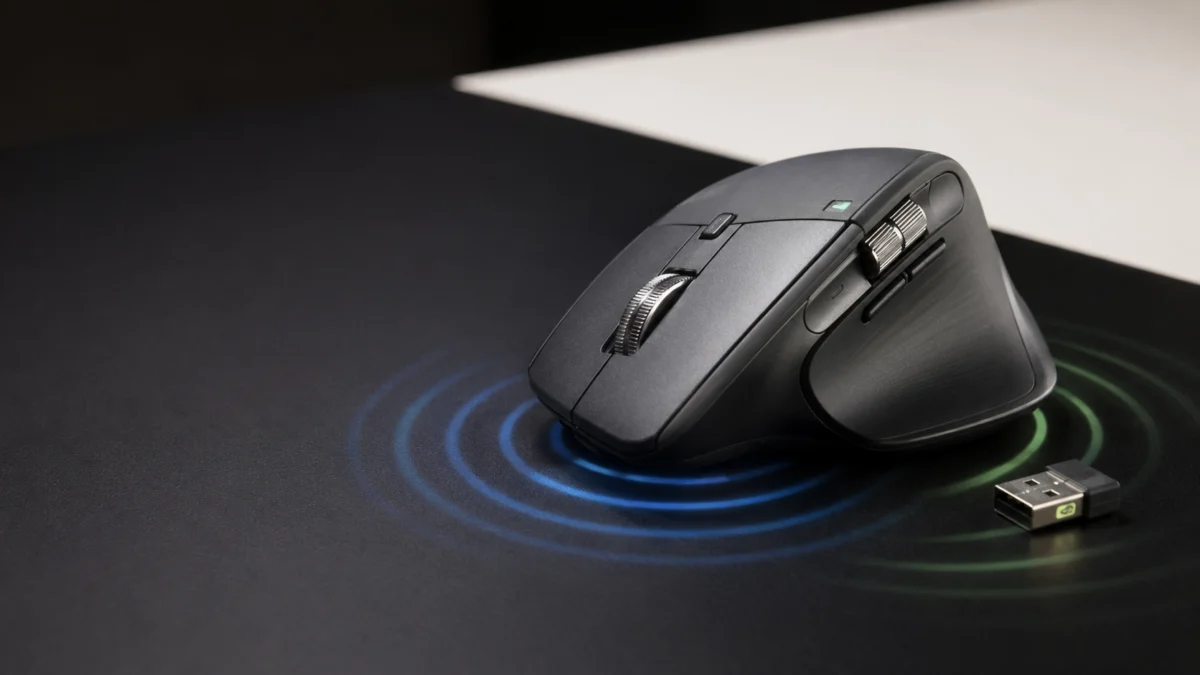
If your MX Master 4 gives no haptic feedback, first check whether it vibrates at power-on or during its first Bluetooth connection. A response there confirms that the haptic mechanism can activate, so check software and setup conditions before treating the mouse as faulty. Native Windows haptics also require a supported Windows 11 installation, MX Master 4 firmware 27.3.19, and Logi Bolt receiver firmware 5.5.30 when you connect through Bolt.
Haptic feedback on the MX Master 4 is not a single feature. Power-on buzzes, the Actions Ring, Smart Actions, gestures, supported app plugins, and native Windows system haptics each have their own conditions. Sorting out which source is silent tells you which layer to fix. This guide walks through Windows requirements, mouse and Bolt firmware, and Logi Options+ settings in a safe order, so you can rule out setup issues before suspecting a faulty motor.
Identify Which MX Master 4 Haptic Feature Is Not Working
Before changing any settings, note which actions still produce a vibration. If the mouse buzzes at power-on but not during Windows snapping, the haptic mechanism can activate and the native Windows layer becomes the first place to check. If nothing vibrates anywhere, focus on the connection and firmware first. The table below maps each symptom to the most relevant layer to check.
Haptic feedback comes from two broad sources on the MX Master 4. One set of effects is generated by Logi Options+ (the Actions Ring, Smart Actions, gestures, connectivity, and power-on cues). A separate set is generated by Windows for supported system actions such as window snapping. According to Logitech’s native haptics support page, the Options+ effects work independently of native Windows support, so one source can work while the other does not.
| Symptom | What still works | Most relevant layer to check first | First check | Go to section |
|---|---|---|---|---|
| No haptic feedback at power-on or anywhere else | Nothing | Connection / firmware / hardware | Reconnect and confirm firmware | Update firmware; then hardware test |
| Actions Ring vibrates, but Windows snapping does not | Options+ effects | Native Windows haptic layer | Windows 11 version | Windows requirements |
| Windows haptics work over Bluetooth but not Bolt | Bluetooth haptics | Bolt receiver firmware | Update the Bolt receiver | Firmware updates |
| Haptic Feedback settings are missing in Options+ or Windows | Varies | Windows version / firmware | Windows 11 version and firmware | Windows requirements |
| Haptics stopped when the battery ran low | Everything else earlier | Battery Saving Mode | Charge above 10% | Options+ settings |
| One app does not trigger haptics | Other haptics | App plugin support | Check installed plugins | Options+ settings |
| Firmware looks current, but Windows settings are missing | Options+ effects | Windows update | Windows 11 version | Windows requirements |
| No firmware update is offered | Varies | Options+ / DFU | Update Options+ first | Firmware updates |
| Haptics feel weak rather than absent | All haptics, at low strength | Intensity settings | Raise intensity | Options+ settings |
Use the “Most relevant layer” column as a starting point, not a diagnosis. The remaining sections confirm each layer in order so you do not skip a required step.
Check Your Windows 11 Version and Native Haptic Requirements
Logitech describes the requirement as Windows 11 with the March 2026 update or later. Microsoft first documented the haptic-signals control for Windows 11 versions 24H2 and 25H2 in KB5083631, released as a preview on April 30, 2026, with a gradual rollout. Install the latest cumulative updates and verify that the Haptic signals control is actually present.
Native Windows haptics are the vibrations the operating system triggers for its own actions, separate from the effects Logi Options+ produces. Microsoft documents aligning objects in PowerPoint and snapping or resizing windows. Because the feature is delivered through a gradual rollout, the OS build number alone does not guarantee that the control has reached every device. To check your version, open Settings and review your Windows 11 build.
The fix takes 4 steps.
- Open Settings → Windows Update and select Check for updates. Install any available Windows 11 updates and restart if prompted.
- Open Settings → System → About and note your OS build under Windows specifications.
- Treat KB5083631 (OS builds 26100.8328 and 26200.8328) as the first Microsoft release-note reference for this control, not as a build you must install specifically. Install the latest cumulative update available for your PC.
- Open Settings → Bluetooth & devices → Mouse and look for a Haptic signals control. If it is absent, the feature may not yet be enabled for your Windows installation and device combination.
If you cannot install Options+ on a managed work computer, Logitech notes that you can update the mouse firmware on a personal computer, then use the mouse on the work machine. Native Windows haptics still require the supported Haptic signals control to be available on that work computer.
Update MX Master 4 and the Logi Bolt Receiver in Options+
Native Windows haptics require current device firmware. As of July 22, 2026, Logitech lists MX Master 4 firmware 27.3.19 and Logi Bolt receiver firmware 5.5.30 for native Windows haptics. The Bolt update does not apply when the mouse is connected only through Bluetooth.
Logitech delivers MX Master 4 firmware through Background Device Firmware Update (DFU) in Logi Options+. The legacy Firmware Update Tool is no longer maintained, and MX Master 4 for Business cannot receive this haptic firmware through Logi Tune. Follow the steps below and keep the device connected throughout.
The fix takes 5 steps.
- Install or update Logi Options+. Logitech’s release notes list version 2.5.926888, released July 15, 2026, as the current version at the time of this check.
- Open Options+, click Settings, and select CHECK FOR UPDATE in General Settings.
- Let the Background DFU run to completion without disconnecting the mouse. If an update fails, retry rather than forcing a disconnect.
- If you use a Logi Bolt receiver, keep the receiver plugged in, make sure the mouse is paired to it, and run CHECK FOR UPDATE again so the receiver firmware can update. The receiver must stay connected throughout.
- Confirm the versions after updating: MX Master 4 firmware 27.3.19 and, when using Bolt, receiver firmware 5.5.30.
If firmware 27.3.19 is not offered, install the latest Windows update that exposes Haptic signals, update Logi Options+ to the current version, and check again. Logitech notes that the MX Master 4 haptic firmware is tied to a supported Windows 11 installation, so do not assume hardware failure from a missing update prompt alone.
Check Haptic Settings, Intensity, Battery Mode, and Plugins in Options+
Open Logi Options+, select the MX Master 4, and open the Haptic Feedback panel to confirm haptics are enabled and set to a noticeable intensity. Windows haptics use the intensity control in Windows Settings, while Options+ effects are adjusted in Options+. If feedback feels weak rather than absent, raise the intensity in the correct place for that source.
Haptic feedback is enabled by default on the MX Master 4, but several settings can silence specific sources. According to Logitech’s documentation, Battery Saving Mode automatically turns off haptics when the battery level drops to 10% or lower, and restores them once the charge is higher. App-specific haptics depend on supported plugins and specific events, so a single app being silent does not mean the feature is broken.
| Haptic source | Example trigger | Needs Windows native support | Needs Logi Options+ | Needs a plugin | Affected by Bolt firmware | First setting to check |
|---|---|---|---|---|---|---|
| Power-on feedback | Turning the mouse on | No | No | No | No | Battery level; hardware |
| Connectivity feedback | First Bluetooth pairing / searching for host | No | No | No | No | Connection state |
| Actions Ring | Navigating action bubbles | No | Yes | No | No | Haptic Feedback toggle in Options+ |
| Smart Actions | A step configured with haptics | No | Yes | No | No | Smart Action step settings |
| Supported app plugins | A plugin-specific event | No | Yes | Yes | No | Installed plugins in Options+ |
| Native Windows system haptics | Window snapping, object alignment | Yes | No (works without extra software) | No | Yes, when using Bolt | Windows version and Haptic signals toggle |
Work through the settings that match your silent source.
- Confirm the main Haptic Feedback toggle is on in Options+.
- Raise the intensity — in Windows Settings for Windows haptics, in Options+ for Options+ effects.
- Charge the mouse above 10% if Battery Saving Mode may have disabled haptics.
- For a silent app, open the plugin panel and confirm a haptic-capable plugin is installed, using INSTALL & UNINSTALL PLUGINS to explore Logi Marketplace if needed.
Test Bluetooth vs. Logi Bolt and Decide Whether It’s a Hardware Issue
To separate a setup problem from a possible hardware issue, test more than one connection method. Try the mouse over Bluetooth and over a Logi Bolt receiver, use another Easy-Switch channel, and if possible test a second PC. If power-on haptics remain absent in every configuration, a hardware problem cannot be ruled out and Logitech support is the appropriate next step.
Different connection methods have different requirements, so a source that works on one may reveal a missing update on another. Native Windows haptics over Bolt depend on the receiver firmware, while Bluetooth does not. Confirm the basic power-on and connection buzzes first, since those do not depend on Windows support, Options+ effects, or plugins.
Work through these checks.
- Switch the mouse to Bluetooth and test power-on and first-connection haptics.
- Switch to a Logi Bolt receiver (with its firmware updated) and test native Windows haptics again.
- Pair the mouse on another Easy-Switch channel and check whether the symptom follows the connection profile.
- If available, pair the mouse to a second Windows 11 PC that meets the requirements and check whether haptics return.
- If no haptics occur in any configuration — including power-on — treat it as a possible hardware issue.
If you want to test the Bolt connection path and do not already have a receiver, a Logi Bolt USB-A Receiver is an optional accessory; Bluetooth remains a valid alternative.
When contacting Logitech support, having the following details ready will speed up diagnosis:
- MX Master 4 model (standard, for Business, or for Mac)
- Windows edition and OS build
- MX Master 4 firmware version
- Logi Bolt receiver firmware version
- Logi Options+ version
- Connection method (Bluetooth or Bolt) and Easy-Switch channel
- Which haptic sources work and which do not
- Current battery level
- Steps to reproduce the issue
How We Researched
This article is based on Logitech’s official support documentation and firmware release notes, Microsoft’s official Windows update documentation, and Logitech’s current Logi Options+ release notes. We have not conducted hands-on lab testing. Because Windows haptic support is delivered through a gradual rollout, the Haptic signals control shown on your own PC is the final compatibility check.
Frequently Asked Questions
Why is MX Master 4 haptic feedback not working on Windows 11?
The cause depends on which haptic source is silent. Native Windows haptics require the Windows Haptic signals control plus current mouse firmware, while Actions Ring and app haptics depend on Logi Options+ settings and plugins. Battery Saving Mode can also disable haptics when the charge reaches 10% or lower.
Which Windows 11 update supports MX Master 4 haptics?
Logitech describes the requirement as the March 2026 Windows 11 update or later. Microsoft first documented the Haptic signals control for Windows 11 24H2 and 25H2 in KB5083631, with OS builds 26100.8328 and 26200.8328, released as a preview on April 30, 2026. Because rollout is gradual, install the latest cumulative update and verify the control instead of targeting one fixed build.
Is firmware 27.3.19 required for Windows haptics?
As of July 22, 2026, Logitech lists firmware 27.3.19 as the current MX Master 4 firmware for native Windows 11 haptics. If you use a Logi Bolt receiver, Logitech also lists receiver firmware 5.5.30. Install both through Logi Options+ and confirm the numbers after the update.
Why are Windows haptic settings missing even with the latest firmware?
Current mouse firmware alone does not add the Windows control. Install the latest Windows 11 cumulative updates, then check Settings for Haptic signals. Because Microsoft delivers the feature through a gradual rollout, a fully updated build may still need the feature to reach that specific device before the control appears.
Why did haptic feedback stop when the battery ran low?
Logitech’s documentation states that Battery Saving Mode turns off haptics when the battery level reaches 10% or lower, then restores them once the charge rises above that level. If haptics stopped only after a low-battery warning, charge the mouse and check whether feedback returns before troubleshooting further.
Conclusion
Identify which haptic source is silent, install the latest Windows 11 updates, update the MX Master 4 and Bolt firmware in Logi Options+, and then check intensity, Battery Saving Mode, and plugins. If no haptics occur in any connection method, including power-on, contact Logitech support with your model, firmware versions, Windows build, connection method, and reproduction steps.