
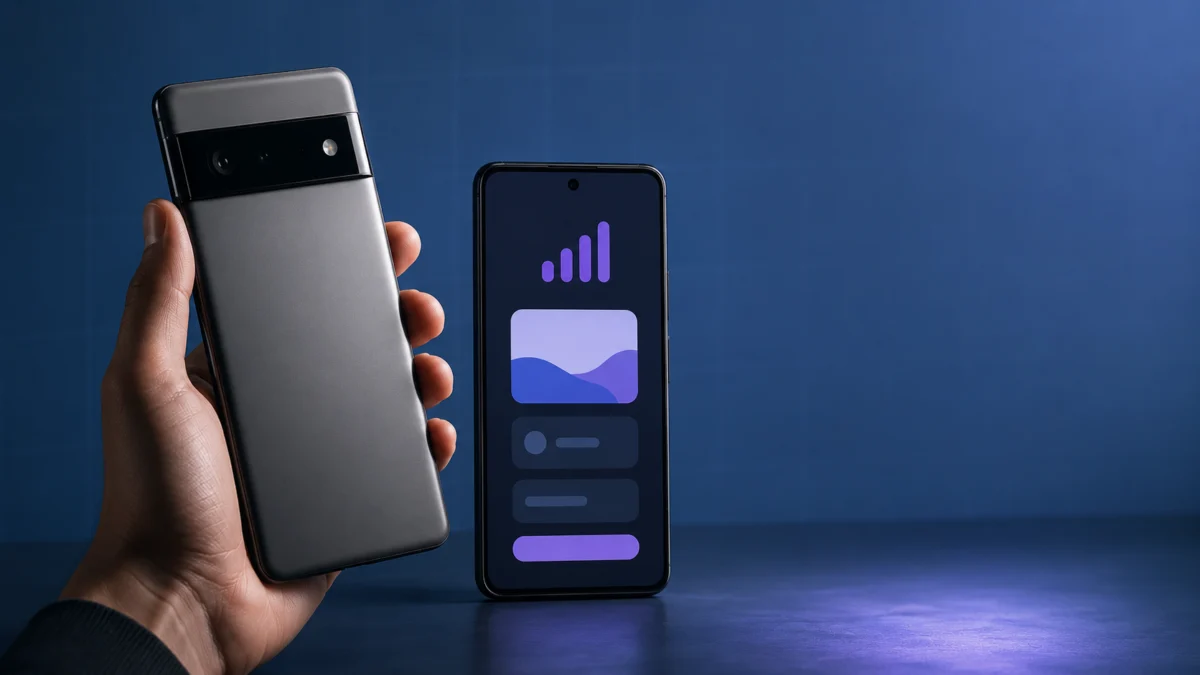
You tapped “Set up an eSIM,” watched the progress bar move—then got hit with “activation failed,” “could not download your SIM,” or an error code you’ve never seen before. On a Google Pixel, eSIM failures fall into a small number of well-documented categories, and most are fixable without calling your carrier.
Quick summary: The most common causes are a carrier-locked device, a SIM Protection setting left enabled (Verizon users in particular), an unstable Wi-Fi connection that expired your single-use activation token, or a conflicting old eSIM profile still sitting on the device. Work through the checklist below before requesting a new QR code or activation token from your carrier—once a token is used or expired, carriers typically need to generate a new one.
Scope of this guide: This guide covers Google Pixel 8 and later running Android 11 or above, activating with T-Mobile, Verizon, AT&T, or Google Fi in the United States. Note that eSIM activation requires Android 11 or above—Pixels running Android 10 or earlier cannot activate an eSIM regardless of hardware. This guide does not cover custom ROM setups or international carrier configurations.
One important warning before you start: If your eSIM is still provisioned and occasionally connecting, do not delete the profile to “start fresh.” According to reports documented in Google’s Issue Tracker, at least one user who deleted a functioning eSIM profile was unable to re-add one afterward. If your eSIM is partially working, jump directly to the carrier contact steps in the escalation section below.
Quick Fix Checklist: Try These First
Run through these five checks before attempting a full step-by-step fix. Each one addresses a cause confirmed across multiple reported cases.
- Confirm your device is carrier-unlocked. Go to Settings → Network & internet → SIMs. If you only see your original carrier’s name and cannot add a different carrier, your device may still be locked. Contact the original carrier to request an unlock before proceeding.
- Connect to a strong, stable Wi-Fi network. eSIM provisioning requires a reliable internet connection throughout the entire download. Switch to a different Wi-Fi network or a mobile hotspot if your current signal is weak. Disable any VPN and set Private DNS to Off or Automatic (Settings → Network & internet → Private DNS) for the duration of activation.
- Update Android OS and the Carrier Services app. Go to Settings → System → System update to install any pending updates. Then open the Play Store, search for “Carrier Services,” and update it if an update is available. Outdated Carrier Services is a confirmed cause of provisioning failures.
- Disable SIM Protection on your carrier account (Verizon users). On Verizon, SIM Protection must be turned off in My Verizon before an eSIM transfer or new activation will succeed. Log in to your Verizon account online or in the app and disable it before starting the eSIM process.
- Remove old or unused eSIM profiles. Go to Settings → Network & internet → SIMs. If you see inactive profiles from previous carriers, select each one and tap Erase eSIM. A conflicting profile is a documented cause of “couldn’t activate service” errors on Pixel.
If none of these resolve the issue, continue to the root cause analysis and step-by-step fix below.
Root Causes, Ranked by Likelihood
The following causes are ordered from most to least common based on confirmed reports from Google’s official support pages, carrier documentation, and community forums.
- Carrier lock. The device is locked to the carrier where it was originally purchased. Google Fi’s official error documentation explicitly identifies carrier-locked devices as a top cause of eSIM activation failure. Carrier-purchased Pixels—including those bought from the Google Store with a specific carrier selected—may be locked under that carrier’s policies.
- SIM Protection or SIM Lock not disabled. Verizon and some other carriers apply a SIM Protection setting that blocks any eSIM change until it is manually disabled by the account holder. Skipping this step causes immediate activation failure on a device transfer.
- Weak or interrupted Wi-Fi during provisioning. eSIM activation tokens and QR codes are often single-use. According to analysis by Android Police, one failed download attempt is enough to expire the token—meaning the QR code or activation code from your carrier will no longer work. You will need your carrier to issue a new one.
- Conflicting old eSIM profile on the device. Pixels have a limited number of eSIM profile slots. An inactive profile from a previous carrier can block new provisioning. The solution is to fully erase—not just disable—the old profile before attempting activation.
- Carrier Services app cache corruption. A corrupted cache in the Carrier Services app can silently block eSIM provisioning. Go to Settings → Apps → Carrier Services → Storage & cache → Clear cache, then retry activation.
- Carrier-side account issue. Billing holds, incomplete number port transfers, or a fraud flag on the account can cause the carrier’s provisioning server to reject the eSIM request. This is a server-side issue that no amount of device-side troubleshooting will resolve—it requires a call to your carrier.
- Carrier does not support eSIM for your specific model. Not every carrier supports every Pixel model for eSIM activation. Before spending time troubleshooting, confirm your model is on your carrier’s supported device list.
- VPN or Private DNS interference. An active VPN or custom Private DNS setting can block the communication between your device and the carrier’s provisioning server. Disable both before activating.
- Known Pixel 9 / Pixel 10 eSIM hardware or software bug (May 2026). Google has acknowledged across multiple Issue Tracker threads that some Pixel 9 and Pixel 10 units are experiencing eSIM failures that standard troubleshooting does not resolve. See the next section for details.
Common Patterns Reported by Users
The following two patterns appear across multiple independent reports and community threads. We have confirmed each through multiple sources before including them here.
Pixel 9 and Pixel 10: Acknowledged eSIM Bug (Ongoing as of May 2026)
According to reporting by Android Authority and corroborated by Tech Advisor, Android Central, and Android Headlines, a significant number of Pixel 9 and Pixel 10 users have reported their eSIM failing entirely—with symptoms including the SIM Manager app hanging or crashing, “something went wrong” error messages, and in some cases the need to reboot or factory reset the device every three to four days to restore mobile connectivity. Multiple users confirmed that their physical SIM worked normally in the same device where the eSIM failed.
Google has confirmed the issue in multiple Issue Tracker threads and states it is investigating. No fix or timeline has been published. If your Pixel 9 or Pixel 10 is affected and standard troubleshooting has not helped, the recommended next step is to file a report in Google’s Issue Tracker and contact Google Pixel support directly.
Verizon: SIM Protection Causes Silent Failure on Device Transfer
Multiple users in the Android Central community forum have reported that attempting a Pixel-to-Pixel eSIM transfer on Verizon fails silently when SIM Protection is still active on the account. In at least one reported case, a failed activation attempt caused Verizon to flag the account for fraud, requiring a call to Verizon’s fraud department and identity verification to restore the line. The resolution across these reports is consistent: disable SIM Protection in your Verizon account before starting any eSIM transfer, and do not attempt the activation more than once before confirming the account status with Verizon if the first attempt fails.
Step-by-Step Fix by Activation Method
Choose the activation method your carrier uses. If you are not sure which method your carrier requires, check your carrier’s eSIM setup page or the documentation that came with your eSIM order.
Method A: QR Code Scan
This is the most common method used by T-Mobile, AT&T, and most third-party carriers.
- Connect to a stable Wi-Fi network. Disable any VPN and set Private DNS to Automatic.
- Open your device’s Settings app.
- Tap Network & internet → SIMs → Add SIM → Set up an eSIM.
- When prompted, select Scan QR code from carrier.
- Use a second device to display the QR code, or print it. Do not screenshot a screenshot—use the original image file from your carrier’s email or app.
- Scan the code and follow the on-screen prompts to confirm the download.
- After the profile downloads, go back to Settings → Network & internet → SIMs, confirm the new eSIM appears, and toggle it on.
If the QR code fails: The token may have expired. Contact your carrier to request a new QR code before retrying. Do not scan the same code again—it will return the same error.
Method B: Manual Activation Code Entry
Use this method if QR code scanning fails or if your carrier provided an SM-DP+ address and activation code by email.
- Connect to a stable Wi-Fi network with VPN and Private DNS disabled.
- Go to Settings → Network & internet → SIMs → Add SIM → Set up an eSIM.
- On the QR code screen, look for an option such as Enter details manually or Use activation code instead.
- Enter the SM-DP+ address exactly as provided. Do not include “https://” or “http://” at the start.
- Enter the activation code exactly as provided. One character error will cause the activation to fail.
- Confirm and wait for the profile to download.
Method C: Google Fi App (Google Fi Only)
- Download the Google Fi app from the Play Store if it is not already installed.
- Sign in with the Google Account associated with your Fi subscription.
- Connect to a stable Wi-Fi network. Go to Settings → Network & internet → Mobile network and confirm Mobile data is toggled on.
- Open the Fi app and follow the on-screen activation prompts.
- If you see error code T120 or any E0X code: update Android OS and the Fi app, then retry.
- If you see error code T025: confirm Mobile data is enabled in Settings, then retry.
- If you see error code B034: your physical SIM type is incompatible. Follow the on-screen instructions to swap to a supported SIM, or contact Fi to order a replacement.
Carrier-Specific Notes
T-Mobile
Confirm your device is unlocked before starting. If your account has a security restriction, T-Mobile’s eSIM troubleshooting page states you will need to contact T-Mobile directly to have it removed before activation will succeed.
Verizon
Disable SIM Protection in your My Verizon account before any eSIM activation or transfer. After disabling it, wait a few minutes before starting the eSIM setup on the device. If a first attempt fails, call Verizon before retrying—multiple failed attempts have been reported to trigger a fraud flag on the account.
AT&T
Unlocked Pixel devices are supported on AT&T eSIM. If your Pixel was purchased directly from AT&T, an eSIM profile is already assigned to your device’s IMEI—you will receive a prompt to download it automatically when connected to Wi-Fi during setup. If you are bringing your own unlocked Pixel to AT&T, contact AT&T to confirm your IMEI is registered before requesting an activation QR code.
Google Fi
Google Fi requires Android 11 or above for eSIM activation. Devices purchased through a carrier channel—including Pixels purchased from the Google Store with a specific carrier selected—may be carrier-locked and will return an error when you attempt Fi activation on a locked device. In that case, contact the original carrier to unlock the device first.
When Self-Troubleshooting Won’t Work: Escalation Guide
Stop self-troubleshooting and contact support directly when any of the following is true:
- Your device is confirmed unlocked, Wi-Fi is stable, all cache and profile conflicts are cleared, and activation still fails—this points to a carrier-side provisioning issue that requires a support ticket.
- The carrier’s provisioning server is rejecting your eSIM request due to a billing hold, incomplete number port, or account flag. No device-side fix resolves this.
- You are on a Pixel 9 or Pixel 10 and standard troubleshooting has had no effect. This may be the acknowledged Google hardware or software bug.
- The QR code or activation token has been used or expired and a new one needs to be issued.
Where to escalate:
- Your carrier’s support line — Provide your device’s IMEI (Settings → About phone) and EID (Settings → About phone → SIM status → EID) to speed up troubleshooting. Ask the carrier to confirm the eSIM profile is correctly attached to your account and to re-push the profile or generate a new activation code if needed.
- Google Pixel support — For device-side issues on Pixel 9 and Pixel 10, contact Google directly.
- Google Issue Tracker — If you are affected by the Pixel 9 / Pixel 10 eSIM bug, filing a report in Google’s Issue Tracker adds to the documented case count and increases the priority of a fix.
How We Researched
This article is based on Google’s official Pixel Phone Help documentation, Google Fi’s official activation error code page, T-Mobile’s official Android eSIM troubleshooting page, and Verizon’s community support forum. Real user reports were drawn from the Android Central community forum (multiple posts on Verizon SIM Protection failures during Pixel transfers) and from Android Authority, Tech Advisor, Android Central, and Android Headlines reporting on the Pixel 9 and Pixel 10 eSIM bug (all published May 2026), which in turn cited Reddit r/GooglePixel, the Google Pixel Community Forum, X, and Google’s Issue Tracker. We have not conducted hands-on lab testing. All troubleshooting steps reflect documented procedures from carrier official pages and confirmed community-reported findings.
Conclusion
Most Google Pixel eSIM activation failures trace back to one of three things: a locked device, a carrier account setting that blocks the transfer (especially Verizon’s SIM Protection), or an expired activation token caused by a Wi-Fi drop during provisioning. Run through the Quick Fix Checklist, choose the right step-by-step flow for your carrier’s activation method, and have your IMEI and EID ready before calling support. If you are on a Pixel 9 or Pixel 10 and nothing works, the issue may be the ongoing eSIM bug that Google has acknowledged but not yet patched—in that case, escalating directly to Google Pixel support and filing an Issue Tracker report is the appropriate next step.





Comments