
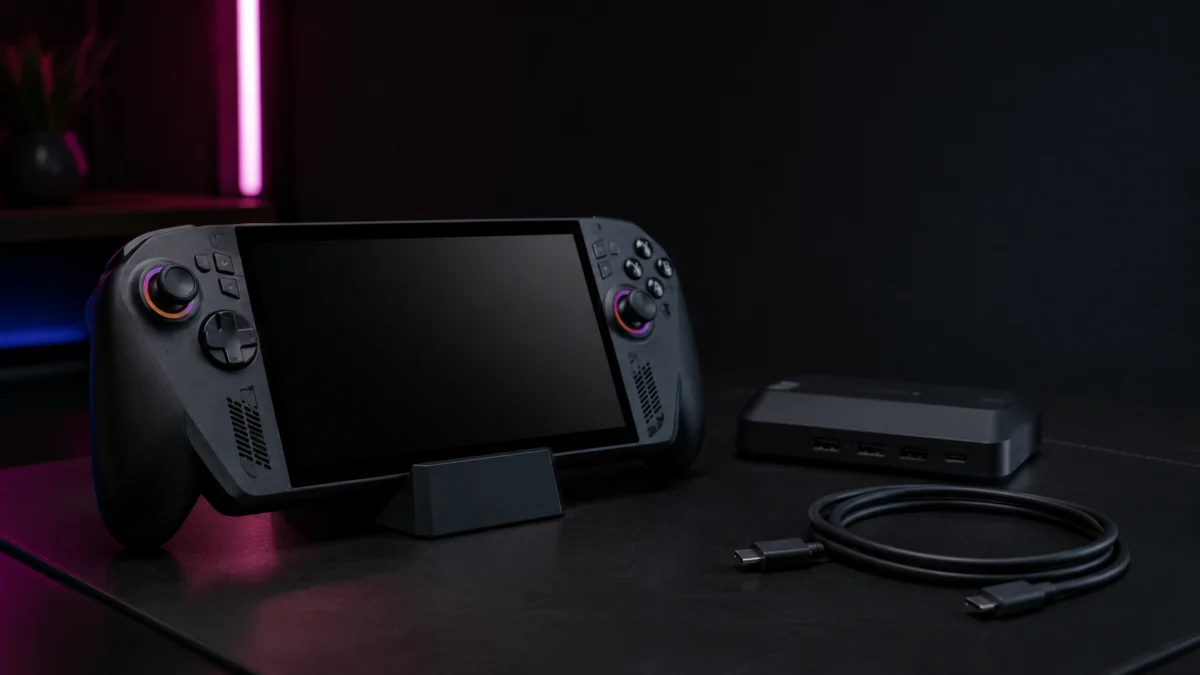
Note: Auto SR is rolling out as a staged Windows update. The screens and menu names described in this guide may look slightly different depending on your current Windows 11 version.
You bought the ROG Xbox Ally X, docked it to your TV, and went looking for the Auto SR toggle — only to find it greyed out, missing from Game Bar entirely, or refusing to activate after you switched it on. Here is exactly what is happening, and how to fix it.
Quick answer: Auto SR turns on for the ROG Xbox Ally X only when four conditions are met at once — the device is docked to an external display, your game renders at 720p–900p (not native 1080p) in a DirectX 11/12 title, you have joined the Xbox Insider PC Gaming preview, and Game Bar plus the Auto SR package are updated. If the toggle is greyed out or missing, one of these four is the cause.
This guide covers three things in order: the complete setup steps to enable Auto SR on the ROG Xbox Ally X, which games and display settings it actually works with, and a structured checklist for diagnosing the three most common reasons the feature fails to activate.
Important: As of the time of writing (May 2026), Auto SR on the ROG Xbox Ally X is available in preview to Xbox Insiders only. Microsoft has not yet announced a date for the full public rollout.
Quick Fix Checklist
If Auto SR is greyed out or showing “Off, Action Required,” run through these checks before anything else.
- Your Ally X is docked and connected to an external display — Auto SR is unavailable in handheld mode in the current preview
- Windows 11 version 24H2 or later is installed
- You have enrolled in Xbox Insider Hub → Previews → PC Gaming
- The Auto Super Resolution Package is installed and updated via the Microsoft Store
- Your game’s in-game resolution is set to 1280×720 or 1600×900 — native 1080p will prevent Auto SR from activating
- Your game uses DirectX 11 or DirectX 12 — DX9, Vulkan, and OpenGL are not supported
If all six are confirmed and the feature still does not respond, the step-by-step setup and full diagnosis section below will walk you through the remaining causes.
What Is Auto SR on the ROG Xbox Ally X?
Auto SR — Automatic Super Resolution — is Microsoft’s AI upscaling feature built directly into Windows 11. It works the same way as AMD FSR, NVIDIA DLSS, and Intel XeSS: the game renders at a lower internal resolution to gain FPS headroom, and AI reconstructs a sharper, higher-resolution image for your display. What makes Auto SR different is where the processing happens.
According to Microsoft’s DirectX Developer Blog, Auto SR runs on the NPU (Neural Processing Unit) — not the GPU. On the ROG Xbox Ally X, the NPU sits inside the AMD Ryzen™ AI Z2 Extreme processor and delivers up to 50 TOPS of AI performance. Because the NPU processes the upscaled frame in parallel with the GPU rendering the next one, the GPU’s frame time is not affected. Microsoft notes this design introduces one frame of added latency as a tradeoff, but allows the use of larger, higher-quality AI models than GPU-based upscalers can run within their tight millisecond budgets.
According to Microsoft, this approach delivers more than a 30% FPS boost in Forza Horizon 5 when upscaling from a lower resolution to 1440p-equivalent output — with visual quality that Microsoft’s side-by-side frames describe as difficult to distinguish from native.
Two important boundaries to understand upfront. First, Auto SR on the ROG Xbox Ally X currently works only when the device is docked and connected to an external display. The toggle is not available in handheld mode in the current preview. Second, Auto SR is exclusive to the ROG Xbox Ally X. The base ROG Xbox Ally does not include an NPU and cannot run Auto SR regardless of software updates.
What You Need Before You Start
All of the following are required for Auto SR to function. These requirements are confirmed in Microsoft’s official Auto SR preview documentation published April 30, 2026.
Hardware
- ROG Xbox Ally X (2025) — NPU required; the base ROG Xbox Ally is not supported
- External monitor or TV connected via USB-C or a compatible dock
Software
- Windows 11 version 24H2 or later
- Latest graphics and NPU drivers — check via Start → Settings → Windows Update → Advanced options → Optional updates
- Auto Super Resolution Package installed from the Microsoft Store
- Xbox Insider Hub installed from the Microsoft Store
- Xbox Insider enrollment: PC Gaming preview (see setup steps below)
Game requirements
- DirectX 10 or newer (DX11 and DX12 deliver the best results)
- In-game resolution set to 1280×720 or 1600×900 — not native 1080p
- Display mode set to Fullscreen or Exclusive Fullscreen in the game’s settings
Not supported
- DirectX 9 games
- Vulkan-based games
- OpenGL-based games
- x86-only executables
- Games using 10-bit color formats
How to Enable Auto SR: Step by Step
Complete these steps in order. The Auto SR toggle will not appear in Game Bar until the Insider enrollment and Microsoft Store updates are in place — skipping either step is the most common reason the feature stays hidden.
- Open the Microsoft Store on your ROG Xbox Ally X.
- Search for “Auto Super Resolution Package” and click Get to install it.
- Search for “Xbox Insider Hub” and click Get to install it.
- Open Xbox Insider Hub and sign in with the Microsoft account linked to your Xbox Game Pass subscription.
- Open the Previews tab (the box icon in the left sidebar).
- Select “PC Gaming” from the list of available previews and click Join.
- Select “PC Gaming” a second time to confirm enrollment, then restart your Ally X.
- After restarting, open the Microsoft Store, go to Downloads, and click “Check for updates.” Confirm that the Xbox app, Game Bar, and Auto SR Package are all updated to their latest versions.
- Dock your ROG Xbox Ally X and connect it to an external monitor or TV.
- Launch a PC game and open its display or graphics settings. Set the resolution to 1280×720 and the display mode to Fullscreen or Exclusive Fullscreen.
- Press the Xbox button to open Game Bar.
- Open the Display widget and select the Auto SR tab. If the Auto SR tab is not visible, open the Widgets menu inside Game Bar and select “Display” to add it.
- Turn on the “Always use with this game” toggle.
To confirm Auto SR is actively running, turn on the “Show in-game status indicator” toggle in the same Auto SR tab. A small icon will appear in the corner of your game window while upscaling is active. If no icon appears, the Auto SR tab in the Display widget will show a specific status message describing what still needs to be resolved.
Which Resolution to Set
Microsoft recommends setting the game’s internal render resolution to 720p on the ROG Xbox Ally X. Auto SR supports input resolutions between 700p and 900p. If the game is already rendering at native 1080p, Auto SR has nothing to upscale and the toggle stays inactive. The recommended starting point is 1280×720 for most titles.
Games to Try First
As of the time of writing, Microsoft has published a recommended list of games for testing Auto SR during the preview period. These are titles Microsoft has verified for a smooth out-of-the-box experience. For the current and updated list, check Microsoft’s official Auto SR preview page.
Microsoft’s launch-period recommendations include: Assassin’s Creed: Mirage, Assassin’s Creed: Valhalla, Assetto Corsa, Avowed, Control, Dead Island: Definitive Edition, DOOM: The Dark Ages, Far Cry 6, Frostpunk 2, Grounded 2, Psychonauts 2, Rise of the Tomb Raider, The Outer Worlds 2, Tom Clancy’s Rainbow Six Siege, Tom Clancy’s The Division 2, and War Thunder.
Auto SR can be manually enabled on any DirectX 11 or DirectX 12 game via Game Bar, not just the titles above. Microsoft notes that results may vary on untested games — you can experiment with any DX11/DX12 title and toggle the feature on or off mid-session to compare.
What FPS Improvement to Expect
The gains vary by game and graphics settings. According to Microsoft’s DirectX Developer Blog, Forza Horizon 5 running with Auto SR delivers over a 30% FPS improvement compared to native 1440p rendering, while producing 1440p-equivalent visual quality. Community-reported benchmarks from Notebookcheck and TweakTown, documenting hands-on testing by YouTube channel ETA Prime, show the following results on the ROG Xbox Ally X:
- God of War Ragnarok (Balanced preset): 40 FPS at native 1080p versus 57 FPS at 720p with Auto SR
- Black Myth: Wukong (Low preset): 51 FPS at native 1080p versus 66 FPS at 720p with Auto SR
- Cyberpunk 2077 (Steam Deck preset): 56 FPS at native 1080p versus 63 FPS at 720p with Auto SR
One tradeoff is documented officially by Microsoft: Auto SR adds one frame of latency, because the NPU processes the preceding frame while the GPU renders the next. For single-player open-world and story-driven games, this latency addition is generally imperceptible. For competitive multiplayer titles where input lag is a priority concern, this is worth weighing before enabling the feature.
A second factor to understand: because the NPU draws from the ROG Xbox Ally X’s shared power budget, enabling Auto SR slightly reduces the clock headroom available to the CPU and iGPU. This is why FPS gains vary between titles — the image quality improvement from upscaling is consistent, but the net FPS benefit depends on each game’s CPU and GPU load balance.
Auto SR Still Not Working? Three Things to Check
If the Auto SR toggle is greyed out, the tab is missing from Game Bar, or “Off, Action Required” persists after completing the setup steps, the cause almost always falls into one of these three categories. Use the table below to isolate the likely cause quickly, then jump to the matching fix.
| Check | What to confirm | If it’s wrong |
|---|---|---|
| External display | Ally X docked to a monitor or TV via USB-C or a compatible dock | Handheld mode is unsupported in the current preview, so the toggle stays unavailable |
| In-game resolution | Set to 1280×720 or 1600×900 | Native 1080p leaves nothing to upscale and the toggle stays inactive |
| Graphics API | Game uses DirectX 11 or 12 | DX9, Vulkan, OpenGL, and x86-only titles cannot activate Auto SR |
| Display mode | Fullscreen or Exclusive Fullscreen in the game | The setup steps require fullscreen output for Auto SR |
| Windows version | Windows 11 version 24H2 or later | Older builds do not include Auto SR |
| Packages & Game Bar | Auto SR package and Game Bar updated after Insider enrollment | The Auto SR tab will not appear until Game Bar updates |
| Drivers | Latest graphics and NPU drivers via Optional updates | Outdated NPU or graphics drivers may prevent activation |
1. Packages and Game Bar Are Not Updated
The Auto SR tab does not appear in Game Bar until Game Bar itself has updated after the Xbox Insider enrollment. This update does not always install automatically in the background immediately after joining.
To force the update: if your Ally X is running in Xbox Full Screen Experience mode (Xbox mode), open Game Bar → Settings → Exit Xbox mode to return to the Windows desktop. Then open Microsoft Store → Downloads → Check for updates. Confirm that Game Bar, the Xbox app, and the Auto SR Package all show as current. Restart the device and relaunch your game.
Also confirm that Windows 11 is on version 24H2 or later: open Start → Settings → System → About → Windows specifications.
2. The Game or In-Game Resolution Is Not Supported
Auto SR will not activate on any game that uses DirectX 9, Vulkan, OpenGL, or that ships as an x86-only executable. These restrictions apply regardless of Game Bar configuration.
Equally common: the game’s in-game resolution is set to 1920×1080. Auto SR requires a source resolution between 700p and 900p. At native 1080p, the upscaler has nothing to work with and the toggle remains inactive even when all other requirements are met.
Fix: Open the game’s display settings, change the resolution to 1280×720, set the display mode to Fullscreen or Exclusive Fullscreen, and then return to the Auto SR tab in Game Bar to enable the toggle.
3. The Device Is Not Docked to an External Display
In the current preview, Auto SR is restricted to docked mode. If the ROG Xbox Ally X is not connected to an external monitor or TV, the Auto SR toggle is unavailable — this is expected behavior, not a malfunction.
Fix: Dock your Ally X and connect it to an external display via USB-C or a compatible dock. Once the external display is detected, the Auto SR tab in Game Bar becomes active. According to Microsoft’s preview documentation, this restriction exists because docked play on larger screens is where the image quality benefits of upscaling are most visible and most valuable.
Community testing documented by Notebookcheck and TweakTown has noted that connecting the Ally X to its charger — without a full dock or external display — allowed Auto SR to activate on the built-in screen in some setups. Microsoft has not officially documented or confirmed this behavior. Treat it as an unofficial community-reported workaround rather than a supported configuration.
Frequently Asked Questions
Does Auto SR work in handheld mode on the ROG Xbox Ally X?
Not in the current preview. Auto SR is restricted to docked mode, so the toggle only becomes available when the Ally X is connected to an external monitor or TV. Microsoft’s preview documentation notes the feature is focused on larger docked screens, where the image quality benefits of upscaling are most visible.
Can the base ROG Xbox Ally — without the “X” — run Auto SR?
No. Auto SR runs on the NPU inside the AMD Ryzen AI Z2 Extreme processor, and the base ROG Xbox Ally does not include an NPU. The feature is exclusive to the ROG Xbox Ally X and will not appear on the base model regardless of software updates.
Why is Auto SR still greyed out after I turned it on?
The most common causes are an in-game resolution still set to native 1080p, a game running on DirectX 9, Vulkan, or OpenGL, the device not being docked to an external display, or Game Bar and the Auto SR package not being updated after Xbox Insider enrollment. Work through the diagnostic table above to isolate which one applies.
Does Auto SR add input lag?
Microsoft documents one frame of added latency, because the NPU processes the previous frame while the GPU renders the next. For single-player and open-world games this is generally imperceptible, but it is worth weighing for competitive multiplayer titles where input lag matters.
How We Researched
This article is based on Microsoft’s official DirectX Developer Blog post announcing the Auto SR preview for the ROG Xbox Ally X (devblogs.microsoft.com/directx, published April 30, 2026), Xbox Wire’s companion update post (news.xbox.com, April 30, 2026), and ASUS ROG official product specifications (rog.asus.com). Setup steps were cross-referenced against Pureinfotech’s step-by-step guide (published April 30–May 1, 2026), which is itself based on Microsoft’s official support guidance. Performance data reflects community-reported benchmarks documented by Notebookcheck (May 4, 2026) and TweakTown (May 5, 2026), both covering hands-on testing conducted by YouTube channel ETA Prime. We have not conducted hands-on testing on the device. All performance figures reflect manufacturer-stated estimates or community-reported results from the sources cited above.
Conclusion
Auto SR on the ROG Xbox Ally X is a straightforward feature to use once the groundwork is in place — but the setup requires four sequential steps (two app installs, an Xbox Insider enrollment, and a Microsoft Store update pass) before the toggle appears in Game Bar at all. Most “not working” situations trace back to one of three causes: the packages and Game Bar haven’t updated after enrollment, the game’s internal resolution is still set to native 1080p, or the Ally X isn’t docked to an external display.
With those conditions met, Auto SR puts the ROG Xbox Ally X’s NPU to work in a way no other handheld currently offers — delivering upscaled 1440p-level clarity on a big screen without touching your GPU’s render budget. For single-player and open-world games where you’re bumping against a frame rate ceiling on a large screen, it is worth setting up.
AD









Comments