
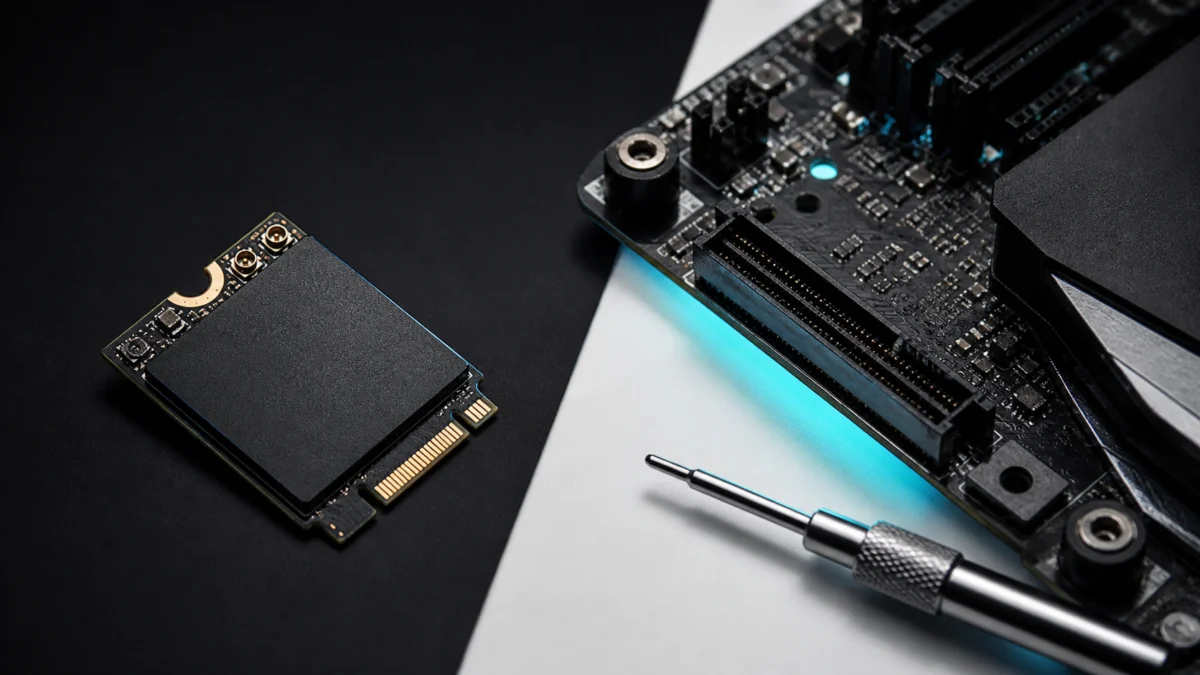
On AMD desktops and laptops, the Intel BE200 does not work as a Wi-Fi adapter — and as of 2026, two years of Intel driver updates and AMD motherboard firmware updates have not changed that. If you installed the BE200 and Wi-Fi is missing from Device Manager while Bluetooth appears normally, you are seeing the known incompatibility pattern, and no software fix exists for it.
This guide explains what is confirmed and what is not, how to check your own system, and three clear paths forward: the right Wi-Fi 7 alternative for AMD builds, the most widely documented Wi-Fi 6E option, and what to do if you are on a compatible Intel platform.
Does Intel BE200 Work With AMD?
No. On AMD builds — AM4 and AM5 — the Intel BE200 does not function as a Wi-Fi adapter, and the issue remains unresolved as of 2026 despite continued driver and firmware updates. Bluetooth from the same card is typically detected, but Wi-Fi does not appear at all, even under hidden devices in Device Manager. Hardware vendors now document the incompatibility as a fixed characteristic of the card, so treat the BE200 as incompatible with AMD before purchasing.
Here is where each setup stands:
| Your setup | BE200 Wi-Fi | BE200 Bluetooth | What to do |
|---|---|---|---|
| AMD desktop (AM4 / AM5) | Does not work — unresolved as of 2026 | Usually detected | Choose an alternative card |
| AMD laptop | Does not work — Framework documents it as a limitation of the card; no major OEM ships the BE200 in AMD machines | Usually detected | Use the module family your maker ships (current AMD laptops use MediaTek MT7925) or a USB adapter as a stopgap |
| Intel 12th Gen (Alder Lake) or newer, Windows 11 | Working — reported since launch; ASUS officially lists Intel 13th Gen and later for its BE200-based card | Works | Reseat the module and install the latest Intel driver |
| Intel systems older than 12th Gen | Not clearly documented by Intel or vendors | Usually detected | Verify before buying |
Is the Intel BE200 Officially Supported on AMD?
Intel has never published a statement about AMD compatibility for the BE200 — in either direction. Its specifications page, product brief, and every driver release note through version 24.50.0 (June 2026) are silent on the issue. Hardware vendors, however, now document the incompatibility officially: ASUS lists its BE200-based adapter as “only compatible with Intel motherboards,” and Framework’s engineering team describes AMD incompatibility as a limitation of the BE200 card itself.
So when you search for “official compatibility,” there are two different official voices to check — and they say different things by omission:
- What Intel’s documentation says: Intel’s official specifications page lists the system interface simply as M.2: PCIe, USB, and the supported operating systems as Windows 11, Windows 10, and Linux. No platform restriction is stated anywhere — no Intel-only requirement, no AMD warning, and no known-issues entry in any driver release note to date.
- What hardware vendors say: ASUS’s official specifications for its BE200-based PCIe adapter (PCE-BE92BT) restrict support to Windows 11 with Intel 13th Gen and later CPUs on Intel motherboards, and state that AMD motherboards are not supported. Framework, whose laptops are designed for user-replaceable modules, has publicly confirmed through its official issue tracker that the BE200 is PCIe-based yet not compatible with its AMD systems. Retailers have followed suit, flagging AMD incompatibility directly on OEM BE200 listings.
In short: Intel provides no document that confirms or rules out AMD support, and the official guidance that does exist — from the vendors actually shipping the card — says Intel-only. That vendor documentation is the closest thing to an official answer available in 2026, and it is why this article treats the BE200 as incompatible with AMD.
How to Confirm the Problem on Your System
If Bluetooth from the BE200 is detected but Wi-Fi does not appear anywhere in Device Manager — including under hidden devices — your system matches the known AMD incompatibility pattern, and no driver or firmware update available as of 2026 resolves it. If neither appears, rule out a seating or slot-type issue first.
| Symptom | Most likely meaning |
|---|---|
| Bluetooth detected, Wi-Fi missing even under hidden devices | The known AMD incompatibility — no software fix exists as of 2026 |
| Neither Wi-Fi nor Bluetooth is detected | Seating or slot issue — confirm the slot is M.2 A+E keyed and reseat the module |
Work through these checks in order:
- Check your slot type. Confirm the M.2 slot you’re using is keyed as M.2 A+E (the standard for Wi-Fi cards). An M.2 M-key slot will not accept a Wi-Fi module.
- Reseat the module. Power down completely, remove the BE200, and reinstall it firmly. A loose connection can prevent detection.
- Check Device Manager for hidden devices. Go to View → Show Hidden Devices. If the Wi-Fi adapter still does not appear, you have confirmed the incompatibility pattern.
- Do not sink time into software-side fixes. Intel’s driver updates from version 23.30.0 (2024) through 24.50.0 (June 2026), and motherboard vendors’ AGESA firmware updates, have not made the BE200 work on AMD systems. Driver reinstalls and clean Windows installs have not been reported to change the outcome either. The faster path is a compatible replacement card.
Why Doesn’t It Work? Intel Has Never Explained It
The short answer: Intel has never said, and after two years the industry has stopped waiting for a fix. What is clear is that this is not a driver problem — it is a platform-level limitation of the card that vendors now treat as a fixed characteristic.
According to a report by Tom’s Hardware, users noticed the BE200 and BE202 failing on AMD-based systems shortly after the adapters became available, and at the time it was uncertain whether Intel had intentionally restricted compatibility or whether a bug in AMD’s AGESA platform firmware was responsible. Intel never clarified. Since then, Intel has shipped continuous driver updates — through version 24.50.0 in June 2026 — and motherboard vendors have shipped repeated AGESA updates, yet testing on current AM5 systems shows the BE200’s Wi-Fi still is not recognized. That track record is why vendors such as ASUS and Framework now document the incompatibility outright instead of waiting for a patch.
Reports on Reddit’s r/AMD community describe the same behavior across a wide range of AMD builds — including AM5 systems running Ryzen 7000-series processors and AM4 boards.
Here is the current state of what is confirmed and what is not:
| Question | Status (2026) |
|---|---|
| Official interface listing | Confirmed — M.2: PCIe, USB, per Intel’s specifications page |
| Wi-Fi failing on AMD while Bluetooth is detected | Confirmed — vendor documentation (ASUS, Framework) and widespread user reports |
| Whether driver or firmware updates fix it | No — unresolved through Intel driver 24.50.0 and current AGESA firmware |
| Root cause (intentional restriction vs. technical flaw) | Not confirmed — Intel has never commented |
One persistent piece of confusion is worth clearing up. Forum threads often blame the BE200’s failure on Intel’s CNVio interface — but per Intel’s own specification pages, that does not match the BE200. CNVio is used by Intel’s “1”-suffix modules (AX201, AX211, and the Wi-Fi 7 BE201, which uses CNVio3): those cards offload part of the Wi-Fi logic to an Intel chipset and genuinely cannot work on AMD by design. The BE200 and BE202, by contrast, are listed as standard PCIe/USB modules — which is exactly why their failure on AMD is so unusual. On paper, they should work anywhere the Wi-Fi 6E AX210 works. In practice, they do not, and Intel has not explained the gap.
As for why Bluetooth still shows up: the M.2 A+E slot carries both PCIe and USB signals, and Bluetooth on these cards connects over USB. That is why Bluetooth can appear normally in Device Manager while the Wi-Fi side of the same card is completely absent — the two functions reach your system over different signal paths.
Before You Buy: When to Avoid the BE200
Skip the BE200 for any AMD system — desktop or laptop. Vendor documentation now states the Intel-only restriction explicitly, no major OEM ships the card in AMD machines, and retailers flag the incompatibility directly on product listings. There is no configuration change that makes it work on AMD.
Avoid the BE200 when any of the following applies:
- Your system is an AMD desktop on AM4 or AM5
- Your system is an AMD laptop — Framework documents the BE200 as incompatible with its AMD machines, and Lenovo and HP ship their current AMD laptops with MediaTek MT7925 modules instead
- Your Intel system is older than 12th Gen and you cannot verify the card works on it — neither Intel nor vendors clearly document support there
Pre-purchase checklist:
- Confirm your CPU platform: Intel 12th Gen or newer with Windows 11 is the configuration reported working since launch, and ASUS’s official support listing for its BE200-based card starts at Intel 13th Gen
- For laptops, check the manufacturer’s supported wireless-module list before ordering
- Heed retailer warnings — OEM BE200 listings increasingly carry an explicit AMD-incompatibility note, and it is accurate
Which Alternative Should You Choose?
If you are on AMD and need Wi-Fi 7, the MediaTek MT7927-based module is the direct replacement for the full 320 MHz tier. If Wi-Fi 7 is not essential, Intel AX210 (Wi-Fi 6E) is the lowest-risk swap for AMD builds. If you are on Intel 12th Gen or later, the BE200 is the configuration reported working — reseat the card and update the driver.
Route A: You’re on AMD and Need Wi-Fi 7
Replace the BE200 with a MediaTek MT7927-based module (marketed as BE7200 in some listings). The MT7927 connects via standard PCIe, is fully compatible with AMD platforms, and supports the 320 MHz channel width that defines Wi-Fi 7’s top throughput tier. If you do not need the 320 MHz tier, its sibling — the MediaTek MT7925 (160 MHz, up to 2.4 Gbps) — is the module Lenovo and HP themselves ship in current AMD laptops and desktops, and it is widely available. For a no-compromise 320 MHz option, Qualcomm’s QCNCM865 (FastConnect 7800) matches the BE200’s top-tier specs and is the module GIGABYTE and MSI ship on high-end AM5 products.
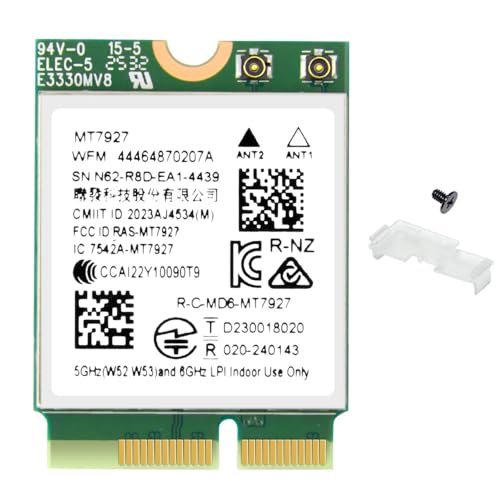
Please check the Amazon product page for the latest price and availability.
Route B: You’re on AMD and Want Maximum Stability
The Intel AX210 (Wi-Fi 6E) is the most widely adopted upgrade choice among AMD builders. It uses a standard PCIe connection, and its compatibility with AM4 and AM5 platforms is well-documented across the enthusiast community. If Wi-Fi 7 is not a strict requirement, this is the lowest-risk swap.

Please check the Amazon product page for the latest price and availability.
Route C: You’re on Intel 12th Gen or Later
Intel 12th Gen (Alder Lake) and newer systems running Windows 11 are the configuration in which the BE200 has been reported working since launch — and ASUS’s BE200-based desktop card officially lists Intel 13th Gen and later. Reseat the module, install the latest Intel Wi-Fi driver from Intel’s support page, and reboot. If your Intel system is older than 12th Gen, verify compatibility before buying — support there is not clearly documented.

Please check the Amazon product page for the latest price and availability.
If you need to get back online immediately while a replacement module ships, a USB Wi-Fi adapter bypasses the M.2 slot — and this whole question — entirely. See the FAQ below for details.
How to Swap Your Wi-Fi Module Safely
Regardless of which replacement module you choose, follow these steps during installation:
- Discharge static before you open the case. Disconnect the power cable and press the power button several times to drain any remaining charge from the system. Touch a grounded metal surface before handling components.
- Download your new module’s driver before you swap. Save the driver installer to a USB drive. Once you remove the BE200, you will temporarily have no Wi-Fi — having the driver ready on USB avoids the catch-22 of needing internet to get back online.
- Handle U.FL antenna connectors with care. Pull each antenna connector straight up from the module — never at an angle. Lateral force can damage the connector or the module’s antenna pad.
- Seat the new module at the correct angle. Insert the card at approximately 30 degrees, press it flat, and secure it with the retaining screw.
- Install the driver from USB, then verify in Device Manager. After booting, install the driver from your USB drive. The Wi-Fi adapter should appear under Network Adapters in Device Manager within a few seconds of driver installation.
How We Researched
This article is based on the following sources: Intel’s official product specifications pages for the BE200, BE201, and BE202 (interface listings) and Intel’s Wi-Fi driver release notes through version 24.50.0; a Tom’s Hardware report covering the BE200/BE202 incompatibility reports on AMD systems; ASUS’s official product specifications for its BE200-based adapter; Framework Computer’s official issue tracker; Lenovo and HP official product specifications for current AMD systems; and user-reported findings in the Reddit r/AMD community. Points that remain unconfirmed — such as the root cause — are identified as such. No information in this article is derived from independent lab testing.
Frequently Asked Questions
Does Intel BE200 work with AMD motherboards?
No. On AMD AM4 and AM5 motherboards, the Intel BE200 does not function as a Wi-Fi adapter, and the issue remains unresolved as of 2026 despite two years of Intel driver updates and AMD firmware updates. Bluetooth from the same card is typically detected, but Wi-Fi does not appear at all — even under hidden devices in Device Manager.
Is Intel BE200 officially supported on AMD PCs?
Intel has made no official statement about AMD support in either direction — its spec page and driver release notes contain no platform restriction and no known-issue entry. Hardware vendors, however, document the incompatibility officially: ASUS restricts its BE200-based adapter to Intel motherboards, and Framework confirms the card does not work with its AMD systems. In practice, treat the BE200 as Intel-only.
Why does Intel BE200 fit in the M.2 slot but still not work on AMD?
The M.2 A+E slot carries both PCIe and USB signals, and Bluetooth on these cards connects over USB — which is why Bluetooth is detected normally while Wi-Fi is absent. Why the Wi-Fi side fails on AMD has never been explained by Intel. Note that the CNVio interface often blamed in forums belongs to the BE201, not the BE200 — Intel lists the BE200 as a standard PCIe/USB module, which is what makes its AMD failure so unusual.
Is Intel AX210 safer than BE200 for AMD builds?
Yes. Intel AX210 (Wi-Fi 6E) uses a standard PCIe interface and is well-documented as compatible with AMD AM4 and AM5 platforms. It carries none of the BE200’s AMD compatibility problems and is the most widely documented Wi-Fi upgrade option in this category.
Can I use a USB Wi-Fi adapter as an alternative on AMD?
Yes. A USB Wi-Fi adapter bypasses the M.2 slot entirely and avoids the BE200 compatibility question. This is a practical option if you need to get online quickly while sourcing a compatible M.2 module. Look for adapters with Wi-Fi 6E or Wi-Fi 7 support depending on your router.
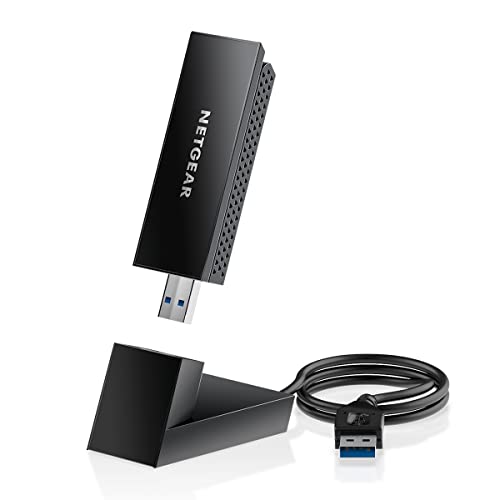
Please check the Amazon product page for the latest price and availability.
Final Verdict: What to Do Right Now
The Intel BE200 does not work on AMD AM4 or AM5 platforms. Vendors now document the incompatibility officially, two years of driver and firmware updates have not changed it, and Intel has never explained it. If your Bluetooth is detected but Wi-Fi is invisible in Device Manager, you have confirmed the issue — stop troubleshooting software and swap the card.
- Need Wi-Fi 7 on AMD? → MediaTek MT7927 (BE7200) for the full 320 MHz tier, or MT7925 — the module AMD laptops ship with — if 160 MHz is enough.
- Want community-documented stability on AMD? → Intel AX210 (Wi-Fi 6E). The best-documented AMD-compatible upgrade.
- On Intel 12th Gen or later with Windows 11? → This is the configuration reported working. Reseat, update the driver, and you’re done.
Pick the route that matches your platform, swap the module, and you can get back online.




Comments