
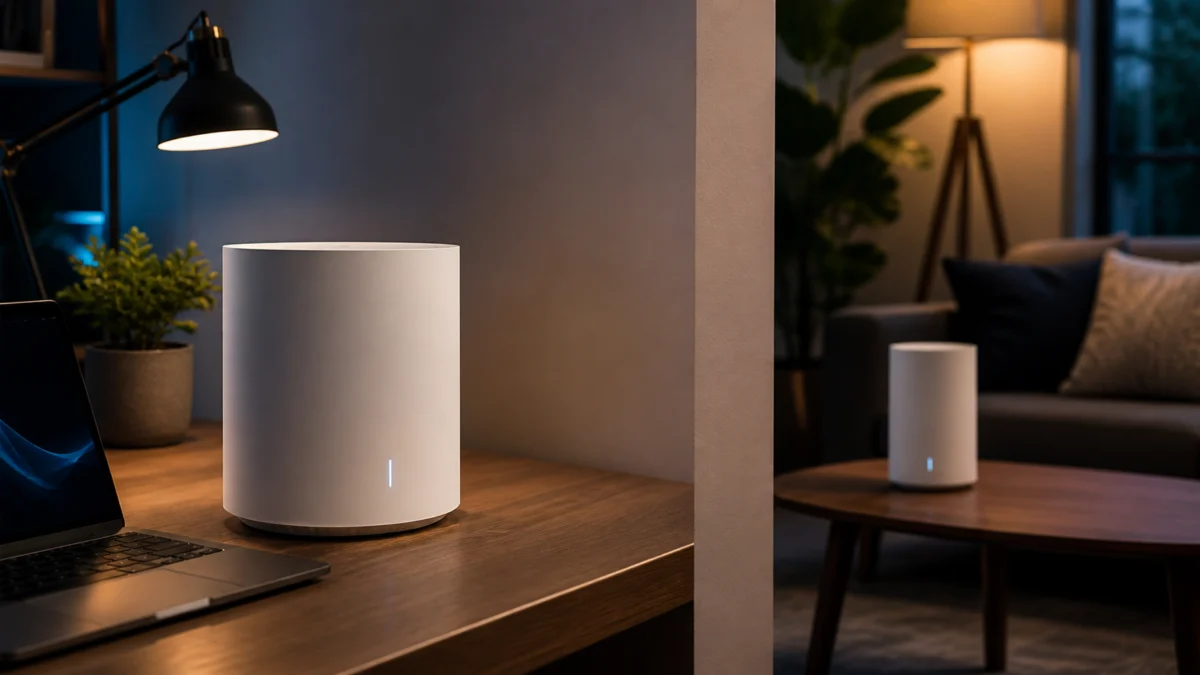
You upgraded to a Wi-Fi 7 router expecting whole-home speed. But the moment you move to another room — or a different floor — performance drops sharply. The culprit is the 6GHz band itself.
6GHz is a density band, not a range band. It delivers unmatched speed when you are in the same room as your router. Pass through a single drywall or wood-frame wall, and signal strength drops by 10–15 dBm compared to the 5GHz band. Hit a concrete or brick wall — or move between floors — and the 6GHz band is effectively blocked, forcing your device back to 5GHz or 2.4GHz.
This article explains the physics behind that drop and gives you a clear decision framework: whether a single Wi-Fi 7 router is enough for your home, or whether a Wi-Fi 7 mesh system is the only real fix.
Quick Answer: The 6GHz band loses approximately 10–15 dBm through a single drywall or wood-frame wall. Through concrete or brick, or between floors, 6GHz is effectively blocked. Before buying mesh, try repositioning your router and enabling Smart Connect. If your home has multiple rooms or floors separated by solid walls, Wi-Fi 7 mesh with MLO is the correct solution.
Quick Fix Checklist
Before changing your hardware, work through this list in order. Most drop problems in single-room or same-floor setups are configuration issues, not coverage problems. A systematic check takes less than 15 minutes and can resolve the issue without any new hardware.
- Check which band your device is connected to. Open your router’s admin app and confirm whether your device is on 6GHz, 5GHz, or 2.4GHz. A device stuck on 2.4GHz in a nearby room is a configuration issue, not a wall-penetration problem.
- Enable Smart Connect. Smart Connect merges your 6GHz, 5GHz, and 2.4GHz networks under a single SSID. Your router then assigns each device to the best available band automatically. Disabling Smart Connect and managing three separate SSIDs manually often causes devices to stay on a suboptimal band.
- Reposition the router. Place your router as close to the center of your home as possible, not in a corner or inside a cabinet. A central position reduces the number of walls between the router and the farthest devices.
- Check for interference sources. Microwave ovens, baby monitors, and older cordless phones can degrade 2.4GHz and 5GHz performance. Although 6GHz is largely free of consumer-device interference today, eliminating other sources of noise helps overall stability.
- Identify your wall type. Tap the wall between your router and the problem area. Drywall sounds hollow; concrete and brick feel solid and dense. Your wall type determines whether a mesh system is necessary — see Scenario B below.
Why Wi-Fi 7’s 6GHz Band Struggles Through Walls
Wi-Fi 7 introduces the 6GHz band as its flagship feature, offering channel widths up to 320MHz and latency close to a wired connection. In an open room with no obstructions, these numbers are real. The problem is physical: higher-frequency radio waves carry more data but lose energy faster when they encounter solid materials.
Here is how the three bands compare in a typical U.S. home:
| Band | Same Room | Through Drywall / Wood-Frame Wall | Through Concrete / Brick or Between Floors |
|---|---|---|---|
| 6GHz | Full speed, near-zero latency | 10–15 dBm signal loss; noticeably less stable than 5GHz | Effectively blocked; device falls back to 5GHz or 2.4GHz |
| 5GHz | Fast, low latency | Moderate loss; generally usable | Significant loss; degrades on multi-floor setups |
| 2.4GHz | Slower, higher latency | Low loss; most wall-penetrating band | Best range, but maximum throughput is limited |
The 10–15 dBm drop through a single drywall partition is not a router defect or a firmware issue. It is the physics of radio frequency propagation. No firmware update or antenna adjustment changes this reality.
What Your Home Environment Actually Determines
The single most important factor in deciding your Wi-Fi 7 setup is not the router model — it is your home’s physical structure. Open floor plans and studio apartments typically work well with a single router. Homes with multiple rooms separated by solid walls, or with two or more floors, require a different solution entirely. The geometry of your home determines your setup.
- Studio apartment or open floor plan: Your router is almost always in line-of-sight or separated from your devices by only one interior partition. The 6GHz band performs as advertised. A single Wi-Fi 7 router covers the space.
- House with multiple rooms or floors: Walls, doors, staircases, and floor slabs stack up between your router and your devices. The 6GHz band cannot reliably penetrate this chain of obstructions. A single router, no matter how powerful, cannot solve a geometry problem.
The Right Setup for Your Home: Two Scenarios
Based on your home’s structure, the solution falls into one of two categories. If you can see your router from your primary device location — or you are separated by at most one lightweight interior wall — you are in Scenario A. If your setup involves multiple rooms, floors, or solid-wall separations, you are in Scenario B.
Scenario A — Studio or Open Floor Plan
If your router is always visible from — or separated from your primary devices by at most one lightweight interior wall — a single Wi-Fi 7 router is the right call. Adding a mesh satellite node in this environment creates unnecessary complexity without a coverage benefit.
Place the router at the center of the space, elevated off the floor if possible, and enable Smart Connect. The 6GHz band will be available to devices in close proximity, and 5GHz will handle the rest of the floor area.
Scenario B — House with Multiple Rooms or Floors
If your home has multiple rooms separated by solid walls, a second floor, or a basement, a Wi-Fi 7 mesh system is the correct solution. A mesh system places a second node — called a satellite — within range of the main router, then extends coverage from that satellite to the far areas of your home.
The critical placement rule: position the satellite node at the midpoint where the main router’s signal is still strong, not in the dead zone where you need coverage. A satellite placed in a weak-signal area cannot form a reliable backhaul link and will perform poorly for devices connected to it.
Wi-Fi 7 mesh systems with MLO (Multi-Link Operation) handle the 6GHz wall-penetration problem at the backhaul level. When the 6GHz backhaul channel between nodes is obstructed, MLO automatically shifts backhaul traffic to 5GHz with no perceptible interruption. Devices connected to the satellite maintain fast, stable connections even when 6GHz cannot reach through the wall between nodes.
In the U.S. market, Wi-Fi 7 mesh options at a range of price points include the TP-Link Deco BE65 (2-pack), as well as higher-end alternatives such as the Amazon Eero Max 7 and Netgear Orbi 970 series for larger homes with more demanding coverage requirements.

Please check the Amazon product page for the latest price and availability.

Please check the Amazon product page for the latest price and availability.
MLO (Multi-Link Operation): Why It Matters for Wall Coverage
MLO is one of Wi-Fi 7’s defining features: it allows a device to maintain simultaneous connections on 6GHz and 5GHz at the same time. When a wall blocks the 6GHz path, the 5GHz link is already active and carries traffic with no reconnection event — no stutter, no speed dip. Without MLO (Wi-Fi 6 and earlier), losing 6GHz triggers a full band handoff, causing the brief disconnection that users experience as a stutter or speed drop.
Not all Wi-Fi 7 routers and mesh systems implement MLO in the same way. When evaluating a mesh system for a multi-room or multi-floor home, confirm that both the main node and satellite nodes support MLO on the backhaul link, not just on the client-facing radio.
Three Setup Rules to Avoid Common Mistakes
These three rules apply regardless of which Wi-Fi 7 router or mesh system you choose. Following them from the start avoids the most common performance issues reported by users who switch to Wi-Fi 7 hardware without adjusting their network configuration.
-
Place satellite nodes at the midpoint, not the dead zone.
A satellite placed in an area with already-weak signal from the main router forms a poor backhaul link. The result is a node that covers the dead zone but delivers only a fraction of the speed the main router provides. Place the satellite where the main router’s signal is still strong — typically one room away from the main router — and let the satellite extend coverage from that position. -
Use Smart Connect to unify your network under a single SSID.
Smart Connect allows your router or mesh system to assign devices to 6GHz, 5GHz, or 2.4GHz based on signal quality and device capability. Managing three separate SSIDs manually is error-prone and frequently results in devices remaining on a slower band unnecessarily. -
Isolate IoT devices on a separate 2.4GHz network.
Smart speakers, older security cameras, and other IoT devices that support only 2.4GHz can create congestion on the shared network. Most Wi-Fi 7 routers and mesh systems support a dedicated IoT network. Assign legacy devices to that network and keep your 6GHz and 5GHz bands clear for laptops, phones, and streaming devices.
How We Researched
This article is based on user-reported signal measurements from Reddit’s r/Ubiquiti and r/HomeNetworking communities, where members have shared RSSI comparisons between 6GHz and 5GHz across drywall, wood-frame, and concrete wall types in U.S. residential environments. We also drew on published Wi-Fi 7 technical specifications from the Wi-Fi Alliance and TP-Link’s official product documentation for MLO and backhaul behavior. No lab testing was conducted by Fixory; all signal-attenuation figures cited reflect user-reported measurements from the Reddit threads linked above.
Final Verdict: Single Router or Mesh?
The answer depends entirely on your home’s structure, not on which router has the highest spec sheet numbers. A single Wi-Fi 7 router is sufficient when your devices are rarely separated from the router by more than one lightweight wall. A mesh system is required when your home’s geometry blocks 6GHz across rooms or floors.
- Studio or open floor plan: A single Wi-Fi 7 router with Smart Connect enabled covers the space. The 6GHz band performs as designed. Mesh is unnecessary.
- House with multiple rooms or floors: A Wi-Fi 7 mesh system with MLO is the only configuration that delivers consistent 6GHz-class performance beyond the first room. Without mesh, you are paying for a 6GHz router and receiving 5GHz coverage in most of your home.
Match the hardware to the geometry of your home. That single decision determines whether your Wi-Fi 7 investment delivers on its promise.







Comments