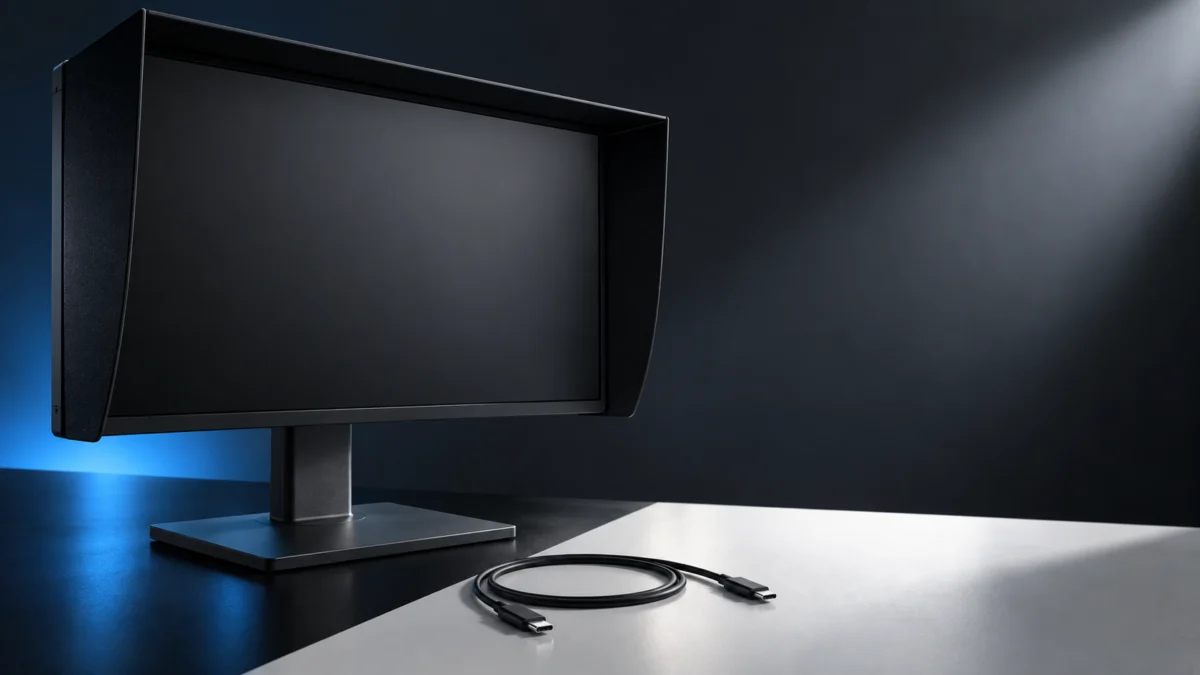
If your BenQ SW272U shows no signal over USB-C from a Windows laptop, start with the signal path before suspecting the panel. Check these three things in order:
- The monitor input is set to USB-C (Display → Input in the on-screen menu).
- The cable is a full-featured USB-C cable that carries video, not a charge-only cable.
- The laptop port you are using actually outputs video over USB-C.
A charging laptop proves nothing on its own: with Quick Awake enabled, the SW272U can keep charging a connected device over USB-C even while the monitor is in power-saving mode.
If the picture returns but only at 30Hz, that is a documented USB-C mode trade-off, not proof of a fault. Before buying anything, test with an HDMI or DisplayPort cable you already own to separate a USB-C problem from a monitor problem. This guide covers direct USB-C connections; if you use a dock or hub, remove it and connect the laptop straight to the monitor first.
Quick Fix Checklist
- Open the on-screen menu and set Display → Input to USB-C.
- Remove any dock, hub, or adapter and connect the laptop directly.
- Swap in a full-featured USB-C cable that supports video, not a charge-only cable.
- Check your laptop maker’s specifications to confirm the port you use supports video output over USB-C.
- Read the power LED: solid white means the monitor is on; flashing white means it is in power-management mode.
- Try the free workaround: HDMI or DisplayPort from the same laptop.
What Does Your SW272U Symptom Mean?
The SW272U’s power LED and on-screen messages narrow the cause quickly. A solid white LED means the monitor is powered on. With a black screen, start by checking the signal path; the LED alone does not identify the faulty component. A flashing white LED means the monitor is in power-management mode. An Out of Range message means the laptop is sending a display mode the monitor cannot show.
| What you see | What it points to | What to do first |
|---|---|---|
| Laptop charges, screen stays black | Power is flowing, but video is not: wrong input, charge-only cable, or a port without video output | Set the input to USB-C, then swap the cable and port |
| LED solid white, no picture | Monitor is on; check the signal path first | Input and cable checks below |
| LED flashing white | Monitor is in power-management mode | Wake the laptop, then confirm the input |
| Out of Range message | Laptop output mode is not compatible | Set the laptop to a supported resolution and refresh rate |
| Picture works, but only at 30Hz | Check whether UHD@30Hz + USB 3.1 mode is active | Expected behavior; switch modes if 60Hz matters more |
| Bent or broken pin in a connector | Physical damage | Stop using that connector and contact your dealer |
Is the SW272U Set to the USB-C Input?
BenQ’s troubleshooting step for a USB-C connection with no picture is to check the cabling and select USB-C under Display → Input in the on-screen menu. If the monitor is still listening on HDMI or DisplayPort, a working USB-C laptop can charge while the screen stays black. Fix the input before swapping any hardware.
The input check takes 3 steps.
- Open the SW272U on-screen menu.
- Go to Display → Input and select USB-C.
- Wake the laptop and give it a moment to detect the monitor.
If you then see an Out of Range message, the input is correct but the laptop is sending a mode the monitor cannot display. Change the laptop’s display output to a supported mode; the SW272U’s native mode is 3840 x 2160 at 60Hz.
Does Your Cable and Laptop Port Carry Video?
Charging is not proof of a video connection. BenQ specifies a USB-C cable that is full-featured, with power delivery and video / audio / data transfer functions, and the laptop port must output video over USB-C. A charge-only cable or a port without video output can power the laptop while the SW272U shows no signal.
- Cable: Use the USB-C cable that came with the monitor or another full-featured USB-C cable. Do not judge video capability from the cable thickness; check its specifications.
- Laptop port: PCWorld’s review lists the SW272U’s USB-C input with DisplayPort Alternate Mode alongside HDMI 2.0 and DisplayPort 1.4 inputs. Do not assume every USB-C port on your laptop outputs video; check the laptop maker’s specifications for that exact port.
- Power: The SW272U is a 27-inch 4K photographer monitor with a 90W USB-C port, and that rating describes power delivery, not video. If your laptop needs more than 90W, connect its original power adapter as well.
Why Does the SW272U Show 4K Only at 30Hz Over USB-C?
The SW272U lets you choose how USB-C bandwidth is split. UHD@60Hz + USB 2.0 keeps 3840 x 2160 at 60Hz but limits the monitor’s USB hub to 480Mbps. UHD@30Hz + USB 3.1 gives the hub 5Gbps but drops the display to 30Hz. A 30Hz desktop in that mode is expected behavior, not a hardware fault.
| USB-C Configuration mode | Video over USB-C | Monitor USB hub speed | Choose it when |
|---|---|---|---|
| UHD@60Hz + USB 2.0 | 3840 x 2160 at 60Hz | 480Mbps | Smooth 4K desktop matters more than fast USB transfers through the monitor |
| UHD@30Hz + USB 3.1 | 3840 x 2160 at 30Hz | 5Gbps | Fast USB through the monitor matters more than refresh rate |
This setting does not repair a dead signal path. It cannot turn a charge-only cable or a port without video output into a working connection. If the screen is black in both modes, go back to the input and cable checks.
How Do You Isolate the Cable, Laptop, or Monitor?
Change one variable at a time: direct connection, a known-good full-featured cable, a second video-capable laptop or port, then HDMI or DisplayPort. The step that brings the picture back narrows the suspect connection. These checks guide a support request; they do not prove an internal fault by themselves.
The isolation takes 5 steps.
- Disconnect any dock, hub, or adapter and connect the laptop directly to the SW272U’s USB-C port.
- Confirm Display → Input is set to USB-C.
- Swap in a known-good, full-featured USB-C cable.
- Try a second laptop, or a different port on the same laptop, that you know outputs video over USB-C.
- Connect the same laptop over HDMI or DisplayPort and select that input on the monitor.
| Result | Most likely culprit | Next move |
|---|---|---|
| Picture returns after removing the dock | Dock or hub path | Troubleshoot the dock separately |
| Picture returns with the new cable | Original cable | Retire it for video use |
| Picture returns with another laptop or port | Original laptop port or its capabilities | Check the laptop maker’s port specifications |
| HDMI or DisplayPort works, USB-C fails with every cable and host | The monitor’s USB-C path | Contact BenQ support or your dealer |
| No input works with any host | Possible monitor-side fault; ask support to confirm | Contact BenQ support or your dealer |
Inspect each connector before reconnecting. If a connector pin is bent or broken, contact your dealer rather than forcing a cable in.
Until the USB-C path is sorted, HDMI or DisplayPort is a free way to keep working. You lose single-cable charging, so power the laptop with its own adapter.
When Should You Replace the SW272U?
Replace the SW272U only after a direct connection, a known-good cable, and a second video-capable host all point to the monitor, and BenQ support or your dealer cannot fix it. A wrong input, a charge-only cable, or the 30Hz USB-C mode is never a reason to replace a working monitor that sits in the premium tier of photo-editing monitors.
If support and repair options are exhausted and you still need the same model, including its 99% Adobe RGB coverage for photo work, the exact Amazon US listing is the BenQ SW272U 27-inch 4K 90W USB-C Photographer Monitor. Check the current price, seller, and return terms before ordering.

Please check the Amazon product page for the latest price and availability.
TechRadar’s review frames it as a monitor for serious content creators, so a cheaper general display is not a like-for-like swap. BenQ’s SW272Q shares the photo-monitor positioning, but the SW272Q is a 1440p model, not a 4K equivalent.
How We Researched
This article is based on manufacturer documentation, official product information, and published reviews. We have not conducted hands-on lab testing of the SW272U. Sources used:
- BenQ SW-series English user manual (SW272U-specific USB-C modes, connection, and troubleshooting notes only)
- BenQ US SW272U product page
- PCWorld SW272U review (port list and positioning)
- TechRadar SW272U review (positioning)
We did not find a confirmed set of community reports about SW272U USB-C no-signal problems, so none are cited. Windows display settings vary by laptop maker, so this guide does not prescribe universal Windows menu steps.
FAQ
Why does my laptop charge from the SW272U but show no picture?
USB-C power and video are separate. With Quick Awake enabled, the monitor can charge a laptop even in power-saving mode, so charging only proves power is flowing. Check that the input is set to USB-C, the cable is full-featured, and the laptop port outputs video.
Will switching to UHD@30Hz + USB 3.1 fix a no-signal screen?
No. It is a trade-off between refresh rate and USB hub speed, not a repair. It cannot create video over a charge-only cable or a port without video output.
Can I use HDMI or DisplayPort instead of USB-C?
Yes. The SW272U also has HDMI and DisplayPort inputs. Select the matching input in Display → Input and power the laptop with its own adapter, since those cables do not charge it.
Conclusion
For an SW272U with no USB-C signal, fix the input first, then prove the cable and laptop port carry video, then use HDMI or DisplayPort to isolate the monitor. Treat a 30Hz picture as a mode setting, not a fault, and consider replacement only after support confirms the monitor itself has failed.