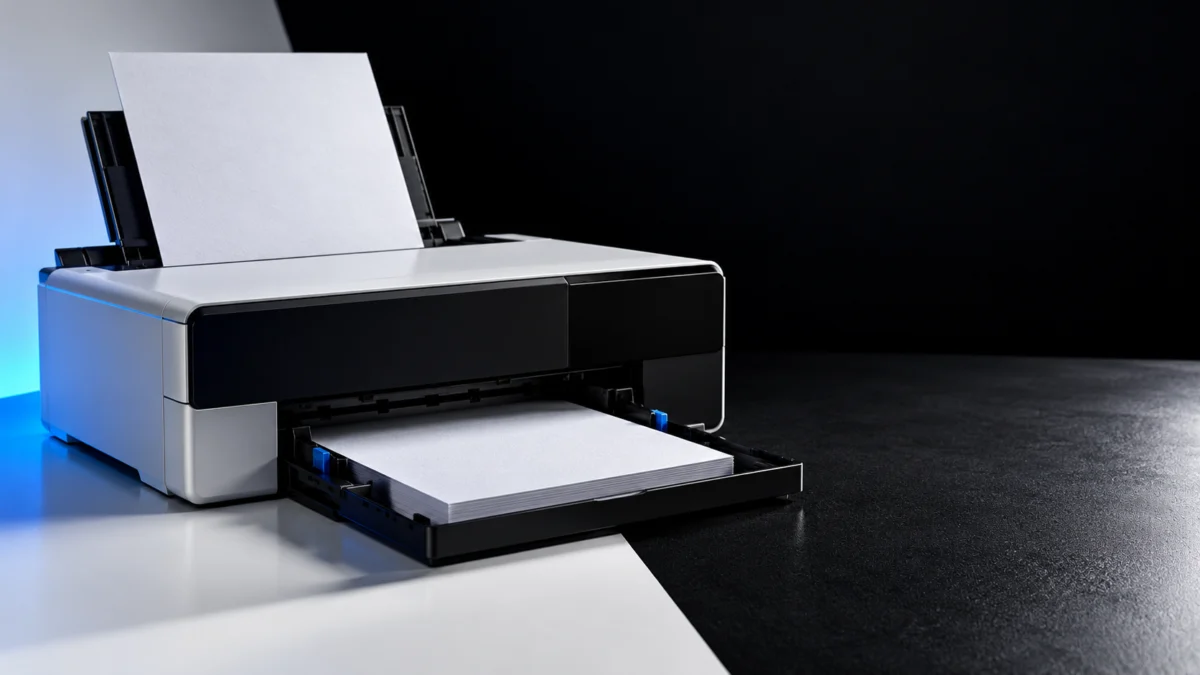
If your Epson ET-8550 is not feeding paper, first identify which of its four paper sources is failing: Cassette 1, Cassette 2, the rear paper feeder, or the single-sheet rear paper feed slot. Each source has its own rules for size, orientation, capacity, and thickness. A mismatch in the loading rules or paper settings is worth checking before you assume a mechanical failure.
Do not start by assuming the rollers are worn. Epson’s roller-cleaning procedure is for repeated cassette feed failures, and blank sheets ejected from the rear slot have a documented loading cause. Check your source first.
Which ET-8550 Paper Source Is Failing?
The ET-8550 has four paper inputs: Cassette 1 for small paper and photo media, Cassette 2 for paper up to Letter size, the rear paper feeder for stacks of larger or specialty sheets, and the rear paper feed slot for one thick sheet. Identify the source and the symptom before changing anything.
| Paper source | What it takes | How to load | Limit |
|---|---|---|---|
| Cassette 1 (upper) | 4 × 6, 5 × 7, and A6 media | Printable side down, short edge first, not past the triangle mark | Up to 20 sheets of A6 plain paper; photo paper capacity varies by type |
| Cassette 2 (lower) | Paper up to Letter size | Printable side down, short edge first, under the edge-guide tabs | Up to 100 sheets of plain paper |
| Rear paper feeder | Plain and specialty paper, including 11 × 17, A3, and 13 × 19 (A3+) | Printable side up, short edge first | Up to 50 sheets of plain paper; some Epson photo papers only 5 sheets at a time in A3 or A3+ |
| Rear paper feed slot | One sheet of thick paper or card stock (0.61 to 1.3 mm), or long or specialty paper | One sheet, only when the printer prompts you | 1 sheet |
Epson ET-8550 paper loading capacity
Quick Fix Checklist
Before cleaning, check that three things line up: the paper size and type set for that source match the paper actually loaded, the stack sits under the edge-guide tabs without being squeezed, and the cassette is pushed fully into the printer. Check these before any cleaning or disassembly.
- On the control panel, open Settings → Printer Settings → Paper Source Setting → Paper Setup. Select the source you are using and set its Paper Size and Paper Type to match what is loaded.
- Check the paper source selected in your computer’s print dialog as well. It needs to match the source where the paper is actually loaded.
- Remove the paper, reload it, and slide the edge guides against the stack without pressing tightly.
- Keep the stack below the tab on the edge guides and within the capacity for that source.
- Insert the cassette all the way, keeping it flat. Do not remove or insert a cassette while the printer is operating.
- Use smooth paper that is not curled, creased, damp, old, too thin, or too thick.
- Place the printer on a flat surface.
Epson ET-8550 paper feed troubleshooting
If Cassette 1 or Cassette 2 Does Not Pick Up Paper
If a cassette will not pick up paper, reload it correctly first: the right paper size for that cassette, printable side down, one paper type only, and the stack under the edge-guide tabs. If cassette feeding still fails repeatedly, Epson’s user guide says to clean the roller inside the printer, which is the official next step.
Before cleaning, confirm these points:
- Cassette 1 takes only 4 × 6, 5 × 7, and A6 paper. The paper must not extend past the triangle symbol at the rear edge of the cassette.
- Cassette 2 takes paper up to Letter size. For larger sizes, use the rear paper feeder or the rear paper feed slot.
- Do not load different types of paper in the same cassette.
- If a cassette slid too far into the printer, turn the printer off and on again. Epson’s guide says the cassette then moves back to the correct position.
Clean the Cassette Roller (Epson’s Procedure)
Epson’s roller-cleaning procedure wipes the roller with a damp cloth while the printer stands on its side. Because the ET-8550 holds ink in its tanks, closing the ink tank caps first matters: Epson warns that ink may leak if a cap is not securely closed. The fix takes 7 steps.
- Turn off the printer, unplug the power cord, and disconnect the USB cable. Remove any memory card or external USB device.
- Make sure every ink tank cap is securely closed, then close the scanner unit.
- Slide out the paper cassettes and remove the paper.
- Stand the printer on its side with the ink tank at the bottom. Keep your hands and fingers clear so they are not trapped.
- Dampen a soft cloth with water, wring it out thoroughly, and wipe the roller while rotating it.
- Return the printer to its normal position promptly, because Epson says not to leave it standing on its side for a long time. Insert the cassettes.
- Connect the power cord, reload paper, and print a test page from the same cassette.
Epson ET-8550 roller cleaning instructions
The roller-cleaning procedure in the official material we checked covers feeding from the paper cassettes. If only the rear sources fail, cleaning the cassette roller is not the targeted fix.
If the Rear Paper Feeder or Rear Paper Feed Slot Fails
The rear paper feeder and the rear paper feed slot are two different paths. The feeder takes a stack of sheets. The slot takes one sheet, and only after the printer asks for it. If a blank sheet comes straight back out of the slot, check whether it was inserted before the printer prompted you.
Rear Paper Feeder
The rear paper feeder holds up to 50 sheets of plain paper and handles sizes up to 13 × 19 inches. Load paper printable side up and short edge first, and set the paper size and type for the Rear Paper Feeder source. In A3 and A3+ sizes, some Epson photo papers are limited to 5 sheets at a time.
If the feeder still does not pull paper in, Epson’s feed-problem FAQ also recommends running the paper guide cleaning utility. Load Letter or A4 plain paper in the rear paper feeder, then select Maintenance → Paper Guide Cleaning on the control panel and follow the on-screen instructions.
Epson paper guide cleaning instructions
Rear Paper Feed Slot
The rear paper feed slot is the path for one sheet of thick paper or card stock from 0.61 to 1.3 mm. Start the print job first, wait for the prompt on the printer, and then insert the sheet. Epson states that paper loaded before the prompt is ejected blank.
- For step-by-step loading, select the help icon on the LCD screen, then How To → Load paper → Rear Paper Feed Slot, and scroll through the animation.
- For thick paper or card stock, the ET-8550 accepts one sheet in sizes up to 13 × 19 inches (A3+).
- Multiple sources, including one paper supplier and a long-term ET-8550 reviewer, report an unprintable area of about 0.8 inch at the trailing edge of sheets fed through this slot. Plan margins accordingly.
Epson rear feeder and rear feed slot guidance
Epson rear paper loading instructions
If Multiple Sheets Feed, the Wrong Tray Feeds, or Thick Paper Fails
These three symptoms have different causes. Epson’s fixes for multiple-sheet feeding are separating the sheets and staying within capacity. A job pulling from the wrong tray points to the paper source setting. Thick paper failing in the rear feeder often means it belongs in the single-sheet rear slot instead.
Multiple Sheets Feed at Once
When several sheets feed together, take the paper out, separate the sheets, and reload a smaller stack of a single paper type. Epson’s guidance covers fanning plain paper, flattening curl, and staying within the capacity for the source, with one exception for photo paper.
- Remove the paper, fan the edges of plain paper to separate the sheets, and reload it. Epson says not to fan or curl photo paper, because this can damage the printable side.
- Flatten curled paper, or curl it slightly in the opposite direction before loading.
- Do not load more than the recommended number of sheets, and do not mix paper types in one cassette.
- If paper jams during 2-sided printing, load fewer sheets.
The Printer Feeds From the Wrong Source
Epson’s fix is to make sure the paper size and type settings are correct for the paper source. One paper supplier’s ET-8550 guide adds that the printer driver may not keep your last paper source choice and can default to Cassette 2, so it recommends setting the source in the print dialog before every job.
Red River Paper ET-8550 loading notes
A separate user report on a repair shop’s Q&A page describes the same symptom. Confirm the source in both places before suspecting hardware.
BCH Technologies reader question
Thick or Matte Art Paper Fails
For compatible thick paper or card stock from 0.61 to 1.3 mm, use the rear paper feed slot one sheet at a time. Check the supported size and paper settings before printing. Some users also report trouble with heavier or matte art papers in the rear paper feeder, even below that range.
A long-term reviewer found that a significant share of the heavy art papers he tried would not load through that feeder and that some softer, thicker cards showed roller marks. A paper supplier advises loading thicker sheets one at a time and expecting occasional matte-paper misfeeds.
Northlight Images ET-8550 hands-on review
These reports vary by paper and printer. If one paper keeps failing while plain paper feeds normally, change the paper first.
When to Contact Epson: Repair or Replace?
If one paper source still fails after its official checks and cleaning, stop there and contact Epson rather than opening the printer further. The ET-8550 comes with a one-year limited warranty in the U.S. and Canada, so check your warranty status before paying for any repair.
- Within warranty: Contact Epson support first and describe which source fails and what you already tried.
- Out of warranty: Get a repair assessment, then compare it with replacing the printer.
- Avoid unofficial fixes: Part replacements and cleaning solvents suggested by third-party repair sites are not part of the Epson procedures we checked.
If replacement wins and you still need 13 × 19 printing, compare these two Epson options.
If Replacement Makes Sense: ET-8550 vs. XP-15000
Buy the ET-8550 again if you print on thick media or need scanning and copying. The XP-15000 fits only if you want a print-only 13 × 19 photo printer and your specialty media stays within its 23 mil limit, which is much thinner than the ET-8550’s 1.3 mm rear slot.
AD: This section contains affiliate links. Fixory may earn a commission on qualifying purchases at no extra cost to you.
| Feature | Epson EcoTank Photo ET-8550 | Epson Expression Photo HD XP-15000 |
|---|---|---|
| Functions | Print, scan, and copy | Print only |
| Ink system | Refillable ink tanks (bottles) | 6 individual ink cartridges |
| Largest borderless print | 13 × 19 inches | 13 × 19 inches |
| Thickest specialty media | 1.3 mm (rear paper feed slot) | 23 mil, about 0.58 mm (rear feed) |
| U.S. warranty | 1-year limited | 1-year limited |
| Upfront cost | Check the current seller price | Check the current seller price |
Epson XP-15000 product details
Epson EcoTank Photo ET-8550
Buy if: you print on card stock or board up to 1.3 mm, you use the scanner or copier, or you print often enough that refillable ink matters to you.
Don’t buy if: you only print occasional photos and want the lowest upfront cost.
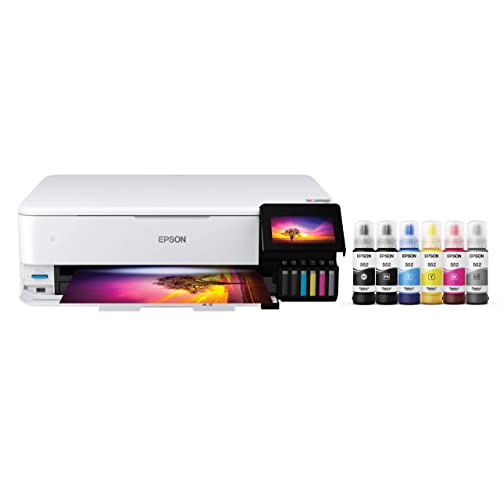
Please check the Amazon product page for the latest price and availability.
Epson Expression Photo HD XP-15000
Buy if: you want a print-only 13 × 19 photo printer and your media stays within 23 mil.
Don’t buy if: you print on thick card stock or board, or you need a scanner.
FAQ
Why does my ET-8550 eject blank paper from the rear slot?
The sheet went into the rear paper feed slot before the printer asked for it. Epson’s instructions are to start the print job first, wait for the loading prompt on the screen, and then insert one sheet. Paper placed in the slot early is ejected without printing.
Why does my ET-8550 feed from Cassette 2 when I chose the rear feeder?
Check the paper source in your print dialog for that job and the size and type in Paper Source Setting. One paper supplier reports that the driver can revert to Cassette 2 between jobs, so select the rear feeder each time you print.
Can I clean the ET-8550 rollers with alcohol?
The official Epson procedures we checked specify a soft cloth dampened with water and wrung out thoroughly, not alcohol. Some third-party repair sites suggest isopropyl alcohol, but that is not part of Epson’s instructions, so follow the water-dampened cloth method.
How We Researched
This article is based on Epson’s official ET-8550 support FAQs, the ET-8550 Series User’s Guide, Epson’s paper loading and capacity references, and Epson’s U.S. product pages. We also used a long-term hands-on review by an independent photographer, a paper supplier’s ET-8550 guide, and a user report on a repair shop’s Q&A page. We have not conducted hands-on lab testing. Any performance figures or compatibility claims are attributed to official sources or clearly identified community reports.
Conclusion
When an ET-8550 stops feeding paper, work source by source. Confirm which of the four sources fails, match its size and type settings, reload within its limits, and move thick media to the rear paper feed slot. Clean the cassette roller only for repeated cassette failures, then contact Epson before choosing repair or replacement.