If your Deco BE65 satellite still shows Wi-Fi backhaul after you plug in an Ethernet cable, start by checking where the cable lands. In Router mode, TP-Link requires a wired satellite to connect to the main Deco’s LAN side, not to the ISP router or a switch in front of the main Deco. Check the mode and wiring first, then the IPTV port, the cable, and the switch, in that order.
This guide covers the Deco BE65 sold in the US, which TP-Link also markets as the Deco 7 Pro BE11000. The Deco BE65 Pro, BE65-5G, and BE65-PoE are separate models. The wiring rules below come from TP-Link’s Deco-wide Ethernet backhaul FAQ; the port details refer to the standard BE65.
Quick Fix Checklist
Work through these checks in order, because each one rules out a layer before you spend money. Check the wiring in step 2 before considering hardware. A switch is a candidate only if the direct Deco-to-Deco test in step 4 works while the switch path fails. The fix takes 5 steps.
- Confirm the satellite’s backhaul type in the Deco app.
- Match the wiring to your Deco mode: Router mode or Access Point mode.
- Move off the IPTV port, then try another port and a known-good cable.
- Connect two Decos directly to test whether the switch is involved.
- Fix or replace the switch only if the direct connection works.
Confirm the BE65 Satellite Is Still Using Wi-Fi Backhaul
Open the Deco app, go to the network map, and tap the satellite to see how it connects. If it shows a wireless connection rather than Ethernet, the cable is not being used as backhaul. TP-Link says wired backhaul activates automatically once units are cabled, so there is no app setting to turn on.
Two conditions from TP-Link’s backhaul FAQ must already be true before the cable can take over:
- Every BE65 was added to the same Deco network wirelessly first, through the Deco app. Cables go in after setup, not before.
- Backhaul applies only between units that are physically cabled together. An unwired satellite stays on Wi-Fi backhaul by design.
Check the Wiring for Router Mode or Access Point Mode
In Router mode, the default, a wired satellite must connect to one of the main Deco’s LAN ports or to a switch that hangs off that LAN port. Wiring it to the ISP modem/router, or to a switch in front of the main Deco, creates a network loop. In Access Point mode, any Deco or the main router works.
See TP-Link’s Deco Ethernet backhaul FAQ for the mode-specific wiring rules.
The table below summarizes TP-Link’s wiring rules for each mode.
| Mode | Valid wiring for the satellite | Invalid wiring |
|---|---|---|
| Router mode (default) | Main Deco LAN port, or a switch connected to the main Deco’s LAN port | ISP modem/router, or a switch placed between the ISP router and the main Deco |
| Access Point mode | Any Deco unit, or the main modem/router | TP-Link states the Router-mode restriction does not apply |
Why a Laptop Works on the Same Cable
A laptop only needs a working link to the network, so it gets internet from any port on the ISP router or on a switch in front of the main Deco. Router-mode backhaul adds a condition: the path must pass through the main Deco’s LAN side. A laptop test proves the cable carries data, not that the path is valid.
If Your Wiring Is Wrong: Rewire First
Rewiring is the first fix to try: move the satellite, or the switch feeding it, to a LAN port on the main Deco. That leaves your Deco mode and settings unchanged. Switch to Access Point mode only when your ISP router must stay the router, because that changes which device handles routing for the whole network.
If other equipment depends on the ISP router’s network and rewiring is not practical, Access Point mode removes the Router-mode wiring restriction. Read TP-Link’s comparison of the two modes before switching, since the change affects the whole network, not just the satellite.
TP-Link also explains the difference between Deco Router and Access Point modes.
Test Another Port and a Known-Good Ethernet Cable
If the wiring matches your mode, check the port next. When IPTV is enabled on your Deco, the port assigned to IPTV cannot carry Ethernet backhaul and works for IPTV only. Move the cable to a different port on the Deco or switch, then swap in a cable you know works.
Each BE65 has four 2.5 Gbps Ethernet ports with WAN/LAN auto-sensing, but only one port can act as WAN at a time. On the main unit, leave the modem cable where it is and connect the satellite to a different port.
See TP-Link’s US Deco BE65 specifications for the port layout and operating modes.
For the cable test, a short patch cable between the satellite and the main Deco separates the Deco hardware from an in-wall run. If the short cable works and the wall run does not, the run is the suspect. For in-wall cabling or wall-jack termination, consult a qualified low-voltage installer or electrician rather than re-terminating inside walls yourself.
Bypass the Switch to Isolate the Failing Path
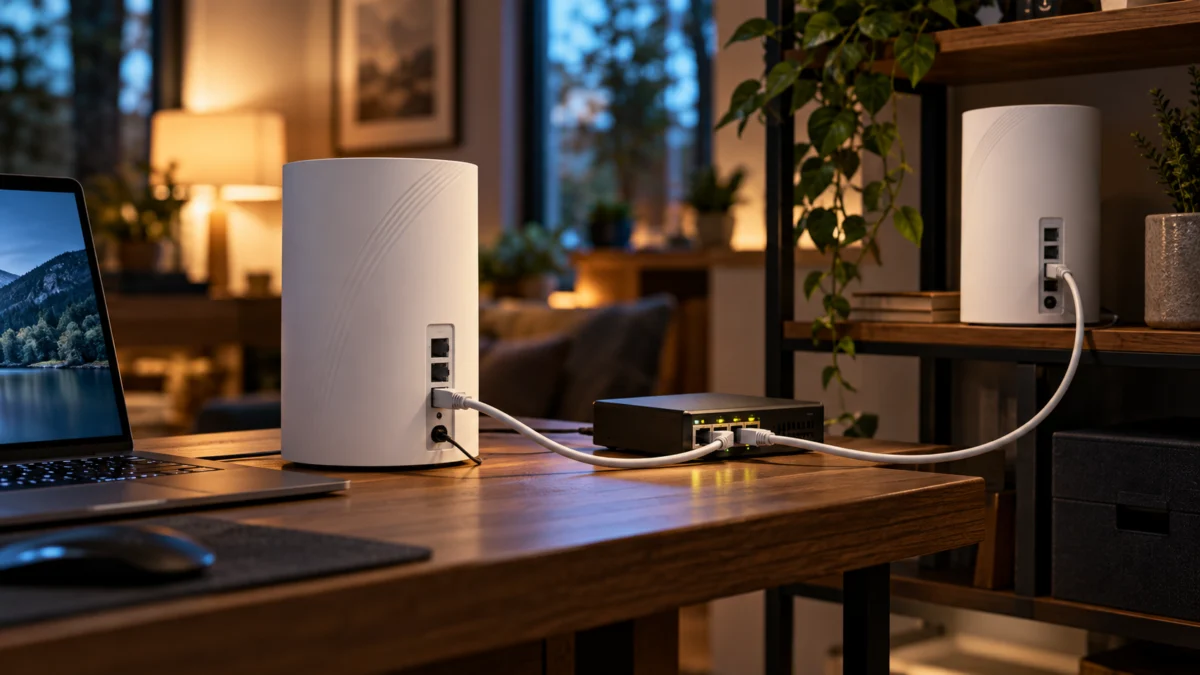
Connect the two Decos directly with one Ethernet cable, leaving the switch out. If the satellite switches to Ethernet backhaul, the problem lies somewhere in the bypassed path, including its ports, cables, and switch. Check those parts before replacing the switch. If it still uses Wi-Fi, go back to the wiring and cable checks, because a new switch will not fix it.
TP-Link’s FAQ describes two switch behaviors that stop Deco backhaul:
- Loop detection: the change from Wi-Fi to Ethernet backhaul can create a loop lasting 1–2 seconds. A switch with loop detection may block the port the Deco uses. TP-Link’s remedy is to turn off loop detection and reboot the switch.
- IEEE 1905.1 forwarding: Deco backhaul is based on the IEEE 1905.1 protocol. TP-Link says some switches, mainly D-Link models, do not forward these packets, which can leave the Decos unstable.
Change loop detection only after confirming that no cable connects the switch back to itself or to another switch in a circle, and follow the switch maker’s documentation. If you are unsure, contact the switch maker’s support and ask whether loop detection is on by default or whether the hardware is faulty, as TP-Link suggests.
Decide Whether a Replacement Switch Is Appropriate
Consider replacing the switch only when three things are true: the direct Deco-to-Deco connection works, the same link fails through your switch after checking its ports and cables, and checking loop detection or asking the switch maker’s support did not solve it. If the direct connection also fails, a new switch will not help.
This section contains an affiliate link. Fixory may earn a commission if you buy through it, at no extra cost to you.
TP-Link says most switches support Deco Ethernet backhaul, and its FAQ lists the TL-SG108, an 8-port 10/100/1000 Mbps unmanaged switch, among models verified to work. It is gigabit only, so it limits a wired link between BE65 units to 1 Gbps even though the BE65 ports support 2.5 Gbps.
See TP-Link’s TL-SG108 V6 specifications for an example of its gigabit ports. The Amazon listing does not establish a hardware revision; check the revision and loop-prevention setting of the unit you buy.
- Buy if: the direct-connection test isolated your current switch, gigabit speed between Decos is enough for you, and you want a model on TP-Link’s verified list.
- Don’t buy if: the direct connection also fails, or you need 2.5 Gbps between Decos. In that case, confirm multi-gig support in the manufacturer’s specifications for any replacement.

Please check the Amazon product page for the latest price and availability.
FAQ
Do I have to wire every BE65?
No. TP-Link says Ethernet backhaul applies only between units that are physically cabled together, and unwired units keep using Wi-Fi backhaul. You can mix wired and wireless backhaul in the same network, so wiring a single satellite is a valid setup.
Will switching to Access Point mode fix it?
It fixes one specific case: the satellite is wired to the ISP router or to a switch in front of the main Deco. TP-Link’s Router-mode restriction does not apply in Access Point mode. It will not fix an IPTV port conflict, a bad cable, or a switch that blocks Deco traffic.
How do I go back to Wi-Fi backhaul?
Unplug the Ethernet cable between the two Decos. TP-Link says the units return to Wi-Fi backhaul automatically, so there is no app setting to change. Plugging the cable back in and rechecking the network map is also a quick way to confirm which link the app reports.
How We Researched
This article is based on TP-Link’s US Ethernet backhaul FAQ for Deco and the official US specification page for the Deco BE65. We have not conducted hands-on lab testing. We also reviewed a TP-Link Community thread from a BE65 owner; because we found only one matching BE65 report, it informed our framing but is not presented as a trend.
Conclusion
The cable path is the first thing to check when a Deco BE65 remains on Wi-Fi backhaul. Confirm the backhaul type, match the wiring to Router or Access Point mode, clear the IPTV port and cable, then run the direct-connection test. Spend money on a switch only after that test isolates the switch path.