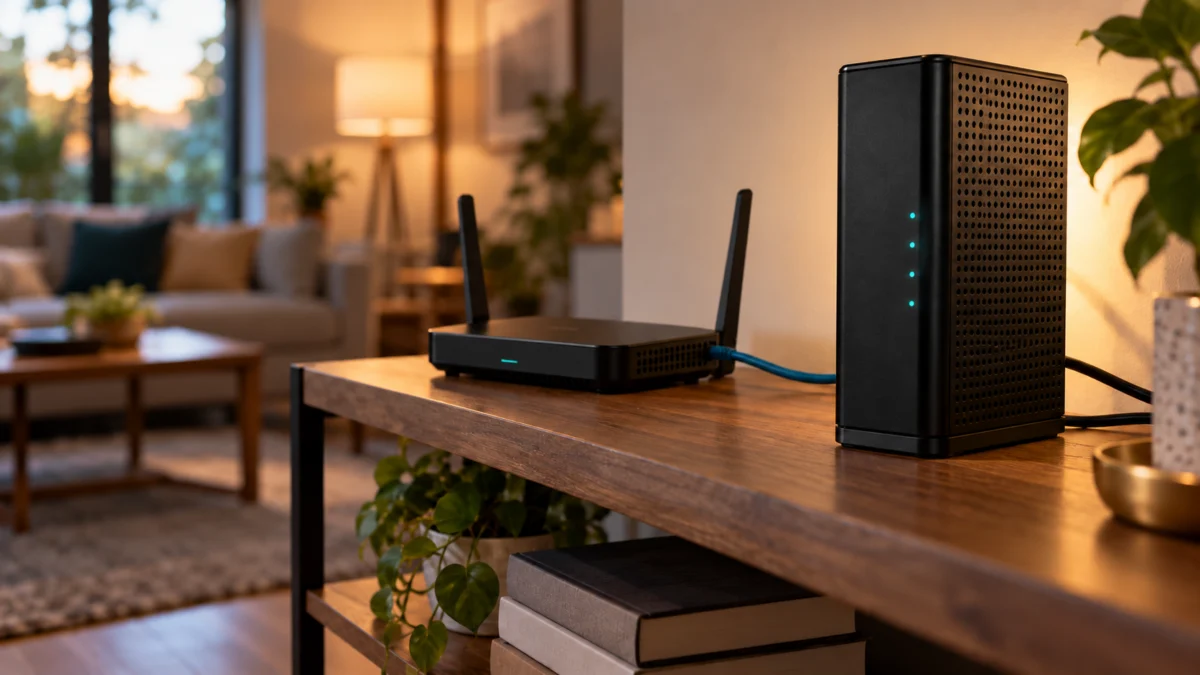
If you want the NETGEAR CM3000 to carry a multi-gig cable plan, use its single Multi Gig port and connect it directly to a router whose WAN or Internet port runs at 2.5 Gbps or faster. Then read the Multi Gig Port LED: solid blue means a 2.5 Gbps Ethernet link, while solid white means the link negotiated 1 Gbps, so check the router port and cable before you suspect the modem. The two 1 Gig ports are a separate link aggregation route that only makes sense when your plan is above 1 Gbps and your router supports 802.3ad LACP on its WAN ports.
This guide is for US cable Internet customers setting up a CM3000. It separates four things that often get blamed on each other: ISP activation and plan, the modem-to-router Ethernet link, the router’s own WAN and LAN limits, and the device you test from. It does not promise a specific speed; your plan and network conditions still set the ceiling.
Quick Checklist Before You Start
- Confirm your cable provider accepts the CM3000 for your plan and address.
- Use the Multi Gig port, not Ethernet 1 or 2, for a single-cable router connection.
- Plug it into the router’s WAN or Internet port and confirm that port is rated 2.5 Gbps or higher.
- Check the Multi Gig Port LED color: blue, white, or amber.
- Run your provider’s speed test from a device whose own connection is faster than 1 Gbps.
- Leave link aggregation off unless both ends support LACP.
Is Your CM3000 Setup Eligible for Multi-Gig Speeds?
The CM3000 is a DOCSIS 3.1 cable modem, and no Wi-Fi router is included, so you need a separate router. NETGEAR lists it for US cable providers such as Xfinity, Spectrum, and Cox, but not for cable bundled voice services or fiber Internet. Your provider must activate it, and your plan sets the real speed ceiling.
| What to confirm | Why it matters | Where to check |
|---|---|---|
| Your provider supports the CM3000 on your plan | Manufacturer provider lists are a starting point, not approval for your address | Your provider’s activation page or support line |
| Your plan is above 1 Gbps | On a plan at or below 1 Gbps, a 1 Gbps Ethernet link is not the limit you need to remove | Your bill or provider account |
| Mid-split upload support | NETGEAR says mid-split is offered by some ISPs in some regions | Ask your ISP |
| You do not need voice or fiber from this box | NETGEAR lists bundled voice and fiber service as not compatible | NETGEAR CM3000 product page |
For activation, the CM3000 user manual tells you to have your provider account details, the model number (CM3000), and the serial number and MAC address printed on the modem label. It also notes that provider contact details can change, so your billing statement is the safer reference.
How Do You Connect the 2.5 Gig Port to Your Router?
Connect the CM3000’s Multi Gig LAN port to the router’s WAN or Internet port, power on the router after the modem is online, and only then connect your devices and activate service. NETGEAR’s product page describes the same route: plug your router’s multi-gig Internet port directly into the modem’s 2.5 Gig port.
The setup takes 6 steps.
- Turn off and disconnect your existing modem and router. If you are replacing a modem, plug the CM3000 into the same coaxial outlet.
- Connect the coaxial cable tightly from the modem to the wall outlet. NETGEAR recommends a direct connection; if you must share the line, the manual specifies a 3.5 dB (1 to 2) splitter.
- Connect the power adapter. The modem may restart several times. The manual allows up to 10 minutes for the Online LED to turn solid white; if it does not, check the outlet or call your provider to confirm service.
- Run an Ethernet cable from the Multi Gig port to the router’s WAN or Internet port. Leave the plugs in Ethernet 1 and Ethernet 2 unless you are setting up aggregation.
- Power on the router, then connect a computer or phone to it.
- Activate service on your provider’s website (or by phone if that fails), then run your provider’s speed test.
Note: A solid white Online LED does not mean you have Internet access yet. The manual states you still need to connect a router or computer and activate the modem with your provider. The manual also allows connecting a computer directly to the Multi Gig port for activation and moving to the router afterward, so follow whichever flow your provider’s activation asks for.
Which CM3000 LEDs Tell You the Link Speed?
Only the Multi Gig Port LED reports the speed of the 2.5 Gig link. Solid blue means 2.5 Gbps, solid white means 1 Gbps, and solid amber means 100 Mbps; blinking in the same color means traffic is passing at that rate. The Downstream, Upstream, and Online LEDs describe the cable side and say nothing about your router link.
| LED | What it shows | Use it to check |
|---|---|---|
| Multi Gig Port | Blue = 2.5 Gbps, white = 1 Gbps, amber = 100 Mbps (blinking = traffic) | Modem-to-router link speed |
| Eth1 and Eth2 | White = 1 Gbps, amber = 10 or 100 Mbps, off = nothing connected | Aggregation cabling only |
| Online | Solid white = online, blinking white = syncing with the provider, off = offline | Provider registration stage |
| Downstream / Upstream | Amber = one channel locked, white = two or more, blinking = scanning | Coax signal and channel lock |
Downstream and Upstream LED behavior belongs to the coax and provider side. Changing your router cable does not address it, so treat it as a separate check from the Ethernet link.
Why Is the Link Stuck at 1 Gbps, and Where Is the Real Limit?
A white Multi Gig Port LED means the modem and the connected device negotiated a 1 Gbps link, so that connection cannot carry more than 1 Gbps whatever plan you pay for. Check the router’s WAN port rating and the cable first. If the LED is blue but tests stay low, look behind the router and then at the provider side.
| Symptom | Where to look first | What to do |
|---|---|---|
| Multi Gig LED solid white | Router WAN port rating, the port you used, and the cable | Check the router spec sheet for a 2.5 Gbps or faster WAN port and move the cable there; swap in a known-good Ethernet cable |
| Multi Gig LED amber | The link negotiated 100 Mbps | Reseat both ends and try a different Ethernet cable |
| Multi Gig LED off with a cable connected | No Ethernet link | Secure both ends, confirm the router is powered on, and use the correct cable |
| LED blue, speed test near 1 Gbps or lower | Test device and the router’s LAN or Wi-Fi side | Test from a device whose own link to the router is faster than 1 Gbps |
| Online LED solid white, no Internet | Provider registration | Ask your provider to confirm the modem’s MAC address is registered |
| LED blue, fast wired test still below plan | Provider or plan | Contact your provider |
A speed test can only report what the slowest link between your test device and the modem carries. A laptop on a 1 Gbps router LAN port, or on a slower Wi-Fi connection, is limited by that link even when the modem link is blue.
The manual’s own order is the safest: use your provider’s speed test site, and contact your provider if your wired test stays below your subscribed speed. NETGEAR’s footnotes add that speeds can also be reduced by network traffic volume or your service plan, so one slow result is not proof of a fault.
When Should You Use CM3000 Link Aggregation Instead?
Use the two 1 Gig ports only when your plan is over 1 Gbps, your router (or computer) supports 802.3ad LACP and Ethernet aggregation on its WAN ports, and it has no 2.5 Gbps WAN port. Aggregation is an alternative route, not a setting that makes the 2.5 Gig port faster.
| Your router has | Use |
|---|---|
| A 2.5 Gbps or faster WAN port | The Multi Gig port, with aggregation left off |
| Only 1 Gbps WAN ports, with LACP aggregation on WAN | Ethernet 1 and 2 aggregation, if your plan is over 1 Gbps |
| Only a 1 Gbps WAN port, no WAN aggregation | The Multi Gig port; the link is limited to the router WAN port’s 1 Gbps rating |
NETGEAR’s product overview describes the aggregation route as up to 2Gbps, which matches the manual’s specs of two 1 Gigabit aggregated ports. If you see a different figure elsewhere on the product page, go by the port specs.
Aggregation setup takes 4 steps.
- Configure aggregation (LACP) on the router or computer first, using its own documentation.
- Remove the port plugs and connect the router’s aggregation-capable ports to LAN 1 and LAN 2 on the modem.
- Open the modem’s web management page as described in the CM3000 user manual, and sign in with the admin credentials printed on the modem label (or the password you set). Go to ADVANCED → Advanced Setup → Ethernet Port Aggregation and select Enable (LACP).
- Check the aggregation status on the same page. Menu names can differ depending on the firmware your modem runs.
Warning: never connect an unmanaged switch to both LAN 1 and LAN 2. The manual warns this can cause broadcast looping that shuts down your network.
Aggregation is disabled by default, and in that mode you should not use the LAN 2 port. When it is enabled, the modem checks whether the device on LAN 2 supports aggregation; if it does not, LAN 2 will not pass traffic.
Keep Your CM3000, Contact Your ISP, or Replace?
Keep your CM3000 if the Multi Gig LED turns blue on a 2.5 Gbps router port, and continue checking the router, test device, and provider. If your router’s WAN port is 1 Gbps, look at the router path before the modem. Contact your provider when wired tests stay below plan or activation fails, and buy a modem only after provider approval.
| Situation | Next step |
|---|---|
| CM3000 LED white, router WAN is 1 Gbps | Keep the modem. Consider a router with a 2.5 Gbps WAN port, or LACP aggregation on WAN, before buying another modem |
| LED blue, fast wired test below plan | Contact your provider |
| Online LED never goes solid, or online with no Internet | Check the coax outlet and remove excessive splitters, then have your provider confirm service and MAC registration |
| The modem appears to have a hardware problem after these checks | Contact NETGEAR technical support before buying a replacement |
| Your current modem is not a CM3000, cannot support your multi-gig plan, and your provider approves the CM3000 | Replacing it with a CM3000 is a reasonable option |
If you are in the last situation, this is the exact listing we matched. Confirm provider approval for your plan before you buy, and check the price and seller on the listing.
Ad: NETGEAR Nighthawk DOCSIS 3.1 Cable Modem CM3000

Please check the Amazon product page for the latest price and availability.
FAQ
Does a blue Multi Gig Port LED mean I get 2.5 Gbps Internet?
No. Blue means the Ethernet link between the modem and your router negotiated 2.5 Gbps. Your actual Internet speed still depends on your plan, your provider, and network traffic.
Do I need to sign in to the CM3000 for a normal setup?
No. The manual says you do not need to sign in for normal operation. You only need the modem’s web management page for tasks such as viewing status or changing the aggregation mode.
My router has a 2.5 Gbps port, but the LED is still white. What now?
Confirm the cable is in the router’s WAN or Internet port, not a LAN port, and that the router’s spec sheet rates that WAN port at 2.5 Gbps. Then swap the Ethernet cable. If the LED stays white, review the router’s documentation for its WAN port settings before replacing any hardware.
How We Researched
This guide is based on the NETGEAR CM3000 user manual (March 2024, document 202-12254-02) and the official US CM3000 product page. The Amazon listing was used only to confirm the exact product identity. We have not conducted hands-on lab testing, and we did not use community reports. Port, LED, and setup details are attributed to NETGEAR’s documentation; menu names may differ on your firmware, and current provider approval must come from your provider.
Conclusion
For a multi-gig CM3000 setup, run one cable from the Multi Gig port to a router WAN port rated 2.5 Gbps or faster and look for a blue LED. A white LED means the link negotiated 1 Gbps, so check the router port and cable first. Use aggregation only with an LACP-capable router that lacks a multi-gig WAN port, and contact your provider when a fast wired test still falls short.