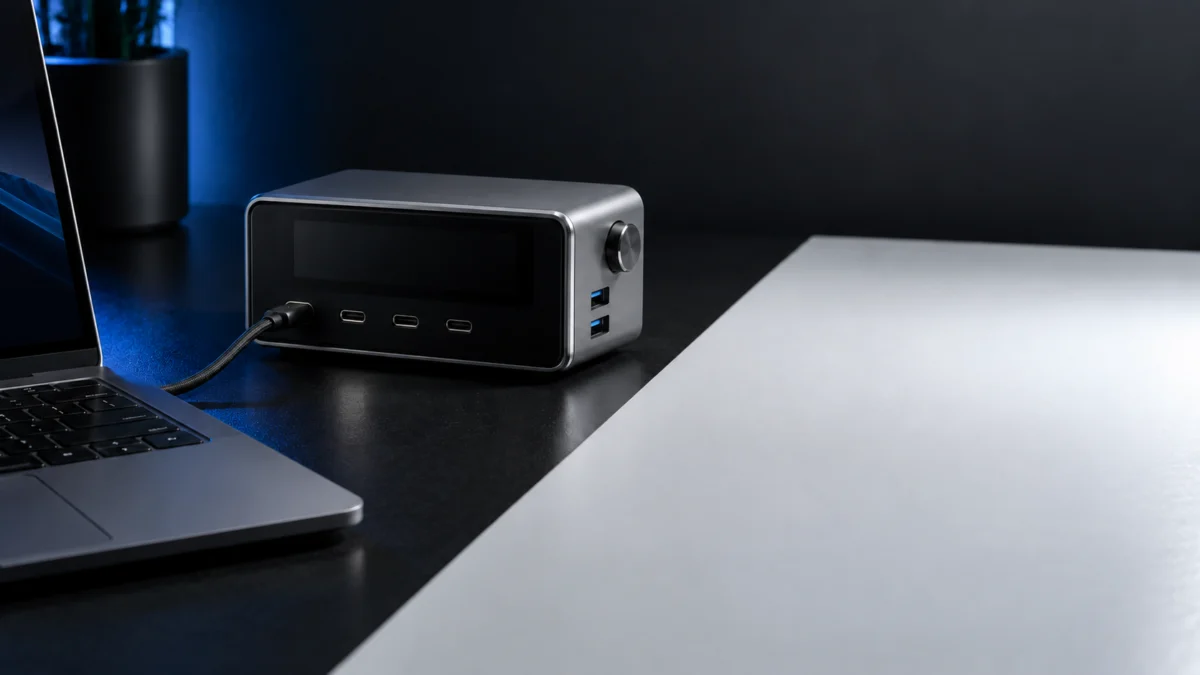
Quick answer: If your Anker Prime Charging Station (250W, model A2345) shows far less than 140W for your laptop, that reading can be normal. The 250W rating is the total shared across all six ports, not the output of a single port. Only the USB-C1 port supports 140W, and you also need a cable rated for 140W or higher, a laptop that actually requests that much power, and a battery that is not close to full.
Start with a free single-device test on USB-C1 before you buy a cable or a new charger. This guide covers the original A2345 desktop charging station only, not Anker Prime power banks or other Prime chargers, and no setup guarantees a constant 140W reading.
Why Is Your Anker Prime 250W Not Reaching 140W?
Start by checking for the wrong port, an under-rated cable, the wrong cable type for a 16-inch MacBook Pro, a nearly full battery, or a Dell or Surface laptop that uses a proprietary charging protocol. Each one has a free check, and only a few outcomes justify buying anything.
| What you see | Free check | Stop or buy? |
|---|---|---|
| Laptop is plugged into USB-C2, C3, or C4 | Move it to USB-C1 | Stop if the reading rises. No purchase needed. |
| Laptop is on USB-C1, but the cable rating is unknown | Swap in another cable you own that is labeled for 140W or higher | Buy a cable only if your current one is under-rated or damaged. |
| 16-inch MacBook Pro with M1 or M2 on a USB-C to USB-C cable | Switch to a USB-C to MagSafe cable | No charger replacement needed. |
| Wattage started high, then fell as charging continued | Retest with the battery at a lower level | Normal battery protection. No action needed. |
| Dell or Surface laptop shows a slow charging prompt | Check it against Anker’s model list below | Do not buy a bigger multiport charger to fix it. |
| Every device charges slowly, even after the checks above | Run Anker’s power-cycle steps, then a factory reset using your model’s instructions | Contact Anker support before replacing the charger. |
Does 250W Mean 250W From One Port?
No. The A2345 has four USB-C ports and two USB-A ports that draw from one 250W total. USB-C1 is the only port with the 28V/5A profile needed for 140W. USB-C2 through USB-C4 top out at 20V/5A, which works out to 100W, so a 140W-capable laptop on those ports will read lower.
ChargerLAB’s December 2024 teardown lists these output profiles from the label of its review unit. They are ChargerLAB’s readings, not Fixory measurements.
| Port | Highest listed profile | What it means |
|---|---|---|
| USB-C1 | 28V 5A | Up to 140W; the only 140W port |
| USB-C2, C3, C4 | 20V 5A | Up to 100W each |
| USB-A1, A2 | 10V 2.25A | Up to 22.5W each |
| Total | 250W | Shared by all six ports |
The four USB-C ports alone add up to 440W of maximum ratings, so the charger cannot give every port its maximum at the same time. Adding devices can therefore change what each port receives.
Which Cable Do You Need for 140W?
Anker says USB-C1 needs a cable rated for 140W or higher, and that the wrong cable may limit charging power. For the 16-inch MacBook Pro, the cable type matters too: M1 and M2 models need USB-C to MagSafe for 140W, while M3 models can use either USB-C to USB-C or USB-C to MagSafe.
| Laptop | Cable for 140W, per Anker |
|---|---|
| 16-inch MacBook Pro (M1 or M2) | USB-C to MagSafe |
| 16-inch MacBook Pro (M3) | USB-C to USB-C or USB-C to MagSafe |
Anker’s 140W troubleshooting article names only these M1, M2, and M3 models. It does not cover later MacBook Pro generations, so check Apple’s specifications for those instead of assuming the same rule.
If your cable has no visible rating, test with another cable you already own that is clearly labeled for 140W or higher. Replace the cable only when it turns out to be under-rated or physically damaged.
Why Does the Reading Drop as Your Laptop Charges?
Your laptop, not the charger, lowers its charging power as the battery approaches full, to protect the battery. Anker notes that you may not see 140W when the battery level is high. A drop late in the charge is expected and is not a sign of a faulty charger.
For a fair test, start with the battery at a lower level. A laptop that is not designed to accept 140W will also draw less on any port or cable, so check your laptop maker’s charging specification before chasing the number.
How Do You Run a Clean 140W Test on the A2345?
Isolate one variable at a time: confirm the model, power-cycle the charger, return it to its default mode, then connect only the laptop to USB-C1 with a 140W-rated cable and a battery that is not near full. If the reading remains unexpectedly low, record the laptop model, cable, battery level, and port reading for Anker support. This test alone does not prove a charger fault.
The test takes 6 steps.
- Confirm the model. The spec label on the bottom of the charger shows the model number A2345. If yours shows a different model, the port rules in this guide may not apply.
- Power-cycle the charger. Unplug the power cord and every device, then leave it for 5 minutes with nothing connected. Plug the power cord back in.
- Check the power mode. On the charger screen, select Settings > Mode > AI Power Mode. This is the default mode, so use it as your baseline if you changed charging priorities with the knob or the app.
- Connect only the laptop to USB-C1. Use a 140W-rated cable, and follow the M1/M2 or M3 cable rule above for a 16-inch MacBook Pro.
- Read the USB-C1 figure with the battery not near full. The screen shows the output power of each port, and you can switch to a single port’s voltage, current, and power for more detail.
- Change one thing at a time. If USB-C1 still reads low, try a different cable or a different device. If every device charges slowly, reset the charger to factory settings using the instructions for your model, then contact Anker support.
We have not listed a button sequence for the factory reset because the official troubleshooting article we checked does not include one. Use the reset instructions in your A2345 manual or Anker’s support materials.
Why Do Some Dell and Surface Laptops Still Charge Slowly?
Anker says some Surface and Dell laptops cannot charge at full speed on this charger because of proprietary charging protocols, and they may show a slow charging prompt. Changing ports, cables, or modes does not remove a proprietary-protocol limit, and a charger with a higher total wattage is not guaranteed to fix it either.
Anker’s slow-charging article lists these models, noting the list is not exhaustive:
- Surface Laptop Studio 2
- Dell XPS 15 (9500 / 9510 / 9520)
- Dell Alienware X14
- Dell Mobile Precision 5570
- Dell XPS 13 (9305 / 9310 / 9315)
- Dell Inspiron 16 Plus (7620)
- Dell Latitude (3520 / 5520 / 7420)
- Dell Vostro 13 5320
Do not assume every Dell or Surface model behaves this way. If your laptop is listed and you need full-speed charging, keep the laptop’s own power adapter for that job and use the A2345 for your other devices.
Does Charging Other Devices Lower USB-C1?
It can. All six ports share 250W, and in the default AI Power Mode the charger detects each connected device’s voltage, classifies its power needs as high, medium, or low, and adjusts power distribution for charging efficiency. USB-C1 is not guaranteed a fixed share when several devices are connected.
Anker’s AI Power Mode article does not publish a per-port allocation table, so we do not list one here. Use the charger screen instead: test USB-C1 alone first, then add devices one by one and watch how the readings change.
When Should You Contact Anker or Buy a Different Charger?
If a 140W-rated cable, a compatible laptop, a lower battery level, and the official power cycle do not explain the low reading, contact Anker with your test results. Slow charging across several devices is useful evidence to report, but does not by itself confirm a faulty charger. Consider replacement after support reviews the issue, or when your desk needs change.
Anker’s US support pages list phone, email, and live chat contact options.
If you need the same A2345 again
The Anker Prime Charging Station, 250W 6-Port GaN USB C Charger is the same A2345 model.

Please check the Amazon product page for the latest price and availability.
- Buy if: your unit failed the clean test and Anker support has reviewed it, or you need a 140W USB-C1 port plus several more devices on one desk and you use the per-port display and controls.
- Don’t buy if: the problem was the port, the cable, the battery level, or a listed Dell or Surface laptop. Those are solved for free or not solved by a new charger.
If you don’t need 250W in total
The Anker Prime Charging Station, 200W 6-Port GaN Desktop Charger (A2683) has a lower total output. Its 200W total does not establish what a single port can supply. Check that its USB-C port specification covers your laptop before choosing it.

Please check the Amazon product page for the latest price and availability.
- Buy if: your devices together need less than 200W and the product page confirms a port rating that covers your laptop.
- Don’t buy if: you are trying to fix a Dell or Surface proprietary-protocol limit, or you need 140W and have not confirmed the port specification.
FAQ
Can USB-C2, C3, or C4 deliver 140W?
No. Anker states that only USB-C1 supports 140W output. ChargerLAB’s label reading lists 20V/5A as the highest profile on USB-C2 through USB-C4, which is 100W.
Is my charger faulty if it shows less than 140W?
Not by itself. The wrong port, a lower-rated cable, a high battery level, or a laptop that requests less power all produce lower readings. Treat it as a possible fault only when the clean USB-C1 test still reads low, or when every device charges slowly after the power cycle.
Will a higher-wattage charger fix slow charging on a Dell XPS 15?
Not necessarily. Anker lists the Dell XPS 15 (9500 / 9510 / 9520) among laptops that cannot charge at full speed on this charger because of proprietary protocols. Keep the laptop’s own adapter for full-speed charging.
How We Researched
This guide is based on three Anker support articles for the Prime 250W charger (140W port troubleshooting, slow charging, and AI Power Mode), ChargerLAB’s December 2024 teardown of the A2345, and Amazon US catalog listings used only to identify the two products mentioned. We have not conducted hands-on lab testing. Port profiles come from ChargerLAB’s reading of its review unit, and Anker’s model lists are quoted as published rather than extended to other laptop generations.
Test USB-C1 Before You Spend Anything
A reading under 140W on the Anker Prime 250W can reflect the port, cable, battery level, or laptop’s charging limits. Run the six-step USB-C1 test first. If it still fails, or every device charges slowly after the power cycle, contact Anker support before you replace the charger or buy a different one.