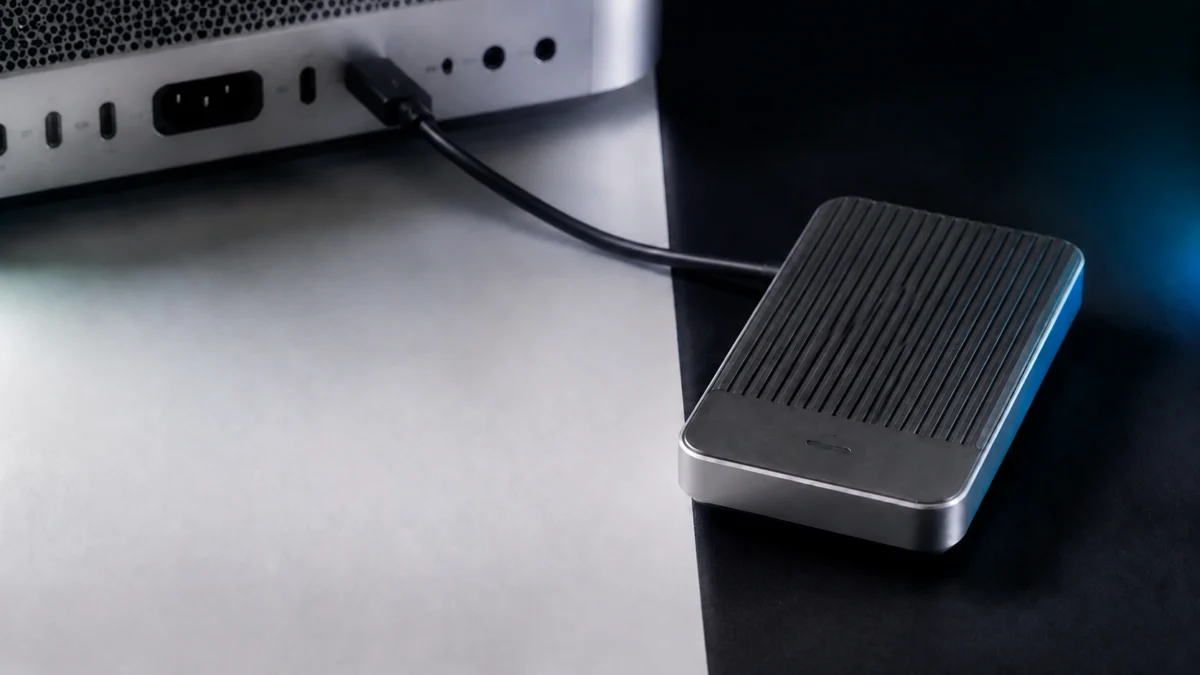
If your OWC Envoy Ultra will not mount on a Mac, start by separating a detection or bus-power problem from a volume-level mount problem. Identify which of four states you are in: the drive is mounted but hidden by a Finder setting, listed in Disk Utility but not mounted, visible only in System Information, or not detected at all with the LED off or blinking rapidly.
That order matters. If the Mac never detected the drive, running a repair tool accomplishes nothing, and OWC documents a specific case in which the Envoy Ultra will not mount at all: when it is connected as the third bus-powered device on select Mac systems.
This guide follows OWC’s support sequence and Apple’s Disk Utility guidance. No step below erases or reformats the drive, because erasing destroys data and is not part of diagnosing a mount failure.
Why Is Your OWC Envoy Ultra Not Showing Up on Your Mac?
Four different failures look identical in Finder. The Envoy Ultra may be mounted but hidden by a desktop display setting, listed in Disk Utility yet unmounted, visible only in System Information, or not detected at all. The LED helps distinguish the power and detection states, so check it before changing any software settings.
| What you see | Most likely state | Where to go next |
|---|---|---|
| Volume appears in the Finder sidebar but not on the desktop | Mounted, hidden by a display setting | Fix it in this section |
| Listed in Disk Utility, volume greyed out | Detected, volume not mounted | Mount and First Aid section |
| Appears in System Information but not in Disk Utility | Seen on the bus, volume unavailable | Disk Utility and System Information section |
| Nothing anywhere, LED off or blinking rapidly | Not detected, possible bus-power issue | Bus-power section |
Start with the simplest possibility. macOS has a Finder setting that controls whether external disks appear on the desktop, so a working drive can still leave an empty desktop.
The fix takes 3 steps.
- Open Finder and choose Go → Computer. If the Envoy Ultra volume is listed there, the drive is mounted and only the desktop icon is missing.
- Choose Finder → Settings. On older versions of macOS this item is called Preferences.
- Under the General tab, tick External disks in the “Show these items on the desktop” section.
If the volume is not listed under Go → Computer, the drive is not mounted and this setting is not the cause.
Does Your Mac and macOS Version Support the Envoy Ultra?
OWC’s Envoy Ultra support manual lists macOS 14.x or later as the minimum, with Thunderbolt 5 requiring macOS 15.3.x or later and Thunderbolt 3 requiring macOS 15.x or later. Intel-based Macs also require macOS 15.x or later. The host connection must be USB4 or Thunderbolt 3 and later.
One detail catches people out: Thunderbolt 3 support needs a newer macOS than USB4 support does. On a Mac left on macOS 14, a Thunderbolt 3 connection falls outside the stated requirements even though the port physically fits.
| LED behavior | What OWC states it means |
|---|---|
| Solid blue | Power and data, also shown during sleep |
| Flashing blue | Disk activity |
| Blinking rapidly | Not detected by the host; may indicate insufficient bus power |
| No light at all | Work through the power and detection checks first |
One hardware detail changes how you troubleshoot this drive. The Thunderbolt 5 cable is tethered to the body of the Envoy Ultra, so swapping in a different cable is not available as a test. Focus instead on the Mac’s port, the connection path, and other attached devices.
For more connection context, check how USB4 and Thunderbolt 5 compatibility differ.
Is Bus Power the Reason the Envoy Ultra Will Not Mount?
Rapid LED blinking means the host is not detecting the drive, and OWC states this can indicate the port is not supplying enough bus power. OWC also documents that the Envoy Ultra does not mount when connected as the third bus-powered device on select Mac systems.
The models OWC names are the Apple (M4) MacMini16,11 and the Apple (M4 Max) Mac Studio. This is a stated behavior for a specific connection pattern: the Envoy Ultra plus two other bus-powered devices on the same Mac. This check takes 4 steps.
- Eject and disconnect every other bus-powered device, including other portable SSDs, card readers, and unpowered hubs.
- Connect the Envoy Ultra directly to a Thunderbolt or USB4 port, with no hub, dock, or adapter in the path.
- Watch the LED. A steady blue light means the host is now powering and seeing the drive.
- Reconnect your other devices one at a time to find the point where the Envoy Ultra drops off again.
If removing other devices resolves the immediate symptom, bus power is the first constraint to address, and reformatting will not fix that condition. OWC’s Envoy Ultra troubleshooting guide recommends a powered hub in this situation.
OWC’s knowledge base article on Thunderbolt Mac bus-power limitations describes related behavior more broadly, with select Thunderbolt 4 and Thunderbolt 3 Macs recognizing only two bus-powered devices at a time. That article predates the Envoy Ultra, so treat it as background.
What Mac Owners Report in Community Threads
Community reports resemble parts of the pattern OWC describes, though they cover different Macs and outcomes. In an Apple Support Community thread, an Envoy Ultra 4TB owner on a Mac Studio M1 Max running macOS 15.1 reported that the drive stopped mounting and the LED stopped lighting, with other Thunderbolt disks connected.
A separate MacRumors thread documents the same shape of problem from the Mac side. Multiple posters describe a third bus-powered Thunderbolt SSD going unrecognized on an M4 Mac mini, and the original poster later reported the same two-device ceiling on an M4 Max Mac Studio, including with Thunderbolt-certified enclosures.
A separate Envoy Ultra discussion on Reddit is included only as another individual account.
These reports do not measure how often the problem occurs or prove the cause of any individual failure. If several bus-powered devices share one Mac and the Envoy Ultra disappears, test the bus-power pattern before concluding that the drive has failed.
How Do You Check Disk Utility and System Information Correctly?
Connect the Envoy Ultra directly to the Mac, without a hub, dock, or adapter, then open Disk Utility from Finder’s Go menu under Utilities and choose View, then Show All Devices. The default view hides the parent device, so an unmounted drive can look completely absent.
Disconnect other drives first. The fix takes 5 steps.
- Open Finder, choose Go → Utilities, then open Disk Utility.
- Choose View → Show All Devices. The Envoy Ultra should appear in the sidebar, with its volume indented beneath it.
- If nothing appears, unplug the drive, wait 30 seconds, and reconnect it.
- If it still does not appear, try a different Thunderbolt or USB4 port, using the opposite side on a laptop.
- If it still does not appear, connect it to a different Mac. Working there points at the first Mac’s port or bus.
System Information shows how the connection negotiated, which matters when the drive mounts but behaves oddly. Open Go → Utilities → System Information, select Thunderbolt/USB, then read the Link Speed field.
| Link Speed shown | What it indicates |
|---|---|
| Up to 80 Gb/s | Thunderbolt 5 connection |
| Up to 40 Gb/s | Thunderbolt 3, Thunderbolt 4, or USB4 connection |
| Up to 480 Mb/s | The connection has fallen back to USB 2 speeds |
If you see the USB 2 figure, OWC’s advice is to try the port farthest from the one you just used, then select File → Refresh Information. A drive that appears here but never reaches Disk Utility is seen on the bus without its volume available.
How Do You Mount the APFS Volume and Run First Aid Without Erasing the Drive?
Select the indented volume beneath the Envoy Ultra in the Disk Utility sidebar and click Mount. If the volume will not mount, run First Aid in Apple’s documented order: each volume first, then each container, then the storage device itself. Erasing is never part of this sequence.
The Envoy Ultra ships formatted as APFS, so a volume showing an unexpected name or format is worth noting rather than correcting. The fix takes 4 steps.
- In the sidebar, select the volume indented beneath the Envoy Ultra, then click Mount at the top right.
- If it does not mount, select the volume and click First Aid, then Run.
- Repeat First Aid on each container, then on the storage device itself, working upward. If a run reports that something was fixed, click Done and run it again on the same item before moving up.
- Return to the volume and click Mount again.
If First Aid fails, OWC says to try it once more. If it continues to fail, stop and capture a screenshot rather than reaching for stronger tools. Apple’s Disk Utility guidance states that a disk reported as about to fail cannot be repaired, and that the correct response is to back up and replace it.
When Should You Stop and Contact OWC Instead?
Stop and contact OWC when the drive is not detected on a second Mac, when First Aid fails repeatedly, when the reported capacity is clearly wrong, or when Disk Utility warns the disk is about to fail. At that point the priority is protecting the data, not continuing to troubleshoot.
OWC covers the Envoy Ultra with a 5-Year Limited Warranty and provides a return request process. The serial number is on the back of the unit and on the original packaging. Two points matter first.
- A warranty replacement returns hardware, not data. Warranty service and data recovery are separate, and a replacement unit does not restore your files.
- OWC’s guidance is to keep two copies of your data. If the drive is mounting intermittently, copy your files off while you still can.
If the data is irreplaceable and the volume will not mount, treat further DIY attempts as a risk. This article is not a substitute for professional data recovery advice or for OWC’s assessment of your unit.
If replacement or a different storage setup is the next step, you can compare the Envoy Ultra with other Thunderbolt 5 SSD options.
Disclosure: Fixory participates in affiliate programs and may earn a commission from qualifying purchases made through the links below, at no additional cost to you.
AD / Sponsored

Please check the Amazon product page for the latest price and availability.
Please check the Amazon product page for the latest price and availability.
For current specifications, capacity options, compatibility notes, and support resources, OWC’s Envoy Ultra product page is the authoritative reference.
Frequently Asked Questions
Does the Envoy Ultra work with Intel Macs?
Yes, within OWC’s stated requirements. Intel-based systems require macOS 15.x or later, a newer minimum than the macOS 14.x baseline. Check the installed version before assuming a fault.
Will the drive mount if I connect it through a Thunderbolt dock or hub?
It can, but remove any hub, dock, or adapter while diagnosing a mount failure. OWC’s sequence asks for a direct connection first, and if bus power is the constraint, OWC recommends a powered hub rather than an unpowered one.
Do I need to reformat the drive if it will not mount?
Not as a troubleshooting step. Nothing in OWC’s or Apple’s documented sequence calls for erasing the drive, and reformatting destroys your data while leaving a host-side detection or power problem untouched.
How We Researched
This article is based on OWC’s Envoy Ultra support manual, its troubleshooting guide, its knowledge base article on Thunderbolt bus-power limitations, its product page, and Apple’s Disk Utility documentation. We have not conducted hands-on lab testing of this drive.
Community material is labeled as such in the text. We reviewed an Apple Support Community thread, a MacRumors forum thread, and a Reddit discussion describing Envoy Ultra or bus-powered Thunderbolt drive mount failures, and treat those as individual accounts rather than evidence of frequency.
Conclusion
Work in the order the hardware imposes: confirm the drive is detected, confirm it is powered, then mount the volume. Skipping to Disk Utility on a drive the Mac never saw wastes time, and reaching for Erase wastes data.
If your Envoy Ultra shares a Mac with two or more other bus-powered devices, unplug them first. That test directly checks the limitation OWC documents. If the drive stays invisible on a second Mac, you have what OWC support needs.