If your Framework Desktop powers on but shows nothing on screen, the deciding signal is not how long you have waited. It is what the machine does while you wait. If the APU fan keeps spinning and the mainboard status LEDs are not repeating a blink pattern, the system is probably still working through memory training, and more time may resolve it. If the fan spins for a few seconds and then stops, or the LEDs start a repeating pattern, the board has stopped rather than paused, and waiting longer will not change the outcome.
Official Framework documentation and owner reports do not agree on how long a first boot should take, and that gap is where most unnecessary teardowns begin.
What a Black Screen on First Boot Actually Means
A black first boot on Framework Desktop falls into four groups: a system still completing startup, a broken display path, a POST failure, and a storage problem that blocks boot. Each group produces a different combination of fan behavior and LED behavior, so observe both before touching anything.
| What you see | What it usually points to | Where to go next |
|---|---|---|
| Fan keeps spinning, power LED on, no repeating blink pattern | System still working through startup | Wait and observe |
| Fan runs normally, LEDs quiet, monitor reports no signal | Display path problem | Monitor, cable, and output checks |
| Fan spins roughly 4 to 10 seconds, then stops, every time | POST failure | Status LEDs, then Mainboard Reset |
| Mainboard LEDs run a repeating blink pattern | A fault the board is reporting | Record the pattern, then contact Support |
| BIOS reachable with no SSD installed, black screen with the SSD in | Storage problem | Edge cases below |
One piece of standard desktop advice does not apply here. Framework’s official specifications list the memory as soldered LPDDR5x-8000 on a 256-bit bus, and the processor as soldered. There is no module to reseat, so opening the case for that reason achieves nothing.
Quick Checklist Before You Open the Case
Several possible causes of a first-boot black screen can be checked without opening the case. Work through these non-invasive checks first, because they may explain the symptom and the last one determines which branch of this guide applies to your unit.
- Confirm the AC cable is firmly seated in the back of the Desktop and in the outlet.
- Press the power button on the bottom right of the Front Panel, where Framework’s assembly guide places it.
- Connect your display to a rear HDMI or DisplayPort output rather than a front Expansion Card slot.
- Leave the system powered on and undisturbed for several minutes before cutting power.
- Note whether the fan keeps running or stops, since this single observation drives every branch below.
If you assembled a DIY Edition and want to confirm you did not miss a connection, Framework’s DIY Edition Quick Start Guide covers storage installation, fan orientation, AC connection, and the first power-on.
When to Wait for Memory Training, and What to Watch
Community reports consistently attribute an unusually long first boot on this platform to memory training. Because the memory is soldered rather than socketed, you cannot shorten or bypass that process. What you can do is watch the two signals that tell you whether the system is still working or has already stopped.
Reported durations vary widely and do not converge on a number. In the thread “Black screen on first boot?”, an owner with a spinning fan and a lit power LED was advised to wait a few minutes, and waiting alone resolved it.
A separate thread points the other way. In “No display out of box – Batch 12”, one reply put initial training at up to five minutes while another owner reported close to thirty minutes on a 64GB unit. The original poster waited far longer than either figure with no change, because that fan stopped after about ten seconds.
We found no stated first-boot wait time in the official material we checked, so treat community durations as observations rather than a documented limit. Judge by behavior instead: a still-running machine has earned more patience, while a fan that quits after a few seconds has already ended its attempt.
Rule Out the Monitor, Cable, and Display Output
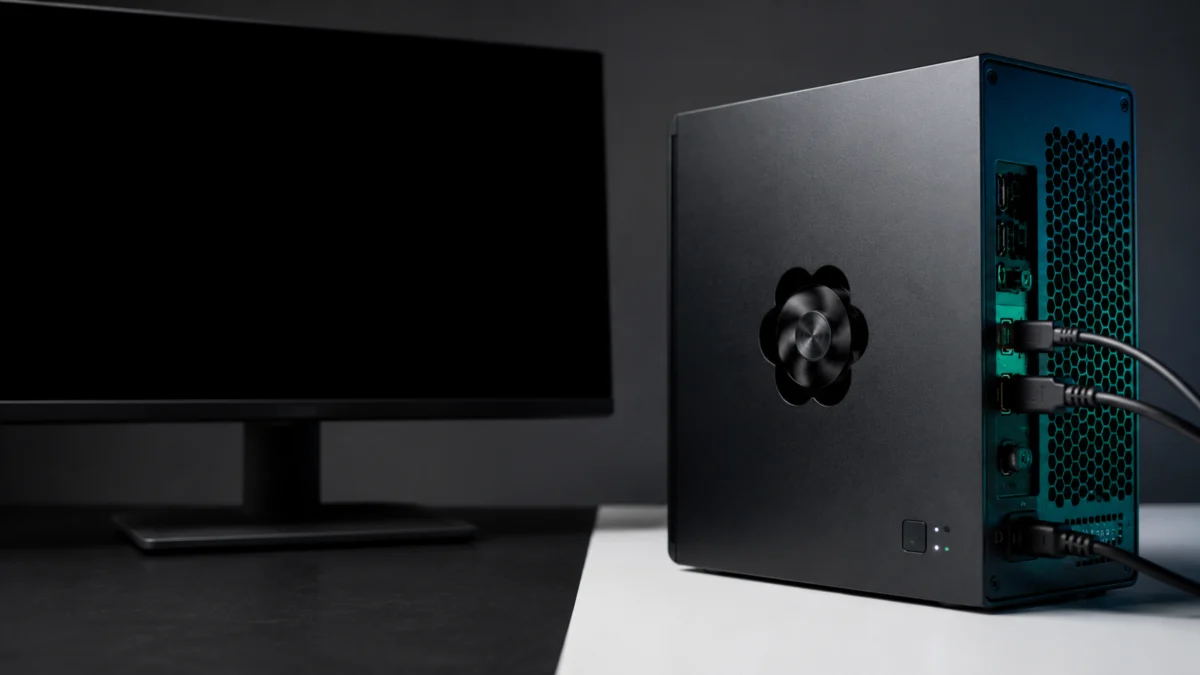
If the fan runs normally and the LEDs stay quiet but your display reports no signal, the problem is more likely in the display path than in the board itself. Framework Desktop’s video outputs are all on the rear panel, and the front Expansion Card slots are not part of that path.
According to Framework’s official specifications, the rear panel carries one HDMI 2.1 port, two DisplayPort 2.1 outputs rated up to 10 Gb/s, two USB4 Type-C ports, 5Gbit Ethernet, two USB-A ports, and a 3.5mm combo jack. The system supports up to four displays simultaneously.
The two front Expansion Card slots are listed separately as USB 3.2, configurable to Gen 2 in the BIOS. Framework publishes a dedicated Expansion Card compatibility article for the Desktop and flags it prominently on its own support page, which signals that cards do not all behave as they do on Framework laptops.
The fix takes 5 steps.
- Connect your display to the rear HDMI port using a different cable than the one you started with.
- If nothing appears, move to one of the two rear DisplayPort outputs.
- Select the matching input on the display manually rather than relying on automatic detection.
- Try a second display if you have one, ideally a monitor rather than a TV.
- Disconnect every other display so exactly one is attached during the test.
Cable quality matters more here than owners expect. One owner reported that an HDMI cable used successfully for years produced no picture on this system while a newer certified cable worked on the same display. Another reported a TV that detected a source but never showed a signal. These are separate setups and do not prove a product-wide defect, but a known-good certified cable removes one variable cheaply.
Disclosure: Fixory participates in affiliate programs. If you buy through the link below, we may earn a commission at no additional cost to you.
AD / Sponsored

Please check the Amazon product page for the latest price and availability.
If you do not have a spare cable to test with, a certified DisplayPort or Ultra High Speed HDMI cable in the budget tier is the least expensive item in this entire process. Buying one does not repair a faulty board, so treat it as a way to rule out a variable rather than as a fix.
Read the Mainboard Status LEDs and Blink Codes
The Framework Desktop mainboard carries status LEDs near the power button, and owners describe them as the most useful diagnostic available when there is no picture at all. Framework publishes a blink code table for the Desktop, and reading your pattern against that table is the correct next step.
Framework’s LED Behavior and Blink Code Diagnostic article sets out those codes. It notes that the red LED3 stays lit during the diagnostic test while LED4 flashes, which is how you know you are watching a diagnostic sequence rather than a power indicator.
We are not reproducing that table here, and a pattern interpretation from a forum post or an AI summary sends people toward the wrong component. Capture what your board is doing, then compare it against the official table.
- Record the LEDs with your phone rather than counting by eye, then play the clip back at reduced speed.
- Note the colors, the number of blinks in each group, and the pause between groups.
- Note how long after the power press the pattern begins; one owner reported it starting roughly two minutes in.
- Repeat the recording once to confirm the pattern is consistent rather than random.
In two separate threads, owners reported a repeating pattern that Framework Support associated with a power-related fault, and in one case the mainboard was replaced under warranty after the owner had already ruled out the power supply. That is a documented outcome for those units, not a diagnosis for yours.
Safe Last Checks, Mainboard Reset, and Contacting Support
Two things are worth trying before you contact Support: a minimal-configuration test and a Mainboard Reset. Both are documented or widely used by owners, but the reset is irreversible, so read the warning below before you start rather than afterwards. Neither step should involve force, and neither requires removing the Mainboard.
A minimal-configuration test means removing everything the system does not need to reach firmware. Owners routinely disconnect the NVMe drives, the wireless module, and all peripherals except the display, leaving the APU fan connected. If a picture appears, add components back one at a time until the symptom returns.
Framework’s Mainboard Reset guide states that resetting returns the BIOS settings to their factory defaults and that the procedure is irreversible. Document any BIOS settings you want to keep before you begin. If your machine has never reached BIOS, you may not have custom settings to record, but the reset still returns all BIOS settings to their factory defaults.
This condensed check takes 6 steps; use Framework’s 16-step illustrated guide for the full procedure.
- Shut down from the operating system if you can reach one, then unplug the Desktop from power.
- Remove the Handle if you installed one.
- Lift the two D-rings on the Top Panel screws, loosen both screws, slide the Top Panel toward the rear, and lift it off.
- Lay the Desktop down on its right side.
- Press and hold the white button labeled CMOS RESET, next to the APU Fan connector, for 10 seconds.
- Reinstall the Top Panel and screws, plug the Desktop back in, and power it on.
Follow Framework’s own Mainboard Reset guide for the full illustrated procedure. Framework notes that if behavior is unchanged afterwards, you can repeat the reset procedure before escalating.
If none of this restores a picture, stop and open a ticket with Framework Support. Framework covers the Desktop under a one-year limited warranty, and whether a unit is repaired, replaced, or returned is Framework’s decision rather than something this article can promise. Include the details below.
- Your configuration and batch number, and whether the unit is a complete Desktop or a bare Mainboard.
- Exactly what the fan does, including how long it runs before stopping.
- Your LED recording, plus your own reading of the blink pattern.
- Every output, cable, and monitor you tested, with the result for each.
- Whether the system reaches BIOS with no storage installed.
- Whether a Mainboard Reset changed anything.
Verification and Edge Cases
A restored picture is not the same as a healthy system, and several reported cases produce a black screen for reasons outside the main diagnostic path. Check these before concluding that your board is faulty, because two of them have documented resolutions in Framework’s community forum.
- Storage can block boot entirely. One owner reached BIOS with no SSD installed but hit a black screen with the drive fitted; that drive was dead on arrival. Test with all NVMe drives removed.
- The output you chose can matter. One owner reported recovering after a mainboard reset combined with switching from HDMI to DisplayPort. That is a single report, so treat it as a check worth running rather than a general fix.
- Third-party cases add variables. Reports involving a bare Mainboard in a third-party case and power supply carry wiring and power-delivery factors that do not apply to a complete Framework Desktop.
- You may have video but no keyboard input. Owners report that pressing F2 repeatedly opens firmware setup, and that some wireless keyboards are not recognized that early. Try a wired keyboard on both front and rear ports.
- Confirm stability after a fix. Cold-boot the system two or three more times before installing an operating system.
If a repair or case change involves electrical work you are not confident performing, consult a qualified technician. Check Framework’s official specifications and installation documentation before acting, since this article cannot account for your specific configuration.
How We Researched
This article is based on Framework’s official specifications, official assembly and repair guides, official knowledge base material, and reports published in Framework’s own community forum. We have not conducted hands-on lab testing, and every figure or behavior here is attributed either to an official source or to clearly identified community reports.
The official pages we opened directly were the specifications page, the downloads and guides page, the DIY Edition Quick Start Guide, and the Mainboard Reset guide. We confirmed that the LED Behavior and Blink Code Diagnostic article exists and covers the Desktop, but we did not reproduce its code table. Community reports were used only where the same behavior appeared across more than one thread, except where a single case is labeled as such.
Frequently Asked Questions
These are the questions owners raise most often once a first boot has already failed. Each answer stays within what official documentation or confirmed community reports support, and none of them should be read as a guarantee about the behavior of your particular unit.
How long should I wait before assuming something is wrong?
There is no documented figure in the official material we checked. Community reports range from a few minutes to roughly thirty minutes on a 64GB unit. Judge by behavior instead: if the fan keeps running and no blink pattern has started, keep waiting; if the fan has stopped, waiting longer will not help.
Can I fix this by reseating the memory?
No. Framework’s official specifications list the memory as soldered LPDDR5x-8000 on a 256-bit bus, alongside a soldered processor. There is no module to remove or reseat, so opening the case for that purpose achieves nothing. The only internal action covered in this guide is the documented Mainboard Reset.
When should I stop troubleshooting and request a replacement?
Contact Framework once you have tested at least two display outputs and two cables, confirmed behavior with no storage installed, recorded the LED pattern, and completed a Mainboard Reset without improvement. Whether that results in repair, replacement, or return is Framework’s decision under its one-year limited warranty.
Conclusion
The most useful habit with a black first boot on Framework Desktop is to stop counting minutes and start watching the machine. A running fan with quiet LEDs earns more patience. A fan that quits after a few seconds, or LEDs that begin a repeating pattern, means the system has stopped rather than paused.
Work outward from there: confirm the display path on the rear outputs, eliminate the cable, record the LED sequence against Framework’s official table, then run the documented Mainboard Reset. If the picture still never arrives, you will have exactly the evidence Framework Support needs.