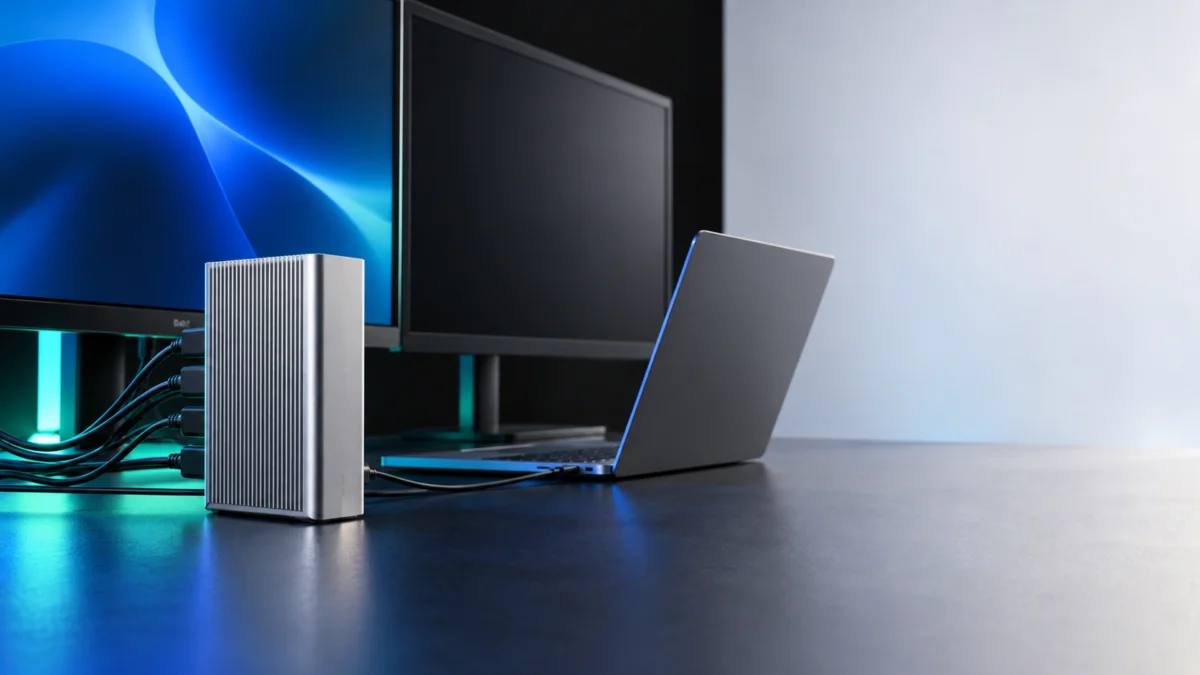
If your CalDigit TS4 shows one monitor on a Windows PC but the second stays dark or never appears in Settings, check the PC before blaming the dock. CalDigit says Windows Thunderbolt 3 and Thunderbolt 4 PCs can run up to two displays through the TS4, but PC makers can restrict a port to one, and an ordinary USB-C host is listed at one external display. Next, make sure both monitors are on the TS4’s video-capable ports: the DisplayPort and the two spare Thunderbolt 4 ports. The three 10Gb/s USB-C ports are data-only. Then use Windows’ Extend and Detect controls and test each monitor on its own at 4K 60Hz or lower. Only after those free checks should you buy an active adapter, contact CalDigit support, or consider replacing the dock.
Which Symptom Do You Have?
Use the table to choose your next check. These are possible explanations, not a diagnosis or a ranking of failure rates. Start with the host specification and wiring, then test Windows settings and each display separately.
| What you see | Possible explanation to check | Where to start |
|---|---|---|
| No monitor works and the TS4 LED is not white | TS4 not powered or not linked to the PC | Step 1 below |
| One monitor works; the second never appears in Settings | Host limited to one display, or second monitor on a data-only port | Host check, then port check |
| Second monitor shows the same image as the first | Duplicate mode or a display splitter | Step 2 (Extend) |
| HDMI monitor on the TS4 DisplayPort is blank or unstable | Passive DisplayPort-to-HDMI adapter | Port check |
| Each monitor works alone, but not both together | Host GPU, DSC, or bandwidth limits at high resolution | Low-load test |
| The setup worked before and suddenly stopped | Graphics driver state or a recent update | Step 5 |
Can Your Windows PC Drive Two Monitors Through the TS4?
The PC must supply two display outputs through the connection used by the TS4. CalDigit lists dual-display capability for Windows Thunderbolt 3 and 4 hosts, with a warning that some PC designs provide only one. Check the exact PC model and port. The TS4 cannot create a second output that the host does not supply.
Use CalDigit’s reference figures as a starting point, then confirm the exact port specification with your PC maker. CalDigit itself labels its FAQ figures as reference only.
| Windows host | CalDigit reference | What to verify |
|---|---|---|
| Thunderbolt 4 PC | 2 external displays | The maker’s display specification for that port |
| Thunderbolt 3 PC | Up to two; certain early Thunderbolt 3 PCs supply only one | Whether your model is restricted; some Thunderbolt 3 hosts that only support DP 1.2 are capped at lower resolutions and refresh rates |
| USB4 PC | The manual groups USB4 with Thunderbolt PCs, but available functions depend on the host | The PC and GPU display specification, not just the USB4 label |
| USB-C PC (not Thunderbolt or USB4) | One external display in CalDigit’s USB-C reference | Expect one monitor; check with the PC maker |
A working TS4 Ethernet port does not prove your PC supports two monitors. CalDigit ties TS4 Ethernet to PCIe support on the host, which is a separate capability from display output.
The graphics hardware matters too. Microsoft identifies the GPU’s supported display count as another limit to check when a single screen works but a second does not. To find the GPU maker, open Device Manager and expand Display adapters, then check that maker’s specification for supported monitor count.
Are Both Monitors Plugged Into Video-Capable TS4 Ports?
Monitors must connect to the TS4’s DisplayPort 1.4 or to its two spare Thunderbolt 4 ports. CalDigit distinguishes the ordinary USB ports from the Thunderbolt ports: the three 10Gb/s USB-C sockets carry data and power, not native monitor video. A matching USB-C connector shape does not make every socket a video output.
| TS4 port | Count | Carries video? | Use it for |
|---|---|---|---|
| Thunderbolt 4 “Computer” (rear) | 1 | Host link | The cable to your PC |
| Thunderbolt 4 downstream | 2 | Yes | USB-C or Thunderbolt monitors, or a USB-C video adapter |
| DisplayPort 1.4 | 1 | Yes | A DisplayPort monitor, or an active adapter |
| USB-C 10Gb/s | 3 | No | Data and charging only |
| USB-A 10Gb/s | 5 | No | Data and charging only |
CalDigit documents three dual-monitor layouts in the TS4 user guide:
- Option 1: Use DisplayPort for the first screen and a spare Thunderbolt port with a USB-C video adapter for the second.
- Option 2: Use a separate USB-C video adapter on each downstream Thunderbolt port.
- Option 3: For monitors with native USB-C video or Thunderbolt inputs, use one downstream Thunderbolt port per monitor.
The PC cable belongs in the TS4’s rear Computer port. Use the included host cable or a certified Thunderbolt 4/USB4 cable rated for 40Gb/s, as the manual specifies; a cable intended only for charging is not an equivalent test.
For an HDMI screen connected through the TS4’s DisplayPort output, CalDigit requires an active DisplayPort-to-HDMI adapter. Check your adapter’s direction and active-conversion specification with its maker before replacing anything. This requirement applies to DisplayPort conversion, not to every cable in the setup.
A basic display splitter repeats one video feed. Microsoft explains why that cannot provide two independent extended desktops.
CalDigit’s How to Set Up the TS4 page provides official setup videos for two-screen wiring and DisplayPort-to-HDMI conversion.
How Do You Get Windows to Detect and Extend the Second Monitor?
Once the host and ports check out, Windows itself has to detect the display and extend the desktop to it. Microsoft’s first check is pressing Windows logo key + P and choosing Extend. If the monitor still does not appear, use Detect in display settings, then isolate each monitor and cable before touching drivers.
Work through these six checks; they do not guarantee that every PC can drive two screens.
- Confirm the TS4 is powered and linked. The TS4 needs its supplied AC adapter, and the manual says the LED shows white when the unit is powered on and connected to your computer. Make sure the PC cable is in the rear “Computer” port.
- Choose Extend. Press Windows logo key + P and select Extend to give the detected displays separate desktop space. Duplicate repeats the picture.
- Detect and identify the display. Following Microsoft’s “Detect a display” instructions for Windows 11, go to Start > Settings > System > Display > Multiple displays > Detect. Then select Identify in Display settings to see which number belongs to which screen.
- Isolate the monitor and cable. Test the screen directly from an available compatible PC video output, bypassing the dock where possible. Try another cable you already own and another computer if available. Compare the results to narrow the fault to a screen, cable, host, or dock path; a single successful test does not identify every possible cause.
- Reset or roll back the graphics driver. If a working setup stopped suddenly, press Windows logo key + Ctrl + Shift + B to reset your graphics driver, then restart if needed. If the problem began after an update, open Device Manager, expand Display adapters, and use Roll Back Driver, or reinstall the display driver.
- Update Windows and the display driver, not a TS4 video driver. Check Settings > Windows Update. CalDigit’s TS4 support page lists Windows downloads such as the Windows 10 & 11 Ethernet Driver; these are network drivers, not a fix for video.
For the full Windows procedures, see Microsoft’s guides to troubleshooting external monitor connections and using multiple monitors in Windows. Microsoft notes that Windows 10 support ended on October 14, 2025, so Windows 11 menus are used here.
How Do You Test Each Monitor at Settings the TS4 Path Can Carry?
Test at a mode both screens and the PC support, lowering the load if necessary. CalDigit’s published Windows reference includes dual 4K at 60Hz on capable hosts; this is not a minimum requirement or a promise for every PC. Begin lower, such as 1080p at 60Hz if supported, to separate a basic connection failure from a high-load limitation.
- Connect only the first monitor to the TS4 DisplayPort and confirm it works.
- Disconnect it, connect only the second monitor to a spare Thunderbolt 4 port, and confirm it works.
- Connect both. If the second drops only when both are connected, lower resolution or refresh rate in Settings > System > Display and test again.
Keep these CalDigit conditions in mind when a monitor runs above 4K 60Hz:
- Dual monitors above 4K 60Hz, and a single monitor above 4K 60Hz, require DSC 1.2 and DP 1.4 HBR3 support from the host GPU and the monitor.
- Some Thunderbolt 3 hosts that only support DP 1.2 are capped at lower resolutions and refresh rates.
- Bit depth may change to support higher refresh rates, and high-refresh support may vary with OS updates.
CalDigit’s broad high-resolution marketing and its older FAQ/manual do not establish dual-6K support for your particular Windows PC. Confirm the exact host, GPU, monitor, and adapter combination with the manufacturers before planning that setup.
Should You Buy an Adapter, Contact CalDigit, or Replace the TS4?
Buy nothing until the host and port checks pass. If your PC is limited to one external display, a replacement TS4 will not add a second. Buy an active DisplayPort adapter only if an HDMI monitor is on the DisplayPort. Contact CalDigit before replacing the dock when a dual-display Thunderbolt PC passes every free check but a video port still fails.
When you contact CalDigit, its support page asks for your Product Name, Serial Number, and Operating System. The manual asks for the same information in more detail:
- Your TS4 serial number
- Operating system and version
- Computer make and model
CalDigit’s support page lists the TS4 warranty as 2 Years. Confirm with CalDigit whether your specific unit, purchase date, and seller are covered before paying for a replacement.
Replace the TS4 only if:
- CalDigit support has confirmed a fault with the dock.
- The fault is not covered by warranty.
- You still need the TS4’s 18-port Thunderbolt 4 layout rather than a simpler setup.
Do not replace the TS4 if:
- Your PC is an ordinary USB-C host or a Thunderbolt 3 model restricted to one display.
- A monitor was on a data-only USB-C or USB-A port.
- An HDMI monitor was using a passive DisplayPort adapter.
- Each monitor works alone and fails only at high resolution or refresh rate.
If those conditions apply, the CalDigit Thunderbolt Station 4 is the replacement model to check. Verify the seller, warranty eligibility, and exact bundle before ordering; the Amazon listing’s cable-length description differs from CalDigit’s general package description.

Please check the Amazon product page for the latest price and availability.
How We Researched
This article is based on CalDigit’s TS4 user guide, product and FAQ page, setup page, and support page, plus Microsoft’s Windows support articles on external and multiple monitors. We have not conducted hands-on lab testing. Display counts and resolution limits are attributed to CalDigit’s published reference figures, which CalDigit says should be confirmed with your computer maker. We did not find confirmed recurring community reports to include.
FAQ
Can I connect a monitor to the TS4’s USB-C ports?
Use a downstream Thunderbolt 4 port for a USB-C video monitor. The three ordinary 10Gb/s USB-C sockets do not output native video; the DisplayPort socket is the other monitor connection option.
Why does my second monitor show the same picture as the first?
Check whether Windows is set to Duplicate. Press Windows logo key + P and choose Extend. If a basic splitter is in the path, it repeats one feed rather than adding a separate desktop.
Does the TS4 need a Windows driver for monitors?
CalDigit’s TS4 support page lists only Ethernet drivers for Windows. The driver steps Microsoft gives for monitor problems apply to your PC’s display adapter.
Can a Windows laptop run two 6K monitors through the TS4?
Do not infer that from the TS4’s headline specification. The official manual’s dual-6K entry is for specified Apple computers, while its Windows reference is dual 4K at 60Hz on a capable host. Ask the PC and dock makers about the exact configuration.
Conclusion
Start with the exact PC’s display capability, then check the TS4 wiring and Windows settings. Test each screen separately and compare a lower supported display mode before combining them. If the connection still fails on a confirmed compatible host, take the results to CalDigit support before paying for a replacement.