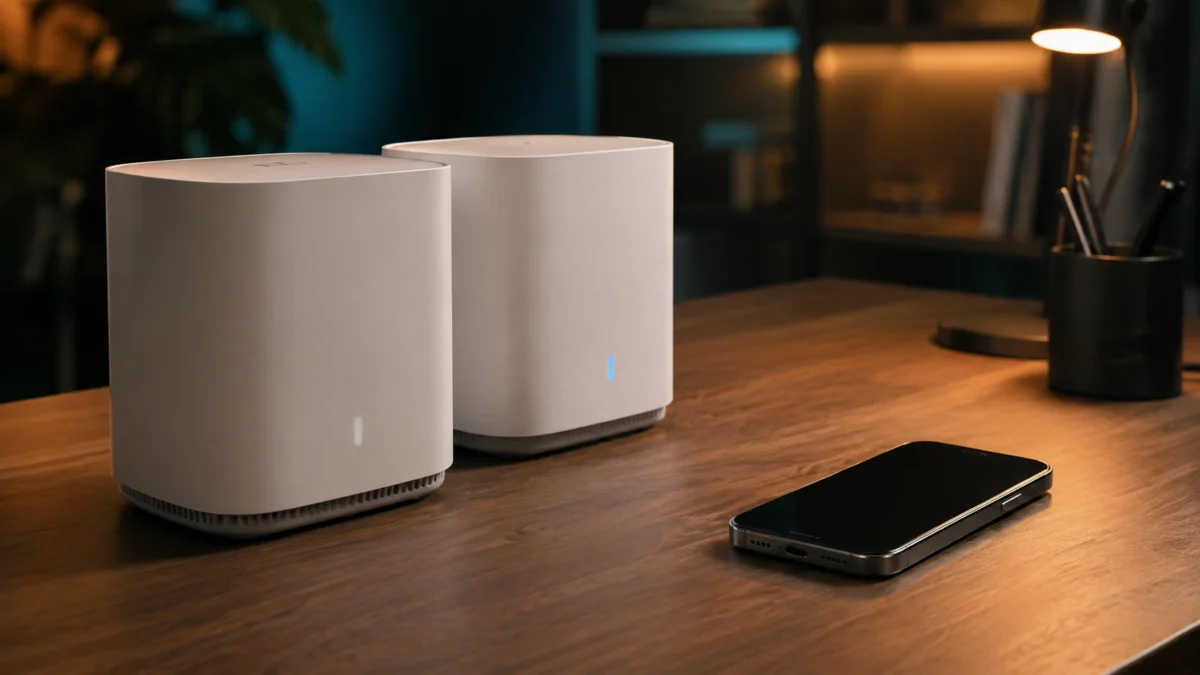
If your ASUS ZenWiFi BQ16 Pro restarts whenever an iPhone 17 Pro or 17 Pro Max joins your network, start by putting every unit in the AiMesh system on the same current official stable firmware. That means the main router and every node, not only the unit showing an update badge. ASUS documents Apple compatibility and AiMesh stability improvements in its October 2025 build, and improved Wi-Fi roaming compatibility and stability for iOS 26 devices in its March 2026 build. The current stable build is the safest baseline for testing, while those earlier release notes show where the documented compatibility improvements entered the firmware line.
Turning off Wi-Fi 7 or MLO, or moving the phone onto a 2.4 GHz IoT network, is a workaround reported repeatedly in community threads. This guide treats it as an isolation step and a temporary measure rather than the fix. A factory reset does not belong near the front of this process either: at least one community report describes restarts continuing after a full reset.
First Confirm Whether the Router Reboots, a Node Reconnects, or Only the iPhone Drops
Three different events look identical from the sofa. Open the Web GUI and check the main router’s uptime. If uptime has reset to zero, the router itself restarted. If a single node dropped and returned, AiMesh re-synced. If every other device stayed online, only the iPhone lost its connection.
Getting this wrong wastes the most time, because each answer sends you somewhere different. Work through the table before changing a single setting.
| What you observe | Most likely event | Where to go next |
|---|---|---|
| Router uptime resets to zero and the whole house loses connectivity | The main router restarted | Firmware alignment, then one-variable isolation |
| Devices near one node drop briefly while the rest stay online | An AiMesh node re-synced or rejoined | Firmware alignment, focused on that node’s build |
| Only the iPhone loses Wi-Fi; laptops and smart home devices are unaffected | A client-side disconnect on the phone | One-variable isolation, starting with Auto-Join |
| Uptime resets on a predictable schedule, with no phone involved | A scheduled reboot or an automatic firmware upgrade | The scheduled-restart and power checks below |
Quick Fix Checklist
Work through these in order. The order matters, because it separates a configuration or power problem from the iPhone-related trigger, so you do not end up disabling a Wi-Fi 7 feature that was never involved in the first place. The checklist takes six steps.
- Confirm whether the main router restarted, a node re-synced, or only the iPhone dropped.
- Record your exact model, the firmware build on every unit, uptime, and the triggering action.
- Save your configuration and export the system log before the next restart.
- Update the main router and every node to the same current official stable build.
- Rule out a scheduled reboot, an automatic firmware upgrade, and a power-supply problem.
- Only then change wireless settings, one variable at a time.
Record Your Model, Topology, Firmware, Uptime, and Logs Before You Change Anything
A restart may remove the most useful pre-reboot context from the system log, so export a copy before the next restart happens. Record your exact model, pack size, the firmware build on every individual unit, current uptime, and the precise conditions that reproduce the restart.
This also prevents the most common misstep here: downloading firmware from the wrong model’s page. Community posts have noted periods when the ZenWiFi BQ16 and the BQ16 Pro received firmware on different dates.
| What to record | Where to find it | Why it matters |
|---|---|---|
| Exact model and pack size | Label on each unit, and the official ASUS product page | BQ16 and BQ16 Pro are separate firmware lines; BE30000 packs contain BQ16 Pro units |
| Firmware build on each unit | Web GUI network map and AiMesh topology view | A node can remain on an older build than the main router without the mismatch being obvious |
| Router uptime | Web GUI system information | The clearest single signal that the main router actually restarted |
| System log | Web GUI, exported before the next restart | Preserves the pre-restart context for ASUS support |
| Saved configuration file | Administration → Restore/Save/Upload Setting | Required before any reset, and the fastest route back if a change makes things worse |
| Reproduction conditions | Your own notes | Phone model, iOS version, SSID, band, and the action that triggers the restart |
Update Every AiMesh Unit to the Current Official Stable Firmware
Update the main router and every node to the same current stable build from ASUS’s official download page. Community reports describe a main router updating itself while a node stayed on the previous build, leaving the system in a mixed-firmware state that is easy to mistake for a finished update.
| Firmware build | Published | What ASUS documents in the release notes |
|---|---|---|
| 3.0.0.6.102_39256 | 2026/05/04 | Security fixes only: remote script execution handling, and a heap buffer overflow during cache handling |
| 3.0.0.6.102_39254 | 2026/03/16 | Improved Wi-Fi roaming compatibility and stability for iOS 26 devices; roaming stability for clients supporting 802.11k but not allowing 11v |
| 3.0.0.6.102_37026 | 2025/10/30 | Improved stability and compatibility with Apple devices and recent OS updates; enhanced AiMesh stability and system reliability |
| 3.0.0.6.102_36998 | 2025/08/13 | Security hardening, carrying a note specific to that build recommending a factory-default reset after installation |
That last row needs one clarification. The factory-reset recommendation belongs to the August 2025 build and the security changes it introduced. It is not a standing requirement for every later update, and it is not advice to reset your system as part of a routine firmware update today.
The fix takes seven steps.
- Confirm your exact model, then open the firmware page for it on the official ASUS ZenWiFi BQ16 Pro support page.
- Save your current configuration under Administration → Restore/Save/Upload Setting.
- Note the build currently reported for the main router and for each node in the Web GUI.
- Update the main router first and let it come fully back online.
- Update each node, then confirm every unit reports the same build string.
- In the ASUS Router app, open Settings → System settings → Schedule Reboot and disable Enable Reboot Schedule if it is on.
- Open Administration → Firmware Upgrade and set Auto Firmware Upgrade to OFF while testing, so an automatic update does not restart the router mid-test.
ASUS’s official troubleshooting article on routers restarting automatically covers the same ground and adds a power-supply check: try a different outlet, confirm the adapter plug is seated firmly, and inspect the cable for damage. An unstable supply restarts a router with no network trigger at all. Take your own safety precautions around any power connection, and consult a qualified electrician if outlet wiring is in question.
Isolate the Trigger with One-Variable SSID, Band, Node, and MLO Tests
Change one variable at a time and write down what happened. If you disable Wi-Fi 7, switch bands, move the phone to a different node, and turn off MLO in a single sitting, you cannot tell which change mattered, and you cannot hand ASUS a reproducible case if the problem persists.
The fix takes six steps.
- Pick one trigger and repeat it consistently: toggle Wi-Fi off and on, or switch between two SSIDs.
- After each attempt, check the router’s uptime rather than trusting the LED.
- Change a single setting, then repeat the trigger. Start with Auto-Join for each SSID on the phone.
- Next, test the phone on a network using neither Wi-Fi 7 nor MLO, such as a 2.4 GHz or 5 GHz IoT network.
- Then test with MLO disabled, under Wireless → MLO → Enable MLO.
- Record each result, and restore the previous setting if it made no difference.
| Variable changed | What you set | Trigger repeated | Did uptime reset? |
|---|---|---|---|
| Baseline | No change | Wi-Fi toggled off and on | |
| Auto-Join | Disabled on one SSID | Same trigger | |
| Network | Phone moved to 2.4/5 GHz IoT network | Same trigger | |
| MLO | Disabled on the main router | Same trigger |
What Users Report About the iPhone 17 Trigger
According to multiple community reports across more than one thread, some users see the main router restart when an iPhone 17 Pro or 17 Pro Max switches networks or rejoins Wi-Fi on arriving home. This does not appear to affect every setup, so check whether your configuration matches before drawing conclusions.
- The trigger is a rejoin, not ordinary traffic. Posters describe stable operation until the phone leaves and returns, or until Wi-Fi is toggled off and on.
- Moving the phone off Wi-Fi 7 and MLO stopped the restarts for several posters across two separate threads, usually via a 2.4 GHz or 5 GHz IoT network. That is isolation evidence, not a permanent fix.
- It is not universal. At least one poster running the same hardware with both an iPhone 17 Pro and a 17 Pro Max reported no restarts, while noting they do not switch networks manually.
- Updating iOS alone did not resolve it for the poster who documented the behaviour in most detail.
- The proposed causes are user interpretations. Suggestions involving the phone’s networking chip, MAC address handling in router logs, or MLO come from individual posters. ASUS has not published a root cause, and none is treated as confirmed here.
Changing MLO can also affect whether 6 GHz appears on mixed-generation AiMesh nodes. If MLO is enabled on the primary router, an AiMesh node that does not support MLO will not broadcast 6 GHz; disabling MLO is ASUS’s documented remedy for that separate behavior. See why 6 GHz can disappear on an ASUS AiMesh node when MLO is enabled.
If the router never restarts and the symptom is an MLO connection dropping on a Windows 11 PC, that is a different problem: separate Wi-Fi 7 MLO disconnection troubleshooting for Windows 11.
Verification and Edge Cases
Confirm any fix by repeating the original trigger several times across a few days, checking uptime each time rather than relying on impressions. Two things commonly go wrong immediately after a firmware update, and both appear repeatedly in community threads.
- A node left on the older build. One reported case had the main router update automatically while the nodes stayed behind, needing a manual update each. Check the build string on every unit.
- A node blinking blue and refusing to rejoin. Reports describe this clearing after rebooting the main router and allowing time for the node to reconnect on its own.
- Uptime resetting with the phone absent. If restarts continue while the iPhone is off or away, revisit the scheduled reboot, automatic upgrade, and power checks.
Confirm the manufacturer’s official specifications for your exact model and region before changing hardware or network settings, and check any rules that apply to your building or connection. Nothing described here can guarantee uninterrupted operation, coverage, or throughput in a given home.
When to Factory-Reset, Contact ASUS, or Replace the Mesh System
A factory reset is not an automatic answer here. One community report describes restarts continuing after a full reset. Save your configuration and logs first, and treat contacting ASUS as the next step rather than the final one.
The fix takes five steps.
- Export your saved configuration file and system log before doing anything destructive.
- Try a standard reset first: hold RESET for five to ten seconds until the power LED flashes.
- If that does not help, follow ASUS’s documented hard factory reset procedure for your specific model rather than improvising.
- Report the problem through the Feedback page inside the router’s own Web GUI, with the router logs attached.
- Supply the minimum reproduction case you recorded: model, build per unit, phone model and iOS version, SSID and band, and the triggering action.
| Where you are | What to do next | When to stop |
|---|---|---|
| Restarts stopped once every unit reached the current build | Keep the configuration and re-enable automatic updates | Stop here; no further changes needed |
| Restarts occur only when the phone joins the Wi-Fi 7 or MLO network | Keep the phone isolated while you work with ASUS | Do not record this as resolved |
| Restarts continue with all units current and a saved configuration | Standard reset, then contact ASUS with logs and your reproduction case | Stop before a hard reset if you cannot afford to rebuild the mesh |
| Restarts continue after reset, support contact, and replacement hardware | Weigh replacing the system against continuing to troubleshoot | Decide on evidence, not frustration |
That last row carries a caution from the reports themselves. One poster returned an entire set on advice that the hardware was defective, then saw identical behaviour on the replacement units. Swapping the same model for the same model is not a diagnosis.
AD: This section contains affiliate links. See the disclosure at the top of this article.
If you have completed every step above, given ASUS a reproducible case, and the system still restarts, replacing it becomes reasonable rather than a first resort. Current Wi-Fi 7 mesh systems span several coverage and price tiers, and the right choice depends more on your home’s size and layout than on peak throughput figures.
✅ Consider replacing if:
- Every unit is on the current stable build and the restarts are still reproducible.
- You have reported the issue with logs and exhausted the support path available to you.
- The workaround you are living with, such as keeping a phone off your main network, is not acceptable long term.
⚠ Hold off on replacing if:
- You have not yet confirmed the firmware build on every node individually.
- You changed several wireless settings at once and cannot say which one mattered.
- The restarts happen without the iPhone present, pointing to a scheduled reboot or a power problem.
Our comparison covers the trade-offs by home size and budget: compare current Wi-Fi 7 mesh systems. Whichever way you go, confirm the manufacturer’s official specifications and regional availability for the exact model before buying, and check the return window in case the same trigger reappears on different hardware.
How We Researched
This article is based on ASUS official firmware release notes and support documentation, which we opened and read directly, together with community reports where the same pattern appeared across more than one thread. We have not conducted hands-on lab testing. Every firmware claim is attributed to a specific published build.
The official sources are the ASUS ZenWiFi BQ16 Pro firmware download page, which supplied the build numbers, dates, and release-note contents in the firmware table, and ASUS’s troubleshooting article on routers restarting automatically, which supplied the scheduled-reboot, automatic-upgrade, reset, and power checks. The community material comes from a MacRumors thread and an ASUS ZenTalk thread in which several separate posters described the same trigger. Single-post claims were not treated as confirmed findings; proposed root causes were kept explicitly attributed.
We did not test, link to, or recommend any beta firmware circulated in those threads. Firmware obtained outside official distribution channels is outside what this guide can verify.
Frequently Asked Questions
Does disabling Wi-Fi 7 or MLO permanently fix this?
No confirmed permanent fix has been published for this specific trigger. Multiple posters found that keeping the phone on a network without Wi-Fi 7 or MLO stopped the restarts, which makes it useful for isolating the variable and usable as a temporary measure. ASUS does not document it as a resolution.
Do I need to update the AiMesh nodes separately from the main router?
Check every unit individually. Community reports include a case where the main router updated automatically while the nodes remained on the previous build, which had to be corrected manually. The Web GUI reports a build string per unit, so verify the number on each rather than assuming a system-wide update completed.
Will updating iOS on the iPhone stop the router from rebooting?
Not on its own, based on the reports available. The poster who documented the behaviour in most detail installed the iOS update suggested at the time and stated it did not resolve the restarts. Keep the phone current regardless, but do not treat an iOS update as the step that closes this issue.
Conclusion
Work in this order: identify which device actually restarted, record your model and per-unit firmware before anything changes, bring every AiMesh unit onto the same current stable build, then isolate the trigger one variable at a time. That sequence catches mixed-build cases early and tells you quickly when you are looking at something else entirely.
The judgement worth holding onto is that firmware alignment comes before wireless settings. Disabling Wi-Fi 7 or MLO is the advice you will see most often, and it does work as an isolation step, but it trades away features you paid for without proving that the root cause has been removed. Reach for it to prove where the trigger lives, not to close the case.